Introduction
Claudian is a groundbreaking Obsidian plugin that transforms your note-taking experience by embedding AI coding agents directly into your vault. With over 6,900 stars on GitHub and growing rapidly, this plugin brings the power of Claude Code and Codex directly into your Obsidian workspace, making your vault the agent’s working directory. This means file read, write, search, bash commands, and multi-step workflows all work seamlessly out of the box.
The plugin represents a paradigm shift in how we interact with AI assistants. Instead of switching between your notes and a separate AI interface, Claudian brings the AI directly into your knowledge management workflow. Your Obsidian vault becomes a living workspace where the AI can read your notes, understand context, make edits, create new files, and execute complex multi-step tasks - all while you maintain full control and visibility.
What sets Claudian apart from other AI integrations is its deep integration with the Obsidian ecosystem. The plugin leverages the full power of the Claude Code CLI and Codex, providing a native experience that feels like a natural extension of your note-taking workflow. Whether you’re writing documentation, organizing research, or developing code snippets within your notes, Claudian acts as an intelligent collaborator that understands your vault’s structure and content.
Architecture Overview
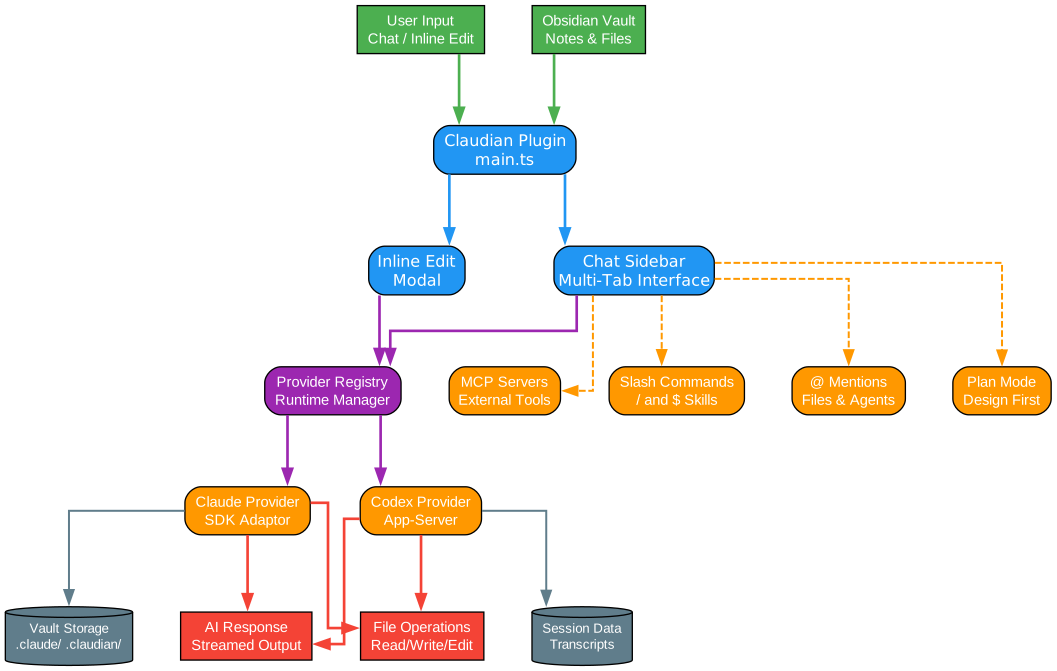
The architecture diagram above illustrates the comprehensive design of Claudian, showcasing how the plugin integrates multiple components to deliver a seamless AI-powered experience within Obsidian. At the top level, user inputs flow through two primary channels: the Chat Sidebar interface and the Inline Edit modal. These entry points capture user intent and context, routing requests through the central Claudian Plugin core (implemented in main.ts) which orchestrates all plugin functionality.
The Chat Sidebar provides a multi-tab interface where users can maintain multiple concurrent conversations with the AI. Each tab operates independently, allowing you to work on different tasks simultaneously. The sidebar supports conversation history, forking conversations to explore alternative approaches, and resuming previous sessions. The Inline Edit modal, on the other hand, enables direct text manipulation within your notes. Select any text, invoke the hotkey, and the AI will edit in-place with word-level diff preview, making it easy to see exactly what changes are being made.
The Provider Registry sits at the heart of the architecture, managing runtime instances for different AI providers. Currently, Claudian supports two providers: Claude (via the Claude SDK) and Codex (via the app-server). The registry abstracts away provider-specific implementation details, presenting a unified ChatRuntime interface to the upper layers. This design allows for easy extensibility - additional providers can be added without modifying the core plugin logic.
Each provider implements its own set of auxiliary services. The Claude provider includes prompt encoding, stream transforms, MCP (Model Context Protocol) management, and agent discovery. The Codex provider implements JSON-RPC transport, session tailing, and skill cataloging. Both providers handle conversation history, session management, and tool execution, but they do so using provider-native approaches that respect each platform’s unique capabilities.
The feature layer includes powerful capabilities like slash commands (both / commands and $ skills), @ mentions for referencing files and agents, plan mode for design-first workflows, and MCP server integration for external tool connectivity. These features enhance the basic chat functionality, transforming it into a comprehensive AI collaboration environment. The storage layer persists settings, session metadata, and conversation history, ensuring your work is never lost and can be resumed at any time.
Provider Architecture
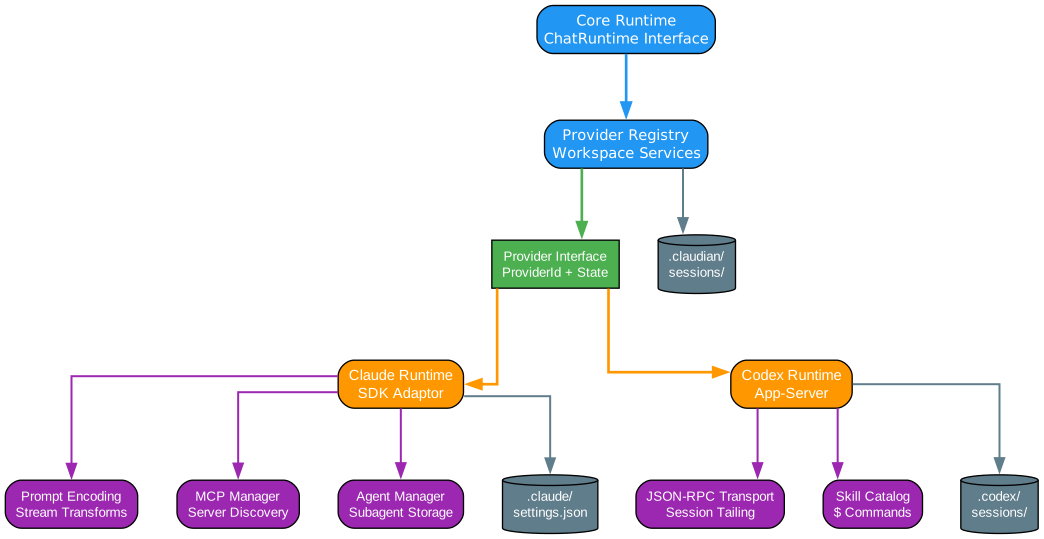
The provider architecture diagram reveals the sophisticated abstraction layer that enables Claudian to support multiple AI backends while maintaining a consistent user experience. The Core Runtime defines the ChatRuntime interface - a provider-neutral contract that specifies how conversations are created, messages are sent, and responses are received. This interface ensures that switching between providers doesn’t require changes to the UI layer.
The Provider Registry manages provider lifecycle and workspace services. When you select a provider in settings, the registry instantiates the appropriate runtime and connects it to the necessary auxiliary services. Each provider maintains its own state through the ProviderState interface, allowing provider-specific data to travel alongside the conversation without polluting the core data structures.
The Claude Provider is the default and most feature-complete implementation. It wraps the Claude Agent SDK, handling prompt encoding, stream parsing, and tool execution. The prompt encoder transforms user input, file context, and conversation history into the format expected by Claude. Stream transforms handle the real-time streaming of responses, parsing tool calls and rendering them appropriately. The MCP Manager discovers and connects to Model Context Protocol servers, enabling Claude to interact with external tools and APIs. The Agent Manager handles subagent discovery and storage, allowing you to create specialized agents for different tasks.
The Codex Provider takes a different approach, using the Codex app-server as its backend. It communicates via JSON-RPC, sending requests and receiving streaming responses. The session tailing feature allows Codex to resume conversations from where they left off, maintaining context across sessions. The skill catalog discovers $ skills from .codex/skills/ and .agents/skills/ directories, making them available as commands within the chat interface.
Storage is provider-specific but coordinated through shared interfaces. Claude stores its settings in .claude/settings.json, while Claudian maintains plugin-wide settings in .claudian/claudian-settings.json. Session metadata is stored in .claudian/sessions/, while provider-native transcripts live in ~/.claude/projects/ for Claude and ~/.codex/sessions/ for Codex. This separation ensures that each provider can maintain its own data format while the plugin provides a unified management interface.
User Workflow

Understanding the user workflow is essential for maximizing productivity with Claudian. The workflow diagram above shows the typical journey from opening Obsidian to receiving AI-powered assistance. It begins with launching Claudian, either through the ribbon icon or the command palette, which opens the chat sidebar in your preferred location.
Once the sidebar is open, you select your interaction mode. The Chat mode provides a conversational interface where you can discuss ideas, ask questions, and request complex operations. The Inline Edit mode, triggered by a hotkey with text selected, enables direct manipulation of your notes. Both modes share the same underlying AI capabilities but present different interfaces optimized for their use cases.
In Chat mode, you enter your prompt along with any context you want to provide. This is where Claudian’s powerful context features come into play. Using @ mentions, you can reference specific files from your vault, subagents you’ve defined, or even files from external directories. The $ prefix lets you invoke skills - reusable prompt templates that encapsulate common workflows. The # prefix adds instruction mode refinements, allowing you to provide additional guidance without cluttering your main prompt.
Plan Mode is a unique feature that changes how the AI approaches your request. When enabled (via Shift+Tab), the agent enters a design-first workflow. Instead of immediately executing, it explores your vault, analyzes relevant files, and formulates a detailed plan. This plan is presented for your approval before any changes are made. This is particularly useful for complex refactoring tasks, multi-file operations, or when you want to understand the scope of changes before committing.
Once the AI begins execution, it has access to a comprehensive toolkit. File operations allow it to read, write, edit, and search files within your vault. MCP tools extend this capability to external APIs and services, enabling integration with databases, web services, and other tools. The AI streams its response in real-time, showing you each step of its process. You can see tool calls being made, files being modified, and reasoning being applied. This transparency builds trust and helps you understand exactly what the AI is doing.
After the response completes, Claudian automatically saves the session to your history. You can resume previous conversations, fork them to explore alternative approaches, or compact them to reduce token usage. This persistence ensures that your AI collaborations are never lost and can be referenced or continued at any time.
Features Deep Dive

The features diagram provides a comprehensive overview of Claudian’s capabilities, organized into logical categories. Each feature is designed to enhance your productivity and integrate seamlessly with your existing Obsidian workflow.
Chat Sidebar is the primary interface for AI interaction. It supports multiple tabs, allowing you to maintain separate conversations for different topics or projects. Each conversation maintains its own history, which you can navigate, search, and resume. The history feature supports forking - creating a branch from any point in the conversation to explore alternative approaches. You can also compact conversations to reduce token usage while preserving the essential context.
Inline Edit brings AI assistance directly into your notes. Select any text and press the hotkey to open the edit modal. The AI sees the selected text (or cursor context if nothing is selected) and can make targeted edits. A live diff preview shows exactly what will change, with word-level highlighting that makes it easy to verify modifications before accepting them. This is perfect for refining paragraphs, fixing code, or transforming text in place.
Slash Commands provide reusable prompt templates. Type / to see available commands, which come from two sources: vault-level commands stored in .claude/commands/ and user-level commands from your configuration. Commands can accept arguments and are perfect for common workflows like “summarize this note” or “extract action items.” The $ prefix accesses Skills - more sophisticated templates that can include multi-step instructions and context loading.
@ Mentions let you attach context to your prompts. @file references a specific file from your vault, loading its contents into the conversation. @agent invokes a subagent - a specialized AI persona you’ve defined for particular tasks. You can also reference files from external directories, making it easy to work with code or documentation outside your vault while keeping everything in context.
Plan Mode fundamentally changes how the AI approaches complex tasks. Instead of executing immediately, the agent enters an exploration phase. It reads relevant files, analyzes dependencies, and formulates a detailed plan. This plan is presented for your review, showing exactly what changes will be made and why. You can approve, modify, or reject the plan before execution begins. This is invaluable for large refactoring operations, multi-file changes, or any task where you want to understand the scope before committing.
MCP Servers extend Claudian’s capabilities through the Model Context Protocol. You can connect external tools via stdio (local processes), SSE (HTTP streams), or HTTP (REST APIs). This enables integration with databases, web services, file systems, and any other tool that exposes an MCP interface. Claude manages MCP configuration in-app, while Codex uses its CLI-managed configuration.
Installation and Setup
Getting started with Claudian is straightforward. The plugin requires Obsidian v1.4.5 or higher and runs on desktop platforms (macOS, Linux, Windows). For the Claude provider, you’ll need the Claude Code CLI installed. Codex is optional but requires the Codex CLI if you want to use it.
From GitHub Release (Recommended):
- Download
main.js,manifest.json, andstyles.cssfrom the latest release - Create a folder called
claudianin your vault’s plugins folder:/path/to/vault/.obsidian/plugins/claudian/ - Copy the downloaded files into the
claudianfolder - Enable the plugin in Obsidian: Settings -> Community plugins -> Enable “Claudian”
Using BRAT:
BRAT (Beta Reviewers Auto-update Tester) allows automatic installation and updates:
- Install BRAT from Obsidian Community Plugins
- Enable BRAT in Settings -> Community plugins
- Open BRAT settings and click “Add Beta plugin”
- Enter:
https://github.com/YishenTu/claudian - Click “Add Plugin” and enable Claudian in Settings -> Community plugins
From Source:
For development or customization:
cd /path/to/vault/.obsidian/plugins
git clone https://github.com/YishenTu/claudian.git
cd claudian
npm install
npm run build
Then enable in Settings -> Community plugins -> Enable “Claudian”
Privacy and Data Use
Claudian is designed with privacy in mind. Your input, attached files, images, and tool call outputs are sent to the API - by default to Anthropic for Claude or OpenAI for Codex, but this is configurable via environment variables. Local storage includes Claudian settings and session metadata in vault/.claudian/, Claude provider files in vault/.claude/, and transcripts in ~/.claude/projects/ (Claude) or ~/.codex/sessions/ (Codex). Importantly, there is no telemetry - no tracking beyond your configured API provider.
Troubleshooting
Claude CLI not found:
If you encounter spawn claude ENOENT or Claude CLI not found, the plugin can’t auto-detect your Claude installation. This is common with Node version managers (nvm, fnm, volta). Find your CLI path and set it in Settings -> Advanced -> Claude CLI path.
| Platform | Command | Example Path |
|---|---|---|
| macOS/Linux | which claude | /Users/you/.volta/bin/claude |
| Windows (native) | where.exe claude | C:\Users\you\AppData\Local\Claude\claude.exe |
| Windows (npm) | npm root -g | {root}\@anthropic-ai\claude-code\cli.js |
npm CLI and Node.js not in same directory:
If using npm-installed CLI, check if claude and node are in the same directory. If different, GUI apps like Obsidian may not find Node.js. Solutions include installing the native binary (recommended) or adding the Node.js path to Settings -> Environment: PATH=/path/to/node/bin.
Development and Architecture
For developers interested in contributing or customizing Claudian, the codebase is well-organized and documented. The architecture follows a layered approach:
| Layer | Purpose | Details |
|---|---|---|
| app | Shared defaults and plugin-level storage | defaultSettings, ClaudianSettingsStorage, SharedStorageService |
| core | Provider-neutral contracts and infrastructure | Runtime, registry, security, commands, MCP, prompt, storage, tools, types |
| providers/claude | Claude SDK adaptor | SDK wrapper, prompt encoding, stream transforms, history hydration, CLI resolution |
| providers/codex | Codex app-server adaptor | JSON-RPC transport, JSONL history, session tailing, skill cataloging |
| features/chat | Main sidebar interface | Tabs, controllers, renderers |
| features/inline-edit | Inline edit modal | Provider-backed edit services |
| features/settings | Settings shell | Provider tabs, configuration UI |
| shared | Reusable UI components | Dropdowns, modals, mention UI, icons |
| i18n | Internationalization | 10 locales supported |
| utils | Cross-cutting utilities | env, path, markdown, diff, context, file-link, image, browser, canvas, session |
| style | Modular CSS | Component-based styling |
The development workflow follows TDD principles. For new behavior or bug fixes, write the failing test first in the mirrored tests/ path, make it pass, then refactor. Run npm run typecheck && npm run lint && npm run test && npm run build after editing. No console.* in production code, and non-committed notes go in .context/.
Conclusion
Claudian represents a significant advancement in AI-assisted knowledge management. By embedding Claude Code and Codex directly into Obsidian, it transforms your vault from a static note repository into a dynamic workspace where AI can read, write, search, and execute complex workflows. The multi-provider architecture ensures flexibility, while features like plan mode, @ mentions, slash commands, and MCP integration provide powerful tools for productivity.
Whether you’re a researcher organizing literature, a developer managing code snippets, or a knowledge worker building a personal knowledge base, Claudian offers a seamless AI collaboration experience. The plugin’s architecture is robust and extensible, with clear separation between providers, features, and core functionality. With active development and a growing community, Claudian is poised to become an essential tool for anyone serious about AI-enhanced productivity in Obsidian.
The combination of Obsidian’s flexible note-taking capabilities with Claude’s advanced reasoning and Codex’s coding prowess creates a uniquely powerful environment. Your vault becomes more than just a collection of notes - it becomes an intelligent workspace where AI understands your context, respects your workflow, and helps you accomplish more with less friction. As AI assistants continue to evolve, Claudian positions Obsidian users at the forefront of this transformation, ready to leverage new capabilities as they emerge.
Star History
Claudian has seen remarkable growth since its release, quickly accumulating over 6,900 stars on GitHub. This rapid adoption reflects the community’s recognition of its value in bridging AI capabilities with personal knowledge management. The active development cycle, responsive issue handling, and clear roadmap demonstrate the project’s commitment to continuous improvement.
Acknowledgments
Claudian builds upon the excellent work of several projects. Obsidian provides the plugin API that makes this integration possible. Anthropic created Claude and the Claude Agent SDK that powers the primary provider. OpenAI developed Codex, the alternative provider option. The open-source community has contributed valuable feedback, bug reports, and feature suggestions that have shaped Claudian’s development.
License
Claudian is licensed under the MIT License, making it free to use, modify, and distribute. This permissive license encourages community contributions and allows for integration into both personal and commercial projects.
For more information, visit the Claudian GitHub repository or join the community discussions to share your experience and contribute to the project’s development. Enjoyed this post? Never miss out on future posts by following us 
