Claude Desktop for Debian: Native Linux Packaging with MCP, Cowork Mode, and Multi-Architecture Support
Anthropic’s Claude Desktop application has become one of the most popular AI assistants, but for the longest time it was only officially available for Windows and macOS. Linux users – developers, researchers, and system administrators who rely on Linux as their primary operating system – were left without a native option. The aaddrick/claude-desktop-debian project changes that by providing build scripts to run Claude Desktop natively on Linux systems, repackaging the official Windows application for Debian, RPM, AppImage, AUR, and Nix distributions.
With over 3,300 GitHub stars and growing rapidly, this project has become the de facto standard for running Claude Desktop on Linux. It supports both amd64 and arm64 architectures, includes full Model Context Protocol (MCP) integration, system tray and global hotkey support, and an experimental Cowork mode with pluggable sandbox isolation. In this post, we will explore how the project works, its architecture, installation methods, and the innovative Cowork mode that brings sandboxed AI agent execution to Linux.
Understanding the Build Architecture
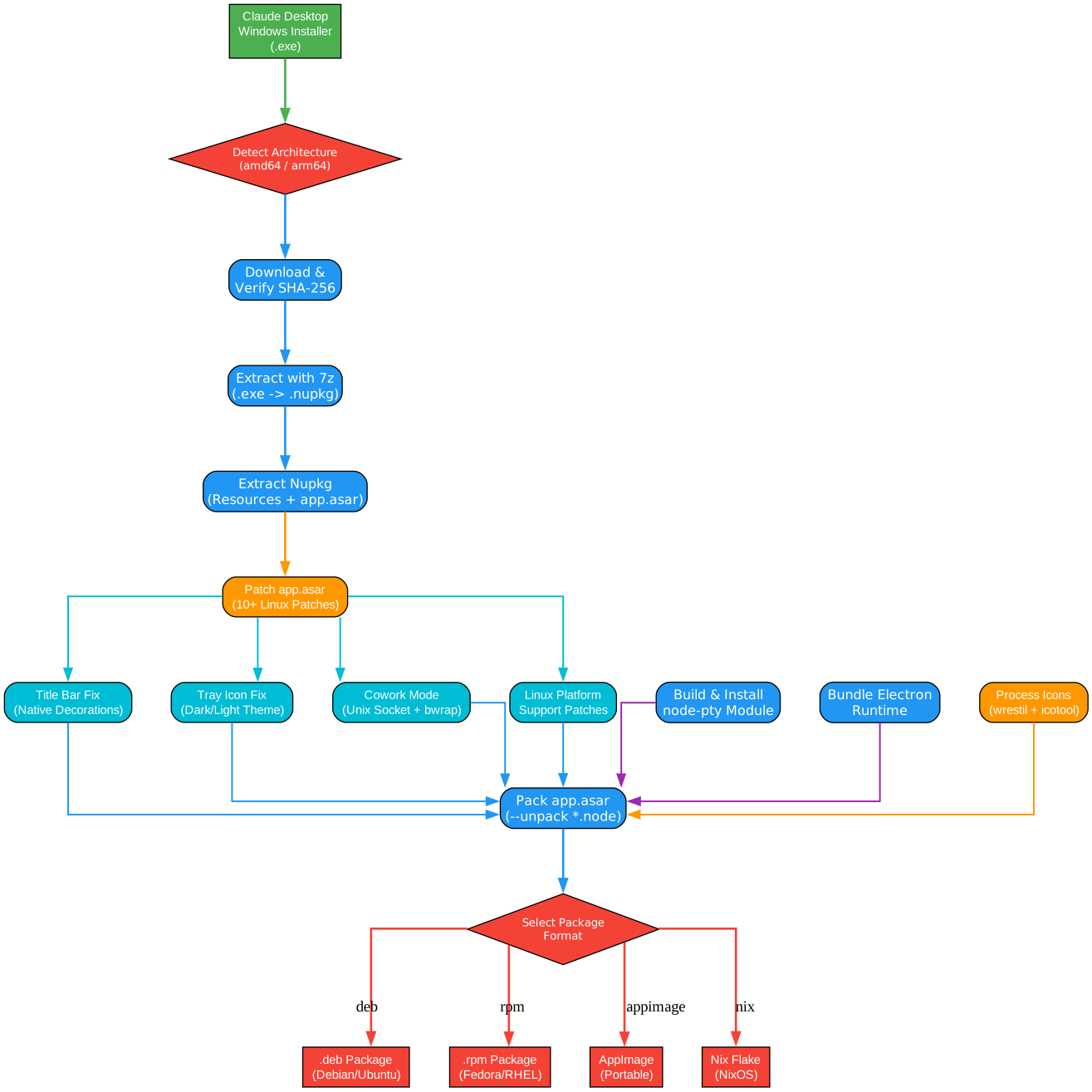
The build architecture diagram above illustrates the complete pipeline that transforms the official Windows Claude Desktop installer into native Linux packages. Let us break down each stage of this pipeline:
Stage 1: Download The build process begins by downloading the official Windows installer (Claude-Setup.exe) from Anthropic’s servers. A GitHub Actions workflow runs daily to check for new releases, using Playwright to resolve Cloudflare-protected download redirects. When a new version is detected, the automation updates the download URLs and triggers a rebuild. This ensures the repository stays current with every official release without manual intervention.
Stage 2: Extract The Windows installer is an Electron application packaged as an NSIS executable. The build script extracts the application resources from this installer, including the main app.asar archive, native modules, and icon assets. The extraction process handles both the application code and the embedded Electron binary, which forms the runtime foundation for the Linux version.
Stage 3: Patch This is the most critical stage. The extracted application contains Windows-specific native modules and platform checks that prevent it from running on Linux. The patching process replaces Windows-specific binaries with Linux-compatible implementations:
- The
@ant/claude-swiftnative addon (macOS-only) is replaced with the TypeScript VM client - Platform checks in the minified JavaScript are patched to recognize Linux as a supported OS
- The Cowork mode VM service is adapted to use Unix domain sockets instead of Windows named pipes
- Native module stubs are created for Linux compatibility
Stage 4: Bundle After patching, the application is bundled with Linux-specific launchers, desktop integration files (.desktop entries), icon assets scaled for various desktop environments, and the Cowork VM service daemon. The bundling stage also handles architecture-specific concerns for both amd64 and arm64.
Stage 5: Package The final stage produces distribution-specific packages:
.debpackages for Debian, Ubuntu, and derivatives with proper dependency declarations.rpmpackages for Fedora, RHEL, and CentOS with appropriate spec files.AppImageportable executables that work across distributions- Nix derivations integrated into the project’s flake for NixOS users
This multi-stage pipeline ensures that every release is reproducible, automatically updated, and available across all major Linux packaging formats.
Key Features

Understanding the Key Features
The features diagram above highlights the core capabilities that make Claude Desktop for Linux a comprehensive and production-ready solution. Let us examine each feature in detail:
Native Linux Support Unlike running Claude Desktop through Wine or a virtual machine, this project provides a truly native experience. The Electron application runs directly on the Linux kernel with proper display server integration for both X11 and Wayland (via XWayland). This means better performance, lower resource usage, and seamless integration with your desktop environment. The application respects your system’s theme, font rendering, and input method frameworks including IBus and Fcitx5 for CJK input.
MCP (Model Context Protocol) Integration Full Model Context Protocol support is included, allowing Claude Desktop to connect with external tools, data sources, and services. MCP configuration is stored in ~/.config/Claude/claude_desktop_config.json and works identically to the official Windows and macOS versions. This enables powerful workflows where Claude can interact with your local development tools, databases, APIs, and custom services through standardized MCP servers.
System Tray Integration The application integrates with your desktop environment’s system tray, providing quick access to common actions. On GNOME and other desktop environments that use AppIndicator, the tray icon works natively. This allows you to keep Claude running in the background and bring it forward with a single click.
Global Hotkey (Ctrl+Alt+Space) A global hotkey lets you summon Claude Desktop from anywhere on your system. Press Ctrl+Alt+Space to bring up a quick popup where you can type a question and get an instant response without switching away from your current application. This feature works on X11 and via XWayland on Wayland sessions. Note that native Wayland mode does not support global hotkeys due to Electron/Chromium limitations with the XDG GlobalShortcuts Portal.
Cowork Mode with Sandbox Isolation Cowork mode is Claude Desktop’s agent execution feature, and on Linux it comes with pluggable sandbox isolation. Three backends are available: bubblewrap (namespace sandbox), KVM/QEMU (full VM isolation), and host (no isolation, fallback). The best available backend is auto-detected at startup, and you can check which one will be used with the --doctor command. This is a significant security enhancement over running agents directly on the host.
–doctor Diagnostics A built-in diagnostic command runs 10 checks covering installed version, display server detection, Electron binary integrity, Chrome sandbox permissions, stale lock files, MCP configuration validity, Node.js version, desktop entry presence, disk space, and log file size. When opening an issue, including the --doctor output helps maintainers diagnose problems quickly.
Multi-Architecture (amd64/arm64) Both x86_64 (amd64) and AArch64 (arm64) architectures are supported, making Claude Desktop available on ARM-based Linux devices including Raspberry Pi, Apple Silicon Macs running Linux, and ARM cloud instances. The build system produces separate packages for each architecture with appropriate native module replacements.
Auto-Updates For APT and DNF repository installations, updates are delivered automatically through your system’s package manager. When a new version of Claude Desktop is released, the daily GitHub Actions workflow detects it, rebuilds the packages, and publishes them to the repository. You simply run sudo apt upgrade or sudo dnf upgrade to stay current.
Installation
Understanding the Installation Workflow
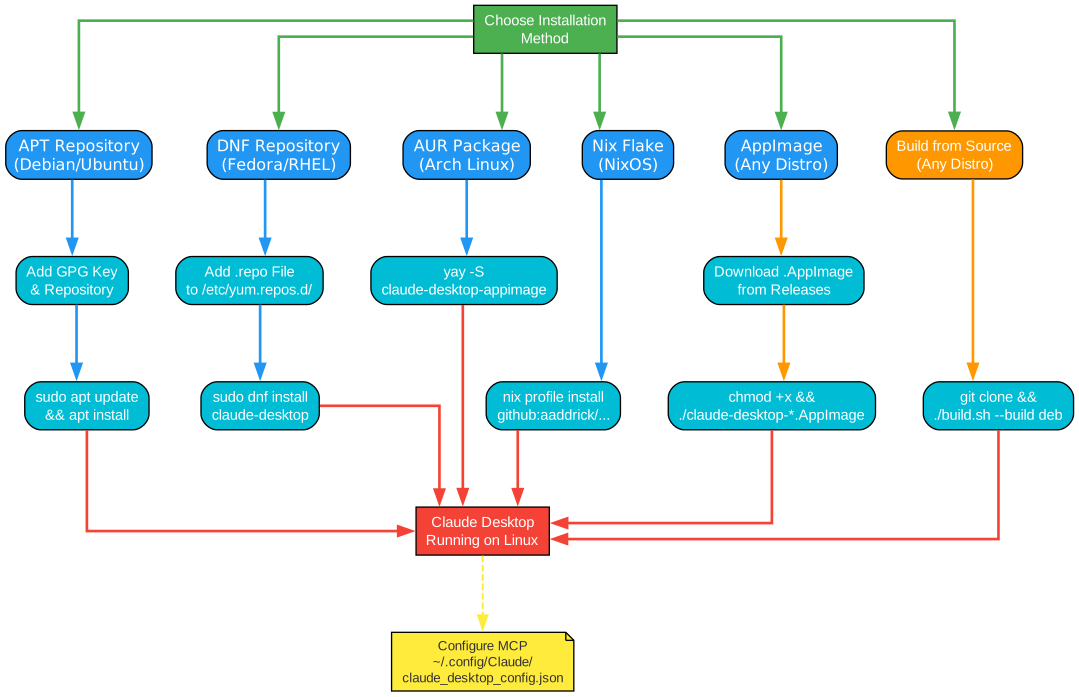
The installation workflow diagram above shows the multiple paths available for installing Claude Desktop on Linux, each tailored to a specific distribution or preference. Let us walk through each method:
APT Repository (Debian/Ubuntu) – Recommended The APT repository method is the recommended installation path for Debian and Ubuntu users. It adds a signed repository to your system, which means future updates arrive automatically through your regular system update process. The GPG key ensures package authenticity, and the repository serves both amd64 and arm64 packages. Once installed, running sudo apt upgrade will keep Claude Desktop up to date alongside your other system packages.
# Add the GPG key
curl -fsSL https://aaddrick.github.io/claude-desktop-debian/KEY.gpg | sudo gpg --dearmor -o /usr/share/keyrings/claude-desktop.gpg

# Add the repository
echo "deb [signed-by=/usr/share/keyrings/claude-desktop.gpg arch=amd64,arm64] https://aaddrick.github.io/claude-desktop-debian stable main" | sudo tee /etc/apt/sources.list.d/claude-desktop.list

# Update and install
sudo apt update
sudo apt install claude-desktop
DNF Repository (Fedora/RHEL) – Recommended For Fedora and RHEL users, the DNF repository provides the same automatic update experience. The repository configuration file is hosted alongside the packages, making setup straightforward:
# Add the repository
sudo curl -fsSL https://aaddrick.github.io/claude-desktop-debian/rpm/claude-desktop.repo -o /etc/yum.repos.d/claude-desktop.repo

# Install
sudo dnf install claude-desktop
AUR (Arch Linux) Arch Linux users can install via the AUR using their preferred AUR helper. The claude-desktop-appimage package is automatically updated with each release:
# Using yay
yay -S claude-desktop-appimage

# Or using paru
paru -S claude-desktop-appimage
Nix Flake (NixOS) NixOS users have first-class support through the project’s flake. Two variants are available: the standard package and an FHS-wrapped variant that provides a complete filesystem hierarchy for MCP server compatibility:
# Basic install
nix profile install github:aaddrick/claude-desktop-debian

# With MCP server support (FHS environment)
nix profile install github:aaddrick/claude-desktop-debian#claude-desktop-fhs
For declarative NixOS configuration, add the flake input and overlay to your system configuration. This ensures Claude Desktop is included in your system profile and rebuilt atomically with the rest of your system.
AppImage (Distribution-Agnostic) The AppImage format provides a portable, single-file executable that works on virtually any Linux distribution. Download it from the GitHub Releases page, make it executable, and run:
# Download the latest AppImage
chmod +x ./claude-desktop-*.AppImage
./claude-desktop-*.AppImage
For better desktop integration, use Gear Lever to manage AppImage installations, automatic updates, and menu entries.
Building from Source For users who prefer to build from source or need custom modifications, the build script handles everything automatically:
# Clone the repository
git clone https://github.com/aaddrick/claude-desktop-debian.git
cd claude-desktop-debian

# Build with auto-detected format (based on your distro)
./build.sh

# Or specify a format explicitly:
./build.sh --build deb       # Debian/Ubuntu .deb package
./build.sh --build rpm       # Fedora/RHEL .rpm package
./build.sh --build appimage  # Distribution-agnostic AppImage
./build.sh --build nix       # Nix derivation (patch only, used by flake)
The build script automatically detects your distribution and selects the appropriate package format. It handles dependency checking, resource extraction, native module replacement, icon processing, and package generation.
Cowork Mode Architecture
Understanding the Cowork Mode Architecture
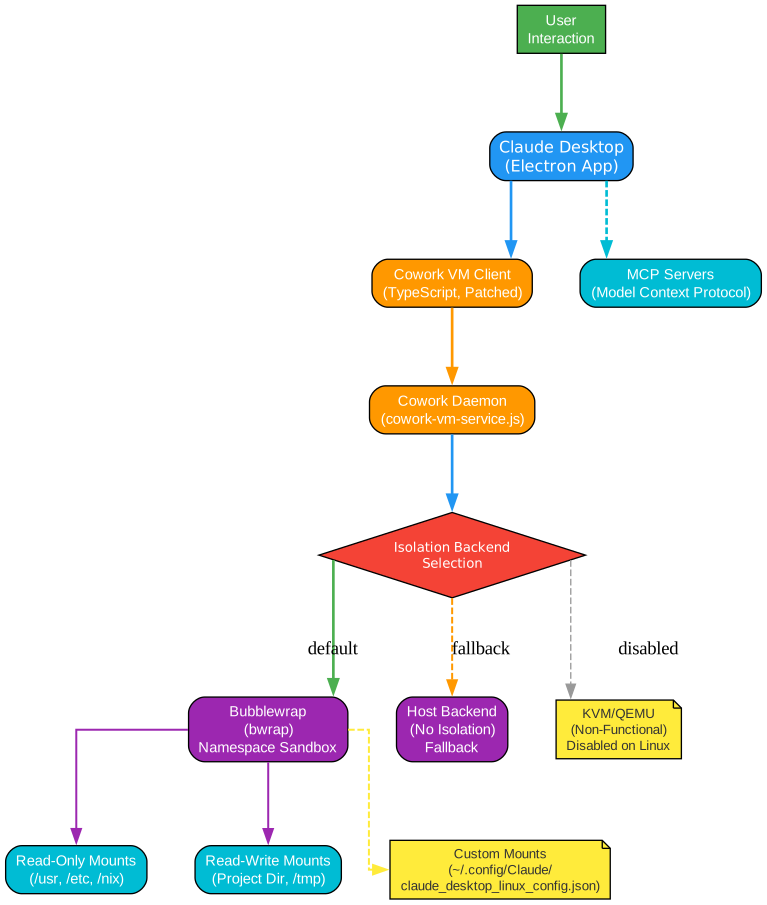
The Cowork mode architecture diagram above reveals the sophisticated multi-layered system that enables Claude Desktop’s agent execution feature on Linux. This is one of the most technically interesting aspects of the project, involving IPC protocols, sandbox isolation, and pluggable backend architectures. Let us explore each component:
Electron Application Layer At the top of the architecture sits the Claude Desktop Electron application. When a user initiates a Cowork session, the application’s TypeScript VM client (patched to work on Linux instead of the macOS-only @ant/claude-swift native addon) sends requests through a length-prefixed JSON protocol over a Unix domain socket. This is the same protocol used on Windows (where it uses named pipes), adapted for Linux’s IPC model. The socket lives at $XDG_RUNTIME_DIR/cowork-vm-service.sock.
Service Daemon (cowork-vm-service.js) The service daemon is a Node.js process that runs independently from the Electron application. It listens on the Unix domain socket and implements the full VM management protocol. The daemon is designed as a thin dispatcher (VMManager) that delegates all operations to a pluggable backend. This architecture allows the same protocol interface to work across dramatically different isolation strategies. The daemon handles methods like configure, createVM, startVM, stopVM, spawn, kill, writeStdin, isProcessRunning, mountPath, readFile, installSdk, and addApprovedOauthToken. Events flow back to the Electron app through a persistent subscribeEvents connection, broadcasting stdout, stderr, exit, error, networkStatus, and apiReachability events.
Backend Selection and Auto-Detection The detectBackend() function selects the active backend at daemon startup based on system capabilities. The priority order is:
-
BwrapBackend (default) – Uses bubblewrap (
bwrap) to create a namespace sandbox. This is the default whenbwrapis installed and functional. The sandbox mounts the root filesystem as read-only, with only the project working directory mounted read-write. It uses--unshare-pid,--die-with-parent, and--new-sessionflags for process isolation. This provides strong namespace-level isolation without the overhead of a full virtual machine. -
KvmBackend (opt-in) – Uses QEMU/KVM to run a full Linux virtual machine with hardware-accelerated virtualization. This provides the strongest isolation – a completely separate kernel and userspace. It uses virtio-vsock for host-to-guest communication, virtiofsd for directory sharing, and socat to bridge Unix sockets to vsock. Each session creates an overlay disk backed by the base rootfs image, ensuring the base image is never modified. Graceful shutdown follows a careful sequence: ACPI power-down, then QMP quit, then SIGKILL as a last resort.
-
HostBackend (fallback) – Runs Claude Code CLI directly on the host with no isolation. This is the fallback when neither bwrap nor KVM is available. It should only be used when you understand and accept the security implications of running AI-generated commands without any sandboxing.
You can override auto-detection with the COWORK_VM_BACKEND environment variable:
# Force a specific backend
COWORK_VM_BACKEND=bwrap ./claude-desktop-*.AppImage
COWORK_VM_BACKEND=kvm ./claude-desktop-*.AppImage
COWORK_VM_BACKEND=host ./claude-desktop-*.AppImage
Bubblewrap Sandbox Details The BwrapBackend creates a carefully constructed sandbox environment:
bwrap --ro-bind / / --dev /dev --proc /proc --tmpfs /tmp --tmpfs /run \
      --bind $workDir $workDir --unshare-pid --die-with-parent --new-session
This mounts the entire root filesystem as read-only, creates fresh /dev and /proc mounts, uses tmpfs for /tmp and /run, and only allows write access to the project working directory. Users can customize mount points through ~/.config/Claude/claude_desktop_linux_config.json:
{
  "preferences": {
    "coworkBwrapMounts": {
      "additionalROBinds": ["/opt/my-tools", "/nix/store"],
      "additionalBinds": ["/home/user/shared-data"],
      "disabledDefaultBinds": ["/etc"]
    }
  }
}
Security constraints are enforced: paths like /, /proc, /dev, /sys are always rejected; read-write mounts are restricted to paths under the home directory; and the core sandbox structure cannot be modified.
KVM/QEMU Virtual Machine Details For users who need full VM isolation, the KvmBackend orchestrates a complete QEMU virtual machine:
qemu-system-x86_64 \
  -enable-kvm \
  -m ${memoryGB}G \
  -cpu host \
  -smp ${cpuCount} \
  -nographic \
  -kernel ${VM_BASE_DIR}/vmlinuz \
  -initrd ${VM_BASE_DIR}/initrd \
  -append "root=/dev/vda1 console=ttyS0 quiet" \
  -drive file=${sessionDir}/overlay.qcow2,format=qcow2,if=virtio \
  -device vhost-vsock-pci,guest-cid=${cid} \
  -qmp unix:${sessionDir}/qmp.sock,server,nowait \
  -netdev user,id=net0 \
  -device virtio-net-pci,netdev=net0
Each session creates a qcow2 overlay disk backed by the base rootfs image, so the base image is never modified. Guest CIDs are allocated incrementally starting at 3, and virtiofsd shares the host’s home directory to the guest via the hostshare tag.
Configuration
Claude Desktop for Linux provides several configuration options beyond the standard MCP settings:
MCP Configuration
Model Context Protocol settings are stored in the standard location:
~/.config/Claude/claude_desktop_config.json
Environment Variables
| Variable | Default | Description |
|---|---|---|
CLAUDE_USE_WAYLAND | unset | Set to 1 to use native Wayland instead of XWayland. Note: Global hotkeys will not work in native Wayland mode. |
CLAUDE_MENU_BAR | unset (auto) | Controls menu bar behavior: auto (hidden, Alt toggles), visible/1 (always shown), hidden/0 (always hidden). |
COWORK_VM_BACKEND | auto-detected | Override Cowork isolation backend: bwrap, kvm, or host. |
Wayland Support
By default, Claude Desktop uses X11 mode (via XWayland) on Wayland sessions to ensure global hotkeys work. If you prefer native Wayland and do not need global hotkeys:
# One-time launch
CLAUDE_USE_WAYLAND=1 claude-desktop

# Or add to your environment permanently
export CLAUDE_USE_WAYLAND=1
Menu Bar Configuration
The menu bar behavior can be controlled with CLAUDE_MENU_BAR:
| Value | Menu visible | Alt toggles | Use case |
|---|---|---|---|
unset / auto | No | Yes | Default – hidden, Alt toggles |
visible / 1 / true / yes / on | Yes | No | Stable layout, no shift on Alt |
hidden / 0 / false / no / off | No | No | Menu fully disabled, Alt free |
# Always show the menu bar (no layout shift on Alt)
CLAUDE_MENU_BAR=visible claude-desktop
Cowork Sandbox Mounts
Customize the bubblewrap sandbox mount points via a dedicated Linux configuration file:
// ~/.config/Claude/claude_desktop_linux_config.json
{
  "preferences": {
    "coworkBwrapMounts": {
      "additionalROBinds": ["/opt/my-tools", "/nix/store"],
      "additionalBinds": ["/home/user/shared-data"],
      "disabledDefaultBinds": ["/etc"]
    }
  }
}
After editing the configuration, restart the daemon:
pkill -f cowork-vm-service
The daemon will be automatically relaunched on the next Cowork session.
Diagnostics and Troubleshooting
The --doctor command is your first line of defense for troubleshooting. It runs 10 checks and prints pass/fail results with suggested fixes:
claude-desktop --doctor
The checks cover:
| Check | What it verifies |
|---|---|
| Installed version | Package version via dpkg |
| Display server | Wayland/X11 detection and mode |
| Electron binary | Existence and version |
| Chrome sandbox | Correct permissions (4755/root) |
| SingletonLock | Stale lock file detection |
| MCP config | JSON validity and server count |
| Node.js | Version (v20+ recommended for MCP) |
| Desktop entry | .desktop file presence |
| Disk space | Free space on config partition |
| Log file | Log file size |
The --doctor output also reports which Cowork isolation backend will be used and which dependencies are installed or missing, with distro-specific install commands.
Common Issues
Window Scaling Issues: If the window does not scale correctly on first launch, right-click the tray icon, select “Quit” (do not force quit), and restart the application.
Global Hotkey Not Working on Wayland: Ensure you are not running in native Wayland mode. Check your logs for “Using X11 backend via XWayland” which means hotkeys should work. If you see “Using native Wayland backend”, unset CLAUDE_USE_WAYLAND.
Authentication Errors (401): If you encounter recurring “API Error: 401” messages, the cached OAuth token may need to be cleared:
- Close Claude Desktop completely
- Edit
~/.config/Claude/config.json - Remove the line containing
"oauth:tokenCache" - Save and restart Claude Desktop
- Log in again when prompted
Application Logs: Runtime logs are available at ~/.cache/claude-desktop-debian/launcher.log.
Getting Started
Here is a quick-start guide to get Claude Desktop running on your Linux system:
Step 1: Install Claude Desktop
Choose the method that matches your distribution:
# Debian/Ubuntu (recommended - auto-updates)
curl -fsSL https://aaddrick.github.io/claude-desktop-debian/KEY.gpg | sudo gpg --dearmor -o /usr/share/keyrings/claude-desktop.gpg
echo "deb [signed-by=/usr/share/keyrings/claude-desktop.gpg arch=amd64,arm64] https://aaddrick.github.io/claude-desktop-debian stable main" | sudo tee /etc/apt/sources.list.d/claude-desktop.list
sudo apt update
sudo apt install claude-desktop

# Fedora/RHEL (recommended - auto-updates)
sudo curl -fsSL https://aaddrick.github.io/claude-desktop-debian/rpm/claude-desktop.repo -o /etc/yum.repos.d/claude-desktop.repo
sudo dnf install claude-desktop

# Arch Linux (AUR)
yay -S claude-desktop-appimage

# NixOS
nix profile install github:aaddrick/claude-desktop-debian
Step 2: Run Diagnostics
After installation, verify everything is working:
claude-desktop --doctor
This checks your display server, sandbox permissions, MCP configuration, and more. All checks should pass.
Step 3: Install Bubblewrap for Cowork Mode (Recommended)
For sandbox isolation in Cowork mode, install bubblewrap:
# Debian/Ubuntu
sudo apt install bubblewrap

# Fedora/RHEL
sudo dnf install bubblewrap

# Arch Linux
sudo pacman -S bubblewrap
Step 4: Configure MCP (Optional)
Add MCP servers to extend Claude’s capabilities:
// ~/.config/Claude/claude_desktop_config.json
{
  "mcpServers": {
    "filesystem": {
      "command": "npx",
      "args": ["-y", "@modelcontextprotocol/server-filesystem", "/home/user/projects"]
    }
  }
}
Step 5: Launch and Use
Launch Claude Desktop from your application menu or by running claude-desktop in the terminal. Use Ctrl+Alt+Space for the global hotkey popup.
Conclusion
The aaddrick/claude-desktop-debian project fills a critical gap in the AI assistant ecosystem by bringing Claude Desktop to Linux users natively. Its sophisticated build pipeline transforms the Windows installer into native packages for every major distribution, while the pluggable Cowork mode architecture provides security-conscious sandboxing options ranging from namespace isolation to full VM isolation.
The project’s commitment to automatic updates, multi-architecture support, and comprehensive diagnostics through --doctor makes it a production-ready solution. Whether you are a developer using Claude for code review, a researcher analyzing data, or a system administrator managing infrastructure, this project gives you native access to one of the most capable AI assistants available – right on your Linux desktop.
With an active community of contributors, daily automated release tracking, and support for five different installation methods (APT, DNF, AUR, Nix, and AppImage), Claude Desktop for Linux is well-positioned to remain the standard way to run Claude on Linux for the foreseeable future.
Links:
- GitHub Repository: https://github.com/aaddrick/claude-desktop-debian
- Releases: https://github.com/aaddrick/claude-desktop-debian/releases
-
Documentation: Building Configuration Troubleshooting

Enjoyed this post? Never miss out on future posts by following us


