MarkItDown: Microsoft’s Document to Markdown Converter
In the era of Large Language Models (LLMs) and text analysis pipelines, the ability to convert various document formats into a unified, machine-readable format has become increasingly important. Microsoft’s MarkItDown is a lightweight Python utility designed specifically for this purpose - converting diverse file formats into clean, structured Markdown that can be easily consumed by LLMs and text analysis tools.
What is MarkItDown?
MarkItDown is an open-source Python library developed by Microsoft’s AutoGen team that provides a unified interface for converting multiple document formats to Markdown. Unlike traditional document converters that focus on visual fidelity for human consumption, MarkItDown prioritizes preserving document structure and content in a format optimized for machine processing.
The library supports an impressive range of input formats including PDF, PowerPoint, Word, Excel, images, audio files, HTML, and more. Its output is designed to be token-efficient while maintaining the essential structural elements that LLMs understand natively - headings, lists, tables, and links.
Understanding the Architecture
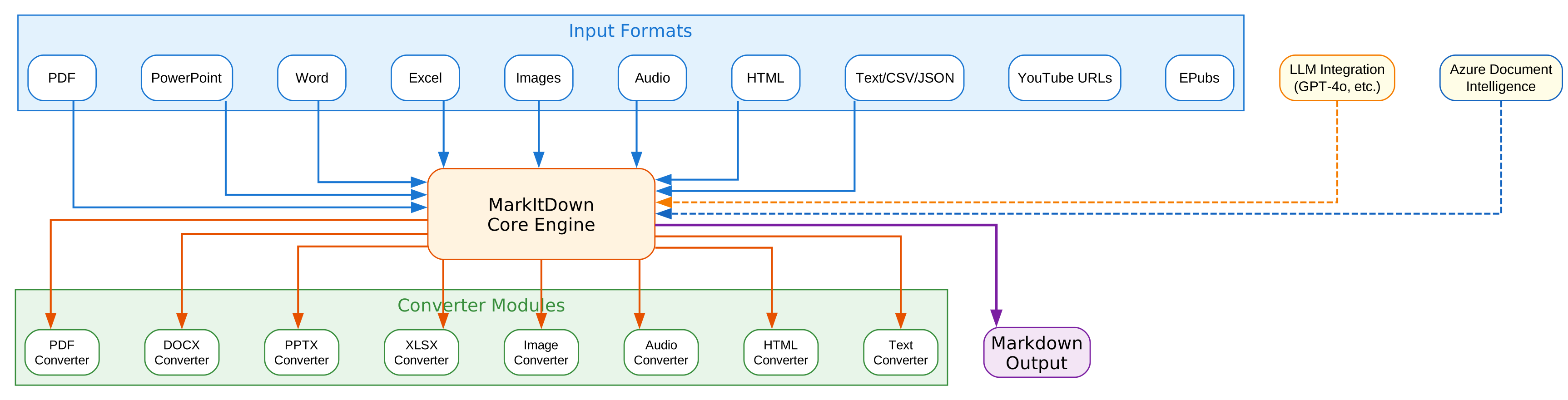
The architecture diagram above illustrates the core components and their interactions within MarkItDown. Let’s break down each component in detail:
Input Formats Layer
The input layer represents the diverse range of document formats that MarkItDown can process. This includes traditional office documents like PDF, PowerPoint (PPTX), Word (DOCX), and Excel (XLSX), as well as modern formats like HTML, JSON, CSV, and XML. The library also handles media files including images (with EXIF metadata and OCR capabilities) and audio files (with transcription support).
Each input format has specific characteristics that require tailored parsing approaches. For instance, PDF documents may contain embedded images that need OCR processing, while Excel files require table structure preservation. The input layer abstracts these format-specific details, providing a consistent interface for the conversion pipeline.
Core Engine
At the heart of MarkItDown lies the Core Engine, which orchestrates the entire conversion process. This component is responsible for:
-
Format Detection: Automatically identifying the input file type based on file extensions and content analysis. This eliminates the need for users to manually specify the format, making the API more intuitive.
-
Converter Selection: Routing the input to the appropriate converter module based on the detected format. The engine maintains a registry of available converters and their capabilities.
-
Stream Processing: Handling file-like objects efficiently without creating temporary files. This design choice improves performance and reduces disk I/O, especially important when processing large batches of documents.
-
Plugin Management: Supporting third-party plugins that extend the core functionality. Plugins are disabled by default but can be enabled for specialized use cases like enhanced OCR processing.
Converter Modules
The converter modules are specialized components that handle the actual transformation of specific file formats to Markdown. Each converter is designed to:
- Extract text content while preserving structural elements
- Handle format-specific features (e.g., tables in Excel, slides in PowerPoint)
- Generate appropriate Markdown syntax for each element type
- Manage embedded resources like images and links
The modular design allows for easy extension and maintenance. New converters can be added without modifying the core engine, and existing converters can be updated independently.
LLM Integration
One of MarkItDown’s most powerful features is its integration with Large Language Models. When processing images or complex documents, the library can leverage LLM capabilities (such as GPT-4o) to:
- Generate descriptive text for images
- Extract text from embedded images via OCR
- Provide intelligent summaries of complex content
- Handle ambiguous or poorly formatted content
This integration uses a client/model pattern, allowing users to specify their preferred LLM provider and model. The llm_client and llm_model parameters provide flexibility for different use cases and budget constraints.
Azure Document Intelligence
For enterprise users, MarkItDown offers integration with Azure Document Intelligence, Microsoft’s cloud-based document processing service. This integration provides:
- Advanced OCR capabilities with higher accuracy
- Layout analysis for complex documents
- Table extraction with structure preservation
- Form and receipt processing
The Azure integration is particularly useful for processing scanned documents or images with complex layouts that benefit from cloud-scale processing power.
Output Layer
The final component is the Markdown output, which is designed to be:
- Token-Efficient: Minimizing unnecessary markup while preserving essential structure
- LLM-Friendly: Using formatting conventions that LLMs understand natively
- Human-Readable: Still presentable for human review when needed
- Structure-Preserving: Maintaining headings, lists, tables, and links in a semantic format
Why Markdown?
Markdown is extremely close to plain text, with minimal markup or formatting, but still provides a way to represent important document structure. Mainstream LLMs, such as OpenAI’s GPT-4o, natively “speak” Markdown, and often incorporate Markdown into their responses unprompted. This suggests that they have been trained on vast amounts of Markdown-formatted text, and understand it well. As a side benefit, Markdown conventions are also highly token-efficient.

Understanding the Conversion Pipeline
The conversion pipeline diagram demonstrates how MarkItDown processes documents from input to output. Let’s examine each stage in detail:
Stage 1: Input File
The pipeline begins with the input file, which can be any of the supported formats. MarkItDown accepts files through multiple interfaces:
- File Paths: Direct file system paths to documents
- File-like Objects: Binary streams (important for the
convert_stream()method) - URLs: YouTube URLs and other web resources
The input stage also handles initial validation, checking file existence and accessibility before proceeding to format detection.
Stage 2: Format Detection
The format detection stage automatically identifies the document type using multiple signals:
- File Extension: The primary indicator, extracted from the filename
- Magic Numbers: Binary signatures that identify file types regardless of extension
- Content Analysis: For ambiguous cases, examining the file content structure
This automatic detection eliminates the need for users to specify formats manually, making the API cleaner and more intuitive. The detection logic handles edge cases like files with incorrect extensions and supports streaming detection for large files.
Stage 3: Converter Selection
Once the format is identified, the engine selects the appropriate converter module. The selection process considers:
- Primary Converter: The default converter for the detected format
- Plugin Converters: Third-party converters that may offer enhanced capabilities
- Fallback Options: Alternative converters if the primary fails
The converter registry maintains metadata about each converter’s capabilities, allowing intelligent selection based on the specific document characteristics.
Stage 4: Document Conversion
The conversion stage is where the actual transformation happens. Each converter implements a standardized interface that:
- Reads the input stream efficiently
- Parses the document structure
- Extracts text and metadata
- Transforms elements to Markdown equivalents
For example, the DOCX converter:
- Parses the XML structure of the Word document
- Identifies paragraphs, headings, lists, and tables
- Converts Word styles to Markdown heading levels
- Preserves links and images with appropriate syntax
- Handles nested structures like multi-level lists
Stage 5: Structure Preservation
A critical aspect of MarkItDown’s design is structure preservation. This stage ensures that:
- Headings: Document hierarchy is maintained with appropriate
#levels - Lists: Both ordered and unordered lists preserve nesting
- Tables: Markdown table syntax captures row/column structure
- Links: Hyperlinks are preserved with
[text](url)format - Images: Image references include alt text when available
The structure preservation logic handles format-specific challenges. For instance, PDF tables require special handling to extract cell boundaries, while HTML tables need to be simplified to Markdown’s limited table syntax.
Stage 6: LLM Enhancement (Optional)
For documents requiring additional processing, the optional LLM enhancement stage provides:
- Image Descriptions: Generating textual descriptions for embedded images
- OCR Processing: Extracting text from images within documents
- Content Summarization: Creating concise summaries for lengthy sections
- Ambiguity Resolution: Handling unclear formatting or structure
This stage uses the configured LLM client (defaulting to OpenAI’s GPT-4o) to process content that benefits from AI understanding. The enhancement is optional and can be bypassed for simpler documents or when LLM access is unavailable.
Stage 7: Markdown Output
The final stage produces the Markdown output, which is:
- Clean: Free from format-specific artifacts
- Structured: Maintaining document hierarchy
- Ready for Use: Immediately consumable by LLMs or text analysis tools
The output can be directed to files, strings, or processed further in pipelines. The text content is accessible via the text_content property of the conversion result.
Supported Formats
MarkItDown supports an impressive variety of input formats, making it a versatile tool for document processing pipelines.

Understanding Supported Formats
The supported formats diagram illustrates the breadth of document types that MarkItDown can process. Let’s explore each category:
Documents Category
The documents category covers traditional office file formats:
-
PDF: Portable Document Format files, including scanned documents with OCR support. The PDF converter handles both text-based and image-based PDFs, extracting text while preserving structure.
-
Word (DOCX): Microsoft Word documents with full support for styles, headings, lists, tables, and embedded images. The converter maintains document hierarchy and formatting.
-
PowerPoint (PPTX): Presentation files where each slide becomes a section in the output. Text boxes, shapes, and embedded content are all processed.
-
Excel (XLSX): Spreadsheet files with table extraction. Multiple sheets are handled, and cell formatting is preserved where possible.
Web Category
The web category handles internet-sourced content:
-
HTML: Web pages with HTML parsing and conversion. The converter handles various HTML elements, converting them to appropriate Markdown equivalents.
-
Wikipedia URLs: Direct processing of Wikipedia articles, extracting clean content without navigation elements or ads.
-
Bing SERP: Search engine results pages, useful for research and data collection pipelines.
Media Category
The media category processes audio-visual content:
-
Images (JPG, PNG): With EXIF metadata extraction and optional LLM-based image description. The image converter can describe visual content using vision models.
-
Audio (WAV, MP3): Audio files with speech transcription capabilities. The audio converter uses speech-to-text technology to convert spoken content to text.
-
YouTube URLs: Direct extraction of video transcriptions, useful for processing video content without manual transcription.
Data Category
The data category handles structured data formats:
-
CSV: Comma-separated values files with table formatting.
-
JSON: JavaScript Object Notation files with hierarchical structure preservation.
-
XML: Extensible Markup Language files with element hierarchy.
-
ZIP: Archive files that are iterated over, processing each contained file.
Ebooks Category
The ebooks category supports electronic publication formats:
- EPUB: Electronic publications with chapter structure and navigation preserved in the Markdown output.
Installation
Getting started with MarkItDown is straightforward. The library requires Python 3.10 or higher and can be installed using pip.
Basic Installation
pip install 'markitdown[all]'
The [all] option installs all optional dependencies for complete format support.
Selective Installation
For more control over dependencies, you can install only the formats you need:
# Install specific format support
pip install 'markitdown[pdf, docx, pptx]'

# Available options:
# [all] - All optional dependencies
# [pptx] - PowerPoint files
# [docx] - Word files
# [xlsx] - Excel files
# [xls] - Older Excel files
# [pdf] - PDF files
# [outlook] - Outlook messages
# [az-doc-intel] - Azure Document Intelligence
# [audio-transcription] - Audio transcription
# [youtube-transcription] - YouTube transcription
Virtual Environment Setup
It’s recommended to use a virtual environment:
# Using standard Python
python -m venv .venv
source .venv/bin/activate  # On Windows: .venv\Scripts\activate

# Using uv
uv venv --python=3.12 .venv
source .venv/bin/activate

# Using conda
conda create -n markitdown python=3.12
conda activate markitdown
Installing from Source
For development or the latest features:
git clone git@github.com:microsoft/markitdown.git
cd markitdown
pip install -e 'packages/markitdown[all]'
Usage
MarkItDown provides multiple interfaces for different use cases.
Understanding Usage Patterns
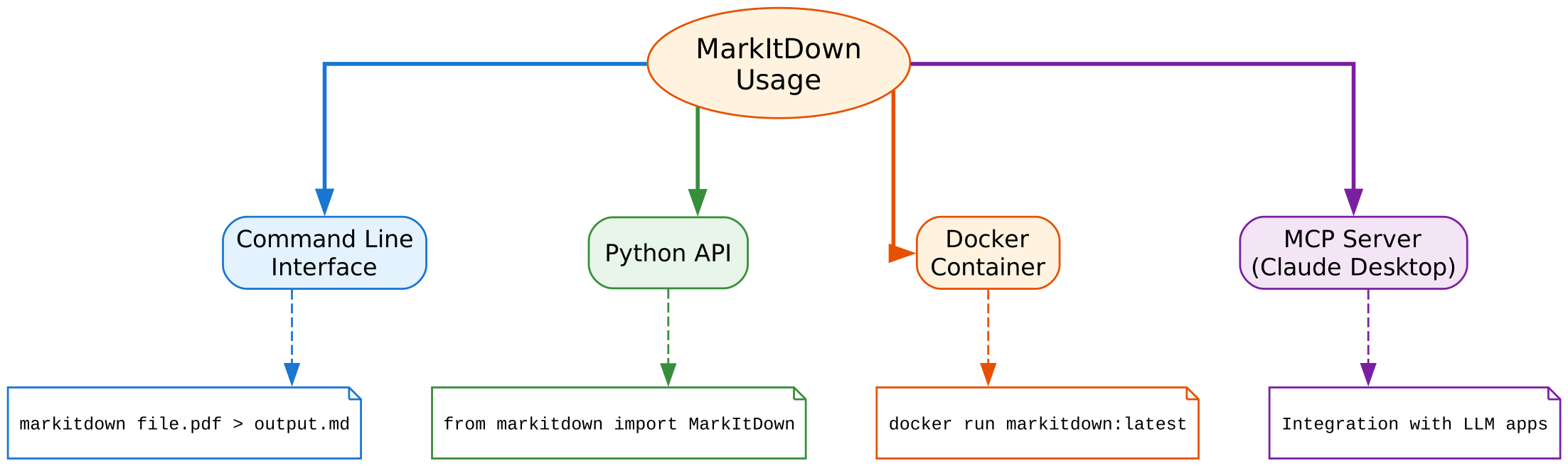
The usage patterns diagram shows the four primary ways to use MarkItDown. Each approach serves different needs:
Command Line Interface
The CLI is the simplest way to use MarkItDown for quick conversions:
# Basic usage - output to stdout
markitdown path-to-file.pdf

# Save to file
markitdown path-to-file.pdf -o document.md

# Pipe content
cat path-to-file.pdf | markitdown

# Enable plugins
markitdown --use-plugins path-to-file.pdf

# List available plugins
markitdown --list-plugins
The CLI is ideal for:
- Quick one-off conversions
- Batch processing scripts
- Integration with shell pipelines
- Testing and debugging
Python API
The Python API provides programmatic access with full control:
from markitdown import MarkItDown

# Basic usage
md = MarkItDown(enable_plugins=False)
result = md.convert("test.xlsx")
print(result.text_content)

# With LLM integration for image descriptions
from openai import OpenAI

client = OpenAI()
md = MarkItDown(
    llm_client=client,
    llm_model="gpt-4o",
    llm_prompt="Describe this image in detail"
)
result = md.convert("example.jpg")
print(result.text_content)

# With Azure Document Intelligence
md = MarkItDown(docintel_endpoint="<document_intelligence_endpoint>")
result = md.convert("test.pdf")
print(result.text_content)
The Python API is suitable for:
- Integration into applications
- Custom processing pipelines
- Batch processing with logic
- Automated workflows
Docker Container
For containerized deployments:
# Build the container
docker build -t markitdown:latest .

# Run conversion
docker run --rm -i markitdown:latest < ~/your-file.pdf > output.md
Docker is useful for:
- Consistent environments
- CI/CD pipelines
- Cloud deployments
- Isolated processing
MCP Server
The Model Context Protocol (MCP) server enables integration with LLM applications like Claude Desktop:
# Install the MCP package
pip install markitdown-mcp

# Configure in Claude Desktop or other MCP clients
The MCP integration allows:
- Direct document processing in LLM conversations
- Seamless integration with AI assistants
- Real-time document analysis
Key Features
1. Format Versatility
MarkItDown’s extensive format support makes it a one-stop solution for document conversion. Whether you’re processing PDFs, Office documents, or web content, the same API handles everything.
2. Structure Preservation
Unlike simple text extraction tools, MarkItDown preserves document structure:
- Headings: Converted to appropriate Markdown levels
- Lists: Both ordered and unordered, with nesting support
- Tables: Markdown table syntax with proper alignment
- Links: Preserved with anchor text and URLs
3. LLM Integration
The optional LLM integration enables advanced features:
- Image Description: Using vision models to describe images
- OCR Enhancement: Extracting text from embedded images
- Intelligent Processing: Understanding context for better conversion
4. Plugin System
Third-party plugins extend functionality:
# List installed plugins
markitdown --list-plugins

# Enable plugins during conversion
markitdown --use-plugins document.pdf
5. Azure Document Intelligence
Enterprise-grade document processing with Azure:
md = MarkItDown(docintel_endpoint="https://your-resource.cognitiveservices.azure.com/")
result = md.convert("complex-document.pdf")
6. Streaming Support
Process files without temporary storage:
import io
from markitdown import MarkItDown

md = MarkItDown()
# Using BytesIO for in-memory processing
stream = io.BytesIO(file_bytes)
result = md.convert_stream(stream)
Plugin Ecosystem
markitdown-ocr Plugin
The markitdown-ocr plugin adds OCR support for embedded images:
pip install markitdown-ocr
pip install openai  # or any OpenAI-compatible client
from markitdown import MarkItDown
from openai import OpenAI

md = MarkItDown(
    enable_plugins=True,
    llm_client=OpenAI(),
    llm_model="gpt-4o",
)
result = md.convert("document_with_images.pdf")
print(result.text_content)
Creating Custom Plugins
You can create custom plugins for specialized formats:
- Implement the
DocumentConverterinterface - Register your converter with the plugin system
- Package and distribute via PyPI
See packages/markitdown-sample-plugin for a complete example.
Comparison with Alternatives
| Feature | MarkItDown | textract | pandoc |
|---|---|---|---|
| PDF Support | Yes | Yes | Yes |
| Office Formats | Yes | Limited | Yes |
| Image OCR | Yes (with LLM) | No | No |
| Audio Transcription | Yes | No | No |
| LLM Integration | Yes | No | No |
| Plugin System | Yes | No | Yes |
| Python Native | Yes | Yes | No (CLI) |
| Structure Preservation | High | Low | High |
Best Practices
1. Choose the Right Dependencies
Install only what you need:
# For PDF-only processing
pip install 'markitdown[pdf]'

# For full office suite support
pip install 'markitdown[pdf, docx, pptx, xlsx]'
2. Use Virtual Environments
Always use virtual environments to avoid dependency conflicts:
python -m venv .venv
source .venv/bin/activate
pip install 'markitdown[all]'
3. Handle Large Files
For large documents, use streaming:
# Process in chunks if needed
with open("large-file.pdf", "rb") as f:
    result = md.convert_stream(f)
4. Enable Plugins When Needed
Only enable plugins when you need their functionality:
# Plugins disabled by default for performance
md = MarkItDown(enable_plugins=False)  # Faster
md = MarkItDown(enable_plugins=True)   # More features
5. Configure LLM Clients
Reuse LLM clients for multiple conversions:
from openai import OpenAI

client = OpenAI()  # Create once
md = MarkItDown(llm_client=client, llm_model="gpt-4o")

# Process multiple files with same client
for file in files:
    result = md.convert(file)
    print(result.text_content)
Troubleshooting
Common Issues
1. Import Errors
If you see import errors, ensure you’ve installed the correct optional dependencies:
# For PDF support
pip install 'markitdown[pdf]'

# For all formats
pip install 'markitdown[all]'
2. Streaming Errors
Remember that convert_stream() requires binary file-like objects:
# Correct
with open("file.pdf", "rb") as f:
    result = md.convert_stream(f)

# Incorrect - text mode
with open("file.pdf", "r") as f:  # Will fail
    result = md.convert_stream(f)
3. LLM Integration Issues
Ensure your LLM client is properly configured:
from openai import OpenAI

# Set API key via environment variable or pass directly
client = OpenAI(api_key="your-key")
md = MarkItDown(llm_client=client, llm_model="gpt-4o")
4. Plugin Not Found
Plugins must be installed separately:
pip install markitdown-ocr
markitdown --list-plugins  # Verify installation
Conclusion
MarkItDown represents a significant step forward in document processing for LLM applications. By providing a unified interface for converting diverse document formats to Markdown, it simplifies the pipeline for text analysis, RAG systems, and LLM integration.
The library’s focus on structure preservation, combined with optional LLM enhancement and Azure Document Intelligence integration, makes it suitable for both simple scripts and enterprise applications. The plugin system ensures extensibility, while the modular dependency installation keeps the footprint minimal for specific use cases.
Whether you’re building a document processing pipeline, creating a RAG system, or simply need to convert documents for LLM consumption, MarkItDown provides a robust, well-maintained solution backed by Microsoft’s AutoGen team.
Resources
- GitHub Repository: https://github.com/microsoft/markitdown
- PyPI Package: https://pypi.org/project/markitdown/
- Documentation: Available in the GitHub repository
- License: MIT License
Related Posts
- AgentSkillOS: Skill Orchestration System
- MattPocock Skills: AI Agent Workflows
- DESIGN.md: AI-Powered Design Systems

Enjoyed this post? Never miss out on future posts by following us