Claude Code - Complete Guide to AI-Powered Coding Assistant
Claude Code is Anthropic’s official AI coding assistant that runs in your terminal. It’s a powerful tool that can read your codebase, write code, execute commands, and help you build software faster than ever before.
What is Claude Code?
Claude Code is a command-line tool that brings Claude’s intelligence directly into your development workflow. Unlike traditional AI chat interfaces, Claude Code has direct access to your files, can run terminal commands, and understands your entire project context.
Key Features
- Code Understanding: Reads and understands your entire codebase
- File Operations: Creates, modifies, and deletes files
- Terminal Access: Executes shell commands safely
- Memory System: Remembers project context across sessions
- Skills: Reusable workflows and best practices
- Subagents: Specialized AI assistants for different tasks
- MCP Integration: Connect to external tools and APIs
Architecture Overview
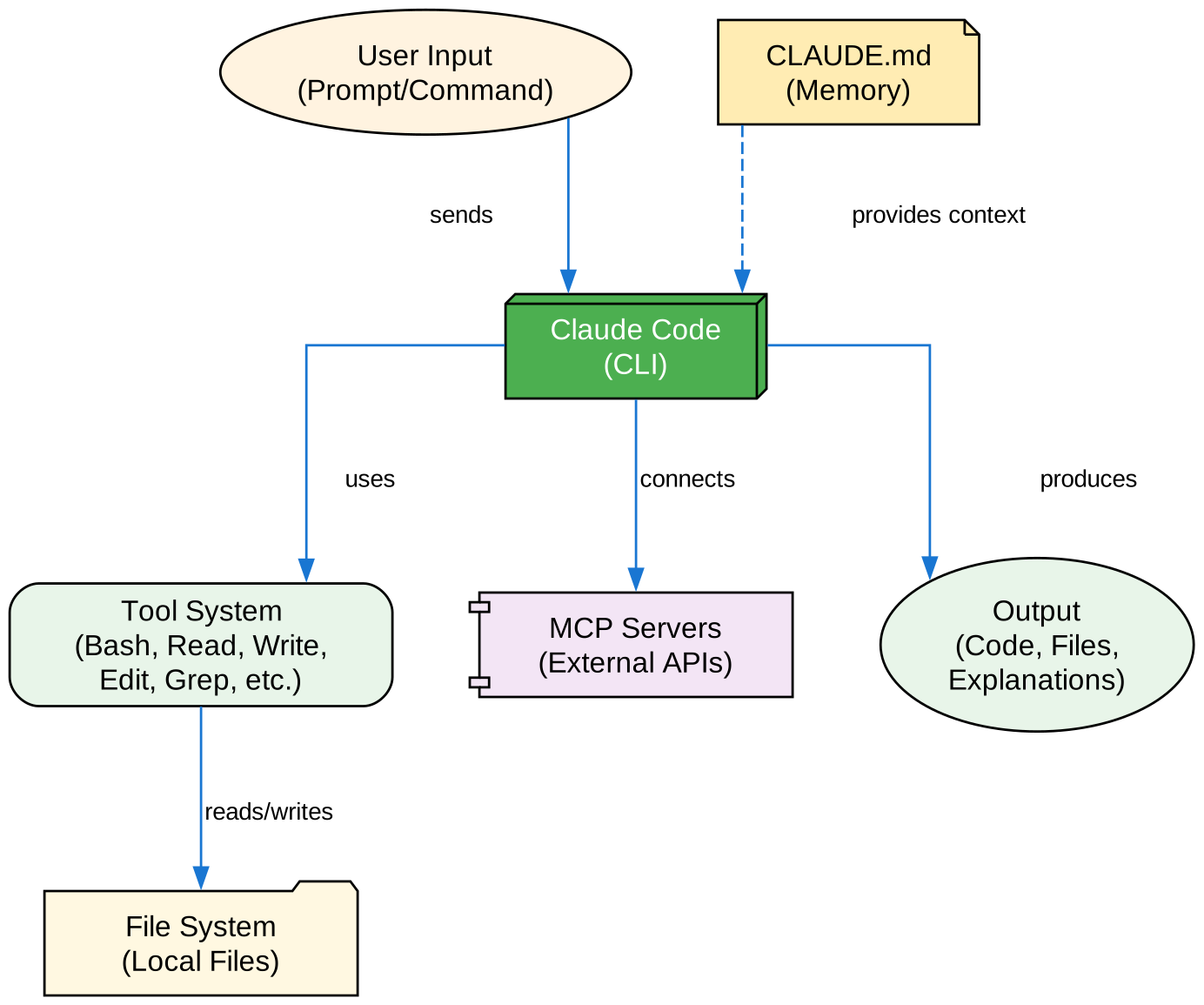
The diagram above shows how Claude Code processes user input through its tool system, interacts with local files and MCP servers, and uses memory (CLAUDE.md) to maintain context.
Prerequisites
Before installing Claude Code, you need the following:
| Requirement | Description |
|---|---|
| Node.js | Version 18.0 or higher |
| npm | Comes with Node.js |
| Anthropic API Key | Get from console.anthropic.com |
Installation by Operating System
Windows Installation
Step 1: Install Node.js
Option A: Using Official Installer (Recommended)
- Download Node.js from nodejs.org
- Choose the LTS (Long Term Support) version
- Run the installer and follow the prompts
- Verify installation:
node --version
npm --version
Option B: Using Chocolatey Package Manager
# Install Chocolatey (if not installed)
Set-ExecutionPolicy Bypass -Scope Process -Force; [System.Net.ServicePointManager]::SecurityProtocol = [System.Net.ServicePointManager]::SecurityProtocol -bor 3072; iex ((New-Object System.Net.WebClient).DownloadString('https://community.chocolatey.org/install.ps1'))

# Install Node.js
choco install nodejs-lts -y

# Verify installation
node --version
npm --version
Option C: Using winget (Windows Package Manager)
winget install OpenJS.NodeJS.LTS

# Restart your terminal, then verify
node --version
npm --version
Step 2: Install Claude Code
npm install -g @anthropic-ai/claude-code
Step 3: Authenticate
claude
# Follow the prompts to authenticate with your Anthropic account
macOS Installation
Step 1: Install Node.js
Option A: Using Homebrew (Recommended)
# Install Homebrew (if not installed)
/bin/bash -c "$(curl -fsSL https://raw.githubusercontent.com/Homebrew/install/HEAD/install.sh)"

# Install Node.js
brew install node

# Verify installation
node --version
npm --version
Option B: Using Official Installer
- Download Node.js from nodejs.org
- Choose the macOS installer
- Run the installer and follow the prompts
- Verify installation:
node --version
npm --version
Option C: Using nvm (Node Version Manager)
# Install nvm
curl -o- https://raw.githubusercontent.com/nvm-sh/nvm/v0.39.0/install.sh | bash

# Restart your terminal, then install Node.js
nvm install --lts
nvm use --lts

# Verify installation
node --version
npm --version
Step 2: Install Claude Code
npm install -g @anthropic-ai/claude-code
Step 3: Authenticate
claude
# Follow the prompts to authenticate with your Anthropic account
Linux Installation
Ubuntu/Debian (Fresh Installation)
For a fresh Ubuntu system, follow these steps from scratch:
Step 1: Update System Packages
sudo apt update && sudo apt upgrade -y
Step 2: Install Essential Build Tools
sudo apt install -y build-essential curl wget git
Step 3: Install Node.js
Option A: Using NodeSource Repository (Recommended)
# Add NodeSource repository for Node.js 20 LTS
curl -fsSL https://deb.nodesource.com/setup_20.x | sudo -E bash -

# Install Node.js
sudo apt install -y nodejs

# Verify installation
node --version
npm --version
Option B: Using nvm (Node Version Manager)
# Install nvm
curl -o- https://raw.githubusercontent.com/nvm-sh/nvm/v0.39.0/install.sh | bash

# Reload shell configuration
source ~/.bashrc

# Install Node.js LTS
nvm install --lts
nvm use --lts

# Verify installation
node --version
npm --version
Option C: Using Ubuntu Repository (Older Version)
# Note: Ubuntu repository may have older Node.js version
sudo apt install -y nodejs npm

# You may need to update npm
sudo npm install -g npm@latest

# Verify installation
node --version
npm --version
Step 4: Fix npm Permissions (Optional but Recommended)
If you get permission errors when installing global packages:
# Create directory for global packages
mkdir ~/.npm-global

# Configure npm to use new directory
npm config set prefix '~/.npm-global'

# Add to your shell profile
echo 'export PATH=~/.npm-global/bin:$PATH' >> ~/.bashrc
source ~/.bashrc
Step 5: Install Claude Code
npm install -g @anthropic-ai/claude-code
Step 6: Authenticate
claude
# Follow the prompts to authenticate with your Anthropic account
Fedora/RHEL/CentOS
Step 1: Install Node.js
# For Fedora
sudo dnf install -y nodejs npm

# For RHEL/CentOS (with EPEL)
sudo dnf install -y epel-release
sudo dnf install -y nodejs npm

# Verify installation
node --version
npm --version
Step 2: Install Claude Code
npm install -g @anthropic-ai/claude-code
Arch Linux
# Install Node.js
sudo pacman -S nodejs npm

# Verify installation
node --version
npm --version

# Install Claude Code
npm install -g @anthropic-ai/claude-code
WSL (Windows Subsystem for Linux) Installation
Step 1: Install WSL
# Run in PowerShell as Administrator
wsl --install

# Restart your computer if prompted
Step 2: Install Ubuntu from Microsoft Store
Or use the command:
wsl --install -d Ubuntu
Step 3: Follow Ubuntu Installation Steps
Open your WSL Ubuntu terminal and follow the Ubuntu/Debian installation steps above.
Authentication Methods
Method 1: Interactive Login (Recommended)
claude
# Follow the prompts to log in via browser
Method 2: API Key
# Set environment variable
export ANTHROPIC_API_KEY=your-api-key-here

# Or add to your shell profile
echo 'export ANTHROPIC_API_KEY=your-api-key-here' >> ~/.bashrc
source ~/.bashrc
Method 3: Configuration File
Create ~/.claude/config.json:
{
  "apiKey": "your-api-key-here"
}
Basic Usage
cd your-project
claude
This starts an interactive session where you can ask Claude to help with your code.
First-Time Setup
When you run Claude Code for the first time:
- Authentication: You’ll be prompted to authenticate
- Permissions: Grant necessary permissions
- Project Setup: Run
/initto create project memory
# Initialize project memory
/init

# Check status
/status
Troubleshooting Installation Issues
“command not found: claude”
Solution:
# Check if npm global bin is in PATH
npm config get prefix

# Add to PATH (add to ~/.bashrc or ~/.zshrc)
export PATH="$(npm config get prefix)/bin:$PATH"

# Reload shell
source ~/.bashrc  # or source ~/.zshrc
Permission Denied Errors
Solution:
# Option 1: Use sudo (not recommended)
sudo npm install -g @anthropic-ai/claude-code

# Option 2: Fix npm permissions (recommended)
mkdir ~/.npm-global
npm config set prefix '~/.npm-global'
echo 'export PATH=~/.npm-global/bin:$PATH' >> ~/.bashrc
source ~/.bashrc

# Reinstall
npm install -g @anthropic-ai/claude-code
Node.js Version Too Old
Solution:
# Using nvm
nvm install --lts
nvm use --lts

# Or update via package manager
# Ubuntu/Debian
curl -fsSL https://deb.nodesource.com/setup_20.x | sudo -E bash -
sudo apt install -y nodejs
Network/Proxy Issues
Solution:
# Configure npm proxy
npm config set proxy http://proxy-server:port
npm config set https-proxy http://proxy-server:port

# Or use a different registry
npm config set registry https://registry.npmmirror.com
Core Concepts
1. Slash Commands
Slash commands are shortcuts that control Claude’s behavior. Type / to see all available commands.
Essential Commands:
| Command | Purpose |
|---|---|
/help | Show available commands |
/clear | Clear conversation |
/model | Switch AI model |
/memory | Edit project memory |
/init | Initialize project memory |
2. Memory (CLAUDE.md)
Memory allows Claude to retain context across sessions. Create a CLAUDE.md file in your project root:
# Project Configuration

## Tech Stack
- Node.js with TypeScript
- PostgreSQL database
- React frontend

## Coding Standards
- Use async/await over promises
- Prefer functional components
- Write tests for all new features
3. Skills
Skills are reusable capabilities that extend Claude’s functionality. They’re stored in .claude/skills/:
.claude/skills/
├── code-review/
│   └── SKILL.md
├── optimize/
│   └── SKILL.md
└── test-generator/
    └── SKILL.md
4. Subagents
Subagents are specialized AI assistants for specific tasks:
- Code Reviewer: Reviews code for quality and security
- Test Engineer: Generates and runs tests
- Documentation Writer: Creates documentation
- Debugger: Helps find and fix bugs
5. MCP (Model Context Protocol)
MCP connects Claude to external tools and APIs:
- GitHub integration
- Database access
- Slack notifications
- File system operations
Practical Examples
Example 1: Code Review
# Start Claude
claude

# Ask for a code review
> Review the authentication module for security issues
Example 2: Generate Tests
> Generate unit tests for the UserService class
Example 3: Refactor Code
> Refactor the API handlers to use async/await
Best Practices
- Use Memory: Create a CLAUDE.md file with project context
- Create Skills: Build reusable workflows for common tasks
- Use Checkpoints: Save progress before major changes
- Configure MCP: Connect to your tools and services
- Review Changes: Always review Claude’s changes before committing
Learning Path
| Level | Topic | Time |
|---|---|---|
| Beginner | Slash Commands | 30 min |
| Beginner | Memory | 45 min |
| Intermediate | Skills | 1 hour |
| Intermediate | Hooks | 1 hour |
| Advanced | MCP | 1 hour |
| Advanced | Subagents | 1.5 hours |
Resources
This guide is part of our AI Development Tools series. Stay tuned for more detailed tutorials on each Claude Code feature.