OpenClaw: Your Own Personal AI Assistant That Runs Everywhere
In a world where AI assistants are increasingly locked behind proprietary clouds and subscription walls, OpenClaw emerges as a breath of fresh air. With over 359,000 stars on GitHub, this open-source personal AI assistant lets you run your own AI on your own devices, answering you on the channels you already use. It is fast, always-on, and completely under your control.
What is OpenClaw?
OpenClaw is a local-first personal AI assistant that connects to 20+ messaging platforms including WhatsApp, Telegram, Slack, Discord, Signal, iMessage, IRC, Microsoft Teams, Matrix, WeChat, QQ, and more. Think of it as your own private AI gateway – a single control plane that routes conversations across channels, manages multiple agents, and provides first-class tools for automation.
The project was built for Molty, a space lobster AI assistant, by Peter Steinberger and a vibrant community of contributors. The lobster mascot is not just branding – it represents the project’s philosophy of shedding old shells and growing into something better, continuously evolving.
Understanding the Architecture
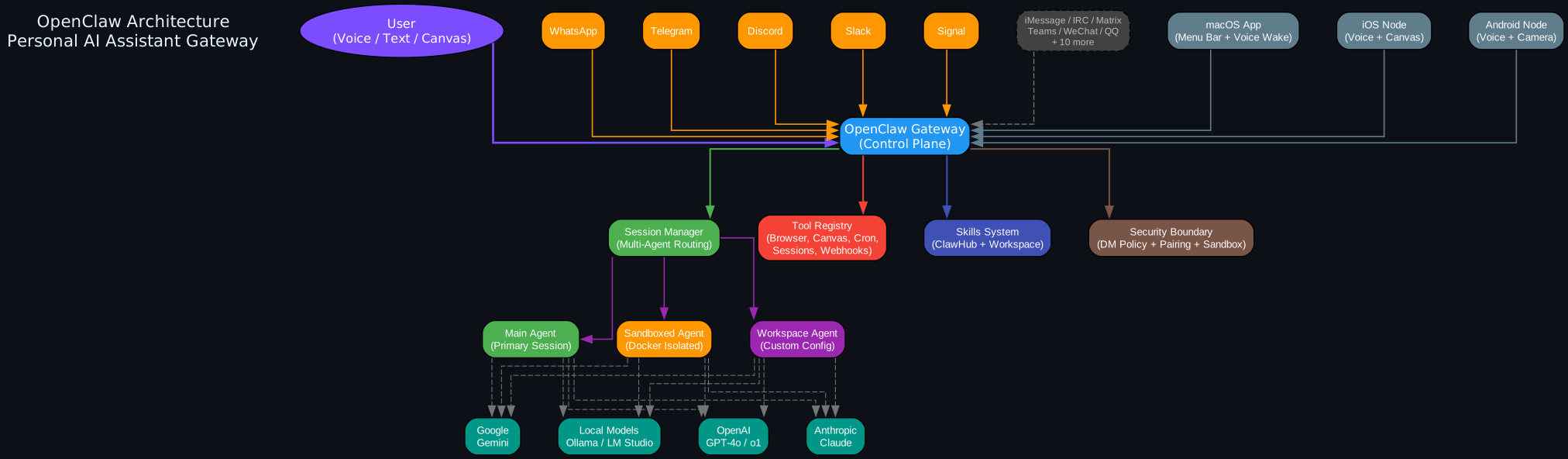
The architecture diagram above illustrates how OpenClaw serves as a central gateway connecting users to AI agents through multiple channels. Let us break down each component:
The Gateway (Control Plane) The OpenClaw Gateway is the heart of the system. It acts as a single control plane that manages sessions, channels, tools, and events. When a message arrives from any channel – whether it is WhatsApp, Telegram, or Discord – the Gateway routes it to the appropriate agent session. This design ensures that your AI assistant is always accessible from whichever platform you prefer, without needing separate bots for each service.
Session Manager (Multi-Agent Routing) The Session Manager handles multi-agent routing, allowing you to run isolated agents for different purposes. The main agent has full access to your host system, while sandboxed agents run inside Docker containers for security. Workspace agents can have custom configurations tailored to specific tasks. This means you can have one agent for personal tasks, another for work, and a third for group conversations – all running simultaneously through the same Gateway.
Tool Registry OpenClaw comes with a rich set of built-in tools: browser automation, canvas rendering, cron scheduling, session management, and webhook handling. These tools are available to all agents and can be extended through the skills system. The browser tool lets your agent navigate the web, the canvas tool enables visual workspace rendering, and cron jobs allow scheduled automation.
Skills System (ClawHub + Workspace) The Skills System provides extensibility through ClawHub, a registry of community skills, and workspace-level custom skills. Skills are defined in SKILL.md files and can be installed, managed, and shared. This is where OpenClaw truly shines – instead of a monolithic feature set, you get a modular system where capabilities can be added or removed as needed.
Security Boundary Security is a first-class concern in OpenClaw. The DM policy system ensures unknown senders receive a pairing code before the bot processes their messages. Docker sandboxing isolates non-main sessions, and allowlists control who can interact with your assistant. The openclaw doctor command helps surface any risky or misconfigured settings.
Key Features
20+ Messaging Channels
OpenClaw supports an impressive range of messaging platforms, making it the most versatile open-source AI assistant for channel coverage:

Understanding the Channel Architecture
The channel diagram above shows how all messaging platforms connect to the central OpenClaw Gateway. Each channel is implemented as a plugin, which means adding a new channel does not require modifying the core system. The Gateway handles message routing, authentication, and session management uniformly across all channels.
Chat Channels (WhatsApp, Telegram, Signal, iMessage, IRC) These are your direct messaging platforms. OpenClaw pairs with each channel using platform-specific authentication, then routes incoming messages to your configured agent. WhatsApp and Telegram are the most popular choices, but Signal and iMessage provide end-to-end encryption for privacy-conscious users.
Team Channels (Slack, Discord, MS Teams, Google Chat, Matrix) For workplace and community use, OpenClaw integrates seamlessly with team collaboration tools. Discord support includes voice channel integration, while Slack and Teams support thread-aware conversations. Matrix bridges enable connectivity to federated communication networks.
Asian Channels (WeChat, QQ, LINE, Feishu, Zalo) OpenClaw has broad support for Asian messaging platforms, making it accessible to users in China, Japan, Korea, Vietnam, and beyond. WeChat and QQ cover the Chinese market, LINE serves Japan and Thailand, and Feishu (Lark) integrates with ByteDance’s enterprise ecosystem.
Platform Channels (macOS, iOS, Android, WebChat, Twitch) Beyond messaging apps, OpenClaw provides native companion apps for macOS (menu bar), iOS, and Android. The macOS app includes Voice Wake for hands-free activation, while the mobile nodes expose Canvas, Camera, and Screen capture capabilities. WebChat provides a browser-based interface for quick access.
Voice Wake and Talk Mode
One of OpenClaw’s standout features is Voice Wake on macOS and iOS, which allows you to activate your assistant with a wake word, similar to how you would use Siri or Alexa – but running entirely on your own hardware. On Android, continuous voice mode enables always-listening conversations with your AI assistant.
The voice system supports ElevenLabs for high-quality text-to-speech, with system TTS as a fallback. This means your assistant can literally talk back to you, creating a natural conversational experience that goes beyond text-based interactions.
Live Canvas
The Live Canvas feature provides an agent-driven visual workspace. Your AI assistant can render interactive UI elements, charts, code blocks, and more directly on your device. This is powered by A2UI (Agent-to-UI), a protocol that lets the agent describe what should appear on screen, and the Canvas renders it accordingly.
Multi-Agent Routing
OpenClaw supports multi-agent routing, allowing you to route different channels, accounts, or peers to isolated agents. Each agent has its own workspace and session, meaning you can maintain separate contexts for different purposes:
- A main agent with full host access for personal tasks
- A sandboxed agent running in Docker for untrusted inputs
- A workspace agent with custom configuration for specific projects
This is configured through the Gateway’s routing system, which uses channel, account, and peer identifiers to direct messages to the appropriate agent.
Installation and Setup
Quick Install
OpenClaw requires Node 24 (recommended) or Node 22.16+:
# Install globally via npm
npm install -g openclaw@latest

# Or with pnpm
pnpm add -g openclaw@latest

# Run the onboarding wizard
openclaw onboard --install-daemon
The onboard command guides you step by step through setting up the Gateway, workspace, channels, and skills. It is the recommended CLI setup path and works on macOS, Linux, and Windows (via WSL2, which is strongly recommended).
From Source (Development)
For developers who want to contribute or customize:
git clone https://github.com/openclaw/openclaw.git
cd openclaw

pnpm install
pnpm ui:build    # auto-installs UI deps on first run
pnpm build

pnpm openclaw onboard --install-daemon

# Dev loop (auto-reload on source/config changes)
pnpm gateway:watch
Configuration
Minimal configuration in ~/.openclaw/openclaw.json:
{
  "agent": {
    "model": "<provider>/<model-id>"
  }
}
For example, to use OpenAI’s GPT-4o:
{
  "agent": {
    "model": "openai/gpt-4o"
  }
}
Or Anthropic’s Claude:
{
  "agent": {
    "model": "anthropic/claude-sonnet-4-20250514"
  }
}
OpenClaw supports model failover with auth profile rotation, so you can configure backup models in case your primary provider is unavailable.
Plugin and Skills Architecture
Understanding the Plugin Architecture
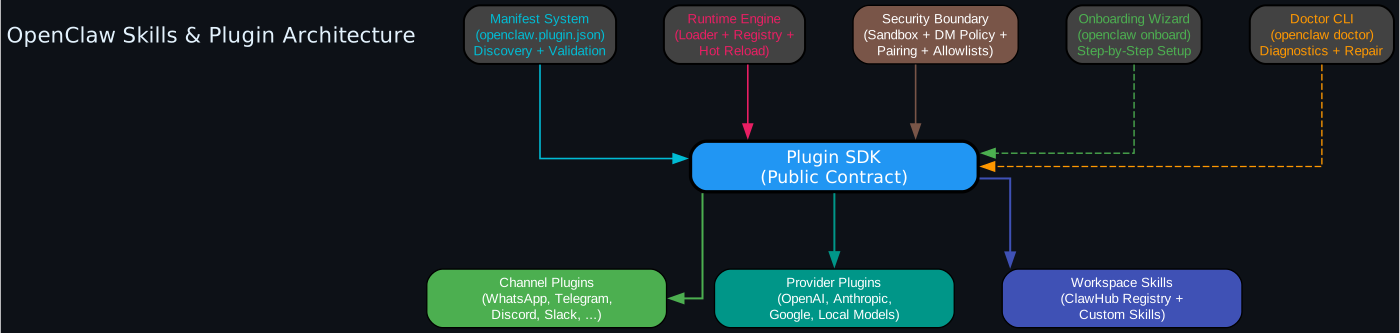
The skills diagram above shows how OpenClaw’s plugin system is organized around a central Plugin SDK, which serves as the public contract between the core system and extensions.
Plugin SDK (Public Contract) The Plugin SDK is the stable, versioned interface that all extensions must use. It provides entry points for channel plugins, provider plugins, and skill plugins. The key principle is that core must stay extension-agnostic – adding a new plugin should never require modifying core code. This is enforced through strict import boundaries: extensions can only import from openclaw/plugin-sdk/*, not from internal src/** paths.
Channel Plugins Channel plugins implement messaging platform integrations. Each channel (WhatsApp, Telegram, Discord, etc.) is a separate plugin with its own manifest, configuration, and runtime. This modular design means you only install the channels you need, keeping your deployment lightweight.
Provider Plugins Provider plugins handle model integrations. OpenAI, Anthropic, Google, and local model providers (Ollama, LM Studio) are all implemented as plugins. This allows the core inference loop to remain provider-agnostic while each provider owns its specific behavior through typed hooks.
Workspace Skills (ClawHub + Custom) Skills are the user-facing extensibility mechanism. They live in ~/.openclaw/workspace/skills/<skill>/SKILL.md and can be installed from ClawHub (the community registry) or created locally. Skills define capabilities that the agent can use, from simple prompt enhancements to complex multi-step workflows.
Manifest System Every plugin declares itself through an openclaw.plugin.json manifest that specifies its ID, version, dependencies, and capabilities. The manifest system handles discovery, validation, enablement, and setup hints. This metadata-driven approach means the Gateway can automatically detect, load, and configure plugins without manual intervention.
Runtime Engine The Runtime Engine manages plugin loading, hot reloading, and lifecycle. It resolves plugins through narrow, targeted loaders rather than broad registry materialization, keeping the system fast and memory-efficient. When you update a plugin, the runtime can reload it without restarting the entire Gateway.
Security Boundary The security layer enforces sandboxing, DM policies, pairing codes, and allowlists. By default, tools run on the host for the main session, but non-main sessions can be sandboxed in Docker containers. The openclaw doctor command provides diagnostics and automatic repair for security misconfigurations.
Onboarding Wizard and Doctor CLI Two CLI tools help you get started and stay healthy: openclaw onboard walks you through initial setup, and openclaw doctor diagnoses and fixes configuration issues. These are essential tools for maintaining a reliable OpenClaw deployment.
Security Model
OpenClaw takes security seriously, especially since it connects to real messaging surfaces where inbound DMs should be treated as untrusted input.
Default Security Behavior
- DM Pairing (
dmPolicy="pairing"): Unknown senders receive a short pairing code and the bot does not process their message until approved - Approve with:
openclaw pairing approve <channel> <code> - Public inbound DMs require explicit opt-in: set
dmPolicy="open"and include"*"in the channel allowlist
Docker Sandboxing
For group or channel-facing deployments, you can sandbox non-main sessions:
{
  "agents": {
    "defaults": {
      "sandbox": {
        "mode": "non-main"
      }
    }
  }
}
This runs non-main sessions inside per-session Docker containers, with controlled tool access:
- Allowed:
bash,process,read,write,edit,sessions_list,sessions_history,sessions_send,sessions_spawn - Denied:
browser,canvas,nodes,cron,discord,gateway
Companion Apps
macOS (OpenClaw.app)
The macOS companion app provides:
- Menu bar control for the Gateway and health monitoring
- Voice Wake + push-to-talk overlay
- WebChat + debug tools
- Remote gateway control over SSH
iOS Node
- Pairs as a node over the Gateway WebSocket (device pairing)
- Voice trigger forwarding + Canvas surface
- Controlled via
openclaw nodes ...
Android Node
- Pairs as a WS node via device pairing (
openclaw devices ...) - Exposes Connect/Chat/Voice tabs plus Canvas, Camera, Screen capture, and Android device command families
Development Channels
OpenClaw offers three release channels:
| Channel | Tag | npm dist-tag | Description |
|---|---|---|---|
| Stable | vYYYY.M.D | latest | Production-ready releases |
| Beta | vYYYY.M.D-beta.N | beta | Pre-release testing |
| Dev | Moving head of main | dev | Bleeding edge |
Switch channels with: openclaw update --channel stable|beta|dev
Comparison with Alternatives
| Feature | OpenClaw | ChatGPT | Claude Desktop | Ollama |
|---|---|---|---|---|
| Self-Hosted | Yes | No | No | Yes |
| Multi-Channel | 20+ platforms | Web only | Desktop only | CLI only |
| Voice Wake | Yes (macOS/iOS/Android) | Limited | No | No |
| Live Canvas | Yes | No | No | No |
| Multi-Agent | Yes | No | No | No |
| Plugin System | Yes (ClawHub) | Limited | No | No |
| Docker Sandbox | Yes | N/A | N/A | Optional |
| Open Source | MIT | No | No | MIT |
| Model Failover | Yes | N/A | N/A | Manual |
Troubleshooting
Common Issues
Gateway not starting: Run openclaw doctor to check for configuration issues. Common causes include missing model configuration or port conflicts.
Channel not connecting: Verify your channel credentials in ~/.openclaw/openclaw.json. Each channel has specific authentication requirements documented at docs.openclaw.ai/channels.
DM policy warnings: Run openclaw doctor to surface risky DM configurations. The default pairing policy is recommended for personal use.
Plugin loading errors: Check that your plugin manifest (openclaw.plugin.json) is valid and that all dependencies are installed. Use openclaw doctor --fix to attempt automatic repairs.
Performance issues: For resource-constrained environments, consider using Docker sandboxing only for non-main sessions and limiting the number of active channels.
Conclusion
OpenClaw represents a paradigm shift in personal AI assistants. Instead of trusting your conversations, data, and digital life to a proprietary cloud service, you run your own assistant on your own hardware. With support for 20+ messaging channels, voice wake, live canvas, multi-agent routing, and a thriving plugin ecosystem, OpenClaw gives you the power of a commercial AI assistant with the freedom and privacy of open-source software.
The project’s rapid growth to 359K+ stars speaks to the demand for self-hosted, privacy-first AI tools. Whether you are a developer looking to extend the platform with custom plugins, or a power user who wants their AI assistant available on every channel they use, OpenClaw delivers a compelling experience that puts you in control.
Key Links:
- GitHub: https://github.com/openclaw/openclaw
- Documentation: https://docs.openclaw.ai
- ClawHub Skills Registry: https://clawhub.com
- Discord Community: https://discord.gg/clawd

Enjoyed this post? Never miss out on future posts by following us


