Introduction
Screen recording is a fundamental tool for content creators, educators, bug reporters, and developers who need to capture and share what happens on their desktops. While commercial tools like OBS Studio dominate the landscape, they come with complexity overhead and platform-specific limitations that can frustrate users who just want a simple, fast recording experience.
PyShine Screen Recorder enters this space as an open-source, Python-based alternative that prioritizes performance and usability. Built on PyQt6 for the GUI and PyAV for media encoding, it delivers professional-grade screen capture with hardware-accelerated video encoding, dual audio source recording, and a polished dark theme interface. The application supports configurable frame rates from 1 to 120 FPS, region selection with an interactive overlay, and multi-monitor awareness – all packaged in a clean, modular architecture.
What sets PyShine Screen Recorder apart from other Python recording tools is its commitment to production quality: automatic hardware encoder detection with graceful fallback (NVENC to QSV to AMF to libx264), WASAPI loopback capture for system audio on Windows, real-time audio level monitoring with stereo peak indicators, and proper PTS management for audio/video synchronization in the output MP4. These are not toy features – they represent the same engineering concerns that professional recording software must address.
In this post, we will explore the architecture behind PyShine Screen Recorder, walk through its recording pipeline, understand how it detects and selects the best hardware encoder, and examine the region selector state machine that makes area capture intuitive and precise.
Architecture Overview

The architecture of PyShine Screen Recorder follows a centralized orchestrator pattern built around the ScreenRecorderApp class in app.py. This central orchestrator owns all major subsystems and coordinates their lifecycle through PyQt6’s signal/slot mechanism, which provides thread-safe communication across the application’s modules. The design ensures that no module directly calls methods on another module; instead, they emit signals that the orchestrator or other components connect to, creating a loosely coupled system where components can be modified or replaced independently.
At the top level, the application is divided into five functional layers. The GUI layer contains the main window, system tray icon, preview widget, audio meter, recorder controls, settings panel, history panel, source selector, and status bar. Each GUI component is a self-contained widget that exposes its state through signals and responds to slots connected by the orchestrator. The capture layer handles screen capture via the mss library, multi-monitor detection through display_info.py, and the interactive region selector overlay. The audio layer manages microphone capture through sounddevice, system audio capture through pyaudiowpatch (WASAPI loopback), audio mixing with per-channel volume and mute controls, and audio device enumeration. The encoding layer contains the video encoder (with hardware acceleration auto-detection), the audio encoder (AAC via PyAV), and the output writer that muxes audio and video into an MP4 container with proper PTS synchronization. Finally, the config layer provides settings persistence with JSON and QSettings fallback, recording history stored as JSON metadata, and global hotkey management via pynput.
The RecordingState enum defines three states – IDLE, RECORDING, and PAUSED – that govern the entire application’s behavior. When the state transitions, the orchestrator emits a signal that all connected components receive, allowing them to update their UI, start or stop capture threads, and manage encoding resources accordingly. This state machine approach prevents race conditions and ensures that the application always behaves predictably regardless of the order in which the user triggers actions.
The module structure is organized under src/screen_recorder/ with subpackages for audio/, capture/, config/, encoding/, gui/, and utils/. Each subpackage has a clear responsibility boundary, and the orchestrator imports and wires together only the interfaces it needs. This separation makes the codebase approachable for contributors who want to add features or fix bugs in a specific area without needing to understand the entire system.
Recording Pipeline
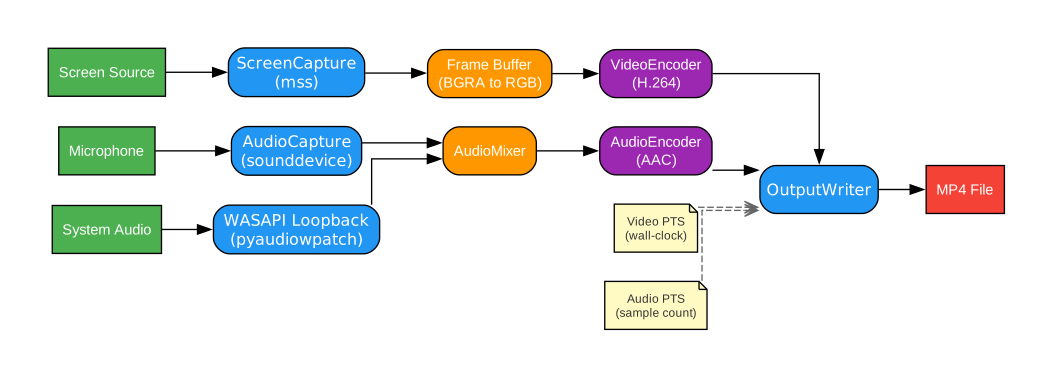
The recording pipeline is the heart of PyShine Screen Recorder, and understanding its data flow reveals how the application achieves real-time performance while maintaining audio/video synchronization. The pipeline operates as a multi-threaded producer-consumer system where capture threads produce raw frames and audio samples, and the encoding thread consumes them to produce the final MP4 output.
The pipeline begins with screen capture. The screen_capture.py module uses the mss library to grab the screen content as a BGRA numpy array. The capture thread runs in a loop at the configured FPS, sleeping for the appropriate interval between frames. Each captured frame is converted from BGRA to RGB color space (required by the H.264 encoder) and placed into a frame queue. The mss library is chosen specifically because it provides fast, dependency-free screen capture on Windows, macOS, and Linux without requiring native library installations.
In parallel, audio capture runs on separate threads. The microphone input is captured through sounddevice, which provides a cross-platform PortAudio wrapper. On Windows, system audio is captured through pyaudiowpatch, which wraps the Windows Audio Session API (WASAPI) loopback endpoint. WASAPI loopback is a Windows-specific feature that allows capturing audio that is being played through any output device – this is how the recorder captures system sounds without requiring a virtual audio cable. The audio_mixer.py module receives both audio streams, applies per-channel volume and mute settings, and mixes them into a single interleaved PCM buffer that the audio encoder consumes.
The video encoder (video_encoder.py) pulls frames from the frame queue and encodes them using the best available hardware encoder. It creates a PyAV stream with the appropriate codec context (NVENC, QSV, AMF, or libx264), sets the frame rate, pixel format, and quality parameters, then encodes each frame into H.264 NAL units. The audio encoder (audio_encoder.py) similarly pulls mixed audio buffers and encodes them into AAC frames using PyAV’s AAC encoder.
The critical synchronization challenge is handled by the output writer (output_writer.py). Video PTS (presentation timestamp) values are derived from wall-clock elapsed time since recording started, accounting for pause periods. Audio PTS values are derived from cumulative sample counting, ensuring that audio timestamps are monotonically increasing regardless of capture timing variations. The output writer muxes both streams into an MP4 container using PyAV’s muxer, writing interleaved audio and video packets to maintain proper playback order. When the user pauses recording, the output writer records the pause timestamp and adjusts subsequent video PTS values to skip the paused duration, while audio PTS continues from where it left off – this ensures seamless playback after resume.
Hardware Encoder Auto-Detection
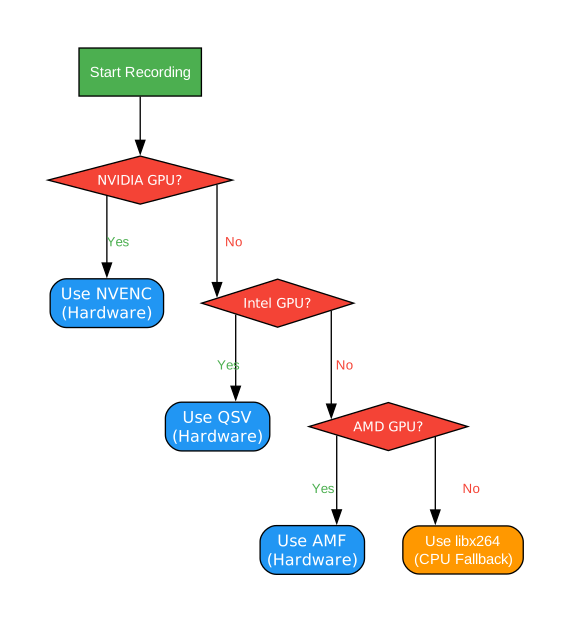
One of the most impressive engineering features of PyShine Screen Recorder is its automatic hardware encoder detection system. Rather than requiring users to know whether their GPU supports NVENC, QSV, or AMF, the application probes each encoder in sequence and automatically selects the best available option. This fallback chain – NVENC (NVIDIA) to QSV (Intel) to AMF (AMD) to libx264 (CPU) – ensures that every user gets the best encoding performance their hardware supports without manual configuration.
The detection process works by attempting to create a test PyAV stream with each hardware encoder in priority order. For NVENC, the application tries to create an h264_nvenc codec context. If the system has an NVIDIA GPU with NVENC support (most GeForce cards from Maxwell architecture onward), this succeeds and NVENC is selected. NVENC offloads the entire H.264 encoding workload to the GPU’s dedicated video encoding hardware, leaving the CPU free for screen capture and audio processing. This is the ideal encoder for most users with NVIDIA hardware.
If NVENC fails, the application tries QSV (Quick Sync Video) using the h264_qsv codec. QSV is Intel’s hardware-accelerated video encoding technology built into integrated and discrete Intel GPUs. It provides excellent encoding quality at low power consumption, making it a strong choice for laptops and systems with Intel integrated graphics. The QSV encoder leverages Intel’s fixed-function video encoding hardware on the GPU.
If both NVENC and QSV fail, the application attempts AMF (Advanced Media Framework) using the h264_amf codec. AMF is AMD’s hardware encoding API for Radeon GPUs. Like NVENC and QSV, AMF provides GPU-accelerated H.264 encoding that offloads work from the CPU. The detection creates a test stream to verify that the AMF runtime is properly installed and the GPU supports the required features.
Finally, if no hardware encoder is available, the application falls back to libx264, the industry-standard open-source H.264 encoder that runs entirely on the CPU. While libx264 produces excellent quality output, it consumes significant CPU resources during encoding, which can compete with the screen capture and audio processing threads. The application adjusts the encoding preset based on the selected encoder – hardware encoders use quality-based VBR targeting, while libx264 uses a faster preset to minimize CPU impact.
The auto-detection result is cached for the application session, so the probe only runs once. Users can also override the automatic selection in the settings panel, choosing a specific encoder if they have reasons to prefer one over another (for example, using libx264 for maximum quality when CPU resources are abundant).
Region Selector
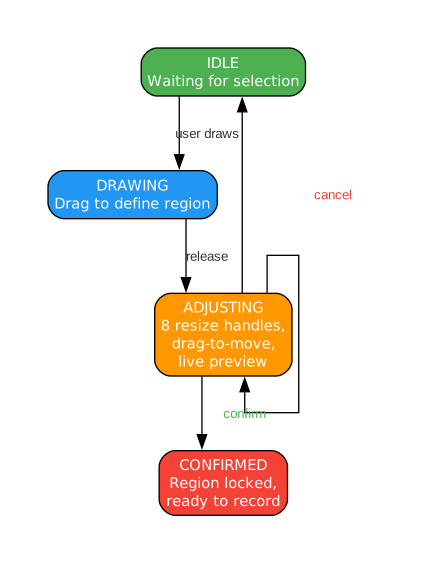
The region selector is one of the most sophisticated UI components in PyShine Screen Recorder. It implements a full state machine with four states – IDLE, DRAWING, ADJUSTING, and CONFIRMED – that governs how the user interacts with the fullscreen overlay to define a capture region. This state machine approach ensures that every user action produces a predictable outcome regardless of the current context.
The flow begins in the IDLE state, where the region selector overlay is not visible. When the user initiates a region selection (either through the source selector or keyboard shortcut), the overlay appears as a semi-transparent fullscreen window covering the entire screen. The overlay darkens the screen content to provide visual contrast for the selection area.
In the DRAWING state, the user clicks and drags to define the initial rectangular region. As the mouse moves, the selection rectangle is drawn with a bright border, and the area inside the rectangle shows the original screen content at full brightness while the area outside remains dimmed. Real-time dimension labels display the width and height of the selection in pixels, and position labels show the X/Y coordinates of the top-left corner. This immediate visual feedback helps users precisely target the area they want to capture.
Once the user releases the mouse button, the state transitions to ADJUSTING. In this state, eight resize handles appear at the corners and edge midpoints of the selection rectangle. The user can drag any handle to resize the region from any direction, or click and drag inside the rectangle to move the entire selection. The handles are rendered as small squares with contrasting colors to ensure visibility against any background. Two buttons appear near the selection: a confirm button (green checkmark) and a cancel button (red X). A live preview thumbnail in the corner of the overlay shows what the captured region will look like, updating in real time as the user adjusts the boundaries.
When the user clicks the confirm button (or presses Enter), the state transitions to CONFIRMED. The overlay closes, and the selected region coordinates are emitted as a signal that the orchestrator receives and passes to the screen capture module. The capture module then uses these coordinates to configure mss to grab only the specified region of the screen, significantly reducing the data that needs to be processed and encoded when capturing a small area rather than the full display.
If the user clicks cancel (or presses Escape), the state returns to IDLE and the overlay closes without capturing. The state machine also handles edge cases: double-clicking in DRAWING state creates a default region, and right-clicking at any point cancels the operation. The region selector preserves the last used region coordinates so users can quickly re-select the same area in subsequent recordings.
Installation
Setting up PyShine Screen Recorder is straightforward. The project uses a standard Python package structure with pyproject.toml, so installation follows the familiar pattern of cloning, creating a virtual environment, and installing dependencies.
# Clone the repository
git clone https://github.com/pyshine-labs/PyShine-Screen-Recorder.git
cd PyShine-Screen-Recorder

# Create and activate a virtual environment
python -m venv .venv

# On Windows:
.venv\Scripts\activate

# On Linux/macOS:
# source .venv/bin/activate

# Install the package in editable mode
pip install -e .
The pip install -e . command installs the package in editable mode, which means any changes to the source code are immediately reflected without reinstalling. This is the recommended approach for development and customization.
For global hotkey support (F9 to start/stop, F10 to pause/resume), install the optional pynput dependency:
pip install -e ".[hotkeys]"
This installs pynput which enables global keyboard shortcut detection even when the application window is not focused. Without this dependency, the application still functions fully but only responds to in-window keyboard shortcuts (Ctrl+R, Ctrl+S, Ctrl+P, Ctrl+Q, Esc).
System Requirements:
| Requirement | Details |
|---|---|
| Python | 3.10 or later |
| Operating System | Windows 10+ (primary), Linux (partial) |
| GPU | Optional – hardware encoders require NVIDIA (NVENC), Intel (QSV), or AMD (AMF) GPU |
| Audio | WASAPI loopback requires Windows; microphone capture works on all platforms |
Usage
After installation, launch the application from the command line:
cd src
python -m screen_recorder
The main window presents a clean interface with a preview area, recording controls, and a status bar. Here is the typical workflow:
- Select a capture source – Choose a display for full-screen capture, or click “Select Region” to define a custom area using the region selector overlay.
- Configure audio – In the settings panel, select your microphone device and optionally enable system audio capture (WASAPI loopback on Windows).
- Start recording – Press Ctrl+R or click the record button. The status bar shows the recording duration and estimated file size.
- Pause/resume – Press Ctrl+P to pause the recording. The preview border changes color to indicate the paused state. Press Ctrl+P again to resume.
- Stop recording – Press Ctrl+S or click the stop button. The MP4 file is finalized and saved to the configured output directory.
Keyboard Shortcuts
| Shortcut | Action | Scope |
|---|---|---|
| Ctrl+R | Start recording | In-window |
| Ctrl+S | Stop recording | In-window |
| Ctrl+P | Pause/Resume recording | In-window |
| Ctrl+Q | Quit application | In-window |
| Esc | Cancel region selection | In-window |
| F9 | Start/Stop toggle | Global (requires pynput) |
| F10 | Pause/Resume toggle | Global (requires pynput) |
The system tray icon provides an alternative way to control recording without switching to the main window. Right-click the tray icon to access start, stop, pause, and quit actions. The tray icon also changes appearance to indicate the current recording state.
Features Overview
| Feature | Description |
|---|---|
| Configurable FPS | Capture at 1-120 FPS depending on use case and hardware capability |
| Region Selection | Interactive overlay with 8 resize handles, drag-to-move, confirm/cancel buttons, live preview, and dimension labels |
| Multi-Monitor Support | Detects and enumerates all connected displays for source selection |
| Hardware Encoding | Auto-detects NVENC, QSV, AMF with libx264 fallback for maximum compatibility |
| Dual Audio Sources | Simultaneous microphone and system audio (WASAPI loopback) recording |
| Audio Level Meter | Real-time stereo L/R RMS and peak monitoring with green-yellow-red gradient |
| Pause/Resume | Pause and resume recording without creating separate files |
| Live Preview | Frame-skipped preview during recording with state-dependent border colors |
| System Tray | Minimize to tray with context menu recording controls |
| Settings Persistence | Dual-layer persistence using JSON (primary) and QSettings (fallback) |
| Recording History | JSON-persisted metadata including duration, file size, dimensions, and FPS |
| Global Hotkeys | F9 start/stop and F10 pause/resume via pynput (optional dependency) |
| Dark Theme | Catppuccin-inspired dark stylesheet for comfortable extended use |
| MP4 Output | Properly muxed MP4 with synchronized audio/video via PyAV |
Conclusion
PyShine Screen Recorder demonstrates that a Python-based desktop application can deliver professional-grade screen recording with the same engineering rigor as native C++ tools. Its modular architecture, built around PyQt6’s signal/slot system, cleanly separates concerns across capture, audio, encoding, GUI, and configuration layers. The automatic hardware encoder detection ensures that every user gets the best performance their hardware supports without manual configuration, while the sophisticated region selector state machine provides an intuitive capture experience.
The dual audio recording capability – combining microphone input with WASAPI loopback system audio capture – addresses a common pain point in screen recording software where capturing both voice and system sounds requires virtual audio cables or complex routing. PyShine Screen Recorder handles this natively through its audio mixer with per-channel volume and mute controls.
Whether you are recording tutorials, reporting bugs, capturing gameplay, or creating presentation videos, PyShine Screen Recorder provides a well-engineered, open-source solution that respects both your hardware capabilities and your workflow preferences. The codebase is structured for extensibility, making it an excellent reference for anyone building PyQt6 applications that involve real-time media processing.
Links:
- Repository: https://github.com/pyshine-labs/PyShine-Screen-Recorder
- License: MIT

Enjoyed this post? Never miss out on future posts by following us


