Claude Code Slash Commands - Complete Reference Guide
Slash commands are the primary way to interact with Claude Code. They provide shortcuts for common actions and let you control Claude’s behavior during interactive sessions.
Types of Slash Commands
Claude Code supports several types of slash commands:
- Built-in Commands: Provided by Claude Code (
/help,/clear,/model) - Skills: User-defined commands in
.claude/skills/ - Plugin Commands: Commands from installed plugins
- MCP Prompts: Commands from MCP servers
Command Flow Overview
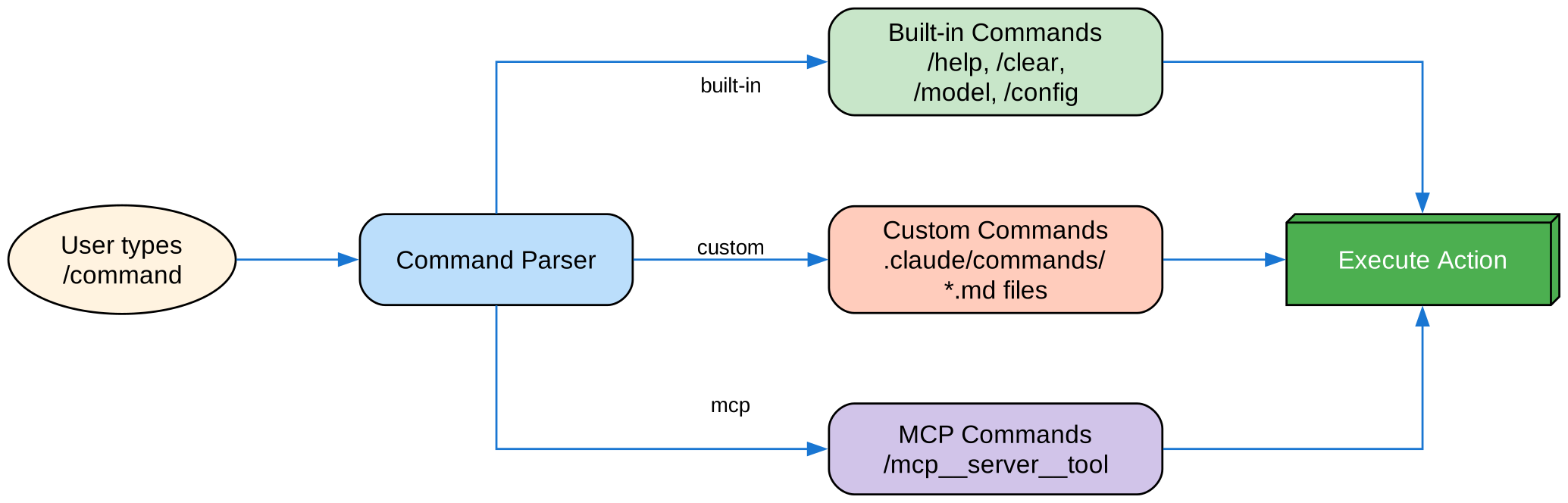
The diagram shows how user commands are parsed and routed to built-in commands, custom skills, or MCP server tools.
Essential Built-in Commands
Session Management
| Command | Purpose |
|---|---|
/help | Show available commands |
/clear | Clear conversation (aliases: /reset, /new) |
/exit | Exit Claude Code (alias: /quit) |
/resume | Resume previous session (alias: /continue) |
/rename | Rename current session |
Model & Settings
| Command | Purpose |
|---|---|
/model | Select AI model |
/config | Open settings (alias: /settings) |
/status | Show version, model, account |
/cost | Show token usage statistics |
Memory & Context
| Command | Purpose |
|---|---|
/init | Initialize CLAUDE.md |
/memory | Edit memory files |
/context | Visualize context usage |
/compact | Compact conversation |
Development
| Command | Purpose |
|---|---|
/diff | Interactive diff viewer |
/doctor | Diagnose installation |
/permissions | View/update permissions |
/hooks | View hook configurations |
Creating Custom Commands
Custom commands are now created as Skills. Create a directory with a SKILL.md file:
mkdir -p .claude/skills/my-command
Basic Skill Structure
File: .claude/skills/my-command/SKILL.md
---
name: my-command
description: What this command does and when to use it
---

# My Command

Instructions for Claude to follow when this command is invoked.

1. First step
2. Second step
3. Third step
Using Arguments
Commands can receive arguments:
---
name: fix-issue
description: Fix a GitHub issue by number
---

Fix issue #$ARGUMENTS following our coding standards.
Usage: /fix-issue 123
Dynamic Context with Shell Commands
Execute bash commands before the prompt:
---
name: commit
description: Create a git commit with context
allowed-tools: Bash(git *)
---

## Context

- Current git status: !`git status`
- Current git diff: !`git diff HEAD`
- Current branch: !`git branch --show-current`

## Task

Based on the above changes, create a git commit.
Example Commands
/optimize - Code Optimization
Analyzes code for performance issues and optimization opportunities.
---
name: optimize
description: Analyze code for performance improvements
---

Review the provided code for:
1. Performance bottlenecks
2. Memory leaks
3. Algorithmic improvements
4. Best practice violations
/pr - Pull Request Preparation
---
name: pr
description: Prepare code for pull request
allowed-tools: Bash(git *), Bash(npm *)
---

## Checklist

1. Run linting
2. Run tests
3. Check for console.log statements
4. Verify commit message format
5. Generate PR description
/push-all - Safe Git Push
---
name: push-all
description: Stage, commit, and push with safety checks
allowed-tools: Bash(git *)
---

## Safety Checks

- Check for secrets (.env*, *.key, *.pem)
- Detect API keys
- Check for large files (>10MB)
- Verify no build artifacts

## Steps

1. Stage all changes
2. Create commit with message
3. Push to remote
Frontmatter Reference
| Field | Purpose | Default |
|---|---|---|
name | Command name | Directory name |
description | Brief description | First paragraph |
argument-hint | Expected arguments | None |
allowed-tools | Tools without permission | Inherits |
model | Specific model to use | Inherits |
disable-model-invocation | Only user can invoke | false |
user-invocable | Show in / menu | true |
context | Set to fork for isolation | None |
Installation
As Skills (Recommended)
# Create skills directory
mkdir -p .claude/skills

# Copy skill files
cp -r skills/* .claude/skills/
Personal vs Project
- Project:
.claude/skills/- Shared with team via git - Personal:
~/.claude/skills/- Only for you
Best Practices
| Do | Don’t |
|---|---|
| Use clear, action-oriented names | Create commands for one-time tasks |
| Include description with triggers | Build complex logic in commands |
| Keep commands focused | Hardcode sensitive information |
Use disable-model-invocation for side effects | Skip the description field |
Troubleshooting
Command Not Found
- Check file is in
.claude/skills/<name>/SKILL.md - Verify the
namefield matches expected command - Restart Claude Code session
- Run
/helpto see available commands
Command Not Working
- Add more specific instructions
- Check
allowed-toolsfor bash commands - Test with simple inputs first
Related Guides

Enjoyed this post? Never miss out on future posts by following us


