Mercury Agent: Soul-Driven AI with Permission-Hardened Tools
Most AI agents can read files, run commands, and fetch URLs. They do it silently, without asking. Mercury Agent takes a different approach: it asks first. Built by Cosmic Stack as an open-source TypeScript project, Mercury is a soul-driven AI agent that combines permission-hardened tools, token budgets, and multi-channel access (CLI + Telegram) into a system designed for safe, controlled AI autonomy.
In this post, we explore how Mercury works, its unique architecture, the soul-driven personality system, the permission model that keeps your machine safe, and how you can get started with it today.
Introduction
Mercury Agent is not just another chatbot wrapper. It is an orchestrator – a system that can read and write files, execute shell commands, manage git operations, schedule tasks, and perform multi-step agentic workflows. What sets it apart is the strict permission system that governs every action, the personality defined by markdown files you own, and the token budget that prevents runaway API costs.
The project runs 24/7 as a background daemon, communicates through CLI or Telegram, and includes 31 built-in tools across filesystem, shell, git, web, skills, scheduler, and messaging categories. It is built on the Vercel AI SDK v4 with provider fallback, so if one LLM provider fails, it automatically tries the next one.
How It Works
At its core, Mercury uses the Vercel AI SDK’s multi-step generateText() function with tools. The agent loads a system prompt composed of soul files, guardrails, and persona configuration. It then enters an agentic loop with up to 10 steps, where the LLM decides at each step whether to call a tool or respond with text.
When a tool is called, the permission system checks whether the action is allowed. If the tool requires access to a path outside the current scope, or if a shell command matches the blocklist, the request is denied and the LLM adjusts its approach. If the action needs user approval, Mercury prompts the user inline (on CLI) or via Telegram, and waits for a response before proceeding.
The token budget system tracks daily usage across all providers. When usage exceeds 70%, Mercury automatically becomes more concise. When the budget is exhausted, it blocks further requests until the user overrides, resets, or increases the budget.
Architecture
Mercury’s architecture follows a layered design with clear separation of concerns. User channels feed into the agent core, which orchestrates the soul engine, permission manager, token budget, and lifecycle state machine. The tool system provides 31 built-in capabilities, and external LLM providers are accessed through a fallback chain.
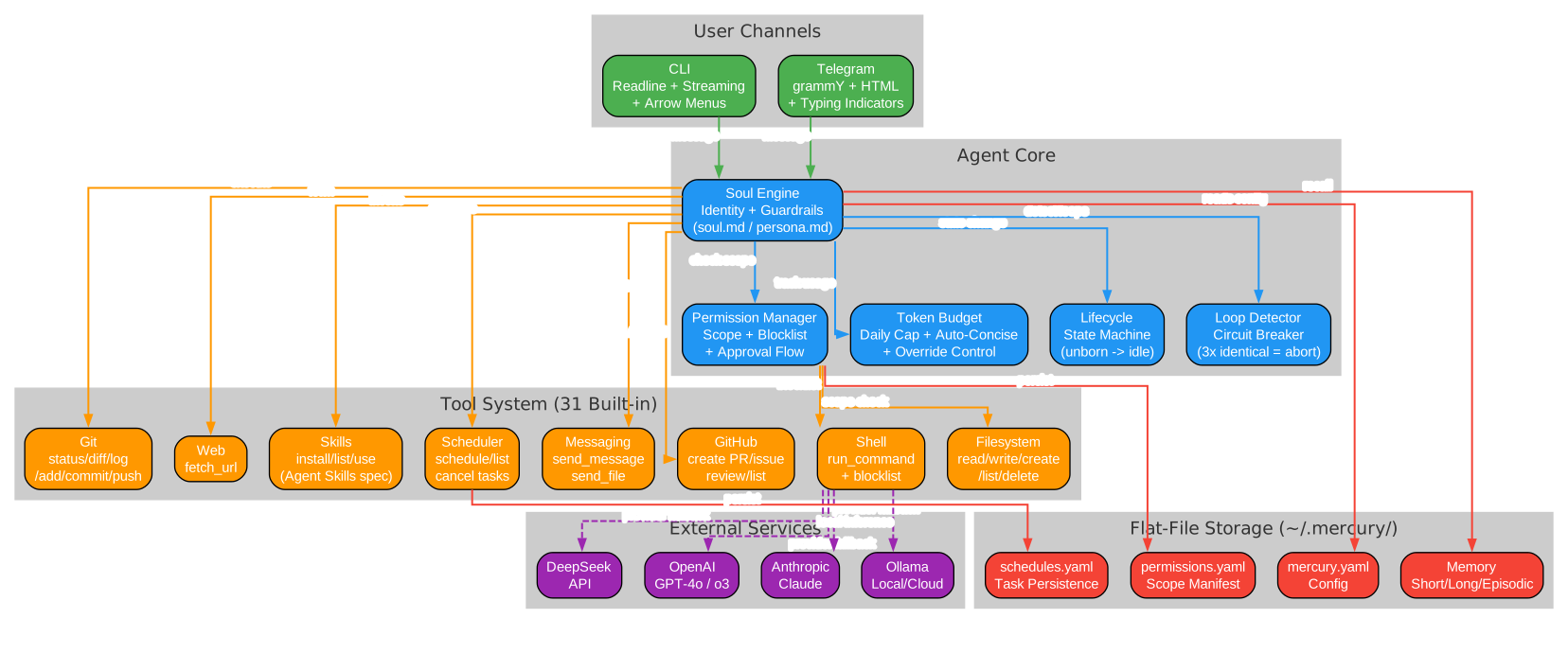
The architecture diagram above illustrates the four major layers of Mercury. At the top, User Channels provide the entry points: the CLI adapter with readline, streaming, and arrow-key menus, and the Telegram adapter built on grammY with HTML formatting, file uploads, and typing indicators. The Agent Core layer houses the soul engine (identity and guardrails), the permission manager (scope and blocklist enforcement), the token budget (daily cap with auto-concise mode), the lifecycle state machine, and the loop detector circuit breaker. The Tool System layer exposes 31 built-in tools across eight categories: filesystem, shell, git, web, skills, scheduler, messaging, and GitHub. At the bottom, External Services represent the LLM providers (DeepSeek, OpenAI, Anthropic, Ollama) and the flat-file storage layer in ~/.mercury/ that persists configuration, permissions, memory, and schedules.
The key design principle is that no tool executes without passing through the permission manager first. Even internal and scheduled messages go through a controlled auto-approve path that can be audited. The flat-file storage approach means all runtime data is human-readable, inspectable, and git-friendly – no database dependency.
Soul Engine
The soul engine is what makes Mercury unique among AI agents. Instead of a hardcoded personality, Mercury’s identity is defined by four markdown files that the owner controls: soul.md (core identity, ~200 tokens), persona.md (communication style, ~150 tokens), taste.md (preferences, ~100 tokens), and heartbeat.md (proactive behavior, ~100 tokens).
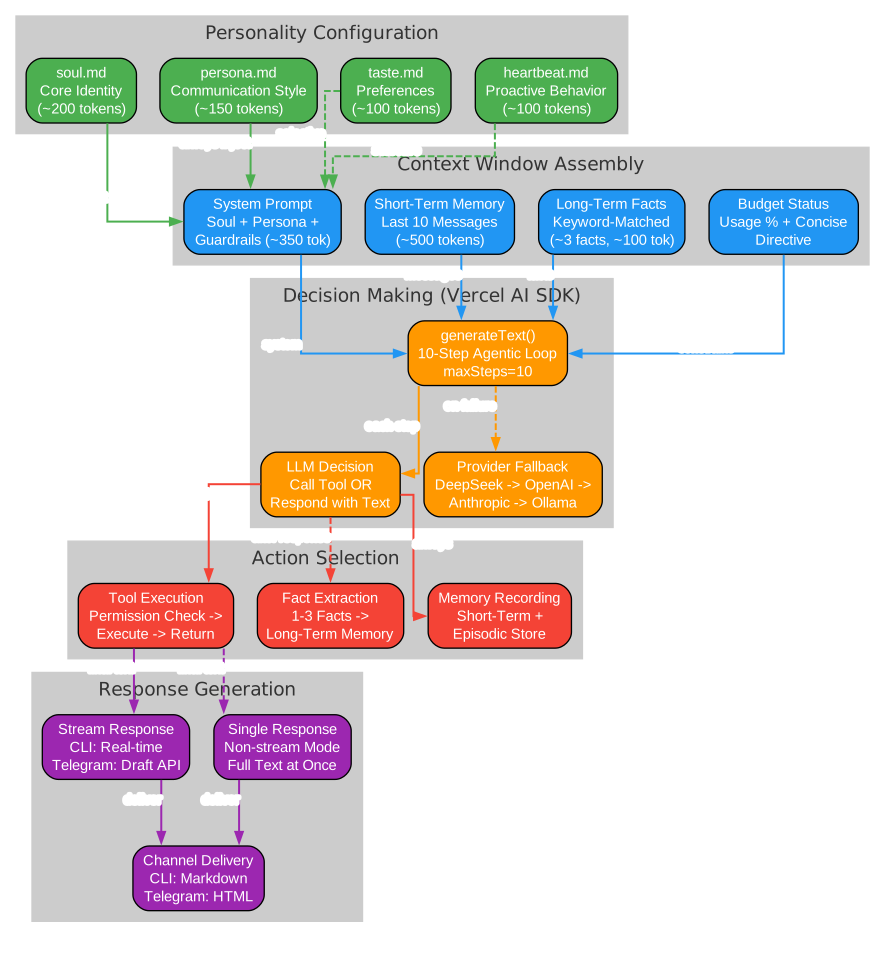
The soul engine diagram shows the full pipeline from personality configuration to response delivery. On the left, the Personality Configuration cluster contains the four markdown files. Only soul.md and persona.md are injected into every request (keeping the baseline at ~350 tokens), while taste.md and heartbeat.md are loaded selectively to conserve the token budget. These files feed into the Context Window Assembly, where the system prompt is composed alongside short-term memory (last 10 messages), long-term facts (keyword-matched, ~3 facts injected), and budget status information.
The Decision Making layer uses the Vercel AI SDK’s generateText() with a 10-step agentic loop. At each step, the LLM decides whether to call a tool or respond with text. The provider fallback mechanism ensures resilience: if DeepSeek fails, it tries OpenAI, then Anthropic, then Ollama. The Action Selection layer handles tool execution (with permission checks), fact extraction (1-3 facts saved to long-term memory after each conversation), and memory recording (short-term and episodic stores). Finally, the Response Generation layer delivers output via streaming (CLI real-time or Telegram draft API) or as a single message, with channel-specific formatting (Markdown for CLI, HTML for Telegram).
This architecture means Mercury’s personality is fully editable without code changes. You can change how it speaks, what it values, and how it proactively behaves – all by editing markdown files in ~/.mercury/soul/.
Permission System
The permission system is Mercury’s most critical safety feature. It operates at two levels: filesystem scope control and shell command governance. No tool executes without passing through the permission manager.
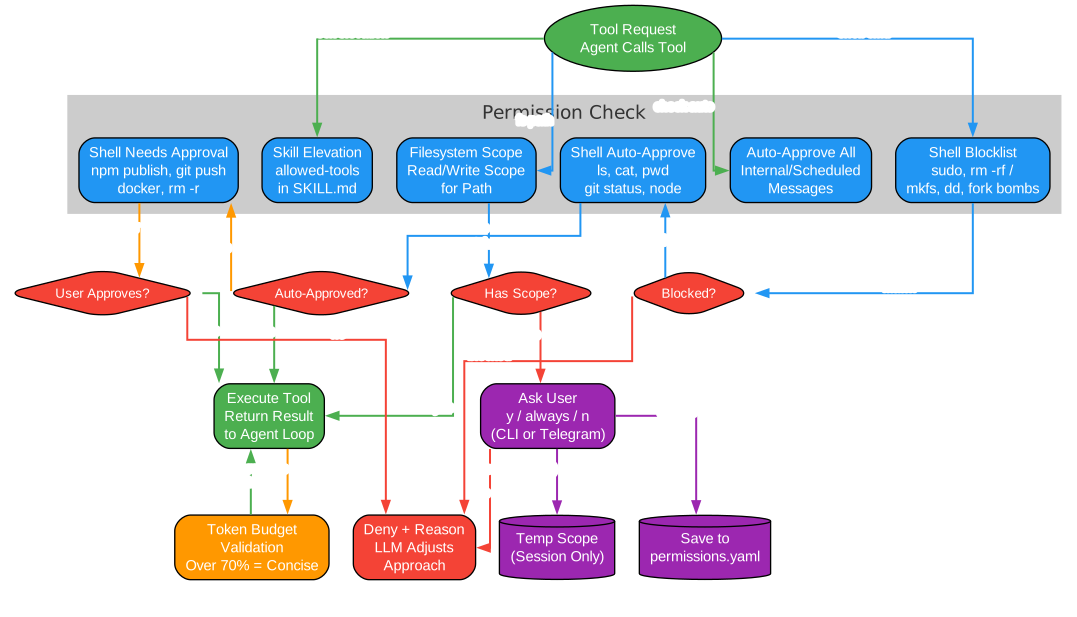
The permission system diagram traces the decision flow from tool request to execution or denial. When a Tool Request arrives, the system first checks for Skill Elevation – if the tool was invoked through a skill with allowed-tools in its SKILL.md frontmatter, the specified tools are automatically elevated. It also checks for Auto-Approve All mode, which is enabled for internal and scheduled messages.
For filesystem operations, the Filesystem Scope check evaluates whether the path falls within an approved read or write scope. If no scope exists, the user is prompted with three options: y (one-time approval), always (saves to permissions.yaml), or n (deny). The “always” choice persists the scope to the manifest file, so future requests to the same path are automatically approved.
For shell commands, the system first checks the Blocklist – commands like sudo, rm -rf /, mkfs, dd if=, fork bombs, shutdown, and reboot are never executed, regardless of user approval. If the command passes the blocklist, it is checked against the Auto-Approve list (safe commands like ls, cat, pwd, git status, node, npm run/test). Commands on the Needs Approval list (like npm publish, git push, docker, rm -r, chmod) require explicit user consent. On Telegram, the approval prompt appears inline; on CLI, it appears as an inline readline prompt.
Before execution, the Token Budget validation ensures the request is within the daily cap. If usage exceeds 70%, Mercury adds a “be concise” directive to the system prompt. If the budget is exhausted, the request is blocked with options to override, reset, or increase the budget.
Installation
Getting started with Mercury is straightforward. The project requires Node.js 18 or later and runs on macOS, Linux, and Windows.
npx @cosmicstack/mercury-agent
Or install it globally for persistent access:
npm i -g @cosmicstack/mercury-agent
mercury
On first run, Mercury launches a setup wizard that asks for your name, an API key (DeepSeek is the default and most cost-effective), and optionally a Telegram bot token. The entire setup takes about 30 seconds.
To reconfigure later (change keys, name, or settings):
mercury doctor
Usage
Daemon Mode
Mercury can run as a persistent background daemon with a single command:
mercury up
This installs the system service (if not installed), starts the background daemon, and ensures Mercury is running. If Mercury is already running, mercury up confirms it and shows the PID.
Other daemon commands:
mercury restart      # Restart the background process
mercury stop         # Stop the background process
mercury start -d     # Start in background (without service install)
mercury logs         # View recent daemon logs
mercury status       # Show if daemon is running
Daemon mode includes built-in crash recovery with exponential backoff (up to 10 restarts per minute). In daemon mode, Telegram becomes the primary interactive channel since there is no terminal for CLI input.
System Service (Auto-Start on Boot)
mercury up installs the system service automatically. You can also manage it directly:
mercury service install     # Install as system service
mercury service status      # Check if service is running
mercury service uninstall   # Remove the system service
| Platform | Method | Requires Admin |
|---|---|---|
| macOS | LaunchAgent (~/Library/LaunchAgents/) | No |
| Linux | systemd user unit (~/.config/systemd/user/) | No (linger for boot) |
| Windows | Task Scheduler (schtasks) | No |
In-Chat Commands
Type these during a conversation – they do not consume API tokens and work on both CLI and Telegram:
/help              # Show the full manual
/status            # Show agent config, budget, and usage
/tools             # List all loaded tools
/skills            # List installed skills
/budget            # Show token budget status
/budget override   # Override budget for one request
/budget reset      # Reset usage to zero
/budget set 100000 # Change daily token budget
/stream            # Toggle Telegram text streaming
Telegram Access
Mercury uses an organization access model with admins and members:
- Send
/startto your bot and receive a pairing code - Enter the code in the CLI:
mercury telegram approve <code> - You become the first admin
- Additional users send
/startto request access; admins approve or reject
mercury telegram list              # List approved and pending users
mercury telegram approve <code>    # Approve a pairing code
mercury telegram reject <id>       # Reject a pending request
mercury telegram promote <id>      # Promote member to admin
Features
31 Built-in Tools
Mercury ships with 31 tools across eight categories:
| Category | Tools |
|---|---|
| Filesystem | read_file, write_file, create_file, edit_file, list_dir, delete_file, send_file, approve_scope |
| Shell | run_command, cd, approve_command |
| Messaging | send_message |
| Git | git_status, git_diff, git_log, git_add, git_commit, git_push |
| GitHub | create_pr, review_pr, list_issues, create_issue, github_api |
| Web | fetch_url |
| Skills | install_skill, list_skills, use_skill |
| Scheduler | schedule_task, list_scheduled_tasks, cancel_scheduled_task |
| System | budget_status |
Provider Fallback
Configure multiple LLM providers. Mercury tries them in order and falls back automatically:
| Provider | Default Model | API Key | Notes |
|---|---|---|---|
| DeepSeek | deepseek-chat | DEEPSEEK_API_KEY | Default, cost-effective |
| OpenAI | gpt-4o-mini | OPENAI_API_KEY | GPT-4o, o3, etc. |
| Anthropic | claude-sonnet-4 | ANTHROPIC_API_KEY | Claude Sonnet, Haiku, Opus |
| Grok (xAI) | grok-4 | GROK_API_KEY | OpenAI-compatible endpoint |
| Ollama Cloud | gpt-oss:120b | OLLAMA_CLOUD_API_KEY | Remote Ollama via API |
| Ollama Local | gpt-oss:20b | No key needed | Local Ollama instance |
Skills System
Mercury supports the Agent Skills specification. Skills are modular, installable instruction sets that extend capabilities without code changes:
# Install a skill from a URL
"Install skill from https://example.com/skill.md"

# List installed skills
/skills

# Use a skill (loaded on demand for token efficiency)
"use skill daily-digest"
Skills use progressive disclosure: only the name and description are loaded at startup (token-efficient), and full instructions are loaded on invocation via the use_skill tool.
Scheduler
Schedule recurring or one-shot tasks:
// Recurring: daily at 9am
schedule_task({ cron: "0 9 * * *", description: "Daily digest", prompt: "Summarize recent activity" })

// One-shot: 15 seconds from now
schedule_task({ delay_seconds: 15, description: "Quick reminder", prompt: "Check build status" })
Tasks persist to ~/.mercury/schedules.yaml and are restored on restart. Responses route back to the channel where the task was created.
Loop Detection
Mercury includes a ToolCallLoopDetector that prevents infinite tool loops – a common problem with agentic systems. If the same tool is called 3+ times with identical parameters, a hard abort is triggered. If the same tool is called 4-6 times in a row (depending on the tool), a soft warning is issued and the user is asked whether to continue. This prevents the agent from burning through token budgets in infinite approval or directory listing loops.
Workflow
The end-to-end workflow shows how a user message flows through Mercury’s system, from channel input through soul processing, the agentic loop, permission gates, and finally response delivery.

The workflow diagram traces the complete lifecycle of a user message. It begins at User Input, where a natural language message or chat command (like /budget or /tools) enters the system. The Channel Adapter layer routes the message through either the CLI adapter (with readline and inline permission prompts) or the Telegram adapter (with grammY, HTML formatting, and file uploads). The Channel Registry manages routing and sends typing indicators to the user.
Next, Soul Processing loads the agent’s identity from soul.md and persona.md, builds the system prompt with budget status and environment information, and recalls relevant memory (short-term recent messages and long-term keyword-matched facts). The assembled context enters the Agentic Loop, where the LLM decides at each step whether to call a tool or respond with text. Tool calls pass through the Permission Gate, which checks filesystem scopes, shell blocklists, and approval requirements. Allowed tools execute and return results to the LLM context; denied tools cause the LLM to adjust its approach. The Loop Detection mechanism monitors for repeated identical calls and aborts or warns as needed.
When the LLM produces a text response, it enters Response Delivery: the output is streamed (CLI real-time or Telegram draft API) or sent as a single message, then recorded to short-term and episodic memory. Facts are extracted from the conversation and saved to long-term memory, and token usage is tracked against the daily budget.
Conclusion
Mercury Agent represents a thoughtful approach to AI agent safety. By combining soul-driven personality (editable markdown files), permission-hardened tools (filesystem scopes + shell blocklists + approval flows), token budgets (daily caps with auto-concise mode), and multi-channel access (CLI + Telegram), it creates an environment where AI autonomy is possible without sacrificing control.
The flat-file architecture means everything is inspectable – your permissions, your agent’s memory, its personality, and its scheduled tasks are all human-readable files in ~/.mercury/. The provider fallback system ensures resilience across LLM providers. The loop detector prevents the common failure mode of agentic systems spiraling into infinite tool calls.
Whether you need a 24/7 personal assistant, a development companion that asks before it acts, or a Telegram bot with controlled filesystem access, Mercury provides the framework. Install it with a single command and configure it in 30 seconds.
npx @cosmicstack/mercury-agent
The project is open source under the MIT license and available on GitHub at cosmicstack-labs/mercury-agent. Enjoyed this post? Never miss out on future posts by following us 


