Gemma Chat: Local AI Coding Agent for Apple Silicon via MLX
Gemma Chat is a local AI coding agent that runs entirely on Apple Silicon via Apple’s MLX framework, enabling fully offline vibe coding without API keys, cloud services, or internet connectivity. Built as an Electron app powered by Google’s Gemma 4 models, it writes multi-file projects with a live preview that updates as the model generates code character by character. With a ~3 GB model download, the entire system runs on your laptop - your code, your prompts, and your conversations never leave your machine.
Key Insight: Gemma Chat runs up to 40 agent rounds per user message in Build mode, streaming tokens from a local MLX server, parsing XML action blocks, executing tools like file writes and bash commands, and feeding results back - all without a single network request leaving your Mac.
What is Gemma Chat?
Gemma Chat is an open-source Electron application that brings local-first AI coding to macOS. Created by Ammaar Reshi, it leverages Apple’s MLX framework to run Google’s Gemma 4 language models natively on Apple Silicon. The app provides two distinct modes:
- Build Mode - A coding agent that writes multi-file projects (HTML, CSS, JavaScript) into a sandboxed workspace with a live preview canvas that updates in real-time as the model types
- Chat Mode - A conversational AI with tool use capabilities including web search, URL fetching, calculator, and bash execution
The core philosophy is simple: what if you could vibe code from an airplane, a cabin with no cell signal, or just without sending your code to someone else’s server?
Understanding the Architecture
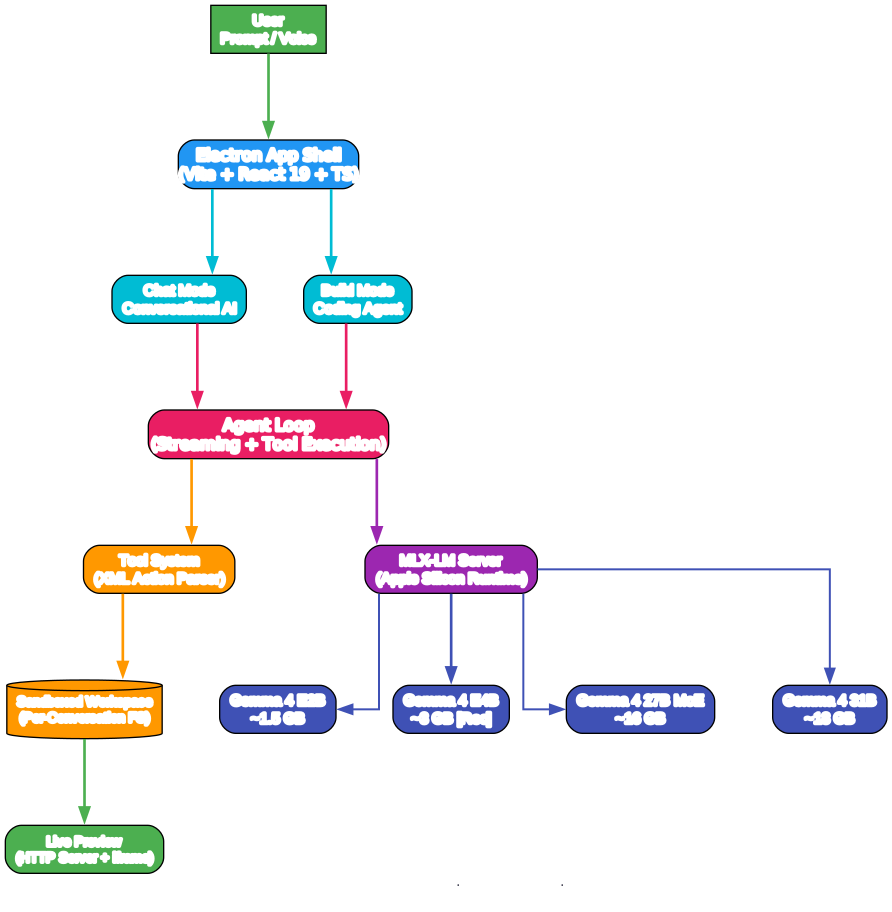
The architecture diagram above illustrates how Gemma Chat’s components interact to deliver a fully local AI experience. Let’s break down each layer:
User Input Layer The user interacts with the app through text prompts or voice input. Voice recognition uses in-browser Whisper via transformers.js (WASM), keeping even speech-to-text processing entirely on-device. No audio data is sent to external servers.
Electron App Shell The application is built on Electron with Vite, React 19, TypeScript, and Tailwind CSS. This provides the native macOS experience with a dark-themed UI, custom title bar, and dock icon integration. The app shell manages two distinct modes - Chat and Build - each with its own system prompt and tool configuration.
Agent Loop (Core Engine) The agent loop is the heart of Gemma Chat. In Build mode, it runs up to 40 rounds per user message. Each round streams tokens from the local MLX server, parses XML <action> blocks from the stream, executes the corresponding tools (file writes, bash commands, etc.), and feeds the results back as tool messages for the next round. This agentic loop enables the model to iteratively build complex multi-file projects.
MLX-LM Server Apple’s MLX framework provides the inference runtime. The app auto-provisions a Python virtual environment and installs MLX-LM on first launch. The server runs on 127.0.0.1:11434 and exposes an OpenAI-compatible /v1/chat/completions endpoint with SSE streaming. This design choice means the app communicates with the model through standard HTTP requests, making it easy to swap models or debug interactions.
Model Variants Four Gemma 4 model variants are available, ranging from the lightweight E2B (~1.5 GB) to the full 31B (~18 GB). Models can be hot-swapped on the fly without restarting the app. The recommended E4B model at ~3 GB provides the best balance of speed and capability for most coding tasks.
Sandboxed Workspace Each conversation gets its own isolated filesystem directory. The workspace server provides static file serving with proper MIME types, CORS headers, and path traversal protection. Files written by the agent are immediately available for preview in the Canvas iframe.
Features and Capabilities

Understanding the Features
The features diagram above shows the nine core capabilities that make Gemma Chat a compelling local AI development tool. Here is a detailed breakdown:
Build Mode with Live Preview The coding agent writes files into a per-conversation sandboxed workspace. As the model generates file content, partial writes are flushed to disk approximately every 450ms. The preview iframe auto-reloads in real-time, so you can watch the page build itself character by character. This creates a uniquely satisfying development experience where you see your application materialize in real-time.
Chat Mode with Tool Use Beyond coding, Gemma Chat functions as a conversational AI with access to tools like web search (via DuckDuckGo HTML scraping), URL fetching, calculator, and bash execution. Tools are invoked through an XML-based action format rather than JSON function calling, as the developers found that small models handle XML more reliably.
Offline Operation After the one-time model download (~3 GB for the recommended E4B), everything runs without internet. The MLX server, model inference, workspace file operations, and preview server all operate locally. This makes Gemma Chat ideal for use on airplanes, in remote locations, or in security-conscious environments.
Voice Input Local speech-to-text runs via in-browser Whisper through transformers.js and WASM. The microphone permission is handled through Electron’s session API, and audio processing happens entirely in the browser process without external API calls.
4 Model Variants with Hot-Swap The app supports four Gemma 4 model sizes, each optimized for different hardware capabilities. Switching models is seamless - the app stops the current MLX server, starts a new one with the selected model, and downloads the model weights on first use. The model picker dropdown shows size information and a “rec” badge for the recommended variant.
Privacy-First Design No data leaves your machine. Conversations are stored in localStorage, model weights are cached in the app’s userData directory, and the workspace server binds only to localhost. There are no telemetry endpoints, no analytics, and no cloud dependencies after the initial model download.
Zero Configuration First launch auto-detects Python 3.10-3.13 on the system, creates a virtual environment, upgrades pip, installs MLX-LM, downloads the model, and starts the server. The entire setup process is guided by a Setup component that shows progress at each stage. No manual configuration is required.
XML Tool Protocol Small models handle XML more reliably than JSON function calling, so Gemma Chat uses an XML-based action format for tool invocation. Actions are parsed from the token stream in real-time using regex-based detection, with safe boundary emission to avoid cutting off partial action tags.
Live Streaming As the model generates file content, partial writes are flushed to disk every ~450ms. The Code tab in the Canvas shows the file being typed with a blinking cursor animation, line numbers, and character count. When the file write completes, the view automatically switches back to the Preview tab to show the final result.
Available Models
| Model | Size | Best For | RAM Requirement |
|---|---|---|---|
| Gemma 4 E2B | ~1.5 GB | Fast Q&A, simple tasks | 8 GB+ |
| Gemma 4 E4B | ~3 GB | Recommended. Speed + capability balance | 8 GB+ |
| Gemma 4 27B MoE | ~16 GB | Stronger reasoning (Mixture-of-Experts) | 16 GB+ |
| Gemma 4 31B | ~18 GB | Maximum quality (dense model) | 32 GB+ |
Takeaway: The recommended E4B model at ~3 GB fits comfortably on any Apple Silicon Mac with 8 GB of RAM, making it accessible to the vast majority of Mac users without requiring expensive hardware upgrades.
How the Agent Loop Works
The agent loop is the most technically interesting part of Gemma Chat. Here is how it processes each user message in Build mode:
Understanding the Build Mode Workflow
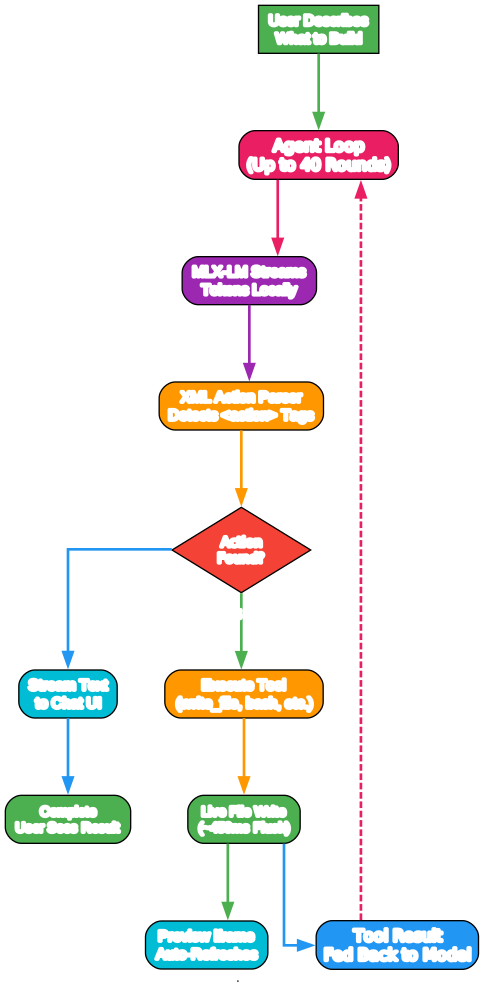
The workflow diagram above shows the step-by-step process of how Gemma Chat’s Build mode transforms a user prompt into a working application. Let’s trace through each stage:
Step 1: User Describes What to Build The user provides a natural language description like “Build a retro calculator app” or “A landing page for a coffee shop.” This prompt enters the agent loop along with the conversation history and a specialized system prompt that instructs the model to act as a coding agent.
Step 2: Agent Loop (Up to 40 Rounds) The agent loop begins. In Build mode, it can run up to 40 rounds per user message. Each round represents one cycle of: stream tokens, detect actions, execute tools, feed results back. This multi-round capability is what enables the model to build complex multi-file projects iteratively.
Step 3: MLX-LM Streams Tokens Locally The MLX server processes the chat completion request and streams tokens back via Server-Sent Events (SSE) in OpenAI-compatible format. The app reads the SSE stream, parsing each data: {...} line to extract content deltas. The model generates at temperature 0.7 with a max token limit of 8192.
Step 4: XML Action Parser Detects <action> Tags As tokens arrive, the parser scans the buffer for <action name="tool_name"> patterns. It uses a safe boundary emission strategy - text before any detected action is immediately streamed to the UI, while text near a potential action tag is held back until the tag is either completed or ruled out. This prevents partial XML tags from appearing in the chat output.
Step 5: Decision - Action Found? If no action is found in the current buffer, the text is streamed directly to the chat UI as a normal response. If an action is found and fully parsed (both opening and closing tags present), the tool is executed.
Step 6: Execute Tool The parsed action is dispatched to the corresponding tool handler. For write_file, the content is cleaned (removing markdown code fences that small models sometimes add), written to the workspace via atomic rename (write to .tmp then rename), and the file change event is emitted. For run_bash, the command is executed in the workspace directory with safety checks blocking dangerous patterns like rm -rf / or sudo.
Step 7: Live File Write (~450ms Flush) During write_file actions, partial content is flushed to disk approximately every 450ms as the model generates. This creates the real-time preview experience where you can see the page building itself. The Code tab in the Canvas shows the file being typed with a blinking cursor.
Step 8: Preview iframe Auto-Refreshes The workspace server serves files with Cache-Control: no-store headers, ensuring the preview iframe always shows the latest content. When a file change event is detected, the Canvas component increments a nonce parameter on the preview URL, forcing the iframe to reload with the fresh content.
Step 9: Tool Result Fed Back to Model After tool execution, the result is added to the conversation as a tool message. The agent loop then starts a new round with the updated conversation, allowing the model to continue building based on the results of its previous actions. This feedback loop continues until the model emits no more actions or the maximum round limit is reached.
Amazing: The live file write mechanism flushes partial content to disk every ~450ms during generation, meaning you can literally watch an HTML page build itself character by character in the preview iframe as the model types.
The XML Tool Protocol
One of the most interesting design decisions in Gemma Chat is the use of XML-based tool invocation instead of JSON function calling. The developers found that small models handle XML more reliably than JSON, so tools are invoked via an XML action format:
<action name="write_file">
<path>index.html</path>
<content>
<!doctype html>
<html lang="en">
<head>
  <title>My App</title>
  <link rel="stylesheet" href="style.css">
</head>
<body>
  <h1>Hello World</h1>
</body>
</html>
</content>
</action>
The parser handles several edge cases gracefully:
- Case-insensitive matching -
<action name="...">works regardless of case - Nested content - The
<content>tag useslastIndexOf('</content>')to survive nested close-tags within file content - Safe boundary emission - Text near potential
<actiontags is held back until the tag is confirmed or ruled out - Markdown fence stripping - The
cleanFileContentfunction removes ``` fences that small models sometimes add inside<content>blocks
Available Tools
Chat Mode Tools (both modes)
| Tool | Description | Parameters |
|---|---|---|
web_search | Search the web via DuckDuckGo | query (required) |
fetch_url | Fetch a web page and return text | url (required) |
calc | Evaluate a numeric expression | expression (required) |
Build Mode Tools (code mode only)
| Tool | Description | Parameters |
|---|---|---|
write_file | Create or overwrite a file in workspace | path, content (required) |
read_file | Read a file from workspace | path (required) |
edit_file | Replace a snippet in an existing file | path, old_string, new_string (required) |
list_files | List every file in the workspace | none |
delete_file | Delete a file from workspace | path (required) |
run_bash | Run a bash command in workspace | command (required) |
open_preview | Reveal the Canvas preview | none |
Important: The
run_bashtool includes a safety denylist that blocks dangerous commands likerm -rf /,sudo,mkfs,dd if=,shutdown, andreboot. Commands also have a configurable timeout (default 60 seconds) and output truncation at 16 KB to prevent runaway processes.
Tech Stack
| Layer | Technology |
|---|---|
| App Shell | Electron + Vite + React 19 + TypeScript + Tailwind |
| Model Runtime | MLX-LM (auto-installed into a local venv) |
| Speech-to-Text | transformers.js (Whisper, runs in-browser via WASM) |
| Workspace | Per-conversation sandboxed filesystem + local HTTP server |
| Model Server | OpenAI-compatible SSE endpoint on 127.0.0.1:11434 |
Installation
Requirements
- macOS on Apple Silicon (M1/M2/M3/M4)
- Python 3.10 - 3.13 (Python 3.14+ is NOT supported - MLX-LM lacks wheels for it)
- Node.js 20+
Quick Start
# Clone the repository
git clone https://github.com/ammaarreshi/gemma-chat.git
cd gemma-chat

# Install dependencies
npm install

# Start development server
npm run dev
On first launch, the app automatically:
- Detects Python 3.10-3.13 on your system
- Creates a virtual environment in
~/Library/Application Support/gemma-chat/mlx/venv/ - Upgrades pip and installs MLX-LM from PyPI
- Downloads the selected model (~3 GB for E4B recommended)
- Starts the MLX server and you are ready to code
Tip: If you do not have Python installed, use Homebrew:
brew install python@3.13
Building a Distributable
# Build a signed .dmg for distribution
npm run dist
This produces a signed .dmg file in the dist/ directory. Recipients can drag it to Applications and start using it immediately.
How the MLX Integration Works
The MLX integration is one of the most carefully engineered parts of Gemma Chat. Here is how it works under the hood:
Python Detection - The app searches for compatible Python versions in a specific order: Homebrew paths first (/opt/homebrew/bin/python3.13 down to 3.10), then /usr/local/bin/ paths, and finally generic python3 with version validation. Python 3.14+ is explicitly skipped because MLX-LM does not publish wheels for it yet.
Virtual Environment - A dedicated venv is created at ~/Library/Application Support/gemma-chat/mlx/venv/. The app forces public PyPI (--index-url https://pypi.org/simple/) to bypass any corporate pip registries that might be configured in pip.conf.
Server Lifecycle - The MLX server is spawned as a child process running python -m mlx_lm.server --model <model> --port 11434. Model weights are stored in ~/Library/Application Support/gemma-chat/mlx/models/ using HuggingFace’s cache format. The app polls the /v1/models endpoint until the server responds, with a 10-minute timeout for first-run model downloads.
Chat Streaming - The app communicates with the MLX server using the OpenAI-compatible chat completions API with SSE streaming. Each chunk is parsed from the data: {...}\n\n format, and content deltas are yielded to the agent loop as an async generator.
Model Switching - Hot-swapping models works by killing the current server process and spawning a new one with the selected model. The app tracks the current model to avoid unnecessary restarts when the same model is selected.
Workspace and Preview System
Each conversation gets its own isolated workspace directory under ~/Library/Application Support/gemma-chat/workspaces/. The workspace system provides:
Static File Server - A local HTTP server binds to a random port on 127.0.0.1 and serves workspace files with proper MIME types, CORS headers, and cache-control directives. Directory listings are rendered as styled HTML when no index.html is present.
Path Security - The assertInWorkspace function prevents path traversal attacks by resolving all paths relative to the workspace root and rejecting any path that escapes it (using .. sequences or absolute paths).
Atomic File Writes - Files are written using an atomic rename pattern: content is first written to a .tmp file, then renamed to the target path. This prevents partial writes from corrupting files if the process crashes mid-write.
File Editing - The edit_file tool supports find-and-replace operations with exact string matching. It enforces uniqueness of the old_string (unless replace_all is specified) to prevent accidental multiple replacements.
Project Structure
src/
  main/              Electron main process
    index.ts         Window + IPC + agent loop
    mlx.ts          MLX-LM venv install / server lifecycle / chat streaming
    workspace.ts    Per-conversation workspace + static file server
    tools.ts        Tool definitions + system prompts + XML action parser
  preload/          contextBridge API surface
  renderer/src/
    components/
      Setup.tsx     First-run onboarding + download progress
      Chat.tsx      Main layout + model switcher
      Canvas.tsx    Preview / Code / Files tabs (Build mode)
      Message.tsx   Chat bubbles + tool cards + activity bar
      Composer.tsx  Input + mic button
      Sidebar.tsx   Conversation list
    lib/whisper.ts  Browser Whisper pipeline
  shared/types.ts   IPC types + model registry
Troubleshooting
| Issue | Solution |
|---|---|
| Python not found | Install via Homebrew: brew install python@3.13 |
| Python 3.14 detected | MLX-LM does not support 3.14 yet. Install 3.10-3.13 specifically |
| Model download fails | Check internet connection. Models are fetched from HuggingFace on first use |
| MLX server won’t start | Check the dev console for error output. Try deleting the venv directory to force reinstallation |
| Preview not updating | Click the refresh button in the Canvas toolbar. The nonce-based cache busting should handle this automatically |
| Bash command blocked | Dangerous commands like sudo and rm -rf / are blocked by the safety denylist |
| App crashes on launch | Ensure you are on Apple Silicon (M1/M2/M3/M4). Intel Macs are not supported |
Conclusion
Gemma Chat represents a compelling proof-of-concept for fully offline, local-first AI coding. By leveraging Apple’s MLX framework to run Gemma 4 models natively on Apple Silicon, it delivers a coding agent experience that requires no API keys, no cloud services, and no internet connection after the initial setup. The XML-based tool protocol, live file streaming with ~450ms flush intervals, and multi-round agent loop (up to 40 rounds) create a uniquely satisfying development experience where you can watch your application build itself in real-time.
For developers who value privacy, work in restricted network environments, or simply want to experiment with local AI coding, Gemma Chat offers an accessible entry point. The zero-configuration setup, model hot-swapping, and sandboxed workspace system make it easy to get started and productive quickly.
Links
- GitHub Repository: https://github.com/ammaarreshi/gemma-chat
- MLX Framework: https://github.com/ml-explore/mlx
- Gemma by Google DeepMind: https://ai.google.dev/gemma
- transformers.js by Hugging Face: https://github.com/huggingface/transformers.js

Enjoyed this post? Never miss out on future posts by following us


