Omi: Open-Source AI Wearable That Remembers Everything
In an age where information flows endlessly through meetings, conversations, and digital interactions, the ability to capture and recall everything has become a superpower. Omi is an open-source AI-powered platform that serves as your “2nd brain” – capturing your screen, transcribing conversations in real-time, generating summaries and action items, and providing an AI chat that remembers everything you have seen and heard. Trusted by over 300,000 professionals and boasting 9,555 GitHub stars, Omi represents a paradigm shift in personal knowledge management.
What sets Omi apart from other AI assistants is its full-stack open-source approach. From the firmware running on the BLE wearable device to the cloud backend, every component is available under the MIT license. This means you can self-host, customize, and extend every layer of the platform. Whether you are a developer looking to integrate AI memory into your workflow, or a privacy-conscious user who wants full control over their data, Omi delivers on both fronts.
In this post, we will explore the Omi platform architecture, walk through its data processing pipeline, examine the integration ecosystem, and dive into the knowledge and memory system that makes Omi such a powerful tool. We will also cover installation, setup, and practical usage guides to help you get started.
Platform Architecture
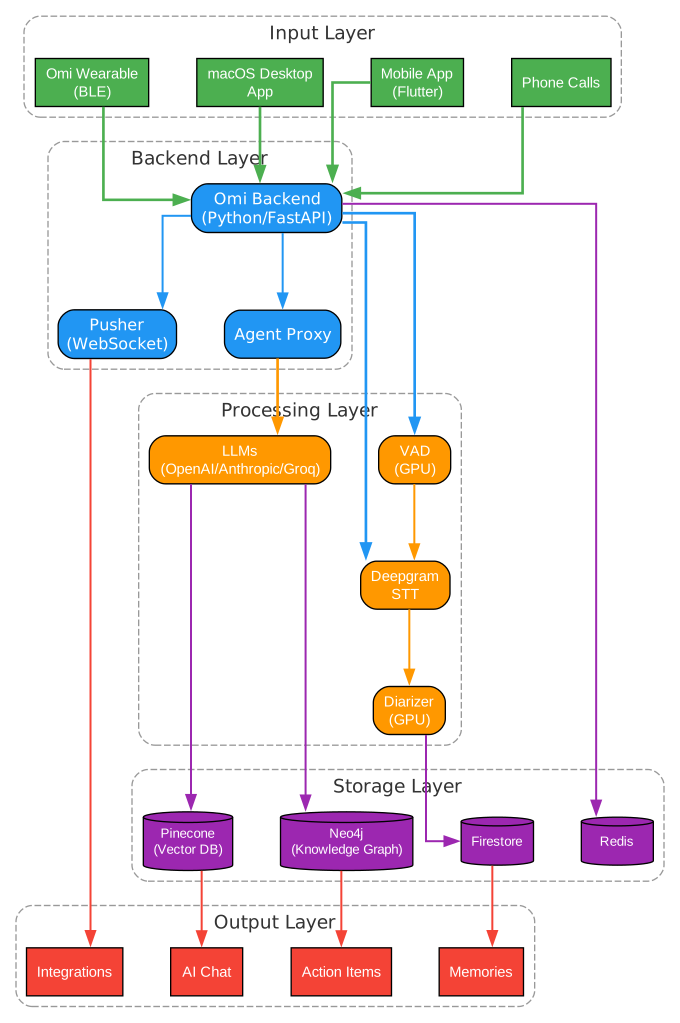
The Omi platform is built on a multi-layered architecture that spans from hardware wearables to cloud services, with a clear separation of concerns at each tier. At the top of the stack, users interact through four primary client applications: the macOS desktop app built with Swift and SwiftUI, the cross-platform mobile app built with Flutter, the Next.js web application, and the Omi wearable hardware that connects via Bluetooth Low Energy (BLE).
The desktop application is particularly noteworthy because it employs a dual-backend architecture. The cloud-facing backend is written in Python 3.11 using FastAPI, handling API routing, authentication, and data orchestration. The local desktop backend, however, is written in Rust using the Axum framework, which provides near-native performance for screen capture processing, local transcription, and real-time audio handling. This architectural decision ensures that the desktop app remains responsive even when processing high-volume screen capture data.
The mobile application, built with Flutter and Dart, provides a consistent experience across iOS and Android. It communicates with the Python backend through a RESTful API and receives real-time updates via WebSocket connections. The mobile app handles microphone-based audio capture, push notifications for action items, and serves as the primary interface for the Omi wearable device pairing.
On the hardware side, the Omi wearable runs on an nRF series microcontroller with Zephyr RTOS, written in C. It captures audio through a built-in microphone and streams it to the paired phone via BLE. The companion Omi Glass variant uses an ESP32-S3 chip with a React Native companion app, providing an alternative form factor for different use cases.
The cloud infrastructure layer relies on Google Firestore as the primary database, Redis for caching and session management, Pinecone for vector similarity search, Neo4j for the knowledge graph, and Typesense for full-text search. Container orchestration is handled through Docker and Kubernetes, with Helm charts provided for production deployments. For GPU-accelerated workloads like speaker diarization and voice activity detection, Omi leverages Modal’s serverless GPU platform, enabling cost-effective on-demand processing without maintaining dedicated GPU infrastructure.
Data Processing Pipeline
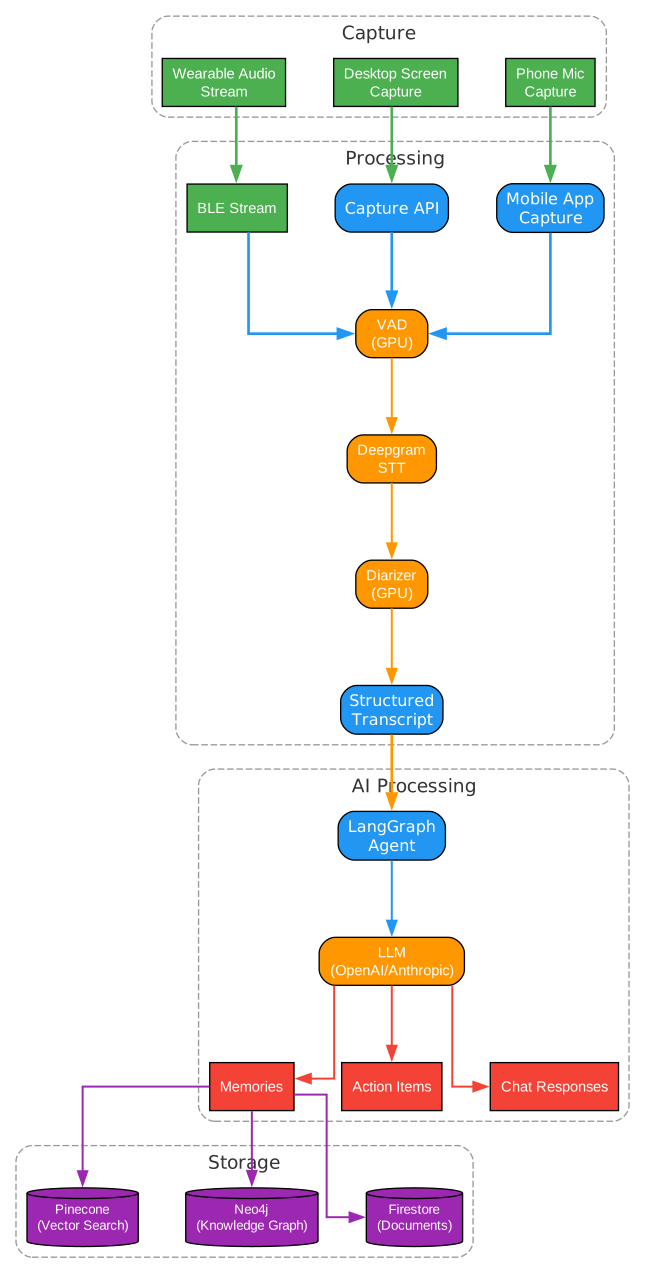
The Omi data processing pipeline is designed to handle multiple input modalities and transform raw data into structured, searchable knowledge. The pipeline begins with data capture from three primary sources: the BLE wearable microphone, the desktop screen capture module, and the phone microphone. Each source feeds into a dedicated ingestion queue that normalizes the data format before passing it downstream.
For audio-based inputs, the first processing stage is Voice Activity Detection (VAD). This GPU-accelerated module, running on Modal’s serverless infrastructure, identifies segments of the audio that contain speech and filters out silence and noise. This is critical for efficiency – rather than processing hours of ambient silence, the VAD module ensures that only meaningful speech segments are sent to the transcription engine.
Once speech segments are identified, they are processed by Deepgram’s Speech-to-Text (STT) engine, which can run either as a cloud service or as a self-hosted instance. Deepgram provides real-time streaming transcription with word-level timestamps and confidence scores. The transcription output includes punctuation, capitalization, and paragraph breaks, producing clean, readable text from raw audio.
After transcription, the pipeline applies speaker diarization – another GPU-accelerated process running on Modal. Diarization identifies and labels different speakers in a conversation, attributing each transcribed segment to a specific person. This is essential for meeting transcripts where multiple participants are speaking, as it enables the AI to understand who said what and generate accurate action items per speaker.
The transcribed and diarized text then enters the AI processing stage, where LangChain and LangGraph orchestrate multiple LLM calls. The system uses OpenAI, Anthropic, and Groq models for different tasks: summarization, action item extraction, topic categorization, and memory generation. Each LLM call is configured with specific prompts and parameters optimized for its task, and the results are aggregated into a structured output that includes the conversation summary, extracted action items, identified topics, and generated memories.
Finally, the processed data is stored across multiple databases for different access patterns. Firestore stores the primary conversation records, Pinecone indexes vector embeddings for semantic search, Neo4j maps entity relationships in the knowledge graph, and Typesense provides full-text search capabilities. This multi-database approach ensures that queries of any type – whether semantic, relational, or keyword-based – can be served efficiently.
Key Features
Real-Time Transcription
Omi captures audio from multiple sources and transcribes it in real-time using Deepgram’s STT engine. Whether you are in a meeting, having a phone call, or wearing the Omi device in a coffee shop, the platform continuously processes speech and produces accurate transcripts. The streaming architecture means you see text appear within seconds of words being spoken, making it possible to follow along with live captions during important conversations.
AI Chat with Memory
The AI chat feature is where Omi truly shines as a “2nd brain.” Unlike conventional chatbots that start each conversation from scratch, Omi’s chat has full context of your past conversations, screen activity, and stored memories. You can ask questions like “What did Sarah say about the Q3 budget?” and receive accurate answers drawn from your actual conversation history. The chat leverages Pinecone’s vector search to retrieve semantically relevant context and LangGraph to orchestrate multi-step reasoning.
Action Items
Omi automatically extracts tasks, to-dos, and follow-ups from your conversations. When someone says “Can you send me the report by Friday?” the system identifies this as an action item, assigns it a deadline, and can even link it to the relevant conversation for context. Action items are surfaced through push notifications and can be synced to external task management tools through the plugin ecosystem.
Knowledge Graph
Powered by Neo4j, Omi’s knowledge graph maps relationships between people, topics, organizations, and events mentioned across your conversations. Over time, this graph grows into a rich network of interconnected knowledge that enables sophisticated queries like “Show me all conversations where we discussed the merger with Acme Corp” or “What topics has John brought up in the last month?”
Speaker Diarization
The GPU-accelerated speaker diarization module identifies and labels different speakers in multi-party conversations. This feature is essential for meeting transcripts, phone calls, and any scenario where multiple people are speaking. Each speaker is assigned a consistent label across sessions, enabling the system to build speaker profiles over time.
End-to-End Encryption
Privacy is a core design principle of Omi. All data is encrypted end-to-end, meaning that even the server operators cannot read your conversations. The encryption and decryption happen on the client side, and the server only processes encrypted data. This is particularly important for a platform that captures sensitive information like business meetings and personal conversations.
MCP Server Integration
Omi includes a Model Context Protocol (MCP) server that allows other AI tools, such as Claude Desktop, to access your Omi memories and conversation history. This means you can use your preferred AI assistant while still leveraging the comprehensive memory that Omi provides. The MCP server exposes memories, conversations, and action items as tools that any MCP-compatible client can invoke.
Integration Ecosystem

One of Omi’s most compelling features is its extensive plugin and integration ecosystem. With over 20 built-in integrations, Omi connects to the tools that professionals use daily, creating a seamless flow of information between your conversations and your productivity stack.
The integration ecosystem is organized into several categories. Communication platforms include Slack, which can post conversation summaries and action items to channels, and Twitter/X for social media monitoring. Project management tools encompass Linear, ClickUp, and Notion, enabling automatic creation of tasks and notes from conversation content. Cloud storage integrations with Dropbox allow conversation transcripts and summaries to be automatically archived. Calendar integrations with Google Calendar provide meeting context, detect upcoming events, and enrich conversations with calendar metadata.
The Zapier integration deserves special mention because it serves as a bridge to thousands of additional applications. Through Zapier, you can create custom workflows that trigger on new conversations, action items, or memories – for example, automatically creating a Jira ticket when a specific keyword is mentioned, or sending an email summary after every meeting.
For developers, Omi provides a comprehensive SDK ecosystem. The Python SDK enables programmatic access to the API for custom integrations and automation. The Swift SDK allows native iOS and macOS app development. The React Native and Expo SDKs support cross-platform mobile development. Each SDK provides typed access to the full API surface, including conversations, memories, action items, and the knowledge graph.
The plugin architecture itself is extensible. Developers can create custom plugins using the provided SDKs and submit them to the Omi marketplace. Each plugin runs in a sandboxed environment and has access to specific data types based on user permissions. The plugin system supports both real-time triggers (fired when new data is processed) and scheduled tasks (running at specified intervals).
The GitHub integration is particularly useful for development teams. It can link conversations to specific pull requests, create issues from action items, and provide context-aware summaries of technical discussions. The Shopify integration enables e-commerce businesses to track customer conversations and generate insights from sales-related discussions.
Knowledge and Memory System
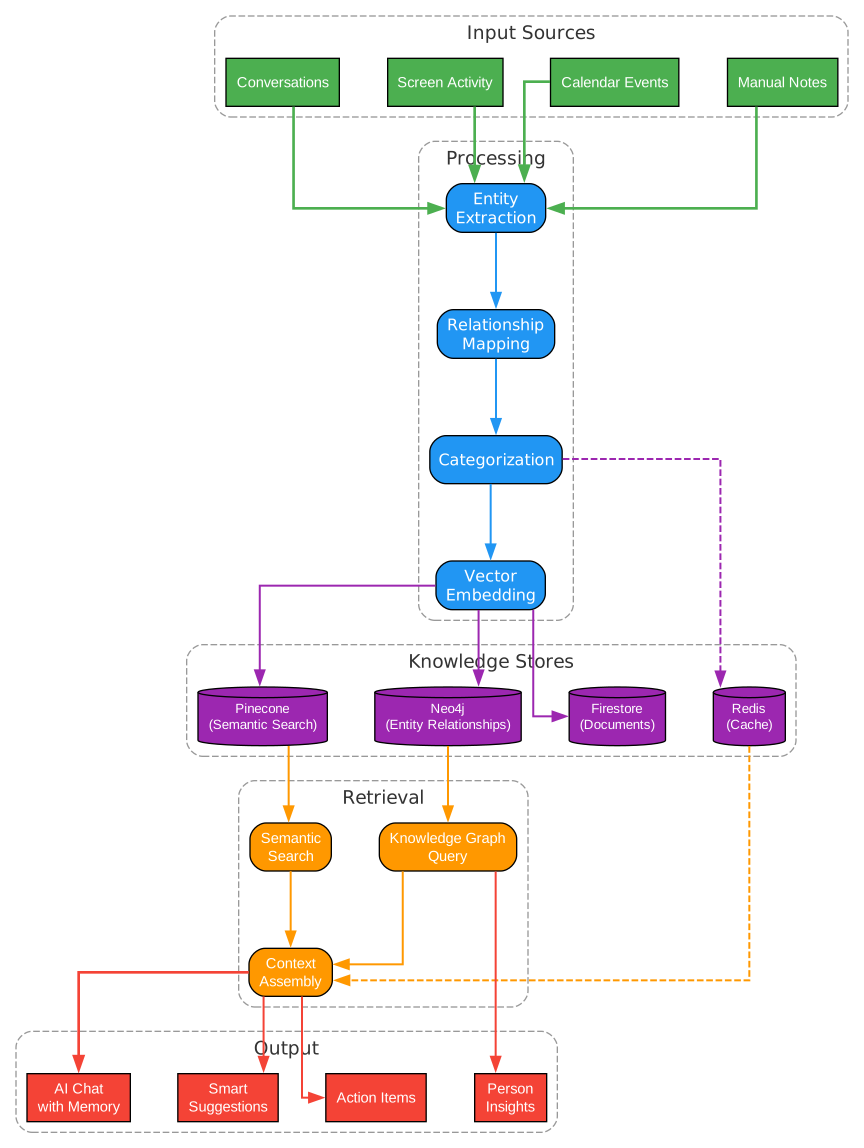
The knowledge and memory system is the intellectual core of Omi, transforming raw conversation data into persistent, searchable, and interconnected knowledge. This system operates on multiple levels, from simple fact extraction to complex relationship mapping, and is designed to grow smarter over time as more data is processed.
At the foundation of the memory system is the fact extraction pipeline. When a conversation is processed, the LLM identifies discrete facts, learnings, and observations mentioned in the text. These are not just keywords or tags – they are structured knowledge units that include the fact content, its source conversation, confidence score, and temporal metadata. For example, if someone mentions “The product launch is scheduled for March 15th,” the system extracts this as a fact with the date, topic, and attribution.
Facts are then categorized into a taxonomy that includes people, organizations, topics, events, preferences, and decisions. Each category has specific metadata fields that enable rich querying. A “people” fact, for instance, includes the person’s name, role, organization, and relationship to other entities. This categorization is performed by a fine-tuned classification model that runs as part of the LangGraph processing pipeline.
The vector search layer uses Pinecone to enable semantic similarity search across all memories. When you ask the AI chat a question, the system first converts your query into an embedding using the same model that was used to index the memories. It then retrieves the most semantically similar memories, regardless of whether they use the exact same words as your query. This means a search for “budget discussion” can surface a memory about “financial planning for Q3” even though no exact keyword match exists.
The knowledge graph in Neo4j takes memory beyond simple retrieval. It maps relationships between entities – people who work together, topics that are related, decisions that affect multiple projects. When you ask “Who else was involved in the Acme Corp discussion?”, the knowledge graph can traverse the relationship network to find not just direct participants, but people who were mentioned in related conversations or who have organizational connections to the topic.
The memory consolidation process runs periodically to merge duplicate facts, update stale information, and strengthen frequently accessed memories. This is similar to how human memory works – things you recall often become easier to recall again, while outdated information is gradually deprioritized. The consolidation process uses a combination of LLM-based deduplication and graph-based relationship strengthening.
For privacy-conscious users, the memory system supports selective memory. You can configure which types of information are stored, set retention policies for different categories, and manually delete specific memories. The end-to-end encryption ensures that even the memory processing pipeline operates on encrypted data, with decryption happening only on the client device.
The system also supports 33 language localizations, making it accessible to users worldwide. Each localization includes not just UI translations but also language-specific processing for transcription, fact extraction, and categorization, ensuring that the memory system works equally well regardless of the language of your conversations.
Installation and Setup
Prerequisites
Before installing Omi, ensure your system meets the following requirements:
- Python 3.11 or higher – The backend API requires Python 3.11+ for compatibility with the latest LangChain and LangGraph versions
- Docker and Docker Compose – Used for containerized deployment of the backend services
- Node.js 18+ – Required for the web application and MCP server
- Flutter SDK – Needed if you plan to build the mobile application from source
- Xcode 15+ (macOS only) – For building the desktop application
- Git – For cloning the repository
- A Deepgram API key – For speech-to-text transcription
- OpenAI, Anthropic, or Groq API keys – For LLM-powered features
Cloning the Repository
git clone https://github.com/BasedHardware/omi.git
cd omi
The repository contains all components: the backend API, web app, mobile app, desktop app, firmware, and MCP server.
Setting Up Environment Variables
Create a .env file in the root directory with the required configuration:
# Core API Keys
OPENAI_API_KEY=sk-your-openai-key
ANTHROPIC_API_KEY=sk-ant-your-anthropic-key
DEEPGRAM_API_KEY=your-deepgram-key

# Database Configuration
FIREBASE_PROJECT_ID=your-project-id
FIREBASE_SERVICE_ACCOUNT=path/to/service-account.json
REDIS_URL=redis://localhost:6379

# Vector Search
PINECONE_API_KEY=your-pinecone-key
PINECONE_ENVIRONMENT=us-west1-gcp

# Knowledge Graph
NEO4J_URI=bolt://localhost:7687
NEO4J_USER=neo4j
NEO4J_PASSWORD=your-password

# Optional: GPU Processing
MODAL_TOKEN_ID=your-modal-token
MODAL_TOKEN_SECRET=your-modal-secret
Running with Docker Compose
The fastest way to get Omi running is through Docker Compose, which orchestrates all the backend services:
# Start all services
docker compose up -d

# Verify services are running
docker compose ps

# View logs
docker compose logs -f api
The Docker Compose configuration includes the following services:
- api – The FastAPI backend server
- redis – Caching and session management
- neo4j – Knowledge graph database
- typesense – Full-text search engine
- worker – Background task processor for transcription and AI processing
For production deployments, Kubernetes Helm charts are provided in the deploy/ directory:
# Install with Helm
helm install omi deploy/helm/omi/ \
  --namespace omi \
  --create-namespace \
  -f deploy/helm/omi/values-production.yaml
Setting Up the Mobile App
To build and run the mobile application:
cd omi-app

# Install dependencies
flutter pub get

# Run on iOS simulator
flutter run -d ios

# Run on Android emulator
flutter run -d android

# Build release APK
flutter build apk --release
Setting Up the Desktop App
For macOS users who want to build the desktop application:
cd omi-desktop

# Install Swift dependencies
swift package resolve

# Build the Rust backend
cd rust-backend
cargo build --release

# Open in Xcode
open Omi.xcodeproj
Setting Up the Wearable Firmware
If you have the Omi wearable hardware, you can flash the firmware:
cd omi-firmware

# Install Zephyr SDK
west init -l .
west update

# Build for nRF52840
west build -b nrf52840dk_nrf52840

# Flash to device
west flash
Usage Guide
Starting the Backend
Once the Docker containers are running, the API server will be available at http://localhost:8000. You can verify the installation:
# Health check
curl http://localhost:8000/health

# API documentation
open http://localhost:8000/docs
The FastAPI backend exposes an interactive Swagger UI at the /docs endpoint, where you can explore all 42+ API route modules and test endpoints directly.
Using the Desktop App
The macOS desktop app provides the richest experience for Omi users. After launching the app:
- Sign in with your account or create a new one
- Enable screen capture in the preferences to allow Omi to process your screen activity
- Start a recording session by clicking the record button or using the keyboard shortcut
- View real-time transcription as it appears in the sidebar
- Access AI chat by clicking the chat icon to ask questions about your captured data
The desktop app runs the Rust Axum backend locally for low-latency screen capture processing, while syncing data to the cloud backend for cross-device access.
Using the Mobile App
The Flutter mobile app is your primary interface for on-the-go usage:
- Pair the Omi wearable by navigating to Settings > Devices and following the Bluetooth pairing instructions
- Start a recording by tapping the microphone button or simply wearing the paired Omi device
- Review transcripts in the conversation feed, organized by date and time
- Check action items in the dedicated tab, where extracted tasks are listed with deadlines and context
- Chat with AI using the chat tab, which has full access to your conversation history and memories
Connecting the Wearable Device
The Omi wearable connects to your phone via BLE and streams audio continuously:
- Charge the device fully before first use
- Put the device in pairing mode by holding the button for 3 seconds until the LED flashes
- Open the mobile app and navigate to Settings > Devices > Add Device
- Select your Omi device from the list of available Bluetooth devices
- Grant permissions for microphone access and Bluetooth connectivity
- Verify the connection by checking the device status indicator in the app
Once paired, the wearable automatically streams audio whenever it is powered on and within Bluetooth range of your phone.
Using AI Chat with Memory
The AI chat feature is the most powerful way to interact with your captured data:
# Using the Python SDK
from omi import OmiClient

client = OmiClient(api_key="your-api-key")

# Ask a question about past conversations
response = client.chat.ask(
    "What were the key decisions from last week's team meeting?"
)

print(response.answer)
print(response.sources)  # Conversation references

# Search memories
memories = client.memories.search(
    query="budget discussion",
    limit=10
)

for memory in memories:
    print(f"- {memory.content} (from {memory.created_at})")
The chat interface supports follow-up questions, allowing you to drill deeper into topics without repeating context. Each response includes source references so you can verify the information against the original conversation.
Using MCP Integration
Omi’s MCP server allows you to access your memories and conversations from any MCP-compatible AI tool, such as Claude Desktop:
- Install the MCP server:
pip install omi-mcp
- Configure Claude Desktop by adding the following to your
claude_desktop_config.json:
{
  "mcpServers": {
    "omi": {
      "command": "python",
      "args": ["-m", "omi_mcp"],
      "env": {
        "OMI_API_KEY": "your-api-key"
      }
    }
  }
}
- Restart Claude Desktop and you will see the Omi tools available in the tools panel
The MCP server exposes the following tools:
search_memories– Search your Omi memories by queryget_conversations– Retrieve recent conversationsget_action_items– List pending action itemsget_knowledge_graph– Query the knowledge graph for entities and relationships
Troubleshooting
Common Issues and Solutions
BLE Connection Drops Frequently
If the Omi wearable frequently disconnects from your phone, try the following steps:
- Ensure the wearable firmware is up to date by checking for updates in Settings > Devices > Firmware Update
- Keep the phone and wearable within 10 meters of each other for optimal BLE signal
- Disable battery optimization for the Omi app in your phone’s settings, as this can kill background BLE connections
- Restart both the wearable and the phone, then re-pair the device
Transcription Accuracy Is Low
Poor transcription quality is usually caused by audio input issues:
- Position the wearable microphone closer to the speaker’s mouth
- Reduce background noise by using the noise cancellation feature in the app settings
- If using the phone microphone, ensure the phone is placed on a stable surface with the microphone unobstructed
- Check your Deepgram API key and ensure you are using the latest model version
Docker Compose Fails to Start
If services fail to start:
- Verify that all required environment variables are set in your
.envfile - Ensure ports 8000, 6379, 7687, and 8108 are not in use by other applications
- Run
docker compose down -vto remove all volumes and start fresh - Check the logs with
docker compose logs <service-name>for specific error messages
Knowledge Graph Not Updating
If the Neo4j knowledge graph appears stale:
- Verify that the Neo4j service is running:
docker compose ps neo4j - Check the worker logs for processing errors:
docker compose logs worker - Ensure the LLM API keys are valid and have sufficient quota
- Trigger a manual reprocessing through the API:
curl -X POST http://localhost:8000/api/v1/memories/reprocess
Mobile App Crashes on Launch
If the Flutter mobile app crashes:
- Clear the app cache in Settings > Apps > Omi > Clear Cache
- Ensure you are running a supported OS version (iOS 15+ or Android 12+)
- Check that the backend URL in the app settings points to your server
- Rebuild the app from source with the latest Flutter SDK
Conclusion
Omi represents a significant leap forward in personal AI assistance. By combining real-time transcription, persistent memory, knowledge graph relationships, and an extensive integration ecosystem, it delivers on the promise of a true “2nd brain” that never forgets. The open-source nature of the project – spanning from firmware to cloud – means that developers and privacy-conscious users have full control over their data and can customize every aspect of the platform.
The architecture is thoughtfully designed with clear separation of concerns: Rust for high-performance local processing, Python for the cloud API, Flutter for cross-platform mobile, and a multi-database strategy that optimizes for different query patterns. The GPU-accelerated processing pipeline via Modal ensures that computationally intensive tasks like speaker diarization and voice activity detection are handled efficiently without requiring dedicated GPU infrastructure.
Whether you are a professional who needs to capture every meeting detail, a developer building AI-powered applications, or a researcher studying conversation patterns, Omi provides the tools and infrastructure to make it happen. With 9,555 stars on GitHub, 300,000+ users, and an active community of contributors, the project is well-supported and continuously evolving.
To get started with Omi, visit the GitHub repository, clone the project, and follow the installation guide above. The comprehensive API documentation, SDK libraries, and active community forums make it easy to integrate Omi into your existing workflow and start building your own “2nd brain” today. Enjoyed this post? Never miss out on future posts by following us 


