Pascal Editor: Open Source 3D Architectural Building Editor
Pascal Editor is a cutting-edge open-source 3D building editor that leverages modern web technologies to deliver a powerful architectural design experience. Built with React Three Fiber and WebGPU, this tool enables users to create and share 3D architectural projects directly in the browser.
Overview
Pascal Editor represents a significant advancement in web-based 3D architectural tools. With over 11,000 stars on GitHub, it has quickly become a popular choice for architects, designers, and developers who need a powerful yet accessible 3D building editor.
The project is structured as a Turborepo monorepo, providing clean separation of concerns between the core functionality, 3D rendering, and editor interface. This architecture enables developers to use the core packages independently or as part of the complete editor application.
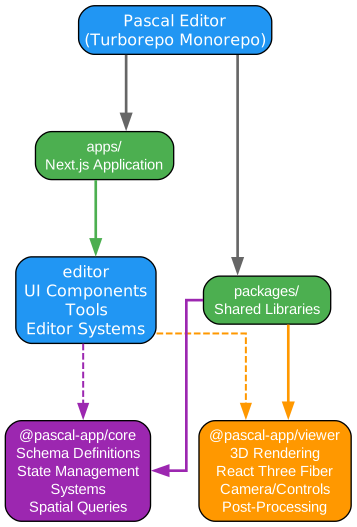
Understanding the Monorepo Architecture
The architecture diagram above illustrates the Turborepo monorepo structure that forms the foundation of Pascal Editor. This design pattern has become increasingly popular in modern JavaScript/TypeScript projects for several compelling reasons.
Core Package (@pascal-app/core)
The core package serves as the foundation of the entire system, providing essential functionality that can be reused across different applications. It contains:
-
Schema Definitions: Using Zod for runtime type validation, the schemas define the structure of all nodes in the system. This ensures type safety throughout the application and provides clear documentation of data structures.
-
State Management: Built on Zustand, the state management system handles all scene data including nodes, relationships, and dirty tracking for efficient updates. The store is persisted to IndexedDB for offline capability.
-
Systems: Geometry generation systems that process dirty nodes and update 3D objects. These include WallSystem, SlabSystem, CeilingSystem, RoofSystem, and ItemSystem.
-
Spatial Queries: The spatial grid manager handles collision detection and placement validation, essential for architectural design tools.
-
Event Bus: A typed event emitter using mitt for inter-component communication without tight coupling.
Viewer Package (@pascal-app/viewer)
The viewer package provides 3D rendering capabilities through React Three Fiber. It includes:
-
3D Rendering Components: Pre-built components for rendering walls, slabs, ceilings, roofs, zones, and items.
-
Camera and Controls: Default camera setup with orbit controls, zoom, and pan functionality optimized for architectural visualization.
-
Post-Processing: Visual effects like ambient occlusion, bloom, and anti-aliasing for professional-quality renders.
-
Level System: Handles visibility and positioning of building levels in stacked, exploded, or solo modes.
Editor Application (apps/editor)
The editor application extends the viewer with interactive tools and editing capabilities:
-
Tools: SelectTool, WallTool, ZoneTool, ItemTool, and SlabTool for various editing operations.
-
Selection Manager: Hierarchical navigation through Site -> Building -> Level -> Zone -> Items.
-
Editor-Specific Systems: Zone visibility control and custom camera controls with node focusing.
Node Hierarchy
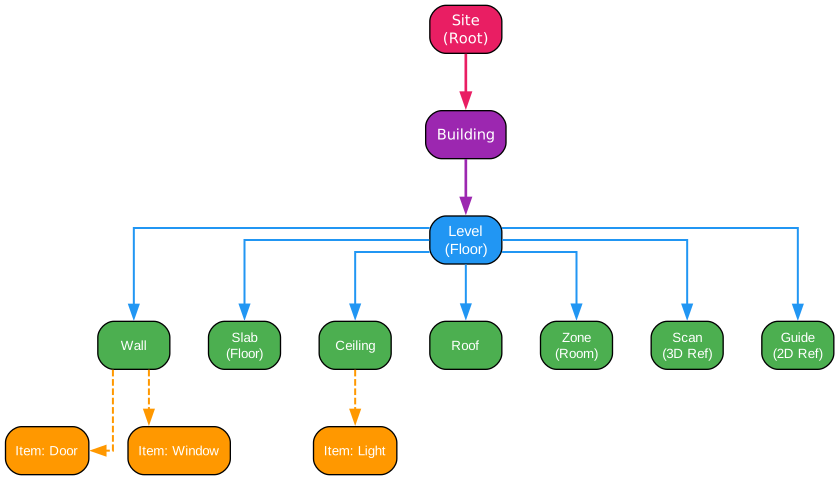
Understanding the Node Hierarchy
The node hierarchy diagram demonstrates how Pascal Editor organizes 3D scene data using a tree structure. This design pattern is fundamental to understanding how the application manages complex architectural models.
Site (Root Node)
The Site node serves as the root of the hierarchy, representing the entire project. Every architectural project begins with a single Site node that can contain multiple buildings. This top-level container provides a namespace for all project data and serves as the entry point for scene traversal.
Building Nodes
Building nodes represent individual structures within a site. Each building can contain multiple levels (floors), allowing for complex multi-story architectural designs. The building node manages overall properties like geographic location, orientation, and project metadata.
Level Nodes
Level nodes represent floors within a building. Each level contains all the architectural elements for that floor, including walls, slabs, ceilings, roofs, zones, and reference objects. This organization enables:
- Level Isolation: Work on one floor without affecting others
- Exploded Views: Separate floors vertically for better visualization
- Solo Mode: Focus on a single level while hiding others
- Stacked Mode: View all levels in their proper vertical positions
Architectural Elements
Within each level, several element types provide the building blocks for architectural design:
-
Wall: The primary structural element with support for doors and windows as child items. Walls use advanced geometry generation with mitering at corners and CSG (Constructive Solid Geometry) for cutouts.
-
Slab: Floor surfaces defined by polygons. The SlabSystem generates geometry from polygon definitions, handling complex shapes and openings.
-
Ceiling: Upper surfaces of rooms with support for attached items like lights and fixtures.
-
Roof: Roof structures with various pitch and style options.
-
Zone: Spatial regions within a level, useful for room definitions and area calculations.
-
Scan: 3D reference scans from reality capture devices, enabling as-built documentation.
-
Guide: 2D reference images for tracing and alignment.
Item Nodes
Items are child nodes that attach to parent elements like walls and ceilings. These include:
- Doors and Windows: Items attached to walls with automatic CSG cutouts
- Lights and Fixtures: Items attached to ceilings or floors
- Furniture: Free-standing items placed on slabs
The hierarchical structure enables efficient spatial queries and automatic parent-child relationship management. When a wall is deleted, its child items are automatically removed. When a level is hidden, all its elements are hidden together.
Data Flow Architecture
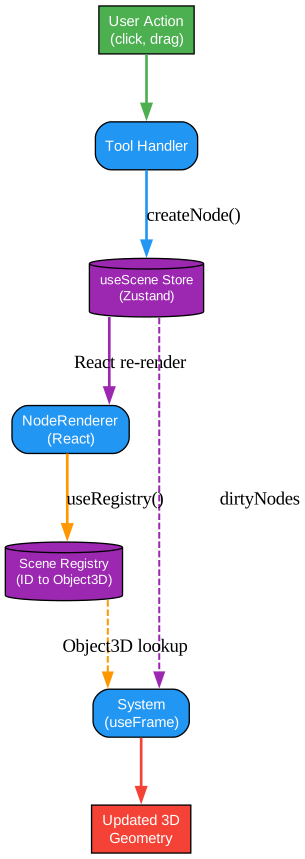
Understanding the Data Flow
The data flow diagram illustrates how user interactions propagate through the system to produce visual updates. This architecture follows a unidirectional data flow pattern that has become a best practice in modern React applications.
User Action Layer
The flow begins with user interactions such as clicks, drags, or keyboard input. These actions are captured by the editor’s tool handlers, which interpret the input based on the currently active tool. For example:
- SelectTool: Handles selection, movement, and manipulation of existing nodes
- WallTool: Interprets click and drag to create new wall segments
- ItemTool: Places furniture and fixtures at specified locations
Tool Handler Processing
Tool handlers act as the bridge between raw user input and state changes. They perform several critical functions:
- Input Validation: Ensuring actions are valid within the current context
- Spatial Queries: Using the spatial grid manager to check for collisions and valid placements
- State Updates: Calling the appropriate store methods to create, update, or delete nodes
Scene Store (Zustand)
The useScene store manages all scene data using a flat dictionary structure rather than a nested tree. This design choice offers several advantages:
- O(1) Node Access: Direct lookup by ID without tree traversal
- Efficient Updates: Only modified nodes need to be updated
- Dirty Tracking: Automatic marking of changed nodes for system processing
- Undo/Redo: Zundo middleware provides 50-step history for all operations
The store includes:
useScene.getState() = {
  nodes: Record<id, AnyNode>,  // All nodes in flat dictionary
  rootNodeIds: string[],       // Top-level nodes (sites)
  dirtyNodes: Set<string>,    // Nodes pending system updates

  createNode(node, parentId),  // Create new node
  updateNode(id, updates),     // Update existing node
  deleteNode(id),              // Remove node and children
}
React Re-render Cycle
When the store updates, React components automatically re-render. The NodeRenderer component dispatches to specialized renderers based on node type:
- BuildingRenderer -> LevelRenderer -> WallRenderer, SlabRenderer, etc.
Each renderer creates a placeholder Three.js object and registers it with the scene registry using the useRegistry hook.
Scene Registry
The scene registry maintains a bidirectional mapping between node IDs and Three.js Object3D instances:
sceneRegistry = {
  nodes: Map<id, Object3D>,    // ID to 3D object lookup
  byType: {
    wall: Set<id>,            // Type-based collections
    item: Set<id>,
    // ...
  }
}
This enables systems to access 3D objects directly without traversing the scene graph, dramatically improving performance for operations like geometry updates and spatial queries.
System Processing
Systems run in the render loop using useFrame, processing dirty nodes each frame:
- Check dirtyNodes set for pending updates
- Look up corresponding Object3D from registry
- Retrieve node data from store
- Update geometry, transforms, or materials
- Remove node from dirtyNodes
This pattern ensures that geometry generation only happens when necessary, avoiding expensive recalculations for unchanged nodes.
State Management
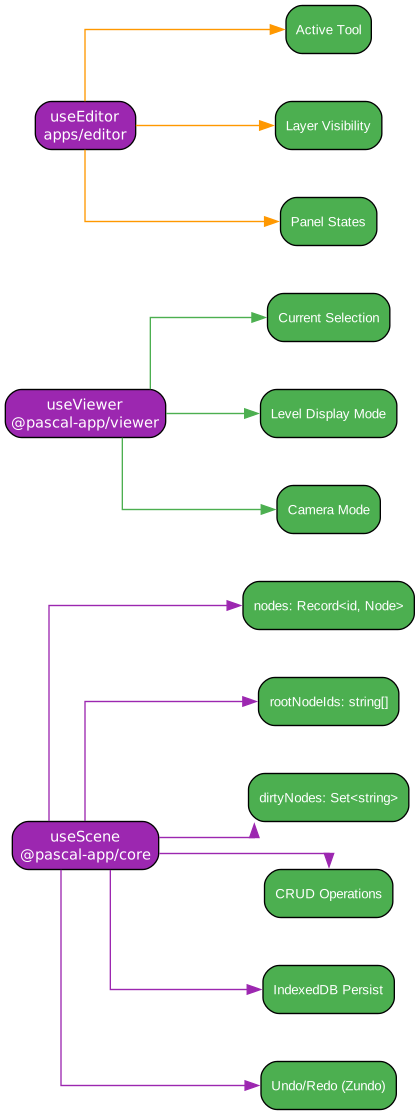
Understanding the Stores Architecture
Pascal Editor uses three separate Zustand stores, each responsible for a distinct aspect of the application state. This separation of concerns enables better code organization and more efficient re-renders.
useScene Store (@pascal-app/core)
The scene store is the most complex, managing all architectural data:
-
nodes: Record<id, AnyNode>: A flat dictionary containing all nodes in the scene. Each node has a unique ID with a type prefix (e.g., “wall_abc123”).
-
rootNodeIds: string[]: References to top-level site nodes, enabling efficient scene traversal from the root.
-
**dirtyNodes: Set
**: A set of node IDs that need geometry updates. Systems process this set each frame. -
CRUD Operations: Methods for creating, reading, updating, and deleting nodes with automatic dirty marking.
-
IndexedDB Persistence: The store automatically saves to browser storage, enabling offline work and session recovery.
-
Undo/Redo (Zundo): Full history tracking with 50 steps, allowing users to revert changes.
useViewer Store (@pascal-app/viewer)
The viewer store manages visualization state:
-
Current Selection: Tracks which building, level, and zone are currently selected for editing.
- Level Display Mode: Controls how levels are displayed:
- Stacked: All levels shown in their vertical positions
- Exploded: Levels separated vertically for better visibility
- Solo: Only the selected level is visible
- Camera Mode: Manages camera settings for different editing contexts.
useEditor Store (apps/editor)
The editor store handles editor-specific preferences:
-
Active Tool: Which tool is currently selected (Select, Wall, Zone, Item, Slab).
-
Structure Layer Visibility: Toggle visibility of different layer types.
-
Panel States: UI panel open/closed states and positions.
Access Patterns
The stores support two primary access patterns:
// React component subscription (triggers re-render)
const nodes = useScene((state) => state.nodes)
const levelId = useViewer((state) => state.selection.levelId)
const activeTool = useEditor((state) => state.tool)

// Direct access (no re-render, for callbacks and systems)
const node = useScene.getState().nodes[id]
useViewer.getState().setSelection({ levelId: 'level_123' })
This dual pattern enables efficient React components that only re-render when relevant state changes, while allowing imperative access from non-React code.
Systems Architecture

Understanding the Systems Architecture
Systems are the computational engines that transform node data into visual geometry. They run in the render loop and process dirty nodes efficiently.
Core Systems (@pascal-app/core)
The core systems handle geometry generation for architectural elements:
- WallSystem: The most complex system, responsible for generating wall geometry with:
- Mitering at corners for clean joints
- CSG (Constructive Solid Geometry) operations for door and window cutouts
- Support for varying wall thicknesses and heights
- Automatic UV mapping for textures
- SlabSystem: Generates floor geometry from polygon definitions:
- Handles complex shapes with holes
- Supports different floor materials and patterns
- Calculates area and perimeter automatically
- CeilingSystem: Creates ceiling surfaces with:
- Automatic height positioning
- Support for attached items (lights, fixtures)
- Integration with room definitions
- RoofSystem: Generates roof structures:
- Multiple pitch options
- Hip, gable, and flat roof types
- Automatic drainage calculations
- ItemSystem: Positions items on their parent elements:
- Wall-mounted items (doors, windows) with automatic cutouts
- Ceiling-mounted items (lights, sprinklers)
- Floor-standing items (furniture, equipment)
Viewer Systems (@pascal-app/viewer)
The viewer systems manage visualization:
- LevelSystem: Controls level visibility and positioning:
- Stacked mode: Normal vertical positions
- Exploded mode: Levels separated for visibility
- Solo mode: Only selected level visible
- ScanSystem: Manages 3D scan references:
- Point cloud visualization
- Mesh overlay options
- Alignment tools
- GuideSystem: Handles 2D reference images:
- Image plane positioning
- Opacity control
- Tracing assistance
Processing Pattern
All systems follow a common pattern:
useFrame(() => {
  for (const id of dirtyNodes) {
    const obj = sceneRegistry.nodes.get(id)
    const node = useScene.getState().nodes[id]

    // Update geometry based on node data
    updateGeometry(obj, node)

    // Clear dirty flag
    dirtyNodes.delete(id)
  }
})
This pattern ensures:
- Efficiency: Only changed nodes are processed
- Consistency: All updates happen in a single frame
- Performance: No unnecessary geometry recalculations
Technology Stack

Understanding the Technology Stack
Pascal Editor leverages cutting-edge web technologies to deliver a professional-grade 3D editing experience.
Frontend Framework
-
React 19: The latest version of React with improved concurrent rendering and server components support.
-
Next.js 16: The application framework providing:
- File-based routing
- API routes for backend functionality
- Optimized build process
- Development server with hot reload
3D Graphics
- Three.js with WebGPU: The underlying 3D library using the modern WebGPU renderer for:
- Better performance than WebGL
- Access to advanced GPU features
- Future-proof rendering pipeline
- React Three Fiber: React renderer for Three.js that:
- Declarative 3D scene composition
- Integration with React’s component lifecycle
- Automatic memory management
- Drei: A collection of useful helpers for React Three Fiber:
- Camera controls
- Loaders for various 3D formats
- Post-processing effects
- Environment mapping
State Management
- Zustand: Lightweight state management with:
- Minimal boilerplate
- No context providers needed
- Built-in middleware support
- Zundo: Undo/redo middleware for Zustand:
- Time-travel debugging
- Configurable history depth
- Action filtering
- Zod: Schema validation library:
- Runtime type checking
- TypeScript type inference
- Detailed error messages
Build Tools
- Turborepo: Monorepo management:
- Intelligent caching
- Parallel task execution
- Dependency graph optimization
- Bun: Fast package manager and bundler:
- Native TypeScript support
- Fast installation
- Drop-in npm replacement
Geometry Processing
- three-bvh-csg: Boolean geometry operations:
- Union, intersection, difference
- Used for door/window cutouts in walls
- Optimized with Bounding Volume Hierarchies
Installation
Prerequisites
- Node.js 18+ or Bun runtime
- Git for cloning the repository
Development Setup
# Clone the repository
git clone https://github.com/pascalorg/editor.git
cd editor

# Install dependencies (using Bun)
bun install

# Run development server
bun dev
The development server will:
- Build the @pascal-app/core and @pascal-app/viewer packages
- Start watching both packages for changes
- Launch the Next.js editor dev server
- Open http://localhost:3000
Production Build
# Build all packages
turbo build

# Build specific package
turbo build --filter=@pascal-app/core
Publishing Packages
# Build packages for publishing
turbo build --filter=@pascal-app/core --filter=@pascal-app/viewer

# Publish to npm
npm publish --workspace=@pascal-app/core --access public
npm publish --workspace=@pascal-app/viewer --access public
Usage
Creating a Building
- Start with a Site node (automatically created)
- Add a Building node to the site
- Add Level nodes for each floor
- Draw walls using the WallTool
- Add doors and windows as items on walls
- Create zones to define rooms
Working with Levels
The viewer supports three level display modes:
- Stacked: View all levels in their proper vertical positions
- Exploded: Separate levels vertically for better visibility
- Solo: Focus on a single level
Using Tools
- SelectTool: Click to select, drag to move
- WallTool: Click and drag to draw wall segments
- ZoneTool: Create room zones by clicking corners
- ItemTool: Place furniture and fixtures
- SlabTool: Define floor areas
Key Features
| Feature | Description |
|---|---|
| 3D Building Editor | Create and edit 3D architectural models in the browser |
| WebGPU Rendering | Modern GPU acceleration for smooth performance |
| React Three Fiber | Declarative 3D scene composition |
| Zustand State | Efficient state management with undo/redo |
| Monorepo Structure | Clean separation between core, viewer, and editor |
| IndexedDB Persistence | Offline-capable with automatic saving |
| CSG Operations | Boolean geometry for doors and windows |
| Spatial Queries | Collision detection and placement validation |
| Level Modes | Stacked, exploded, and solo level viewing |
| TypeScript | Full type safety throughout the codebase |
Troubleshooting
Common Issues
WebGPU Not Supported
If WebGPU is not supported in your browser, try:
- Using Chrome 113+ or Edge 113+
- Enabling WebGPU flags in browser settings
- Falling back to WebGL renderer
Slow Performance
For better performance:
- Reduce the number of visible levels
- Use solo mode when editing specific floors
- Check for unnecessary re-renders in React DevTools
Geometry Not Updating
If geometry doesn’t update:
- Check that nodes are marked dirty after changes
- Verify the system is processing dirty nodes
- Look for errors in the console
Conclusion
Pascal Editor represents a significant achievement in web-based 3D architectural tools. By combining modern web technologies like React Three Fiber, WebGPU, and Zustand with thoughtful architecture patterns like the node hierarchy and dirty node system, it delivers a powerful yet accessible editing experience.
The monorepo structure with separate packages for core functionality, viewing, and editing enables developers to use the components independently or as a complete application. The comprehensive system architecture handles everything from basic geometry to complex CSG operations for architectural elements.
Whether you’re an architect looking for a browser-based design tool, a developer interested in 3D web applications, or a contributor wanting to improve open-source software, Pascal Editor offers something valuable. The clean codebase, comprehensive documentation, and active community make it an excellent project to learn from and contribute to.
Links

Enjoyed this post? Never miss out on future posts by following us


