Pixelle-Video is an AI automated short video engine that transforms a simple text topic into a complete, polished video with zero manual editing. With over 7,200 stars on GitHub, this open-source project from AIDC-AI automates every step of short video production – from script writing and AI image generation to voice narration, background music, and final video composition. Whether you are a content creator looking to scale your output or a developer interested in AI-powered media pipelines, Pixelle-Video provides a modular, extensible framework built on top of ComfyUI workflows and large language models.
What is Pixelle-Video?
Pixelle-Video is a Python-based platform that generates short videos entirely from a topic prompt. You type a subject like “Why develop a reading habit” and the engine automatically writes the narration script, generates matching AI illustrations or video clips, synthesizes voice-over audio, adds background music, and composes everything into a finished MP4 file. The project requires no video editing experience and supports both a Streamlit web interface and a REST API for programmatic access.
The system is designed around a pipeline architecture where each stage of video production is handled by a dedicated service. The core service layer – PixelleVideoCore – orchestrates LLM text generation, TTS voice synthesis, media generation (images and video), frame rendering via HTML templates, and final video composition through ffmpeg. This modular design means you can swap out any component: replace the default FLUX image model with Qwen, switch Edge-TTS for Index-TTS with voice cloning, or use local ComfyUI instead of the cloud-based RunningHub service.
Architecture Overview
The diagram below illustrates the complete system architecture of Pixelle-Video, showing how user interfaces connect to the core service layer, which in turn orchestrates pipelines and backend services through the ComfyKit workflow engine.
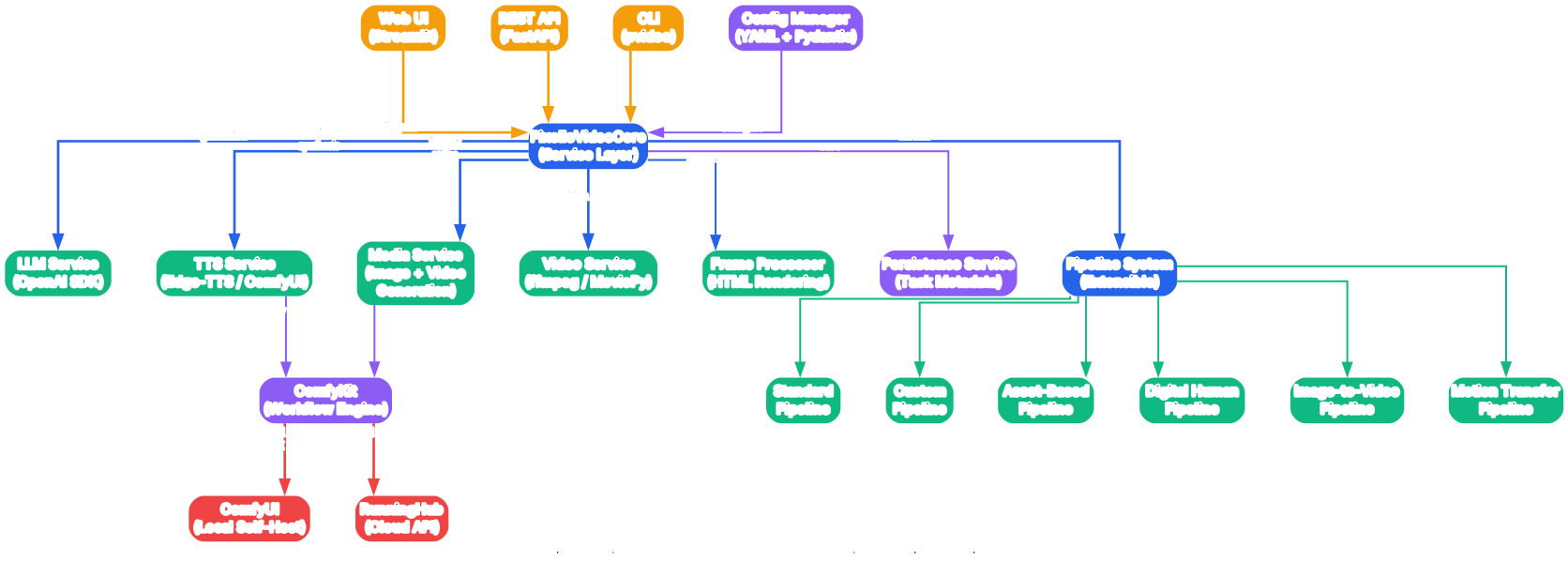
The architecture follows a layered design pattern. At the top, three user interfaces provide access: the Streamlit-based Web UI for interactive use, a FastAPI REST API for programmatic integration, and a CLI tool (pvideo) for command-line operation. All three interfaces communicate with the central PixelleVideoCore service layer, which acts as the unified orchestrator for all capabilities.
The core service layer manages six primary services: the LLM Service handles text generation via the OpenAI SDK (supporting GPT, Qwen, DeepSeek, and Ollama); the TTS Service generates voice narration through Edge-TTS locally or ComfyUI workflows; the Media Service produces AI-generated images and videos; the Video Service handles ffmpeg-based composition; the Frame Processor renders HTML templates into visual frames using Playwright; and the Persistence Service stores task metadata and storyboard data.
The pipeline system is the execution engine. The Standard Pipeline handles the default topic-to-video workflow. The Custom Pipeline supports user-defined templates. The Asset-Based Pipeline works with user-uploaded media. Extension pipelines include Digital Human (AI avatar narration), Image-to-Video (animating static images), and Motion Transfer (applying movement from a reference video). All pipelines inherit from BasePipeline and implement the __call__ async method.
At the bottom of the stack, ComfyKit serves as the workflow engine that bridges Pixelle-Video services to ComfyUI backends. It supports two deployment modes: local self-hosted ComfyUI instances (default at http://127.0.0.1:8188) and the cloud-based RunningHub API. The Config Manager uses Pydantic models with YAML configuration, supporting hot-reload so changes take effect without restarting the service.
Video Generation Pipeline
The Standard Pipeline is the default workflow for generating short videos. The diagram below shows the complete 8-step process from topic input to final video output.
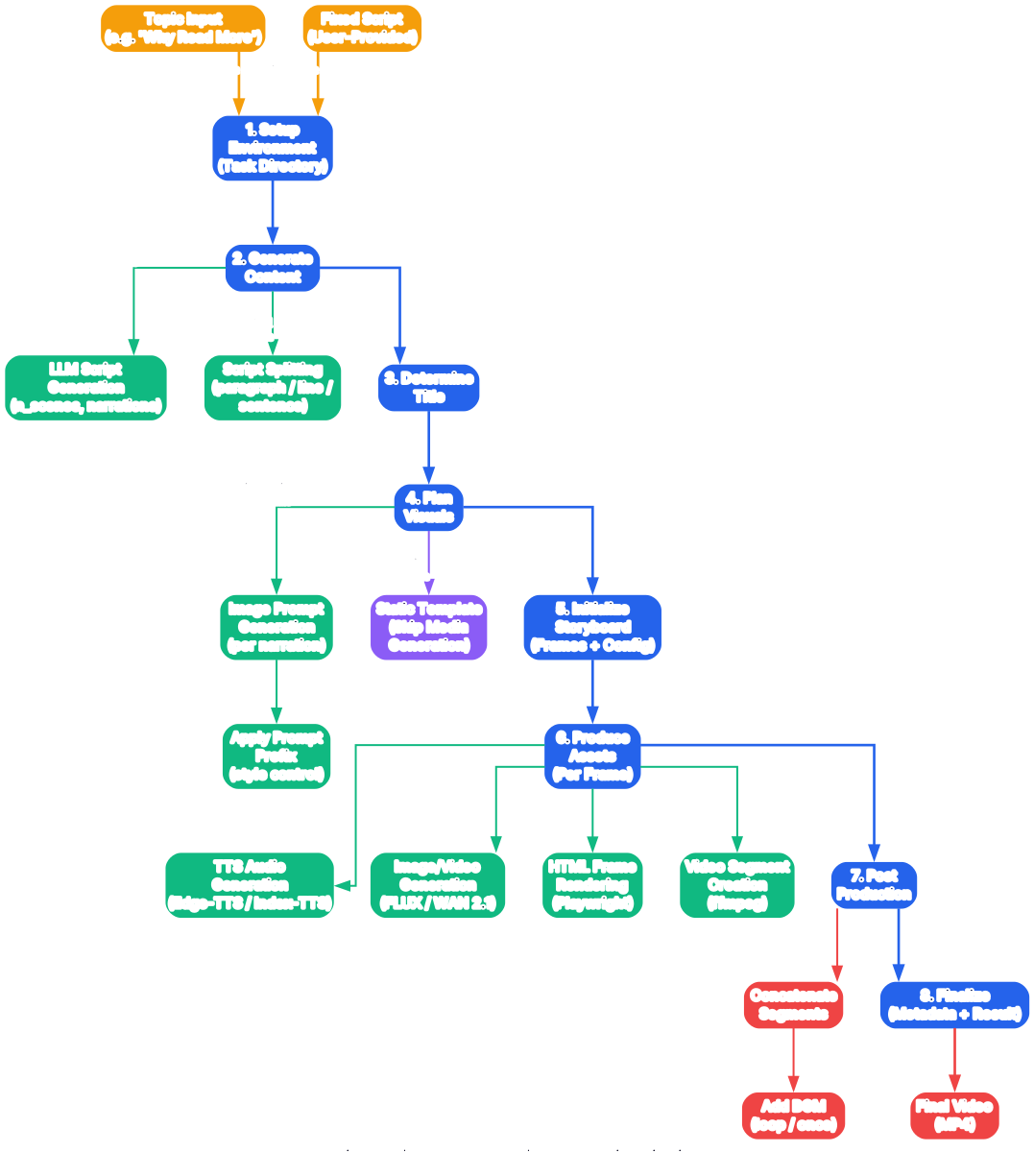
The pipeline follows a linear execution model implemented through the Template Method Pattern via LinearVideoPipeline. Each step is an async lifecycle method that receives a PipelineContext object carrying all state through the pipeline. Here is what happens at each stage:
Step 1 - Setup Environment: Creates an isolated task directory for the generation run, assigns a unique task ID, and determines the final video output path. This isolation ensures that concurrent video generation tasks do not interfere with each other.
Step 2 - Generate Content: In “generate” mode, the LLM creates narrations from the input topic with configurable scene count and word limits. In “fixed” mode, a user-provided script is split into segments using one of three strategies: paragraph-based, line-based, or sentence-based splitting. The LLM call uses structured output to ensure each narration segment meets the specified word constraints.
Step 3 - Determine Title: The video title is either user-specified or auto-generated by the LLM. In generate mode, the LLM extracts a concise title from the topic. In fixed mode, the LLM analyzes the script content to produce a relevant title.
Step 4 - Plan Visuals: This step detects the template type (static, image, or video) to decide whether media generation is needed. For image/video templates, the LLM generates detailed image prompts for each narration segment, then applies a configurable prompt prefix to control the visual style. For static templates, media generation is skipped entirely, saving both LLM calls and compute costs.
Step 5 - Initialize Storyboard: Creates the Storyboard object containing all frames, configuration, and metadata. Each StoryboardFrame pairs a narration text with its corresponding image prompt. The configuration includes TTS settings (voice ID, workflow, speed), media dimensions, template selection, and template parameters.
Step 6 - Produce Assets: This is the core processing step. For each frame, the system generates TTS audio, produces the AI image or video, renders the HTML frame template using Playwright, and creates a video segment with ffmpeg. When using RunningHub workflows with a concurrent limit greater than 1, frames are processed in parallel using asyncio.Semaphore for controlled concurrency. Serial processing is used for local ComfyUI workflows.
Step 7 - Post Production: All video segments are concatenated into a single file using ffmpeg. If background music is configured, it is mixed into the final video with adjustable volume and loop mode. The BGM file can be a built-in track or a user-supplied MP3/WAV file placed in the bgm/ directory.
Step 8 - Finalize: Creates the VideoGenerationResult object with the video path, duration, file size, and storyboard metadata. Task metadata and storyboard data are persisted to the filesystem for the history feature. If a custom output path was specified, the final video is copied to that location.
Key Features and Extension Modules
Pixelle-Video offers a rich set of features organized into five categories: core AI capabilities, extension modules, LLM providers, deployment options, and output features.

The core AI capabilities form the foundation of the video generation process. Smart Script Writing uses LLM models to automatically create narration text from a topic, with control over scene count and word limits. AI Image Generation produces illustrations for each narration segment using models like FLUX or Qwen, with customizable prompt prefixes for style control. AI Video Generation creates dynamic video content using models like WAN 2.1, enabling animated backgrounds instead of static images. AI Voice Synthesis provides multiple TTS options including Edge-TTS for local generation and Index-TTS for high-quality voice cloning.
Extension modules add specialized capabilities beyond the standard pipeline. The Digital Human module generates AI avatar videos with lip-synced narration in multiple languages. The Image-to-Video module animates static images into video clips using models like LTX or WAN. The Motion Transfer module takes a reference video and a target image, then applies the motion patterns from the reference to create a new video. Voice Cloning allows users to upload a reference audio sample and generate narration in that voice using Index-TTS.
The system supports multiple LLM providers: OpenAI GPT-4o for premium quality, Qwen Max for cost-effective Chinese and English content, DeepSeek for budget-friendly generation, and Ollama for completely free local inference. Deployment options include local ComfyUI self-hosting, cloud-based RunningHub API, Docker containerization, and a Windows all-in-one package that requires no environment setup.
Output features support portrait (1080x1920), landscape (1920x1080), and square (1080x1080) video dimensions. HTML-based templates come in three types: static (text-only, no AI media needed), image (AI-generated images as background), and video (AI-generated video as background). Background music can be added with volume control and loop settings.
Features Comparison
| Feature | Description | Free Option Available |
|---|---|---|
| Script Generation | LLM-powered narration from topic | Yes (Ollama local) |
| AI Image Generation | FLUX, Qwen, SDXL, SD3.5 models | Yes (local ComfyUI) |
| AI Video Generation | WAN 2.1, WAN 2.2, LTX models | Yes (local ComfyUI) |
| Voice Synthesis | Edge-TTS, Index-TTS, Spark TTS | Yes (Edge-TTS) |
| Voice Cloning | Upload reference audio for voice matching | Partial (Index-TTS) |
| Digital Human Avatar | AI avatar with lip-synced narration | No (requires RunningHub) |
| Motion Transfer | Apply reference video motion to image | No (requires RunningHub) |
| Background Music | Built-in or custom MP3/WAV | Yes |
| Video Templates | Static, image, and video HTML templates | Yes |
| Multiple Dimensions | Portrait, landscape, square | Yes |
| REST API | FastAPI-based programmatic access | Yes |
| Batch Processing | Create multiple videos in sequence | Yes |
| History Management | Track and review past generations | Yes |
| Docker Support | Containerized deployment | Yes |
| Windows Package | All-in-one installer, no setup needed | Yes |
Installation
Prerequisites
Before installing Pixelle-Video, you need two dependencies:
1. Install uv (Python package manager)
Visit the uv installation guide for your platform. After installation, verify with:
uv --version
2. Install ffmpeg (video processing tool)
For macOS:
brew install ffmpeg
For Ubuntu / Debian:
sudo apt update
sudo apt install ffmpeg
For Windows, download from ffmpeg.org, extract the archive, and add the bin directory to your system PATH. Verify with:
ffmpeg -version
Windows All-in-One Package (Recommended for Windows Users)
The Windows package requires no Python, uv, or ffmpeg installation:
- Download the latest package from GitHub Releases
- Extract the archive
- Double-click
start.batto launch the web interface - The browser opens automatically at
http://localhost:8501 - Configure your LLM API key and image generation service in the System Configuration panel
Install from Source
Clone the repository and launch the web interface:
git clone https://github.com/AIDC-AI/Pixelle-Video.git
cd Pixelle-Video
uv run streamlit run web/app.py
The uv run command automatically installs all dependencies defined in pyproject.toml, including Streamlit, FastAPI, OpenAI SDK, ComfyKit, MoviePy, Playwright, and other required packages. The browser will open at http://localhost:8501.
Docker Deployment
Pixelle-Video also provides a Dockerfile and docker-compose.yml for containerized deployment:
docker compose up -d
When using Docker, set the ComfyUI URL to host.docker.internal:8188 on Mac/Windows or the host IP address on Linux so the container can reach your local ComfyUI instance.
Configuration
Copy the example configuration and fill in your settings:
cp config.example.yaml config.yaml
Edit config.yaml with your LLM and ComfyUI settings:
project_name: Pixelle-Video

llm:
  api_key: "your-api-key"
  base_url: "https://dashscope.aliyuncs.com/compatible-mode/v1"
  model: "qwen-max"

comfyui:
  comfyui_url: http://127.0.0.1:8188
  runninghub_api_key: ""
  runninghub_concurrent_limit: 1
  tts:
    default_workflow: selfhost/tts_edge.json
  image:
    default_workflow: runninghub/image_flux.json
    prompt_prefix: "Minimalist black-and-white matchstick figure style illustration"
  video:
    default_workflow: runninghub/video_wan2.1_fusionx.json
    prompt_prefix: "Minimalist black-and-white matchstick figure style illustration"

template:
  default_template: "1080x1920/image_default.html"
Popular LLM presets include:
| Provider | Base URL | Model |
|---|---|---|
| Qwen Max | https://dashscope.aliyuncs.com/compatible-mode/v1 | qwen-max |
| OpenAI GPT-4o | https://api.openai.com/v1 | gpt-4o |
| DeepSeek | https://api.deepseek.com | deepseek-chat |
| Ollama (Local) | http://localhost:11434/v1 | llama3.2 |
Usage
Web Interface
The Streamlit web interface provides a three-column layout for video generation:
Left Column - Content Input: Choose between “AI Generated Content” mode (enter a topic, let the LLM write the script) or “Fixed Script Content” mode (paste your own script). Select background music from built-in tracks or upload custom MP3/WAV files to the bgm/ folder.
Middle Column - Voice and Visual Settings: Configure the TTS workflow (Edge-TTS, Index-TTS, or custom ComfyUI workflows). Upload a reference audio file for voice cloning. Set the image generation workflow, image dimensions, and prompt prefix for style control. Choose a video template grouped by dimension (portrait, landscape, square).
Right Column - Generate Video: Click the “Generate Video” button after configuring all parameters. Real-time progress shows the current step (e.g., “Frame 3/5 - Generating Image”). The completed video auto-plays with details on duration, file size, and frame count. Videos are saved to the output/ directory.
REST API
Pixelle-Video provides a FastAPI-based REST API for programmatic video generation:
import requests

# Create a video generation task
response = requests.post("http://localhost:8000/api/tasks", json={
    "text": "Why develop a reading habit",
    "mode": "generate",
    "n_scenes": 5,
    "tts_inference_mode": "local",
    "tts_voice": "en-US-GuyNeural",
    "frame_template": "1080x1920/image_default.html",
    "bgm_path": "bgm/default.mp3"
})

task_id = response.json()["task_id"]
print(f"Task created: {task_id}")
Check task status:
status = requests.get(f"http://localhost:8000/api/tasks/{task_id}")
print(status.json())
Python SDK
For direct integration in Python code, use the PixelleVideoCore service:
import asyncio
from pixelle_video import pixelle_video

async def generate_video():
    # Initialize the core service
    await pixelle_video.initialize()

    # Generate video using the standard pipeline
    result = await pixelle_video.generate_video(
        text="Why develop a reading habit",
        pipeline="standard",
        n_scenes=5,
        mode="generate",
        tts_inference_mode="local",
        tts_voice="en-US-GuyNeural",
        frame_template="1080x1920/image_default.html",
        bgm_path="bgm/default.mp3"
    )

    print(f"Video: {result.video_path}")
    print(f"Duration: {result.duration:.2f}s")
    print(f"Size: {result.file_size / (1024*1024):.2f} MB")
    print(f"Frames: {len(result.storyboard.frames)}")

    # Cleanup
    await pixelle_video.cleanup()

asyncio.run(generate_video())
Custom Workflows
Pixelle-Video uses ComfyUI workflows stored as JSON files in the workflows/ directory. You can add custom workflows by placing JSON files in the appropriate subdirectory:
workflows/selfhost/- For local ComfyUI deploymentworkflows/runninghub/- For cloud RunningHub API
The system automatically scans these directories and makes workflows available in the UI dropdown menus. You can replace the default image generation model (FLUX) with alternatives like SDXL, SD3.5, or Qwen by selecting a different workflow file.
Video Templates
Templates are HTML files in the templates/ directory, organized by resolution:
templates/1080x1920/- Portrait (vertical) videostemplates/1920x1080/- Landscape (horizontal) videostemplates/1080x1080/- Square videos
Template naming convention:
| Prefix | Type | Description |
|---|---|---|
static_* | Static | Text-only, no AI media generation needed |
image_* | Image | Uses AI-generated images as background |
video_* | Video | Uses AI-generated video as background |
You can create custom templates by adding HTML files to the templates/ directory. Templates receive narration text, image/video media, and configurable parameters through the template system.
Cost Analysis
Pixelle-Video supports multiple cost tiers depending on your chosen providers:
| Tier | LLM | Image/Video | Estimated Cost |
|---|---|---|---|
| Free | Ollama (local) | ComfyUI (local GPU) | $0 |
| Low Cost | Qwen Max | ComfyUI (local GPU) | ~$0.01/video |
| Cloud | OpenAI GPT-4o | RunningHub API | ~$0.50-2.00/video |
The completely free option requires a local GPU to run Ollama and ComfyUI. The recommended low-cost option uses Qwen for LLM (extremely affordable API pricing) with a local ComfyUI instance for media generation. The cloud option eliminates the need for local hardware but incurs higher per-video costs.
Troubleshooting
Issue: TTS service is unstable or fails intermittently
This is typically caused by an incompatible edge-tts version. Pixelle-Video pins edge-tts==7.2.7 in pyproject.toml to resolve this. If you installed dependencies manually, ensure you are using this exact version:
pip install edge-tts==7.2.7
Issue: ComfyUI connection fails from Docker container
When running Pixelle-Video in Docker, the container cannot reach localhost on the host machine. Use host.docker.internal:8188 as the ComfyUI URL on Mac/Windows. On Linux, use the host machine’s IP address (e.g., 192.168.1.100:8188).
Issue: Video generation API returns broken URL paths
This was a cross-platform compatibility issue fixed in the 2025-12-06 release. Ensure you are running version 0.1.15 or later. Update by pulling the latest code:
git pull origin main
Issue: Generated video quality is unsatisfactory
Try these adjustments:
- Change the LLM model – different models produce different script styles and quality
- Adjust the image prompt prefix to control visual style (must be in English)
- Increase image dimensions (default 1024x1024) for higher resolution
- Switch TTS workflow or upload a reference audio for better voice quality
- Try different video templates to find the best layout for your content
Issue: RunningHub concurrent limit errors
RunningHub free accounts are limited to 1 concurrent execution. Set runninghub_concurrent_limit: 1 in your config.yaml. Paid accounts can increase this up to 10 for parallel frame processing.
Issue: Playwright browser not found
The Frame Processor uses Playwright to render HTML templates. If the browser is not installed, run:
playwright install chromium
When using uv run, Playwright and its browsers should be installed automatically. If not, install them manually.
Issue: ffmpeg not found during video composition
Ensure ffmpeg is installed and available in your system PATH. Verify with ffmpeg -version. On Windows, you may need to add the ffmpeg bin directory to your PATH environment variable manually.
Conclusion
Pixelle-Video stands out as a comprehensive AI automated short video engine that eliminates the traditional barriers to video content creation. Its modular pipeline architecture, built on ComfyUI workflows and the ComfyKit engine, provides the flexibility to swap out any component – from LLM providers to image models to TTS engines. The project supports a range of deployment options from completely free local execution with Ollama and ComfyUI to convenient cloud-based generation with RunningHub. With extension modules for digital human avatars, image-to-video animation, and motion transfer, Pixelle-Video continues to expand its capabilities for automated video production.
- GitHub Repository: https://github.com/AIDC-AI/Pixelle-Video
- Documentation: https://aidc-ai.github.io/Pixelle-Video
- Windows Package: https://github.com/AIDC-AI/Pixelle-Video/releases/latest
- Related Project - Pixelle-MCP: https://github.com/AIDC-AI/Pixelle-MCP
- License: Apache License 2.0

Enjoyed this post? Never miss out on future posts by following us


