wacli: WhatsApp CLI for Sync, Search, and Send
WhatsApp is one of the most widely used messaging platforms in the world, yet accessing your messages programmatically has always been a challenge. Enter wacli – an open-source WhatsApp CLI tool built in Go that brings the power of the terminal to your WhatsApp conversations. With over 1,800 stars on GitHub and growing at an impressive rate of +831 stars per week, wacli is quickly becoming the go-to tool for developers and power users who want to manage WhatsApp data from the command line.
Built on top of the whatsmeow library, wacli provides best-effort local sync of message history, continuous capture of new messages, fast offline search using SQLite with FTS5, and the ability to send messages and manage contacts and groups – all without leaving your terminal.
Architecture Overview
Understanding the wacli Architecture
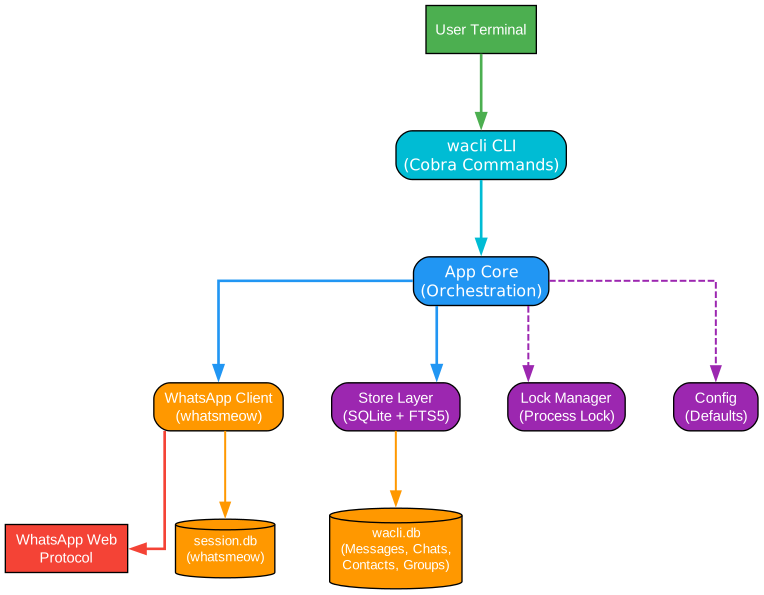
The architecture diagram above illustrates the layered design of wacli and how its components interact to provide a seamless WhatsApp CLI experience. Let us break down each layer and its responsibilities:
User Terminal Layer: The entry point for all wacli operations is the user terminal. wacli is designed as a command-line tool first, meaning every feature is accessible through intuitive shell commands. This makes it ideal for automation, scripting, and integration into larger workflows. The terminal interface uses Cobra, a popular Go library for building CLI applications, providing consistent command structure, help text, and flag parsing.
CLI Command Layer (Cobra Commands): The CLI layer is built using the Cobra framework, which organizes commands into a hierarchical tree. Each major feature area – authentication, syncing, messaging, contacts, groups, media, and history – has its own command subtree. This modular design makes it easy to extend wacli with new commands while keeping the codebase organized and maintainable. Global flags like --json for machine-readable output and --store for custom storage paths are handled at this level.
App Core (Orchestration): The App struct serves as the central orchestrator. It holds references to the WhatsApp client and the local SQLite database, coordinating all operations. When a command is executed, the App layer handles initialization, authentication checks, connection management, and proper cleanup. It also manages process locking to prevent multiple wacli instances from corrupting the database simultaneously.
WhatsApp Client (whatsmeow): The WhatsApp client wraps the whatsmeow library, which implements the WhatsApp Web protocol. This layer handles the low-level details of connecting to WhatsApp servers, QR code authentication, message encryption and decryption, and real-time event processing. The client abstracts away the complexity of the WhatsApp protocol, providing a clean Go interface for sending messages, fetching contacts, managing groups, and downloading media.
Store Layer (SQLite + FTS5): All data is persisted locally in SQLite databases. The primary wacli.db stores messages, chats, contacts, groups, and media metadata. When compiled with the sqlite_fts5 build tag, full-text search is enabled using SQLite’s FTS5 extension, providing blazing-fast search across all your messages. Without FTS5, wacli falls back to LIKE-based search, which is slower but still functional.
Lock Manager and Config: The lock manager uses file-based locking to ensure only one wacli process accesses the database at a time, preventing data corruption. The config module provides sensible defaults (like ~/.wacli for storage) while allowing environment variable overrides for customization.
Key Features and Capabilities

Understanding wacli Features
The features diagram showcases the breadth of functionality that wacli provides, organized around the central CLI interface. Each feature branch represents a major command group with its own subcommands and options:
Authentication (wacli auth): The auth command handles the initial setup process. When you run wacli auth for the first time, it displays a QR code in your terminal that you scan with your WhatsApp mobile app. This links wacli as a companion device to your WhatsApp account, similar to how WhatsApp Web works. Once authenticated, the session is stored locally so you do not need to re-authenticate each time. Environment variables like WACLI_DEVICE_LABEL and WACLI_DEVICE_PLATFORM allow you to customize how the linked device appears in your WhatsApp settings.
Sync (wacli sync): The sync command is the heart of wacli’s data capture functionality. It operates in three modes:
- Bootstrap mode performs an initial data sync when you first authenticate, pulling in existing conversations and messages from your phone.
- Follow mode (
--follow) keeps wacli running continuously, capturing new messages in real-time as they arrive. This is ideal for always-on sync scenarios. - Once mode performs a single sync pass and exits after an idle timeout, useful for scheduled batch operations.
Messages (wacli messages): The messages command provides powerful search and listing capabilities:
- Search uses FTS5 (when available) for lightning-fast full-text search across all your messages, with fallback to LIKE queries.
- List lets you browse messages by chat, with time-based filtering using
--afterand--beforeflags. - Show displays a single message with full details including media type and metadata.
- Context shows messages surrounding a specific message, making it easy to understand conversation threads.
Send (wacli send): Sending messages is straightforward with dedicated subcommands:
wacli send textsends a plain text message to any contact or group.wacli send filesends files with optional captions and custom filenames using the--filenameflag to override the display name.
Media (wacli media): The media command allows downloading media files (images, videos, audio, documents) attached to messages. Combined with the --download flag during sync, wacli can automatically download all media as messages are captured.
Contacts and Groups: wacli provides full contact and group management:
- List all contacts and groups
- Rename groups with
wacli groups rename - Manage group participants (add, remove, promote, demote)
- Get invite links and join groups via links
Output Formats: Every command supports --json for machine-readable output, making wacli easy to integrate into scripts and automation pipelines. The default output is human-readable, formatted as tables for easy scanning.
Sync Workflow Deep Dive
Understanding the Sync Workflow
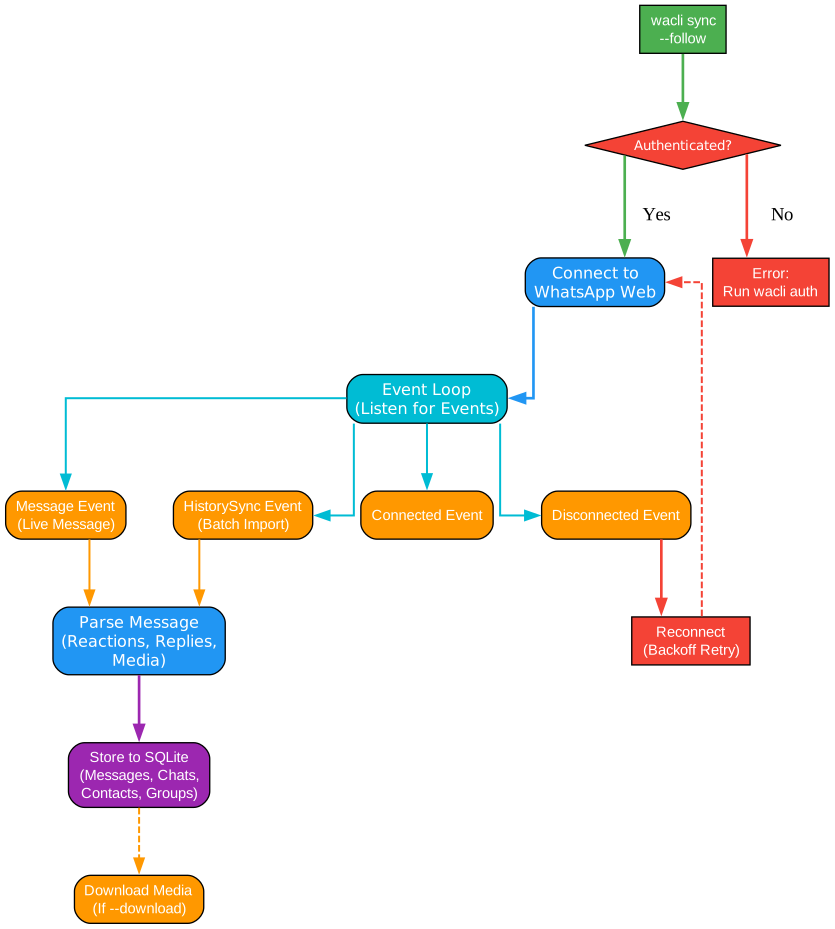
The sync workflow diagram illustrates the complete lifecycle of a wacli sync --follow session, from startup through continuous message capture. This is the most critical workflow in wacli, and understanding it is key to using the tool effectively:
Step 1: Authentication Check When you start a sync session, wacli first checks whether you have an authenticated session. If you have previously run wacli auth, the stored credentials are used automatically. If not, you receive an error message directing you to run wacli auth first. This separation ensures that the sync command never prompts for QR codes, making it safe for automated and headless environments.
Step 2: Connection to WhatsApp Web Once authenticated, wacli establishes a WebSocket connection to the WhatsApp Web servers using the whatsmeow protocol implementation. This connection is encrypted end-to-end, and all message processing happens locally on your machine. No data is sent to any third-party servers – wacli communicates directly with WhatsApp.
Step 3: Event Loop The core of the sync process is an event loop that listens for incoming events from the WhatsApp connection. wacli handles four primary event types:
-
Message Events are fired for every new incoming or outgoing message. wacli parses these messages, extracting text content, media metadata, reactions, and reply references, then stores them in the local SQLite database.
-
HistorySync Events are batch imports that WhatsApp sends when you first link a device or when it pushes historical conversation data. These events contain entire conversations and are processed to backfill your local database with older messages.
-
Connected Events confirm that the connection to WhatsApp is active and healthy.
-
Disconnected Events trigger the reconnection logic, which uses exponential backoff (starting at 2 seconds, up to 30 seconds maximum) to re-establish the connection automatically.
Step 4: Message Parsing and Storage Each message goes through a sophisticated parsing pipeline:
- Text messages are stored with their full content
- Reactions are decrypted (WhatsApp encrypts reaction messages) and linked to the original message
- Reply references are resolved, showing the quoted message text in the display output
- Media metadata (type, filename, MIME type, download URL) is extracted and stored
- Contact information is resolved for both sender and chat names
- Group metadata is refreshed when group messages are received
Step 5: Media Download (Optional) When the --download flag is used during sync, wacli spawns a pool of 4 media download workers that process media download jobs asynchronously. This prevents media downloads from blocking the main event loop, ensuring that message capture continues smoothly even when downloading large files.
Step 6: Automatic Reconnection If the connection drops, wacli automatically attempts to reconnect with exponential backoff. The --max-reconnect flag lets you set a maximum duration for reconnection attempts. If the maximum is reached and the parent context is still active, wacli exits with an error rather than hanging indefinitely.
Data Flow and Storage
Understanding the Data Flow
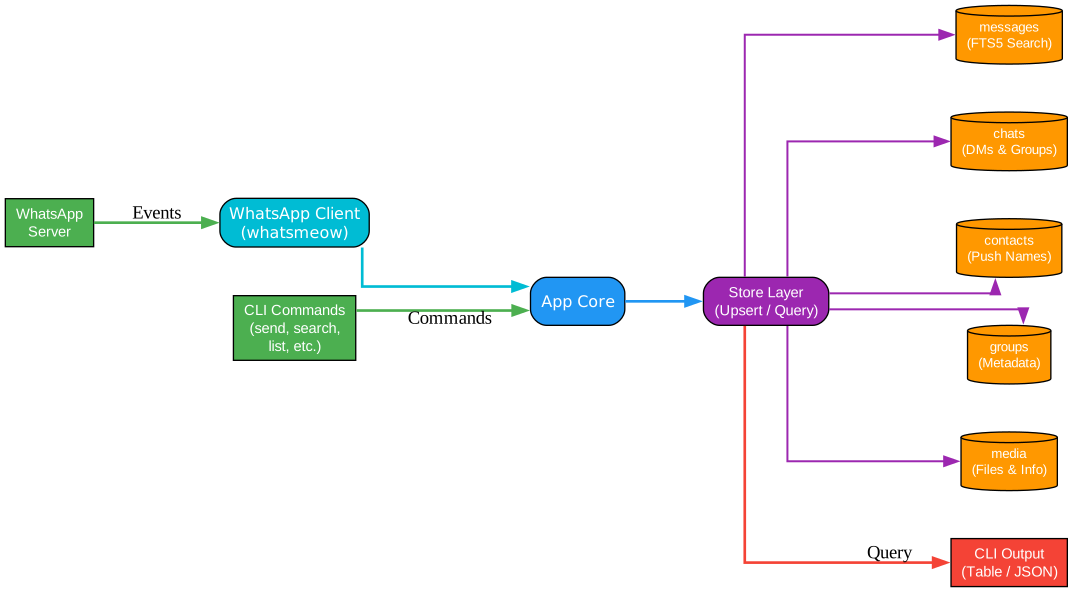
The data flow diagram shows how information moves through wacli, from input sources through processing to storage and output. This architecture is designed for efficiency and reliability:
Input Sources: wacli receives data from two primary sources:
- WhatsApp Server – Real-time events including new messages, history sync batches, connection status changes, and group updates. These arrive via the encrypted WebSocket connection managed by the whatsmeow client.
- CLI Commands – User-initiated operations like sending messages, searching the database, listing chats, or managing groups. These come from the terminal interface.
Processing Pipeline: The WhatsApp Client layer handles protocol-level concerns like encryption, decryption, and message serialization. The App Core orchestrates higher-level operations, coordinating between the client, the store, and the command handlers. For example, when sending a text message, the App Core resolves the recipient’s JID, sends the message through the WhatsApp client, and then stores a copy in the local database for consistency.
Store Layer: The Store Layer provides a unified interface for all database operations. It uses SQLite with WAL (Write-Ahead Logging) mode for concurrent read access and safe write operations. The database schema includes five main tables:
-
messages – The core table storing all message data including text, display text, sender information, timestamps, media metadata, and reaction references. When FTS5 is available, a virtual table provides full-text search capabilities.
-
chats – Tracks all conversations (both DMs and groups) with their names, types, and last activity timestamps.
-
contacts – Stores contact information including push names, full names, first names, and business names, resolved from WhatsApp’s contact database.
-
groups – Maintains group metadata including names, owners, creation timestamps, and participant lists with roles (member, admin, superadmin).
-
media – Tracks media file metadata including download paths, MIME types, file hashes, and download timestamps.
Output: All query results are formatted for output through the CLI. The --json flag switches from human-readable table format to structured JSON, making wacli easy to integrate with other tools like jq, Python scripts, or any data processing pipeline.
Installation
Installing wacli is straightforward. Choose the method that works best for your system:
Option A: Homebrew (macOS and Linux)
brew install steipete/tap/wacli
This is the simplest installation method if you have Homebrew installed. The tap formula handles all dependencies automatically.
Option B: Build from Source
# Clone the repository
git clone https://github.com/steipete/wacli.git
cd wacli

# Build with FTS5 support (recommended for fast search)
go build -tags sqlite_fts5 -o ./dist/wacli ./cmd/wacli

# Verify the build
./dist/wacli --help
Building from source requires Go 1.21 or later. The sqlite_fts5 build tag enables full-text search, which is highly recommended for the best search performance.
Option C: Download Binary
Visit the GitHub Releases page to download pre-built binaries for your platform.
Getting Started
Step 1: Authenticate
# Start authentication (displays QR code in terminal)
wacli auth
Scan the QR code with your WhatsApp mobile app (Settings > Linked Devices > Link a Device). wacli will perform an initial data sync after successful authentication.
Step 2: Sync Messages
# Continuous sync (keeps running, captures new messages)
wacli sync --follow

# One-time sync (exits after idle timeout)
wacli sync

# Sync with media download
wacli sync --follow --download
Step 3: Search Messages
# Search for messages containing "meeting"
wacli messages search "meeting"

# Search in a specific chat
wacli messages search "project update" --chat 1234567890@s.whatsapp.net

# Search with time filters
wacli messages search "report" --after 2026-01-01 --before 2026-03-31

# Filter by media type
wacli messages search "photo" --type image

# Output as JSON for scripting
wacli messages search "deadline" --json
Step 4: Send Messages
# Send a text message
wacli send text --to 1234567890 --message "Hello from wacli!"

# Send a file with caption
wacli send file --to 1234567890 --file ./report.pdf --caption "Monthly report"

# Override display filename
wacli send file --to 1234567890 --file /tmp/abc123 --filename report.pdf
Step 5: Manage Groups
# List all groups
wacli groups list

# Rename a group
wacli groups rename --jid 123456789@g.us --name "New Group Name"

# Get group info
wacli groups info --jid 123456789@g.us

# Get invite link
wacli groups invite-link --jid 123456789@g.us

# Join a group via invite link
wacli groups join --code https://chat.whatsapp.com/abcdefg
Step 6: Backfill History
# Backfill older messages for a specific chat
wacli history backfill --chat 1234567890@s.whatsapp.net --requests 10 --count 50

# Backfill all chats (script)
wacli --json chats list --limit 100000 | \
  jq -r '.[].JID' | \
  while read -r jid; do
    wacli history backfill --chat "$jid" --requests 3 --count 50
  done
Note that backfilling requires your primary device (phone) to be online, and results are best-effort – WhatsApp may not return complete history.
Advanced Usage
JSON Output for Scripting
Every wacli command supports the --json flag for machine-readable output:
# List chats as JSON
wacli --json chats list

# Search and pipe to jq
wacli --json messages search "important" | jq '.messages[] | {id: .MsgID, text: .Text}'
Custom Storage Location
# Use a custom store directory
wacli --store /path/to/custom/store sync --follow
The default store location is ~/.wacli. This directory contains:
wacli.db– The main SQLite database with messages, chats, contacts, and groupssession.db– The whatsmeow session database for authentication
Diagnostics
# Check wacli health
wacli doctor
The doctor command verifies your setup, checks database integrity, and reports any issues with authentication or connectivity.
Environment Variables
# Set custom device label (shown in WhatsApp linked devices)
export WACLI_DEVICE_LABEL="My Server"

# Override device platform
export WACLI_DEVICE_PLATFORM="CHROME"
Technical Design Highlights
SQLite with WAL Mode: wacli uses SQLite with Write-Ahead Logging (WAL) mode, which allows concurrent reads while writes are in progress. This is crucial for the sync workflow, where messages are continuously being stored while you might be querying the database from another terminal.
FTS5 Full-Text Search: When compiled with the sqlite_fts5 build tag, wacli enables SQLite’s FTS5 extension for full-text search. This provides near-instant search results across thousands of messages, using the BM25 ranking algorithm for relevance scoring. Without FTS5, wacli gracefully falls back to LIKE-based search.
Process Locking: wacli implements file-based process locking to prevent multiple instances from writing to the same database simultaneously. This ensures data integrity even when running multiple wacli commands in different terminals.
Best-Effort Sync: The sync philosophy is best-effort – wacli captures and stores whatever WhatsApp provides, without making guarantees about completeness. This pragmatic approach means wacli works reliably even when WhatsApp’s protocol behavior changes or when network conditions are less than ideal.
Panic Recovery: The event handler includes panic recovery to prevent unexpected message structures from crashing the entire process. This is a production-grade design choice that ensures wacli keeps running even when encountering edge cases.
Comparison with Alternatives
| Feature | wacli | whatsapp-cli | WhatsApp Web |
|---|---|---|---|
| CLI Interface | Yes | Yes | No |
| Local Sync | Yes | Limited | No |
| Offline Search | Yes (FTS5) | No | No |
| Send Messages | Yes | Yes | Yes |
| Media Download | Yes | No | Manual |
| Group Management | Yes | Limited | Yes |
| JSON Output | Yes | No | No |
| Auto-Reconnect | Yes | No | N/A |
| Backfill History | Yes | No | No |
Troubleshooting
QR Code Not Scanning: Make sure your phone has an active internet connection. Try running wacli auth again. If the QR code times out, simply re-run the command.
Search is Slow: If you see the message “Note: FTS5 not enabled; search is using LIKE (slow)”, rebuild wacli with the sqlite_fts5 build tag for much faster search performance.
Database Locked Errors: This means another wacli process is using the database. Close other wacli instances or use the --store flag to point to a different database.
Sync Not Capturing Messages: Ensure your primary device (phone) is online. Check connectivity with wacli doctor. If using --follow mode, check that the process is still running and connected.
Reconnection Issues: Use the --max-reconnect flag to set a timeout for reconnection attempts. For example, wacli sync --follow --max-reconnect 5m will give up after 5 minutes of failed reconnection attempts.
Conclusion
wacli fills an important gap in the WhatsApp ecosystem by providing a powerful, open-source CLI tool for managing your WhatsApp data. Its Go-based architecture ensures fast performance and low resource usage, while the SQLite backend with FTS5 search makes querying your message history instantaneous. Whether you need to archive conversations, search through message history, automate message sending, or manage groups from the terminal, wacli provides a well-designed and actively maintained solution.
The project’s rapid growth – over 1,800 stars and +831 stars per week – speaks to the demand for a tool like this. With its clean codebase, comprehensive feature set, and thoughtful design decisions like best-effort sync, panic recovery, and process locking, wacli is production-ready for both personal and professional use.
Check out the wacli GitHub repository to get started, and join the growing community of developers using WhatsApp from the command line. Enjoyed this post? Never miss out on future posts by following us 


