Introduction
The rise of AI coding agents has introduced a new kind of configuration artifact: skills. These are Markdown-based instruction files (typically SKILL.md) that tell an AI agent how to behave in specific contexts – from code review patterns to deployment workflows. The problem? Every major AI coding tool – Claude Code, Cursor, Gemini CLI, Windsurf, Copilot, Aider, and many more – stores its skills in a different directory. Managing them individually means duplicating files, losing track of versions, and spending more time on configuration than on actual development.
Skills Manage (iamzhihuix/skills-manage) solves this with a single desktop application. Built on Tauri v2 with a React frontend and Rust backend, it provides a central skill library at ~/.agents/skills/ and uses symlinks to install skills into each platform’s directory. One source of truth drives every AI coding tool you use. In this post, we will explore how Skills Manage works, its architecture, its multi-platform support, and how to get started.
How It Works
Skills Manage follows the Agent Skills open pattern. The core idea is simple but powerful: maintain a central canonical directory at ~/.agents/skills/ that holds all your skills, then create symlinks from this central location into each platform’s specific skills directory. When you update a skill in the central library, every linked platform sees the change immediately.
The app provides a full graphical interface for this workflow. You can scan your existing skills, browse them with search and filter, install or uninstall them per platform, organize them into collections, discover project-level skills on your local disk, browse a marketplace for community skills, and import skills directly from GitHub repositories. All of this happens through a native desktop window – no terminal commands, no manual symlink creation, no file copying.
The Rust backend handles all file system operations, symlink management, and database queries, while the React frontend provides a responsive, themeable UI with virtualized lists for large skill libraries. The SQLite database at ~/.skillsmanage/db.sqlite stores metadata, collections, settings, and cached AI explanations – all local, with zero telemetry.
Architecture
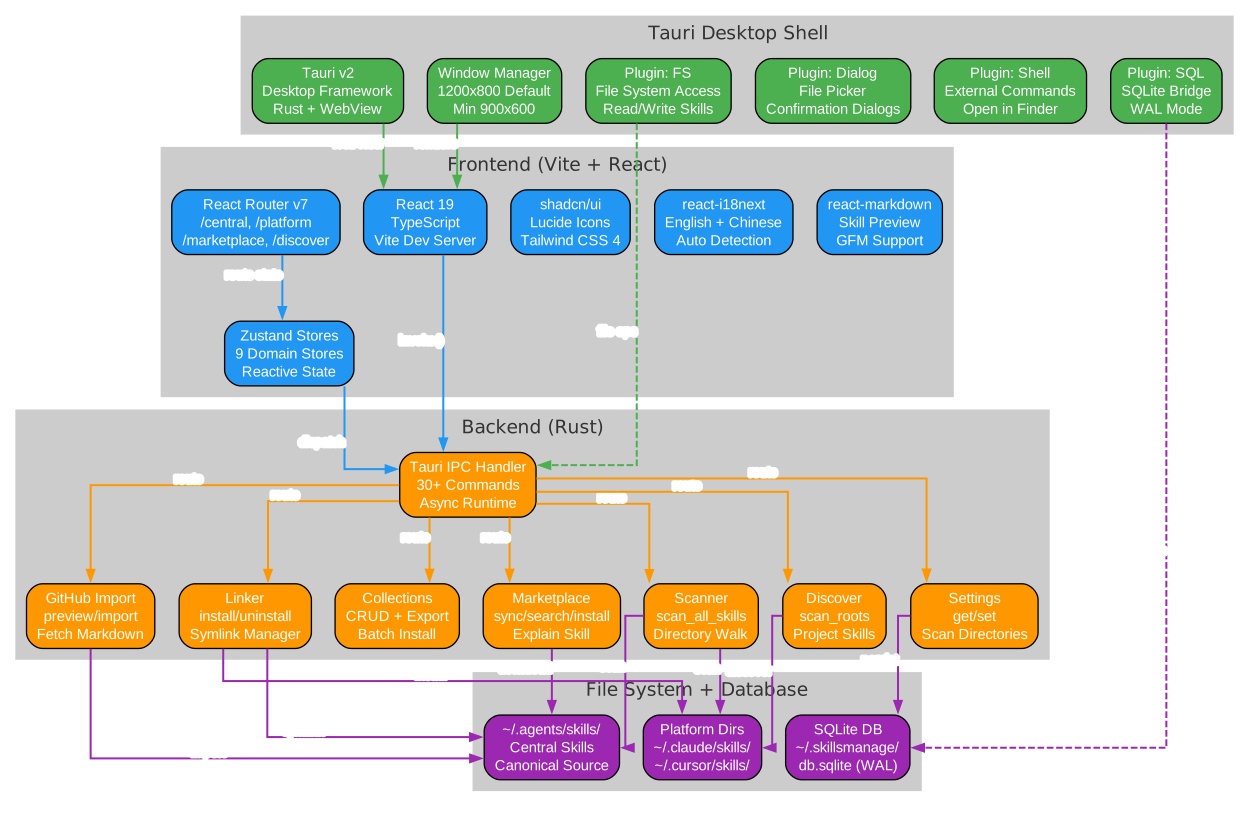
The architecture diagram above illustrates the four-layer design of Skills Manage. At the top is the Tauri Desktop Shell, which provides the native window, file system access through plugins (FS, Dialog, Shell, SQL), and the WebView that renders the frontend. The shell bridges the gap between the operating system and the web-based UI.
The Frontend Layer runs inside the WebView and is built with React 19, TypeScript, and Vite. React Router v7 handles navigation across views like /central, /platform/:agentId, /marketplace, and /discover. Nine Zustand stores manage reactive state for each domain – central skills, platform skills, collections, marketplace, discover, settings, skill details, and theming. The UI uses shadcn/ui components with Lucide icons and Tailwind CSS 4 for styling. Internationalization is handled by react-i18next with English and Chinese locales, and react-markdown renders skill content with GFM support.
The Backend Layer is written in Rust and exposes over 30 Tauri IPC commands organized into modules: Scanner (directory walking and skill parsing), Linker (symlink install/uninstall), Marketplace (registry sync, search, install, AI explanation), GitHub Import (preview, import, fetch markdown), Discover (project root scanning), Collections (CRUD, batch install, export/import), and Settings (scan directories, key-value settings). Each command runs on Tauri’s async runtime and accesses the shared AppState containing the database pool.
The Storage Layer consists of the central skills directory at ~/.agents/skills/, per-platform directories like ~/.claude/skills/ and ~/.cursor/skills/, and the SQLite database at ~/.skillsmanage/db.sqlite running in WAL mode for concurrent read/write performance. The database schema includes tables for skills, agents, skill installations, collections, collection items, scan directories, and settings – all initialized automatically on first launch.
Multi-Platform Support

The multi-platform diagram above shows the breadth of Skills Manage’s platform coverage. The central hub at ~/.agents/skills/ connects through the symlink engine to over 25 supported platforms, organized into three categories.
Coding Platforms include the most popular AI coding agents: Claude Code (~/.claude/skills/), Cursor (~/.cursor/skills/), Gemini CLI (~/.gemini/skills/), Codex CLI (~/.agents/skills/ – shared with the central directory), Windsurf (~/.windsurf/skills/), Copilot (~/.copilot/skills/), Aider (~/.aider/skills/), and Trae (~/.trae/skills/). Extended coding platforms cover Augment, Kiro, KiloCode, OpenCode, Hermes, CodeBuddy, Qoder, and Factory Droid – each with their own ~/.<name>/skills/ directory.
Lobster Platforms represent a separate ecosystem including OpenClaw, QClaw, EasyClaw, AutoClaw, and WorkBuddy. These follow the same skills pattern but serve different use cases within the Lobster framework.
Custom Platforms can be added through the Settings view. If you use an AI coding tool that is not in the built-in list, you can add its name and skills directory path, and Skills Manage will treat it like any other platform – scanning, installing, and uninstalling skills through the same symlink mechanism.
The symlink engine is the key architectural decision. Rather than copying skill files into each platform directory (which would create synchronization problems), Skills Manage creates symbolic links. This means one skill file in the central directory can appear in multiple platform directories simultaneously. When you update the central file, all platforms see the update. When you uninstall from a platform, only the symlink is removed – the central file remains intact.
Installation
Download Prebuilt Package
The easiest way to get started is to download the latest release from the GitHub releases page. Prebuilt packages are currently available for Apple Silicon macOS (.dmg and .app.zip formats).
For macOS users, the current build is not notarized, so you may encounter a Gatekeeper warning. After moving the app to /Applications, run:
xattr -dr com.apple.quarantine "/Applications/skills-manage.app"
Then launch the app again from Finder.
Run from Source
For other platforms (Windows, Linux, Intel Macs), you can run from source. You will need:
- Node.js (LTS version)
- pnpm package manager
- Rust toolchain (stable channel)
- Tauri v2 system dependencies (see Tauri prerequisites)
Install dependencies and start the development server:
pnpm install
pnpm tauri dev
The Vite dev server runs on port 24200. The app window will open automatically.
Validation Commands
If you are contributing or want to verify your build, run:
pnpm test
pnpm typecheck
pnpm lint
cd src-tauri && cargo test
cd src-tauri && cargo clippy -- -D warnings
Usage
Central Skills View
When you first open Skills Manage, you land on the Central Skills view at /central. This shows all skills found in ~/.agents/skills/. The scanner walks the directory, parses each SKILL.md file’s frontmatter (name, description, triggers), and indexes them for fast search. The virtualized list handles large skill libraries smoothly – even hundreds of skills scroll without lag.
Platform View
Click on any platform in the sidebar to see its Platform View at /platform/:agentId. This shows which skills are currently installed (symlinked) into that platform’s directory. You can install new skills from the central library, uninstall existing ones, or view skill details.
Skill Detail
Click any skill to open the Skill Detail view. This provides three tabs:
- Markdown Preview: Renders the skill’s Markdown content with GFM support (tables, code blocks, lists)
- Raw Source: Shows the raw
SKILL.mdfile content - AI Explanation: Generates a plain-language summary of what the skill does, streamed from your configured AI provider
Collections
The Collections view at /collections lets you organize skills into named groups. Create a collection, add skills from the central library or any platform, then batch-install the entire collection to one or more platforms. Collections can be exported as JSON and imported on another machine, making them shareable across teams.
Discover
The Discover view at /discover scans your local disk for project-level skill libraries. If you have skills embedded in project directories (not just the global ~/.agents/skills/), Discover will find them and let you import them into the central library or directly into a platform.
Marketplace
The Marketplace view at /marketplace connects to skill registries. You can sync publisher lists, browse available skills, search by keyword, and install skills with one click. The marketplace also supports AI-powered skill explanations – select a skill and generate a summary of what it does, streamed in real time.
GitHub Import
The GitHub Import wizard lets you pull skills directly from a GitHub repository. Enter a repo URL, authenticate with a GitHub PAT (stored locally in SQLite), preview the skill files available, select which ones to import, and bring them into your central library. The wizard handles authenticated requests with retry fallback for rate limiting.
Features
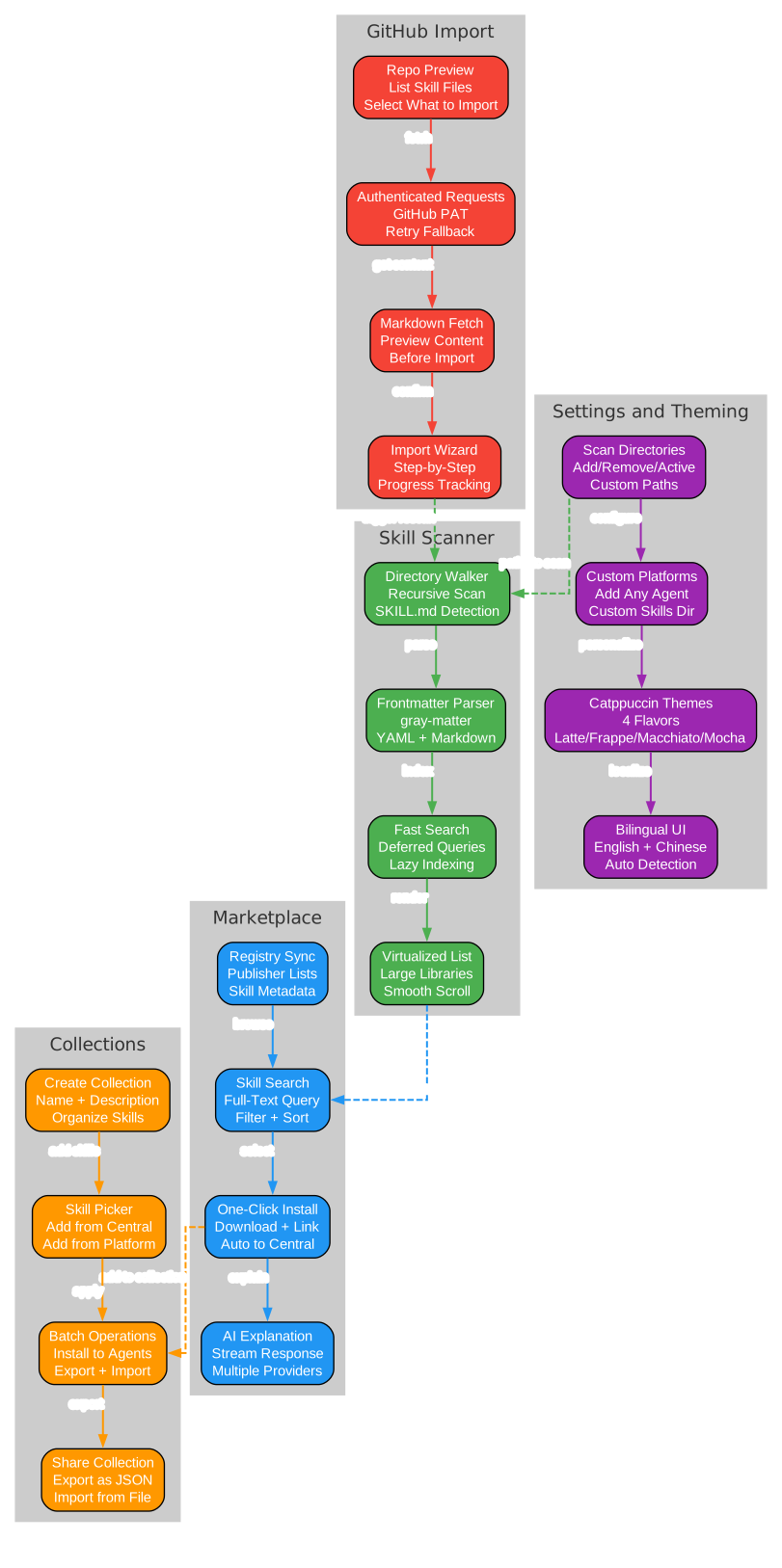
The features diagram above organizes Skills Manage’s capabilities into five major areas.
Skill Scanner walks your skills directories recursively, detects SKILL.md files, parses their YAML frontmatter using the gray-matter library, and builds a searchable index. The search system uses deferred queries and lazy indexing to stay fast even with large libraries. Results render in a virtualized list that only mounts visible items, keeping the DOM lightweight.
Marketplace provides registry sync (downloading publisher and skill metadata), full-text search with filter and sort, one-click install (download the skill file, place it in the central directory, and create symlinks), and AI explanation generation. The AI explanation feature supports multiple providers and streams the response in real time, so you see the summary build up character by character.
Collections let you create named groups of skills, pick skills from the central library or any platform, perform batch operations (install an entire collection to multiple agents at once), and share collections via JSON export/import. This is particularly useful for onboarding new team members with a standard set of skills.
GitHub Import provides a step-by-step wizard: preview the repository’s skill files, authenticate with a GitHub PAT for private repos and higher rate limits, fetch and preview the Markdown content of each skill before importing, and track import progress. The retry fallback mechanism handles GitHub API rate limits gracefully.
Settings and Theming covers scan directory management (add, remove, activate custom paths), custom platform configuration (add any AI agent with its skills directory), Catppuccin theme support across all four flavors (Latte, Frappe, Macchiato, Mocha), and bilingual UI with automatic language detection between English and Chinese.
Workflow
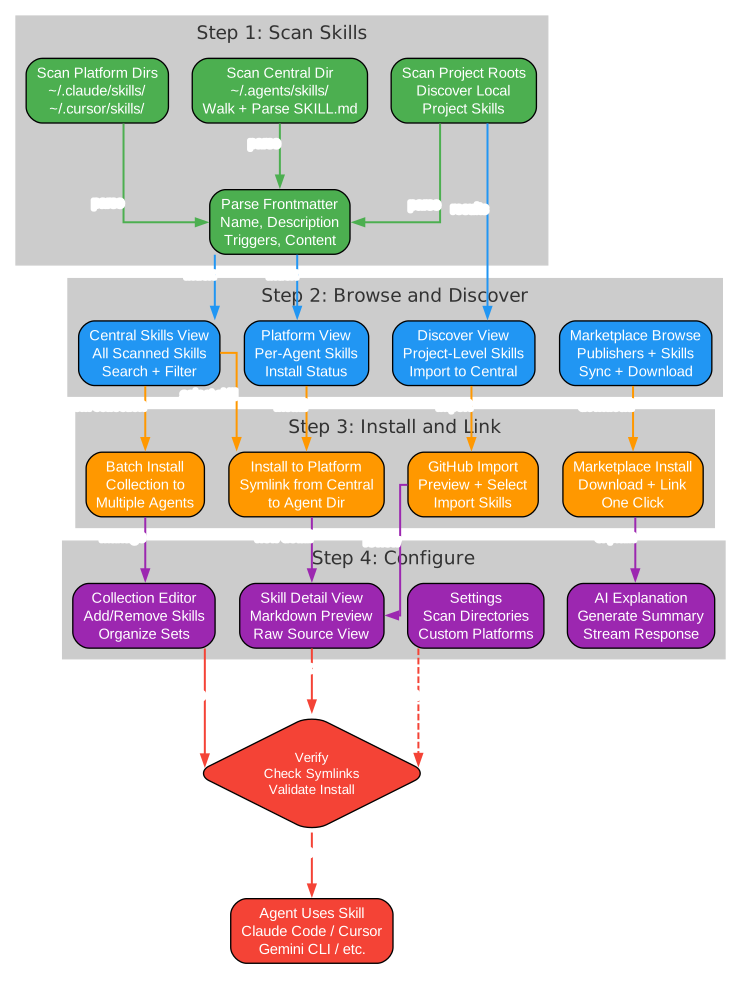
The workflow diagram above traces the end-to-end process of managing skills through the application.
Step 1: Scan Skills – The scanner walks the central directory (~/.agents/skills/), platform directories, and project roots. Each SKILL.md file is parsed for frontmatter (name, description, triggers, content). The results are indexed and stored in the SQLite database.
Step 2: Browse and Discover – The Central Skills View shows all scanned skills with search and filter. The Platform View shows per-agent skills with install status. The Marketplace lets you browse community skills. The Discover View finds project-level skills on your local disk.
Step 3: Install and Link – Install a single skill to a platform via symlink. Batch-install an entire collection to multiple agents. Import skills from a GitHub repository through the wizard. Install marketplace skills with one click.
Step 4: Configure – View skill details with Markdown preview and raw source. Generate AI explanations for unfamiliar skills. Edit collections to add or remove skills. Configure scan directories and custom platforms in Settings.
Step 5: Verify – The app checks that symlinks are valid and installations are correct. If a symlink is broken (the central file was deleted), it shows the issue. Rescan from Settings to refresh the index.
Step 6: Use – Your AI coding agents (Claude Code, Cursor, Gemini CLI, etc.) read the skill files from their respective directories. Because the files are symlinks to the central library, any update you make in Skills Manage is immediately available to all linked agents.
Privacy and Security
Skills Manage takes a local-first approach to data. All metadata, collections, scan results, settings, and cached AI explanations are stored in ~/.skillsmanage/db.sqlite or in the local skill directories you manage. The app includes no telemetry – no analytics, no crash reporting, no usage tracking. Network access only happens when you explicitly use marketplace sync/download, GitHub import, or AI explanation generation. GitHub PATs and AI API keys are stored in the local SQLite settings table (not encrypted at rest by the app). The project advises never posting real secrets in issues, pull requests, screenshots, or logs.
Tech Stack Summary
| Layer | Technology |
|---|---|
| Desktop framework | Tauri v2 |
| Frontend | React 19, TypeScript, Tailwind CSS 4 |
| UI components | shadcn/ui, Lucide icons |
| State management | Zustand |
| Markdown | react-markdown |
| i18n | react-i18next, i18next-browser-languagedetector |
| Theming | Catppuccin 4-flavor palette |
| Backend | Rust (serde, sqlx, chrono, uuid) |
| Database | SQLite via sqlx (WAL mode) |
| Routing | react-router-dom v7 |
Conclusion
Skills Manage addresses a real and growing pain point in the AI coding agent ecosystem: skill sprawl. As the number of AI coding tools increases, each with its own skills directory and configuration format, managing skills manually becomes unsustainable. Skills Manage provides a clean, local-first solution – a central library, symlink-based installation, a graphical interface for browsing and organizing, marketplace access, GitHub import, and collection management. Built with Tauri for native performance and React for a polished UI, it runs on macOS today and can be built from source on any platform. If you use more than one AI coding agent, Skills Manage is worth adding to your workflow.
Check out the repository to get started, and star it if you find it useful. Enjoyed this post? Never miss out on future posts by following us 


