Every AI coding session burns tokens. But where do they actually go? Which tasks eat the most budget? Where does the AI nail it first try versus burning tokens on edit-test-fix retry loops? CodeBurn from getagentseal/codeburn answers these questions with an interactive TUI dashboard that reads session data directly from disk – no wrapper, no proxy, no API keys required.
With over 2,800 stars on GitHub and support for seven AI coding providers, CodeBurn has quickly become the go-to tool for developers who want to understand and optimize their AI coding spend.
How CodeBurn Works
CodeBurn operates on a simple but powerful principle: read session data directly from the local disk where AI coding tools already store it. There is no wrapper to install, no proxy to configure, and no API keys to manage. The tool reads JSONL and SQLite files, deduplicates messages, filters by date range, classifies each turn into one of 13 task categories, calculates costs using LiteLLM pricing data, and presents everything in an interactive terminal dashboard.
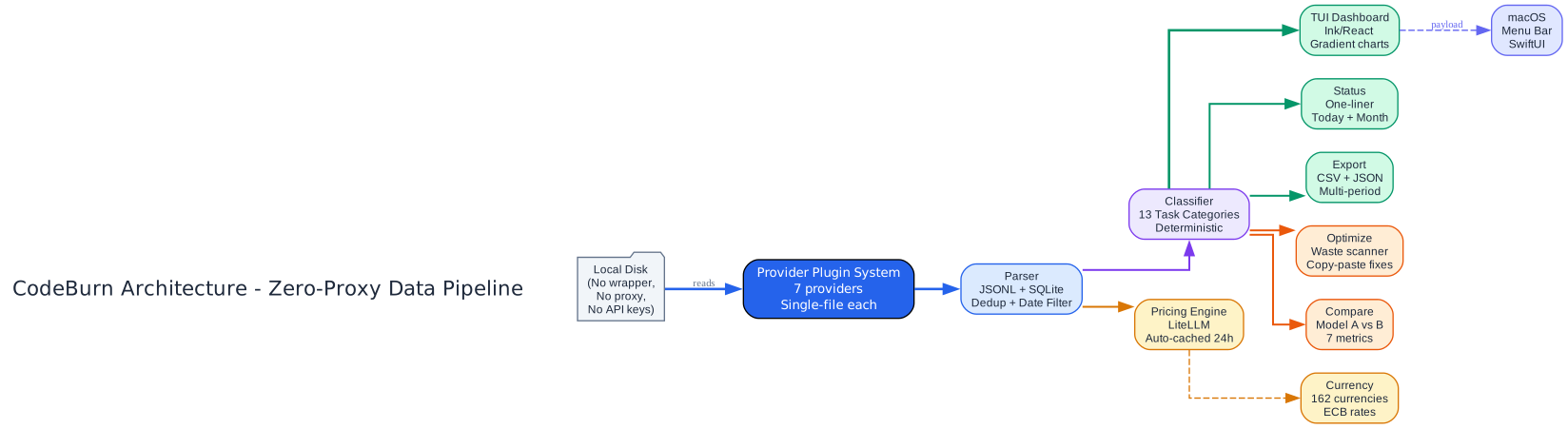
The diagram above illustrates the complete data pipeline. Session data lives on local disk in provider-specific directories. The Provider Plugin System (7 providers, each a single file) reads these files and feeds them into the Parser, which handles JSONL and SQLite parsing, deduplication, and date filtering. From there, the data flows two ways: the Classifier assigns each turn to one of 13 task categories using deterministic rules (no LLM calls), while the Pricing Engine calculates costs using LiteLLM model prices auto-cached for 24 hours. The Currency module supports 162 currencies with exchange rates from the European Central Bank.
The classified and priced data then flows to six output modes: the interactive TUI Dashboard (built with Ink/React for terminals), the compact Status one-liner, CSV/JSON Export, the Optimize waste scanner, the Compare model comparison tool, and the native macOS Menu Bar app built with SwiftUI. The menu bar app receives its data via a JSON payload from the CLI, refreshing live via FSEvents plus a 15-second poll.
Seven Providers, One Dashboard
CodeBurn auto-detects which AI coding tools you use and combines their data into a unified view. Press p in the dashboard to toggle between providers, or use the --provider flag on any command.
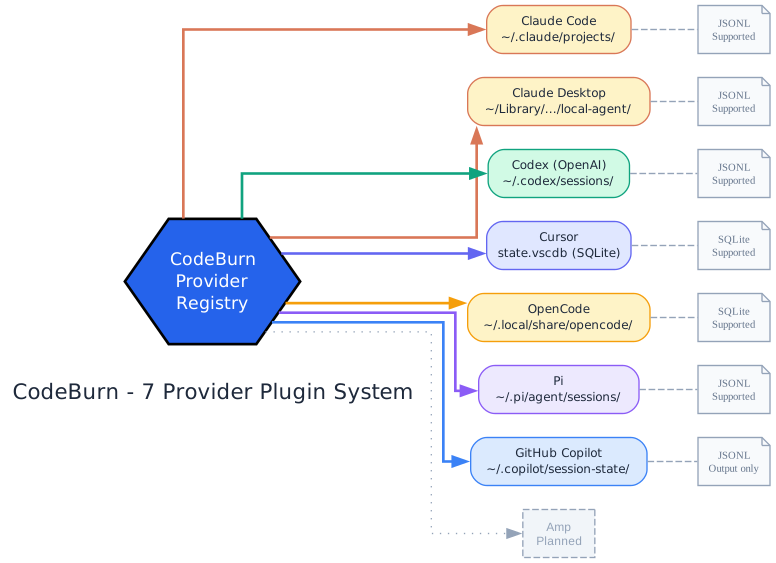
The diagram above shows all seven supported providers radiating from the central CodeBurn Provider Registry. Claude Code reads JSONL session transcripts from ~/.claude/projects/. Claude Desktop reads from ~/Library/Application Support/Claude/local-agent-mode-sessions/. Codex (OpenAI) reads JSONL from ~/.codex/sessions/ with tool names normalized to match Claude conventions. Cursor reads from its SQLite database at state.vscdb, extracting token counts and language information. OpenCode reads from SQLite databases at ~/.local/share/opencode/. Pi reads JSONL from ~/.pi/agent/sessions/ with lowercase tool names normalized to the standard set. GitHub Copilot reads from ~/.copilot/session-state/ but only tracks output tokens.
The provider plugin system makes adding a new provider a single file. Each provider implements session discovery, JSONL parsing, tool normalization, and model display names. The src/providers/codex.ts file serves as a reference example. Amp is listed as planned for future support.
13 Task Categories
CodeBurn classifies every turn into one of 13 task categories using deterministic rules based on tool usage patterns and user message keywords. No LLM calls are involved – the classification is fully deterministic and instant.

The diagram above organizes the 13 categories into four groups. The Code-Focused group includes Coding (triggered by Edit and Write tools), Debugging (error/fix keywords plus tool usage), Feature Dev (“add”, “create”, “implement” keywords), Refactoring (“refactor”, “rename”, “simplify”), and Testing (pytest, vitest, jest in Bash). The Exploration group includes Exploration (Read, Grep, WebSearch without edits), Planning (EnterPlanMode, TaskCreate tools), and Brainstorming (“brainstorm”, “what if”, “design” keywords). The Operations group includes Git Ops (git push/commit/merge), Build/Deploy (npm build, docker, pm2), and Delegation (Agent tool spawns). The Other group covers Conversation (no tools, pure text exchange) and General (Skill tool, uncategorized).
The One-Shot Rate note at the bottom explains the key metric: for categories involving code edits, CodeBurn detects edit/test/fix retry cycles (Edit -> Bash -> Edit patterns). The one-shot column shows the percentage of edit turns that succeeded without retries. Coding at 90% means the AI got it right first try 9 out of 10 times.
Reading the Dashboard
CodeBurn surfaces the data; you read the story. The dashboard shows daily cost charts, per-project breakdowns, per-model token counts (Opus, Sonnet, Haiku, GPT-5, GPT-4o, Gemini), per-activity breakdowns with one-shot rates, core tools, shell commands, and MCP servers. Several diagnostic signals are worth knowing:
- Cache hit below 80%: System prompt or context is not stable, or caching is not enabled
- Lots of Read calls per session: Agent re-reading same files, missing context
- Low one-shot rate (Coding 30%): Agent struggling with edits, retry loops
- Opus 4.6 dominating cost on small turns: Overpowered model for simple tasks
- dispatch_agent / task heavy: Sub-agent fan-out, expected or excessive
- No MCP usage shown: Either you do not use MCP servers, or your config is broken
- Bash dominated by git status, ls: Agent exploring instead of executing
- Conversation category dominant: Agent talking instead of doing
These are starting points, not verdicts. A 60% cache hit on a single experimental session is fine. A persistent 60% cache hit across weeks of work is a config issue.
Optimize: Find Waste, Get Fixes
Once you know what to look for, codeburn optimize scans your sessions and your ~/.claude/ setup for the most common waste patterns and returns exact, copy-paste fixes. It never writes to your files.
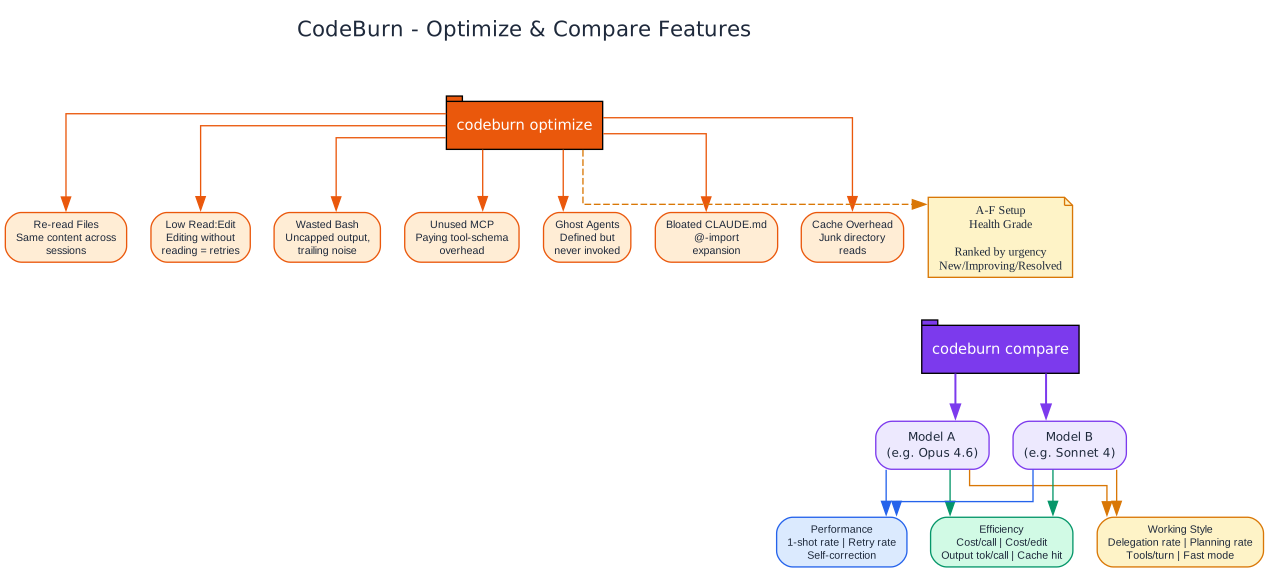
The diagram above shows the two analytical features. The Optimize scanner detects seven waste patterns: Re-read Files (same content across sessions), Low Read:Edit Ratio (editing without reading leads to retries), Wasted Bash Output (uncapped BASH_MAX_OUTPUT_LENGTH, trailing noise), Unused MCP Servers (paying tool-schema overhead every session), Ghost Agents/Skills/Commands (defined but never invoked), Bloated CLAUDE.md Files (with @-import expansion counted), and Cache Creation Overhead (junk directory reads). Each finding shows estimated token and dollar savings plus a ready-to-paste fix. Findings are ranked by urgency and rolled up into an A-F setup health grade. Repeat runs classify each finding as new, improving, or resolved against a 48-hour recent window.
The Compare feature provides side-by-side model comparison across any two models in your session data. It compares three metric groups: Performance (one-shot rate, retry rate, self-correction), Efficiency (cost per call, cost per edit, output tokens per call, cache hit rate), and Working Style (delegation rate, planning rate, average tools per turn, fast mode usage). Per-category one-shot rates break down success by task type so you can see where each model excels or struggles. All metrics are computed from your local session data with no LLM calls.
Getting Started
Install globally:
npm install -g codeburn
Or run without installing:
npx codeburn
Basic commands:
codeburn                        # interactive dashboard (default: 7 days)
codeburn today                  # today's usage
codeburn month                  # this month's usage
codeburn status                 # compact one-liner (today + month)
codeburn optimize               # find waste, get copy-paste fixes
codeburn compare                # interactive model comparison
codeburn export                 # CSV with today, 7 days, 30 days
codeburn currency GBP           # set display currency
Arrow keys switch between Today / 7 Days / 30 Days / Month / All Time. Press q to quit, 1-5 as shortcuts, c to open model comparison, o to open optimize, p to toggle providers.
The macOS Menu Bar App
For macOS users, CodeBurn includes a native Swift + SwiftUI menu bar app that shows today’s cost with a flame icon and opens a popover with agent tabs, period switcher, trend/forecast/pulse/stats/plan insights, activity and model breakdowns, optimize findings, and CSV/JSON export. Install it with one command:
npx codeburn menubar
The menu bar app refreshes live via FSEvents plus a 15-second poll, includes a currency picker with 17 common currencies, and supports any of the 162 ISO 4217 currencies via the CLI.
Conclusion
CodeBurn fills a critical gap in the AI coding workflow: visibility. As developers increasingly rely on AI agents for coding, debugging, testing, and deployment, the cost of token consumption grows silently. CodeBurn makes that cost visible, categorizable, and optimizable. Its zero-proxy architecture (reading directly from disk), deterministic classification (no LLM calls), multi-provider support, and actionable optimization suggestions make it an essential tool for any developer using AI coding agents.
The project is open source (MIT license) and actively maintained at github.com/getagentseal/codeburn. Enjoyed this post? Never miss out on future posts by following us 


