If you have been searching for an open source Suno alternative that delivers professional-grade AI music generation without subscription fees, ACE-Step UI is the answer. Built as a polished frontend for the ACE-Step 1.5 model, this project provides a Spotify-inspired interface for creating full songs with vocals, instrumentals, and custom parameters – all running locally on your own GPU. With over 1,300 stars on GitHub, ACE-Step UI has quickly become the go-to solution for developers and musicians who want full ownership of their AI-generated music.
What is ACE-Step UI?
ACE-Step UI is an open source web application that provides a professional, user-friendly interface for the ACE-Step 1.5 AI music generation model. While ACE-Step 1.5 handles the heavy lifting of neural network inference, ACE-Step UI wraps it in a polished experience complete with a library manager, bottom player with waveform visualization, lyrics editor, playlist support, and built-in audio editing tools.
The project is built with React 19, TypeScript, TailwindCSS, and Vite on the frontend, paired with an Express.js backend that uses SQLite for local-first data storage. The backend communicates with the ACE-Step 1.5 Gradio server via its API endpoints, managing a generation job queue that handles batch and bulk requests.
ACE-Step UI vs Suno/Udio
| Feature | Suno/Udio | ACE-Step UI |
|---|---|---|
| Cost | $10-50/month | FREE forever |
| Privacy | Cloud-based | 100% local |
| Ownership | Licensed | You own everything |
| Customization | Limited | Full control |
| Queue Limits | Restricted | Unlimited |
| Commercial Use | Expensive tiers | No restrictions |
System Architecture
The diagram below illustrates the full architecture of ACE-Step UI, from the browser-based React frontend through the Express.js backend, down to the ACE-Step 1.5 Gradio server and its neural network models. The frontend communicates with the backend via REST API calls, while the backend proxies generation requests to the Gradio server running on port 8001. SQLite handles all data persistence locally, and audio files are stored on the local filesystem. Built-in tools like AudioMass, Demucs, and the Pexels video generator extend the creative workflow without leaving the interface.
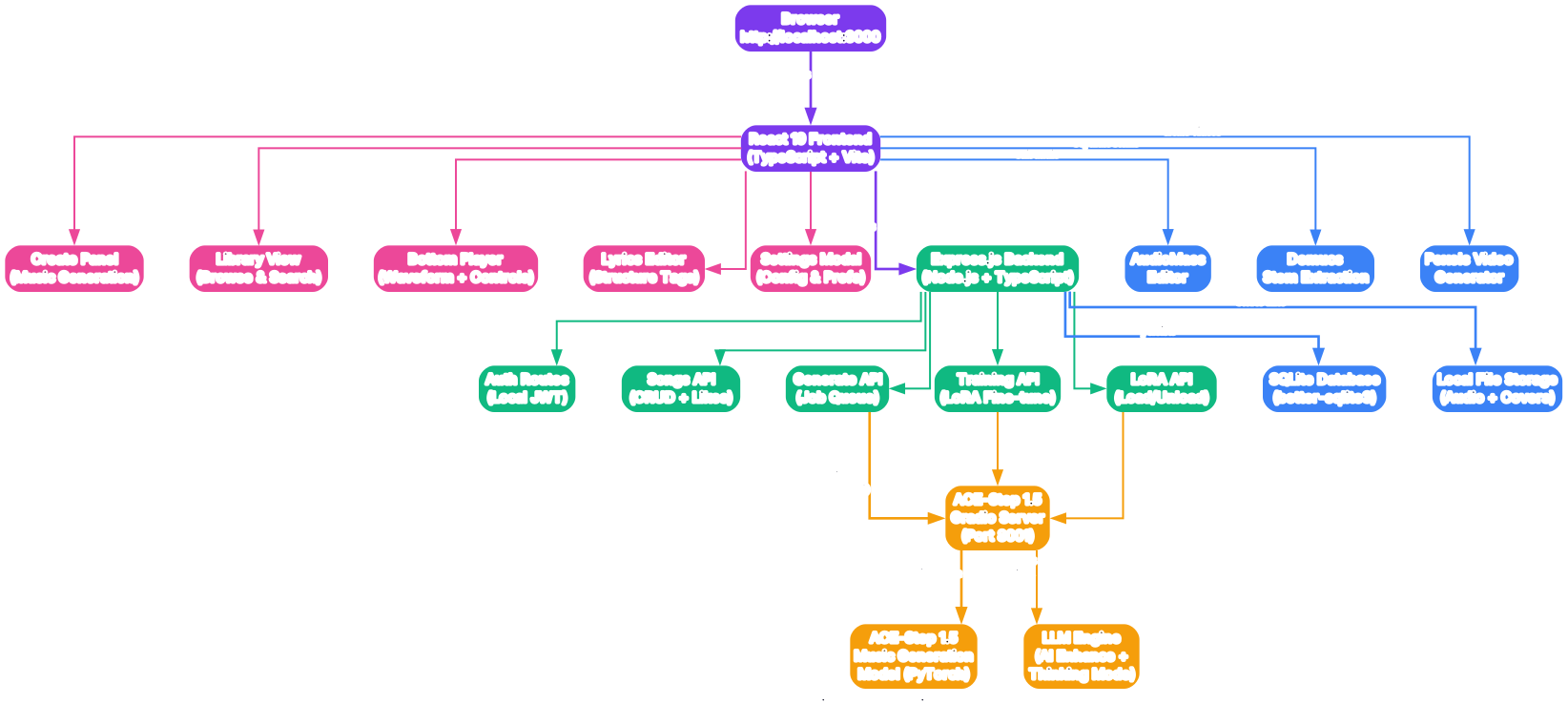
The architecture follows a three-tier design. The presentation tier is a React 19 single-page application served by Vite on port 3000 (or 5173 in development). It includes the Create Panel for music generation, the Library View for browsing and searching tracks, a Bottom Player with waveform visualization, and a Lyrics Editor with structure tag support. The application tier is an Express.js server running on port 3001 that exposes REST endpoints for authentication, song management, generation job queuing, LoRA training, and search. It uses JWT tokens for local session management and better-sqlite3 for database operations. The AI tier is the ACE-Step 1.5 Gradio server running on port 8001 with the --enable-api flag, which exposes the music generation model and optional LLM engine for AI Enhance and Thinking Mode features. Communication between the backend and Gradio uses the @gradio/client npm package.
Music Generation Pipeline
Understanding the generation pipeline is key to getting the best results from ACE-Step UI. The following diagram walks through the complete flow from user input to the final generated track in your library.
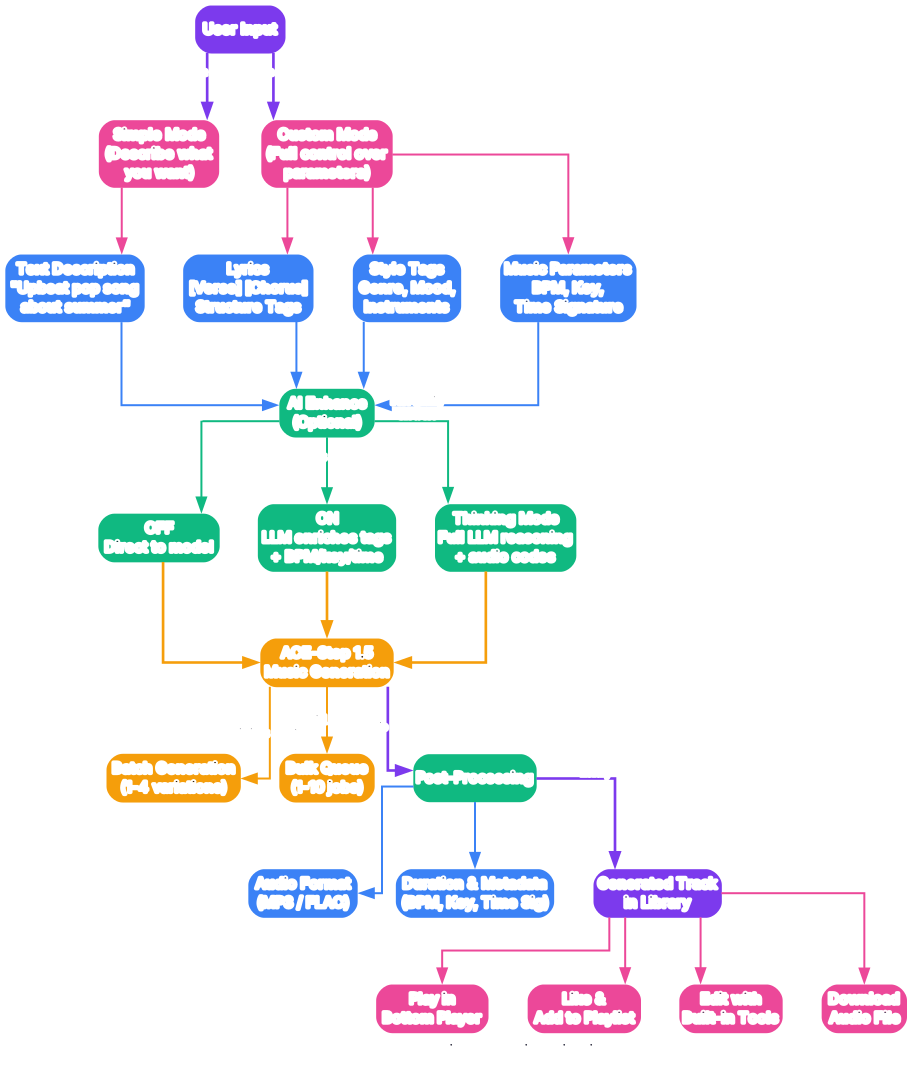
The pipeline begins with user input, where you choose between Simple Mode and Custom Mode. In Simple Mode, you provide a text description such as “An upbeat pop song about summer adventures with catchy hooks” and the model handles the rest. In Custom Mode, you gain full control over lyrics with [Verse] and [Chorus] structure tags, style tags defining genre and mood, and music parameters including BPM, musical key, and time signature.
Next, the optional AI Enhancement layer processes your input. With AI Enhance OFF, your style tags are sent directly to the model for the fastest generation. With AI Enhance ON, an LLM enriches your tags into a detailed caption and generates proper BPM, key, and time signature metadata – adding roughly 10-20 seconds of processing time. Thinking Mode enables full LLM reasoning with audio code generation, producing the highest quality output but taking the longest.
The generation stage sends the processed parameters to the ACE-Step 1.5 model. You can generate 1-4 variations in parallel (batch generation) or queue 1-10 sequential jobs (bulk generation). After generation, post-processing handles audio format conversion (MP3 or FLAC) and extracts metadata like duration, BPM, and key. Finally, the track appears in your library, ready to play, like, add to playlists, edit with built-in tools, or download.
Key Features Breakdown
ACE-Step UI packs an impressive set of features that go well beyond basic text-to-music generation. The diagram below categorizes the major feature areas.

Music Generation Features
| Feature | Description |
|---|---|
| Full Song Generation | Create complete songs with vocals and lyrics up to 4+ minutes |
| Instrumental Mode | Generate instrumental tracks without vocals |
| Custom Mode | Fine-tune BPM, key, time signature, and duration |
| Style Tags | Define genre, mood, tempo, and instrumentation |
| Batch Generation | Generate 1-4 variations in parallel per job |
| AI Enhance | LLM enriches genre tags into detailed captions with proper metadata |
| Thinking Mode | Full LLM reasoning with audio code generation for best quality |
| Reference Audio | Use any audio file as a style reference |
| Audio Cover | Transform existing audio with new styles |
| Repainting | Regenerate specific sections of a track |
| Seed Control | Reproduce exact generations for consistency |
Professional Interface
| Feature | Description |
|---|---|
| Spotify-Inspired UI | Clean, modern design with dark/light mode |
| Bottom Player | Full-featured player with waveform and progress bar |
| Library Management | Browse, search, and organize all your tracks |
| Likes and Playlists | Organize favorites into custom playlists |
| Real-time Progress | Live generation progress with queue position |
| LAN Access | Use from any device on your local network |
Built-in Tools
| Tool | Description |
|---|---|
| AudioMass Editor | Trim, fade, and apply effects to generated audio |
| Demucs Stem Extraction | Separate vocals, drums, bass, and other stems |
| Pexels Video Generator | Create music videos with stock footage backgrounds |
| Gradient Album Art | Auto-generated procedural covers (no internet needed) |
LoRA Fine-Tuning
| Feature | Description |
|---|---|
| Upload Audio Samples | Provide your own audio for custom model training |
| Auto-Label Dataset | Automatically label and format training data |
| Train Custom LoRA | Fine-tune the model on your specific style or artist |
| Export and Apply LoRA | Load, unload, and adjust LoRA scale for inference |
Requirements
Before installing ACE-Step UI, ensure your system meets these requirements:
| Requirement | Specification |
|---|---|
| Node.js | 18 or higher |
| Python | 3.10+ (3.11 recommended) OR Windows Portable Package |
| NVIDIA GPU | 4GB+ VRAM (works without LLM), 12GB+ recommended (with LLM) |
| CUDA | 12.8 (for Windows Portable Package) |
| FFmpeg | Required for audio processing |
| uv | Python package manager (recommended for standard install) |
Installation
Step 1: Install ACE-Step 1.5 (The AI Engine)
ACE-Step UI requires the ACE-Step 1.5 model server to be running. You have two installation options:
Windows Portable Package (Easiest for Windows)
The portable package includes everything pre-configured – Python, CUDA 12.8, and all dependencies:
- Download ACE-Step-1.5.7z (approximately 5GB)
- Extract to
C:\ACE-Step-1.5(or your preferred location) - The package includes
python_embededwith all dependencies pre-installed
This package works with a 4GB GPU. Thinking Mode (LLM features) is automatically disabled on GPUs with less than 12GB VRAM.
Standard Installation (All Platforms)
# Clone ACE-Step 1.5
git clone https://github.com/ace-step/ACE-Step-1.5
cd ACE-Step-1.5

# Create virtual environment and install
uv venv
uv pip install -e .

# Models download automatically on first run (~5GB)
cd ..
Step 2: Install ACE-Step UI
Linux / macOS
# Clone the UI
git clone https://github.com/fspecii/ace-step-ui
cd ace-step-ui

# Run setup script (installs all dependencies)
./setup.sh
Windows
REM Clone the UI
git clone https://github.com/fspecii/ace-step-ui
cd ace-step-ui

REM Run setup script (installs all dependencies)
setup.bat
Manual Installation (All Platforms)
# Install frontend dependencies
npm install

# Install server dependencies
cd server
npm install
cd ..

# Copy environment file
# Linux/macOS:
cp server/.env.example server/.env
# Windows:
copy server\.env.example server\.env
One-Click Install with Pinokio
For the simplest installation across any platform, use Pinokio. It handles Python, Node.js, dependencies, model downloads, and launching automatically. Visit the Pinokio app page to install with one click.
Usage
Starting ACE-Step UI
Windows One-Click Start
cd ace-step-ui
start-all.bat
This starts the API server, backend, and frontend in one command. By default, it looks for ACE-Step in ..\ACE-Step-1.5. If yours is elsewhere, set the ACESTEP_PATH environment variable first:
set ACESTEP_PATH=C:\path\to\ACE-Step-1.5
start-all.bat
Linux / macOS One-Click Start
cd ace-step-ui
./start-all.sh
To specify a custom ACE-Step path:
export ACESTEP_PATH=/path/to/ACE-Step-1.5
./start-all.sh
To stop all services: ./stop-all.sh
Manual Start
Start the ACE-Step Gradio server first:
# Linux/macOS
cd /path/to/ACE-Step-1.5
uv run acestep --port 8001 --enable-api --backend pt --server-name 127.0.0.1

# Windows (Portable Package)
cd C:\ACE-Step-1.5
python_embeded\python -m acestep --port 8001 --enable-api --backend pt --server-name 127.0.0.1

# Windows (Standard Installation)
cd C:\path\to\ACE-Step-1.5
uv run acestep --port 8001 --enable-api --backend pt --server-name 127.0.0.1
Wait for the “API endpoints enabled” message, then start the UI in another terminal:
# Linux/macOS
cd ace-step-ui
./start.sh

# Windows
cd ace-step-ui
start.bat
Open http://localhost:3000 and start creating music.
| Access | URL |
|---|---|
| Local | http://localhost:3000 |
| LAN (other devices) | http://YOUR_IP:3000 |
Creating Your First Song
Simple Mode – Just describe what you want:
An upbeat pop song about summer adventures with catchy hooks
Custom Mode – Full control over every parameter:
| Parameter | Example | Description |
|---|---|---|
| Lyrics | [Verse] Walking down the sunny street... | Full lyrics with structure tags |
| Style | pop, upbeat, energetic, synth | Genre, mood, instruments, tempo |
| Duration | 120 seconds | 30-240 seconds |
| BPM | 128 | 60-200 beats per minute |
| Key | C major | Musical key |
AI Enhance and Thinking Mode
| Mode | What it does | Speed impact |
|---|---|---|
| AI Enhance OFF | Sends your style tags directly to the model | Fastest |
| AI Enhance ON | LLM enriches your tags into a detailed caption and generates proper BPM, key, time signature | +10-20s |
| Thinking Mode | Full LLM reasoning with audio code generation | Slowest, best quality |
Tip: If your genre tags (for example, “pop, rock”) produce ballad-like output, turn on AI Enhance for much better genre accuracy. No extra VRAM is needed – the LLM runs on CPU with the PT backend.
Batch Size and Bulk Generation
| Setting | Description |
|---|---|
| Batch Size | Number of variations generated per job (1-4). Default is 1 for broad GPU compatibility. Higher values use more VRAM. 8GB GPU users should keep this at 1. |
| Bulk Generate | Queue multiple independent generation jobs (1-10). Each job runs sequentially, so this is safe for any GPU. |
| LM Backend | Choose between PT (~1.6 GB VRAM) and VLLM (~9.2 GB VRAM). PT is the default and works on most GPUs. |
Both batch size and bulk count are remembered in your browser – set them once and they persist for future sessions.
Configuration
Edit server/.env to customize your setup:
# Server
PORT=3001

# ACE-Step Gradio URL (must match --port used when starting ACE-Step)
ACESTEP_API_URL=http://localhost:8001

# Database (local-first, no cloud)
DATABASE_PATH=./data/acestep.db

# Optional: Pexels API for video backgrounds
PEXELS_API_KEY=your_key_here
Troubleshooting
| Issue | Solution |
|---|---|
| ACE-Step not reachable | Ensure the Gradio server is running with the --enable-api flag. Check that the port matches ACESTEP_API_URL in server/.env. |
| CUDA out of memory | Use --backend pt (default), set batch size to 1, reduce duration, or disable Thinking Mode. |
| 4GB GPU out of memory | Use the PT backend (default), batch size 1, and keep Thinking Mode OFF. LLM features require 12GB+ VRAM. |
| Genre always sounds like ballad | Enable the AI Enhance toggle in the Style section. It enriches your tags with proper metadata for better genre accuracy. |
| AttributeError: ‘NoneType’ | Update to the latest ACE-Step-1.5 release (fix merged in PR #109). |
| Songs show 0:00 duration | Install FFmpeg: sudo apt install ffmpeg (Linux) or download from ffmpeg.org (Windows). |
| LAN access not working | Check that your firewall allows traffic on ports 3000 and 3001. |
| Models not downloading | Ensure you have approximately 5GB of free disk space and a stable internet connection for the first run. |
Tech Stack Summary
| Layer | Technologies |
|---|---|
| Frontend | React 19, TypeScript 5.x, TailwindCSS 3.x, Vite 6.x |
| Backend | Express.js 4.x, SQLite (better-sqlite3), JWT authentication |
| AI Engine | ACE-Step 1.5 via Gradio API |
| Audio Tools | AudioMass, Demucs, FFmpeg |
| Video | Pexels API (optional) |
| License | MIT |
Conclusion
ACE-Step UI represents a significant step forward for open source AI music generation. By wrapping the powerful ACE-Step 1.5 model in a professional, Spotify-inspired interface, it removes the barrier between cutting-edge AI research and practical music creation. The local-first architecture means your data stays private, your generations are unlimited, and you own everything you create – no subscriptions, no queue limits, no licensing restrictions.
Whether you are a developer exploring AI audio pipelines, a musician looking for an affordable creative tool, or a researcher fine-tuning music models with LoRA, ACE-Step UI provides the complete toolkit. The built-in audio editor, stem extraction, and video generator make it a full creative suite rather than just a generation frontend.
- Repository: https://github.com/fspecii/ace-step-ui
- ACE-Step 1.5 Model: https://github.com/ace-step/ACE-Step-1.5
- Pinokio One-Click Install: https://beta.pinokio.co/apps/github-com-cocktailpeanut-ace-step-ui-pinokio
- License: MIT

Enjoyed this post? Never miss out on future posts by following us


