Diagram Design: 13 Editorial Diagram Types for Claude Code That Your Designer Will Actually Like
Diagram Design is a Claude Code skill by Cathryn Lavery that produces editorial-quality diagrams as self-contained HTML files with inline SVG and CSS. With 1,929 stars on GitHub and growing, it solves a real problem: AI-generated diagrams typically look generic, with identical rounded boxes, no brand consistency, and visual clutter that screams “AI slop.” Diagram Design takes a fundamentally different approach, providing 13 purpose-built diagram types, a skinnable design system, and a taste gate that enforces restraint before output.
How It Works: Skill Architecture
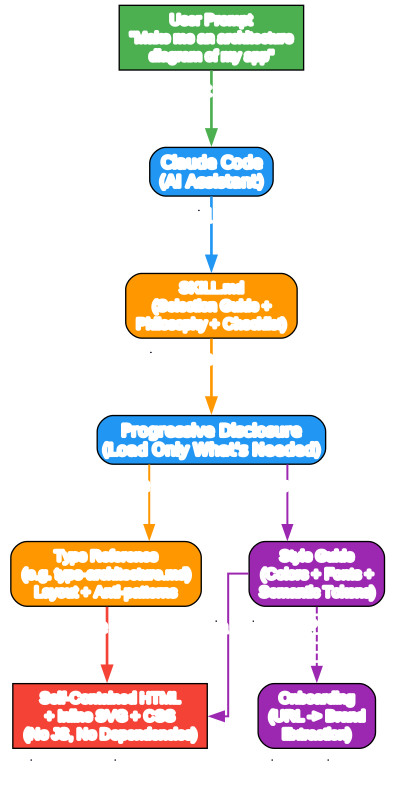
Diagram Design integrates with Claude Code through a progressive disclosure architecture. Rather than loading all 13 diagram type specifications at once, the skill only loads what you need for the current request. This keeps Claude’s working context tight and the skill fast, even with 15 reference files in the repository.
Understanding the Architecture
The architecture diagram above illustrates how Diagram Design integrates with Claude Code’s skill system. Let’s break down each component:
User Prompt Entry Point When you ask Claude Code to create a diagram, the prompt enters the skill system. Claude recognizes the diagram request and activates the diagram-design skill automatically.
SKILL.md - The Lean Index The top-level SKILL.md file serves as the entry point. It contains the philosophy (“the highest-quality move is usually deletion”), the selection guide mapping use cases to diagram types, and the pre-output taste gate checklist. This file is always in context when the skill is active.
Progressive Disclosure Engine Rather than loading all 15 reference files, the progressive disclosure system loads only the relevant type reference. If you ask for a flowchart, only type-flowchart.md gets loaded alongside SKILL.md. This is what keeps the skill performant regardless of how many types exist.
Type References and Style Guide Each type reference contains layout conventions, anti-patterns specific to that diagram type, and example files. The style guide provides the single source of truth for colors, typography, and semantic tokens - every diagram draws from this file, not from hardcoded hex values.
Onboarding System On first use in a new project, the skill checks whether the style guide has been customized. If not, it pauses and offers three options: run URL-based onboarding to extract your brand colors and fonts, paste tokens manually, or proceed with defaults. This prevents silently shipping default-skinned diagrams into branded projects.
Self-Contained HTML Output The final output is always a single .html file with embedded CSS and inline SVG. No JavaScript, no external images, no build step. Open it in any browser and it renders correctly.
The 13 Diagram Types
Diagram Design provides 13 distinct diagram types, each with its own reference file containing layout conventions, anti-patterns, and three visual variants (minimal light, minimal dark, and full editorial).

Understanding the Diagram Types
The overview above organizes the 13 types into four categories plus two optional primitives that can be applied to any type:
System and Data Modeling (5 types)
These types handle the most common technical documentation needs:
-
Architecture - Components and their connections. Best for system overviews, data-flow diagrams, integration maps, and infrastructure topology. Groups components by tier or trust boundary, with 1-2 coral focal nodes highlighting the primary integration point or key decision node.
-
Flowchart - Decision logic with branches. When you need to show conditional paths, approval workflows, or any process with decision points. The flowchart type enforces clear decision diamonds with labeled yes/no branches.
-
Sequence - Time-ordered messages between actors. Essential for protocol handshakes, API interactions, and any scenario where the order of communication matters. Supports lifelines, activation bars, and message arrows.
-
State Machine - States, transitions, and guards. Perfect for modeling object lifecycle, protocol states, or any system with discrete states and transition rules. Each state is a rounded rectangle with transition arrows labeled with guards.
-
ER / Data Model - Entities, fields, and relationships. For database schemas, API data structures, and domain models. Shows entity boxes with field lists and relationship lines with cardinality markers.
Process and Time (2 types)
-
Timeline - Events positioned in time. When you need to show a sequence of milestones, releases, or historical events on a horizontal or vertical axis.
-
Swimlane - Cross-functional process with handoffs. For processes that span multiple teams, departments, or systems. Each lane represents a responsible party, and the flow moves horizontally through the lanes.
Positioning and Hierarchy (4 types)
-
Quadrant - Two-axis positioning and prioritization. The classic impact-vs-effort matrix, risk-vs-reward chart, or any scenario where items need positioning on two axes. Also includes a “Consultant 2x2” variant with named scenario cells.
-
Nested - Hierarchy through containment. When relationships are best expressed by one thing being inside another - organizational structures, system boundaries, or scope relationships.
-
Tree - Parent-to-children relationships. For org charts, file hierarchies, classification systems, or any data with clear parent-child structure.
-
Layer Stack - Stacked abstraction levels. Perfect for technology stacks, OSI model, protocol layers, or any system where concepts build on top of each other.
Comparison and Shape (2 types)
-
Venn - Set overlap. When you need to show how groups intersect - feature comparisons, audience overlap, or any scenario with shared and unique elements.
-
Pyramid / Funnel - Ranked hierarchy or conversion drop-off. For Maslow-style hierarchies, sales funnels, priority pyramids, or any data that narrows from top to bottom.
Optional Primitives (apply to any type)
-
Annotation Callout - Italic Instrument Serif text with dashed Bezier leaders for editorial asides that sit in the margins. Adds a human, editorial voice to any diagram.
-
Sketchy Filter - SVG turbulence and displacement map for a hand-drawn variant. Good for essays and informal contexts, not for technical documentation.
The Design System: One Accent, Two Families, a Small Spacing Vocabulary
The design system is what separates Diagram Design from generic AI diagram output. It enforces a specific visual grammar that produces consistently professional results.
Semantic Color Roles
Every color in the system is referred to by its semantic role, not its hex value. The default skin uses a cool editorial palette:
| Role | Purpose | Default Light | Default Dark |
|---|---|---|---|
paper | Page background | #f5f5f5 (white-smoke) | #2d3142 (jet-black) |
ink | Primary text and stroke | #2d3142 (jet-black) | #f5f5f5 (white-smoke) |
muted | Secondary text, default arrows | #4f5d75 (blue-slate) | #bfc0c0 (silver) |
accent | 1-2 focal elements per diagram | #eb6c36 (atomic-tangerine) | #f08a59 |
link | HTTP/API calls, external arrows | #2e5aa8 | #6a95d8 |
The focal rule is critical: accent goes on 1-2 elements maximum. Everything else uses ink, muted, or soft. If you are tempted to accent 4 things, you have not decided what is focal yet.
Typography Hierarchy
Three font families, each with a specific role:
- Instrument Serif (1.75rem, 400) - Page titles and italic editorial callouts only
- Geist Sans (12px, 600) - Human-readable node names and labels
- Geist Mono (9px, 400) - Technical sublabels: ports, URLs, field types, arrow annotations
The rule is explicit: Mono is for technical content. Names go in Geist Sans. Never use JetBrains Mono as a blanket “dev” font.
The 4px Grid
Every coordinate, width, height, gap, and font size must be divisible by 4. This is non-negotiable. It is what prevents the “AI-generated” look that comes from arbitrary pixel values. If a coordinate ends in 1, 2, 3, 5, 6, 7, or 9, it needs to be fixed.
From Prompt to Rendered Diagram: The Workflow
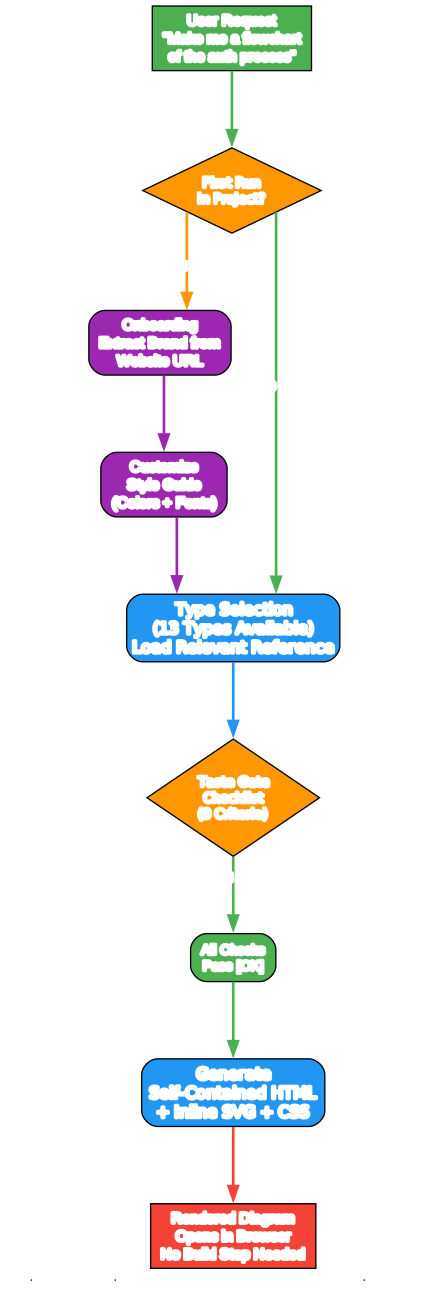
The workflow from user request to finished diagram follows a structured process that ensures quality and brand consistency.
Understanding the Workflow
The workflow diagram above shows the complete path from user request to rendered diagram:
1. User Request You ask Claude Code to create a diagram in natural language. For example: “Make me a flowchart of the auth process.”
2. First-Run Gate On first use in a new project, the skill checks whether the style guide has been customized. If the accent value is still the default #b5523a (rust), it pauses and asks whether you want to run onboarding, paste tokens manually, or proceed with defaults. This prevents shipping default-skinned diagrams into branded projects.
3. Onboarding (if first run) If you choose onboarding, the skill fetches your website, extracts the dominant color palette and font stack, maps detected values to semantic roles (paper, ink, muted, accent, link), and proposes a diff for your approval. The whole process takes about 60 seconds.
4. Type Selection The skill uses the selection guide in SKILL.md to pick the right diagram type based on what you are showing. It then loads only the relevant type reference file, keeping context tight.
5. Taste Gate Checklist Before producing any diagram, the skill runs a 9-criterion checklist covering type fit, the remove test (can any node, arrow, or label be removed?), signal quality (is coral used on at most 2 elements?), and technical requirements (arrows drawn before boxes, arrow labels masked, legend as a horizontal bottom strip).
6. Generation The skill generates a single self-contained HTML file with embedded CSS and inline SVG. No JavaScript, no external images, no build step.
7. Rendered Output The diagram opens directly in any browser. You can screenshot it, embed it in documentation, or iterate on it by asking Claude to modify specific elements.
Installation and Setup
Clone and Symlink Method (Recommended)
This method preserves your ability to customize the style guide by hand:
# Clone the repository
git clone https://github.com/cathrynlavery/diagram-design.git ~/code/diagram-design

# Symlink the inner skill directory into Claude Code's skills directory
ln -s ~/code/diagram-design/skills/diagram-design ~/.claude/skills/diagram-design
Restart Claude Code after installation. The skill registers as diagram-design and activates whenever you ask Claude to make a diagram.
Plugin Method (Quick Try)
For a quick trial without local customization:
# Claude Code
/plugin marketplace add cathrynlavery/diagram-design
/plugin install diagram-design@diagram-design

# Codex
/plugin marketplace add cathrynlavery/diagram-design
/plugin install diagram-design@diagram-design
Note that with the plugin method, edits to references/style-guide.md do not survive plugin updates. Use the clone method if you plan to customize the style guide.
Usage Examples
Once installed, simply ask Claude Code to create a diagram:
# Architecture diagram
"Make me an architecture diagram of my app: frontend, backend, database, Redis cache."

# Quadrant prioritization
"I need a quadrant showing Q2 projects by impact vs effort."

# Sequence diagram
"Give me a sequence diagram of the OAuth handshake."

# Flowchart
"Create a flowchart for the user registration process with email verification."
Claude will pick the right type, build the HTML, and save it. You can also start from a template:
# Minimal light variant
cp assets/template.html my-diagram.html

# Full editorial variant with summary cards
cp assets/template-full.html my-diagram.html
Brand Onboarding: Make It Yours in 60 Seconds
The onboarding flow is what makes Diagram Design genuinely useful for real projects. Instead of manually picking colors, you point the skill at your website:
You:     "onboard diagram-design to https://yoursite.com"
Claude:  -> fetches the homepage
         -> extracts the dominant palette + font stack
         -> maps detected values to semantic roles
         -> shows a proposed diff
         -> writes your tokens to references/style-guide.md
You:     "yes, apply it"
The skill extracts:
| Detected from your site | Becomes |
|---|---|
<body> background | paper token |
| Primary text color | ink token |
| Secondary/caption text | muted token |
| Cards or containers | paper-2 token |
| Most-used brand color (CTA, link, heading) | accent token |
<h1> font family | title font |
<body> font family | node-name font |
<code>/<pre> font family | sublabel font |
Before writing tokens, the skill verifies WCAG AA contrast on ink over paper. If your site has a color that fails contrast at diagram sizes (9-12px), it proposes an adjusted value and explains why.
The Taste Gate: Preventing AI Slop
The pre-output checklist is what makes Diagram Design different from asking Claude to “make a diagram” without guidance. Before producing any output, the skill runs through nine criteria:
Type Fit:
- Is this the right type for what you are showing?
- Would a table or paragraph do the same job? If yes, do not draw.
- Has the matching type reference been loaded?
Remove Test:
- Can any node be removed? Would a reader still understand?
- Can any two nodes be merged? Do they always travel together?
- Can any arrow be removed? Is the relationship obvious from layout?
- Can any label be removed? Does color or shape already signal it?
Signal Quality:
- Is coral used on at most 2 elements? If more, which actually deserve focal status?
- Does the legend cover every type used and nothing extra?
- Is the diagram within the type’s complexity budget?
Technical:
- Are arrows drawn before boxes (for correct z-order)?
- Does every arrow label have an opaque fill behind it?
- Is the legend a horizontal bottom strip, not floating?
- Is there no vertical
writing-modetext? - Is the viewBox expanded for the legend strip?
- Are all font sizes, coordinates, widths, heights, and gaps divisible by 4?
Complexity Budgets
Each diagram type has a maximum complexity budget to prevent information overload:
| Limit | Rule |
|---|---|
| Max nodes | 9 |
| Max arrows/transitions | 12 |
| Max coral elements | 2 |
| Max lifelines (sequence) | 5 |
| Max lanes (swimlane) | 5 |
| Max items (quadrant) | 12 |
| Max entities (ER) | 8 |
| Max nesting levels (nested) | 6 |
| Max tree depth | 4 |
| Max layers (layer stack) | 6 |
| Max circles (venn) | 3 |
| Max layers (pyramid) | 6 |
| Max annotation callouts | 2 |
If you exceed a budget, split into two diagrams: an overview and a detail view.
Three Visual Variants
Every diagram type ships in three variants:
| Variant | File Pattern | When to Use |
|---|---|---|
| Minimal light (default) | template.html, example-<type>.html | Screenshot-ready. Diagram + title. Warm paper background. |
| Minimal dark | template-dark.html, example-<type>-dark.html | Dark mode sites, slides, high-contrast posts. |
| Full editorial | template-full.html, example-<type>-full.html | Long-form posts where the diagram is the hero element. Includes summary cards. |
The quadrant type also has a special “Consultant 2x2” variant (example-quadrant-consultant.html) for BCG/McKinsey-style scenario matrices with named cells and clinical sans-serif styling.
Anti-Patterns: What Not to Do
The skill explicitly calls out patterns that mark “AI slop” diagrams:
- Dark mode + cyan/purple glow - Looks “technical” without design decisions
- JetBrains Mono as blanket “dev” font - Mono is for technical content only; names go in Geist Sans
- Identical boxes for every node - Erases hierarchy
- Legend floating inside the diagram area - Collides with nodes
- Arrow labels with no masking rect - Text bleeds through the line
- Vertical
writing-modetext on arrows - Unreadable - 3 equal-width summary cards as default - Generic grid; vary widths
- Shadow on any element - Shadows are out; borders are in
rounded-2xlon boxes - Maximum radius is 6-10px or none- Coral on every “important” node - Coral is for 1-2 editorial accents, not a signaling system
When Not to Use This Skill
Diagram Design is explicit about when diagrams are the wrong choice:
- Quick unicode diagrams for tweets or terminal output - use a wiretext-style skill instead
- Lists of anything - a table or bullets is better
- Before/after comparisons - a table is better
- One-shape “diagrams” - a single box with a label is just a sentence
The guiding question: would a reader learn more from this than from a well-written paragraph? If no, do not draw.
Progressive Disclosure Architecture
The skill uses a progressive disclosure architecture that keeps Claude’s context window lean:
| You ask for… | Claude loads |
|---|---|
| “Make me a flowchart” | SKILL.md + references/type-flowchart.md |
| “Build an architecture diagram” | SKILL.md + references/type-architecture.md |
| “Onboard this skill to my site” | SKILL.md + references/onboarding.md + references/style-guide.md |
| “Add an editorial callout” | SKILL.md + references/primitive-annotation.md |
| “Give me a hand-drawn version” | SKILL.md + references/primitive-sketchy.md |
No matter how many types exist, Claude only reads the one you need. Add a new type tomorrow and nothing else changes.
Repository Structure
diagram-design/
  SKILL.md                         - Top-level: philosophy, selection guide, checklist
  references/                      - Loaded only when a type or primitive is chosen
    style-guide.md                 - Single source of truth for colors + fonts
    onboarding.md                  - The URL-to-tokens flow
    type-architecture.md
    type-flowchart.md
    type-sequence.md
    type-state.md
    type-er.md
    type-timeline.md
    type-swimlane.md
    type-quadrant.md
    type-nested.md
    type-tree.md
    type-layers.md
    type-venn.md
    type-pyramid.md
    primitive-annotation.md        - Italic-serif editorial callouts
    primitive-sketchy.md           - Hand-drawn SVG filter variant
  assets/
    index.html                     - Live gallery, tabbed
    template*.html                 - Scaffolds for new diagrams
    example-<type>.html             - 3 variants x 13 types
    example-quadrant-consultant.html
  docs/screenshots/                - README images
Conclusion
Diagram Design stands out in the growing ecosystem of Claude Code skills because it solves a real quality problem with a principled approach. Rather than generating generic diagrams that look like every other AI output, it enforces editorial standards through a taste gate, progressive disclosure, semantic color roles, and a 4px grid system. The brand onboarding flow means you can go from default to your own visual identity in 60 seconds, and the self-contained HTML output means zero dependencies.
If you are tired of AI-generated diagrams that look like they came from a template factory, Diagram Design is worth adding to your Claude Code toolkit. The 13 types cover the vast majority of technical documentation needs, and the anti-pattern list alone will make your diagrams better even if you never install the skill.
Links
- GitHub Repository: https://github.com/cathrynlavery/diagram-design
- Live Gallery: Open
skills/diagram-design/assets/index.htmlin your browser after cloning

Enjoyed this post? Never miss out on future posts by following us


