Chrome DevTools MCP: AI-Powered Browser Automation
The intersection of AI agents and web browsers has long been a challenging frontier. While tools like Selenium and Playwright have served developers well for scripted automation, the rise of large language models demands a fundamentally different approach – one where AI agents can interact with web pages as naturally as humans do. Chrome DevTools MCP bridges this gap by exposing the full power of Chrome’s DevTools Protocol through the Model Context Protocol, giving AI agents 29 purpose-built tools to navigate, interact with, and analyze web content.
Developed by the official Chrome DevTools team at Google, this project represents a significant step toward making browsers first-class citizens in the AI agent ecosystem. Rather than forcing agents to rely on brittle CSS selectors or coordinate-based clicking, Chrome DevTools MCP leverages Chrome’s accessibility tree with stable UIDs, enabling robust and reliable interactions even as page layouts change.
In this post, we explore the architecture, tool categories, data flow, and operational modes of Chrome DevTools MCP, along with practical guidance for getting started.
Architecture Overview
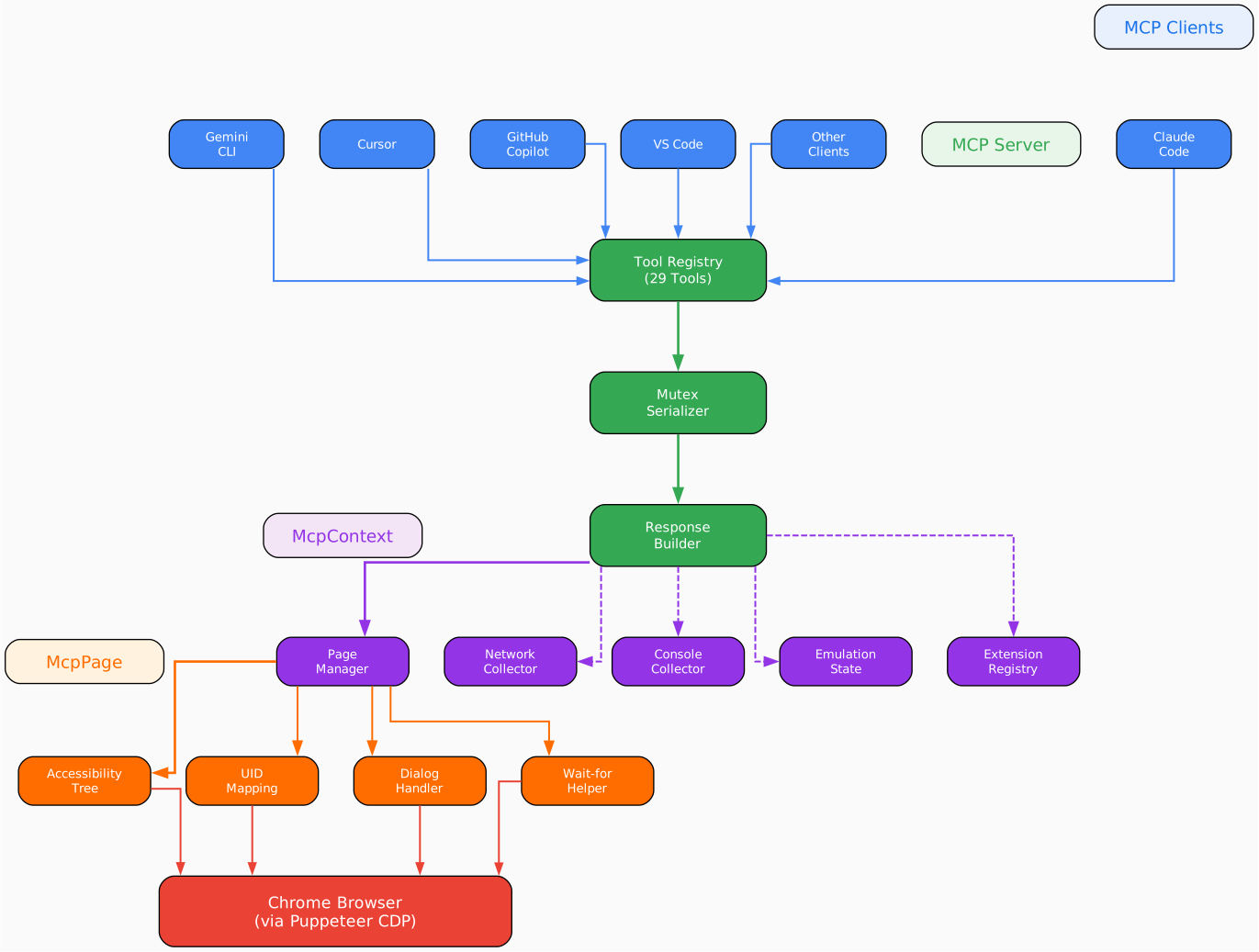
The architecture of Chrome DevTools MCP follows a layered design that cleanly separates concerns across four distinct layers. At the top sits the MCP Server Layer, which acts as the entry point for all AI agent interactions. This layer manages the tool registry, maintains a mutex serializer to ensure that only one tool executes at a time per page, and constructs responses in the structured format that MCP clients expect. The mutex is particularly important because browser operations are inherently stateful – clicking a button while simultaneously navigating away would produce unpredictable results, so serialization guarantees correctness.
Below the server layer sits the Browser Management layer, which handles the lifecycle of Chrome instances. It supports two operational modes: launch mode, where the server starts a fresh Chrome instance with configurable flags, and connect mode, where it attaches to an already-running Chrome process via a debugging port. This flexibility allows developers to either spin up disposable browser instances for isolated testing or connect to persistent sessions for ongoing work.
The Context Layer introduces McpContext, which manages the lifecycle of individual pages. Each context owns a set of collectors that gather accessibility tree data, console messages, and network information. It also handles emulation settings and extensions, making it possible to simulate mobile devices or inject custom JavaScript into pages. The context ensures that each page has its own isolated state, which is essential for multi-agent scenarios where different agents work on different pages simultaneously.
At the bottom of the stack is the Page Layer, implemented through McpPage. Each page object maintains its own accessibility tree snapshot, UID mapping for element identification, dialog handler for managing browser popups, and a wait-for-helper that enables agents to wait for specific conditions before proceeding. This layer communicates directly with Chrome through Puppeteer’s CDP (Chrome DevTools Protocol) bindings, translating high-level tool calls into low-level browser commands. The result is a system where AI agents can interact with web pages at a semantic level without needing to understand the intricacies of DOM manipulation or CDP wire protocols.
Tool Categories

Chrome DevTools MCP organizes its 29 tools into six distinct categories, each targeting a specific domain of browser interaction. This categorization helps AI agents understand which tools to use for particular tasks and allows the system to optimize tool discovery and execution. The following table summarizes all available tools:
| Category | Tool Count | Tools |
|---|---|---|
| Input | 9 | click, drag, fill, fill_form, handle_dialog, hover, press_key, type_text, upload_file |
| Navigation | 6 | close_page, list_pages, navigate_page, new_page, select_page, wait_for |
| Emulation | 2 | emulate, resize_page |
| Performance | 4 | performance_start_trace, performance_stop_trace, performance_analyze_insight, take_memory_snapshot |
| Network | 2 | get_network_request, list_network_requests |
| Debugging | 6 | evaluate_script, get_console_message, lighthouse_audit, list_console_messages, take_screenshot, take_snapshot |
The Input category is the largest with nine tools, reflecting the complexity of human-like browser interaction. The click tool uses accessibility-tree UIDs to identify elements, making it resilient to layout changes. The fill and fill_form tools handle text input, with fill_form supporting batch operations across multiple fields. The drag tool enables drag-and-drop interactions, while hover triggers hover states. The press_key and type_text tools handle keyboard input at different granularities – press_key for special keys like Enter or Escape, and type_text for character-by-character input. The handle_dialog tool manages JavaScript alert, confirm, and prompt dialogs, and upload_file handles file input elements.
The Navigation category provides six tools for managing pages and their lifecycles. Agents can open new pages with new_page, navigate existing pages with navigate_page, and switch between pages using select_page. The list_pages tool enumerates all open pages, while close_page shuts down a specific page. The wait_for tool is particularly powerful, allowing agents to wait for navigation completions, network idle states, or specific DOM conditions before proceeding.
The Emulation category contains two tools that enable agents to simulate different browsing environments. The emulate tool applies device-level emulation, setting the viewport size, user agent, and touch capabilities to match specific devices like iPhones or Pixel phones. The resize_page tool provides finer control over viewport dimensions without changing the user agent or touch settings.
The Performance category offers four tools for profiling and analyzing page performance. The performance_start_trace and performance_stop_trace tools work together to capture Chrome performance traces, which can then be analyzed using performance_analyze_insight to identify bottlenecks. The take_memory_snapshot tool captures heap snapshots for memory leak detection and analysis.
The Network category provides two tools for inspecting network activity. The list_network_requests tool enumerates all network requests made by a page, including their URLs, methods, status codes, and response types. The get_network_request tool retrieves detailed information about a specific request, including response headers and body content.
The Debugging category rounds out the toolset with six tools for inspection and analysis. The take_screenshot tool captures visual snapshots of the page, while take_snapshot captures the accessibility tree. The evaluate_script tool allows agents to execute arbitrary JavaScript within the page context. The list_console_messages and get_console_message tools provide access to browser console output. Finally, the lighthouse_audit tool runs Google’s Lighthouse against the current page, producing comprehensive reports on accessibility, performance, SEO, and best practices.
How It Works: Data Flow

Understanding the data flow through Chrome DevTools MCP is essential for appreciating how it achieves reliable, deterministic browser automation. The flow begins when an AI agent issues a tool call through its MCP client – such as Claude Desktop, Cursor, or any other MCP-compatible application. The client serializes this request according to the MCP specification and sends it to the Chrome DevTools MCP server over the configured transport (typically stdio).
Upon receiving the request, the MCP Server Layer performs several preparatory steps. First, it acquires the mutex lock for the target page, ensuring that no other tool can execute concurrently on the same page. This serialization is critical because browser state is mutable and shared – without it, concurrent operations could interleave in ways that produce inconsistent results. Once the lock is acquired, the server resolves the target McpContext and McpPage based on the request parameters.
The request then flows down through the Context Layer, where McpContext enriches the operation with any necessary preconditions. For example, if the tool requires an up-to-date accessibility tree, the context triggers a refresh of the tree data from Chrome. If the tool involves network inspection, the context ensures that network collectors are active and capturing data. This lazy-initialization approach means that collectors are only started when needed, reducing overhead for simple operations.
At the Page Layer, McpPage translates the high-level tool call into a sequence of CDP commands. For a click operation, this involves looking up the target element by its UID in the accessibility tree, computing its bounding box, and dispatching mouse events at the appropriate coordinates. For a fill operation, it focuses the target element, clears any existing content, and dispatches keyboard events for each character. The Page Layer handles all the complexity of coordinate calculation, event sequencing, and error recovery.
After the CDP commands execute, the response flows back up through the layers. The Page Layer captures any results or errors, the Context Layer updates collectors with new state, and the Server Layer formats the response according to the MCP specification. The mutex is released, allowing the next operation to proceed. The entire round-trip typically completes in milliseconds, making Chrome DevTools MCP suitable for interactive use alongside AI agents.
One particularly important aspect of the data flow is the accessibility tree refresh mechanism. When an agent performs an action that modifies the page – such as clicking a button that triggers a navigation or DOM update – the system automatically invalidates the cached accessibility tree. The next tool call that depends on the tree will trigger a fresh snapshot, ensuring that agents always work with current page state. This lazy-but-consistent approach balances performance with correctness.
Full vs Slim Mode
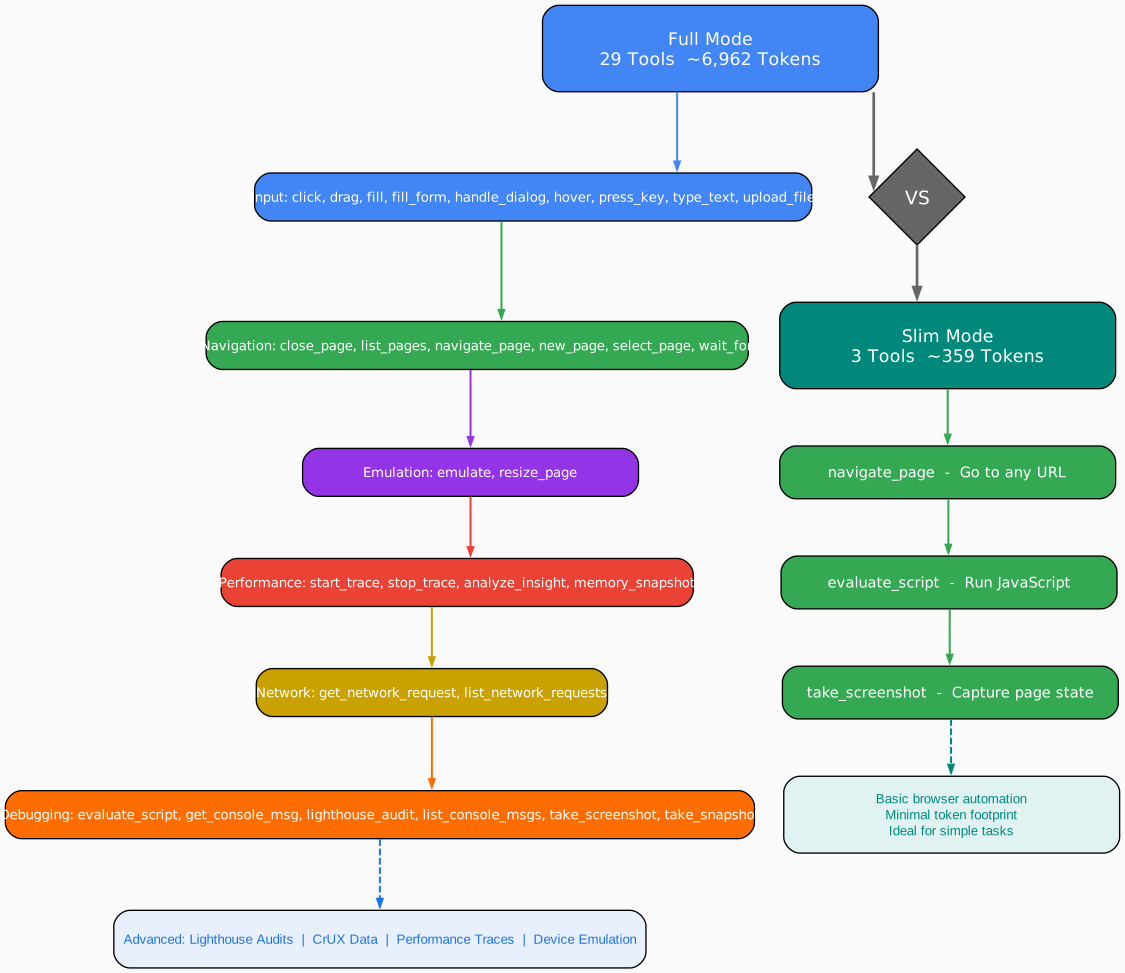
One of the most thoughtful design decisions in Chrome DevTools MCP is the inclusion of a Slim mode alongside the default Full mode. This dual-mode architecture addresses a fundamental tension in AI agent tool usage: comprehensive tools provide rich capabilities but consume significant context window tokens, while minimal tools are efficient but may lack the expressiveness needed for complex tasks.
In Full mode, all 29 tools are registered with the MCP server, each accompanied by detailed descriptions, parameter schemas, and usage examples. When an AI agent connects, it receives the complete tool manifest, which totals approximately 6,962 tokens. This is perfectly acceptable for agents with large context windows, but it can be wasteful for simpler tasks where only a handful of tools are needed. The token cost of the manifest itself can reduce the space available for actual conversation and reasoning.
Slim mode addresses this by registering only three essential tools: take_snapshot for capturing the accessibility tree, click for interacting with elements, and type_text for entering text. These three tools cover the vast majority of basic browser automation tasks – navigating to pages, clicking buttons, filling forms, and reading content. The Slim mode manifest consumes only about 359 tokens, a reduction of nearly 95% compared to Full mode. This makes Slim mode ideal for lightweight agents, cost-sensitive deployments, or scenarios where the agent only needs to perform simple browsing tasks.
The choice between Full and Slim mode is made at startup time via the --slim CLI flag. Once the server is running, the mode cannot be changed without restarting. This is by design – the tool manifest is sent to the MCP client during the initialization handshake, and changing it mid-session would violate the MCP specification. For teams that need both modes simultaneously, the recommended approach is to run two separate MCP server instances with different configurations.
It is worth noting that Slim mode does not reduce the functionality of the three available tools. The take_snapshot tool in Slim mode produces the same detailed accessibility tree as in Full mode. The click and type_text tools operate identically in both modes. The only difference is which tools are available. This means that agents in Slim mode can still perform complex interactions – they just need to compose them from the three primitives rather than using higher-level tools like fill_form or handle_dialog.
For production deployments, the recommendation is to start with Slim mode and only switch to Full mode when the agent’s tasks require the additional tools. This minimizes token consumption and reduces the likelihood of the agent selecting an inappropriate tool for a given task. The following configuration shows how to enable Slim mode:
{
  "mcpServers": {
    "chrome-devtools": {
      "command": "npx",
      "args": ["-y", "chrome-devtools-mcp@latest", "--slim", "--headless"]
    }
  }
}
Getting Started
Getting started with Chrome DevTools MCP is straightforward. The project is distributed as an npm package and can be used without a global installation thanks to npx. The most common setup involves configuring an MCP client to launch the server automatically.
For Claude Desktop, add the following to your configuration file (typically located at ~/.claude/claude_desktop_config.json on macOS or %APPDATA%\Claude\claude_desktop_config.json on Windows):
{
  "mcpServers": {
    "chrome-devtools": {
      "command": "npx",
      "args": ["-y", "chrome-devtools-mcp@latest"]
    }
  }
}
For other MCP clients like Cursor or Windsurf, the configuration format is similar. Consult your client’s documentation for the exact location of the MCP server configuration file.
Once configured, restart your MCP client. The Chrome DevTools MCP server will launch automatically when the client starts, and the available tools will appear in the agent’s tool palette. You can then ask the agent to perform browser tasks using natural language – for example, “Navigate to google.com and take a screenshot” or “Fill out the login form on this page.”
If you prefer to install the package globally for CLI usage, you can do so with npm:
npm i chrome-devtools-mcp@latest -g
chrome-devtools status
chrome-devtools navigate_page "https://google.com"
chrome-devtools take_screenshot --filePath screenshot.png
The CLI companion provides a convenient way to test tool functionality and perform quick browser tasks from the terminal without needing an AI agent.
Key Features Deep Dive
Accessibility-Tree Based Interaction
The most distinctive feature of Chrome DevTools MCP is its use of Chrome’s accessibility tree as the primary interaction model. Traditional browser automation tools rely on CSS selectors, XPath expressions, or pixel coordinates to identify elements. These approaches are fragile – a minor layout change can break selectors, and coordinate-based clicking fails when the viewport size changes.
Chrome DevTools MCP takes a different approach. When an agent calls take_snapshot, the system queries Chrome’s accessibility tree and assigns a stable UID to each node. These UIDs are based on the node’s position in the tree and remain consistent across minor DOM modifications. When an agent calls click with a UID, the system resolves it to the corresponding DOM node, computes its bounding box, and dispatches the appropriate mouse events.
This approach has several advantages. First, it is resilient to layout changes – if a button moves from one side of the page to another, its UID in the accessibility tree remains the same. Second, it provides semantic context – the accessibility tree includes role information (button, link, heading) and accessible names, giving agents a richer understanding of the page. Third, it naturally handles dynamic content – the tree is refreshed after each interaction, ensuring that agents always work with current state.
Lighthouse Integration
Chrome DevTools MCP includes built-in integration with Google’s Lighthouse auditing tool through the lighthouse_audit tool. This allows AI agents to run comprehensive audits of web pages directly from their tool palette, covering accessibility, performance, SEO, and best practices.
The Lighthouse integration is particularly valuable for AI-powered QA workflows. An agent can navigate to a page, run a Lighthouse audit, and then analyze the results to identify specific issues. For example, an agent might discover that a page has low accessibility scores due to missing alt text on images, then use the fill tool to add alt text to those images in a content management system. This creates a powerful feedback loop where the agent can both identify and fix issues in a single session.
CrUX Field Data
For performance analysis, Chrome DevTools MCP can enrich its reports with Chrome User Experience Report (CrUX) data. CrUX provides real-world performance metrics collected from millions of Chrome users, giving agents a ground-truth baseline against which to compare a page’s performance.
When an agent runs a performance analysis, it can compare lab data (collected from the current browser session) with field data (from CrUX). Discrepancies between the two often indicate performance issues that only manifest under real-world conditions – such as slow network connections or underpowered devices. This dual-data approach gives agents a more complete picture of performance than either data source alone.
Multi-Agent Support and Isolated Contexts
Chrome DevTools MCP is designed from the ground up for multi-agent scenarios. Each page operates within its own isolated context, with separate accessibility trees, console collectors, and network monitors. This means that two agents can work on two different pages simultaneously without interfering with each other.
The page-scoped tool design ensures that tools like click and fill always target the correct page, even when multiple agents are active. The mutex serializer at the server level prevents race conditions within a single page, while the context isolation prevents cross-page interference. This architecture makes Chrome DevTools MCP suitable for complex workflows where multiple agents collaborate on different aspects of a web application.
CLI Companion
In addition to the MCP server mode, Chrome DevTools MCP provides a CLI companion for terminal-based usage. The CLI wraps the same underlying tools but exposes them as command-line commands, making it easy to test functionality, perform quick browser tasks, or integrate with shell scripts.
The CLI supports all the same operations as the MCP server, including navigation, interaction, screenshots, and audits. It communicates with Chrome through the same CDP connection, ensuring consistent behavior between the two modes. The CLI is particularly useful for debugging MCP configurations – you can verify that Chrome launches correctly and tools work as expected before integrating with an AI agent.
Configuration Options
Chrome DevTools MCP provides several CLI flags for configuring its behavior. These flags are passed as arguments to the npx command or the global chrome-devtools binary.
| Flag | Description | Default |
|---|---|---|
--slim | Enable Slim mode with only 3 essential tools | Full mode (29 tools) |
--headless | Run Chrome in headless mode (no visible window) | Headed mode |
--port <number> | Connect to an existing Chrome instance on the specified debugging port | Launch new instance |
--url <url> | Navigate to a specific URL on startup | Blank page |
--user-data-dir <path> | Specify a custom user data directory for Chrome | Temporary directory |
--viewport-width <number> | Set the initial viewport width in pixels | 1280 |
--viewport-height <number> | Set the initial viewport height in pixels | 720 |
--ignore-https-errors | Ignore HTTPS certificate errors | Errors are not ignored |
The --headless flag is essential for server deployments where no display is available. When running in headless mode, Chrome operates without a visible window, performing all rendering and interaction off-screen. Screenshots and snapshots still work correctly in headless mode.
The --port flag enables the connect mode described in the architecture section. By pointing to an existing Chrome instance’s debugging port, you can attach to a browser session that is already running – for example, a Chrome instance that has already logged into a web application. This is particularly useful for scenarios where manual login is required before automation can begin.
The --user-data-dir flag allows you to specify a persistent user data directory, which preserves cookies, local storage, and other session data across Chrome restarts. This is useful for maintaining login state between automation sessions.
Conclusion
Chrome DevTools MCP represents a significant advancement in AI-powered browser automation. By exposing Chrome’s DevTools Protocol through the Model Context Protocol, it gives AI agents a robust, semantic, and well-structured interface for interacting with web pages. The accessibility-tree based interaction model, the dual-mode architecture with Full and Slim modes, and the built-in support for Lighthouse audits and CrUX data make it a versatile tool for a wide range of automation scenarios.
Whether you are building AI-powered QA pipelines, creating web scraping agents, or developing browser-based testing frameworks, Chrome DevTools MCP provides the foundation you need. Its official Google pedigree, clean architecture, and thoughtful design decisions position it as a leading solution in the emerging ecosystem of AI agent tools.
To get started, simply add the MCP server configuration to your preferred client and begin exploring. The project is open source under the Apache-2.0 license and welcomes contributions from the community.
Links:
- GitHub: ChromeDevTools/chrome-devtools-mcp
- npm: chrome-devtools-mcp
- MCP Specification: modelcontextprotocol.io

Enjoyed this post? Never miss out on future posts by following us


