TextGen: The Original Local LLM Interface with 46K+ Stars
TextGen (formerly text-generation-webui) is the original local LLM interface that enables users to run large language models entirely offline on their own hardware. With over 46,000 stars on GitHub, it remains one of the most popular open-source projects for self-hosted AI chatbots, supporting text generation, vision understanding, tool-calling, training, and image generation – all through a clean web-based UI and a fully compatible OpenAI API.
Unlike cloud-based alternatives, TextGen guarantees 100% privacy with zero telemetry, external resources, or remote update requests. Whether you want to chat with a local copy of Llama, analyze images with a vision model, fine-tune a LoRA on your dataset, or generate images with diffusion models, TextGen provides a unified interface for all these capabilities.
Understanding the Architecture
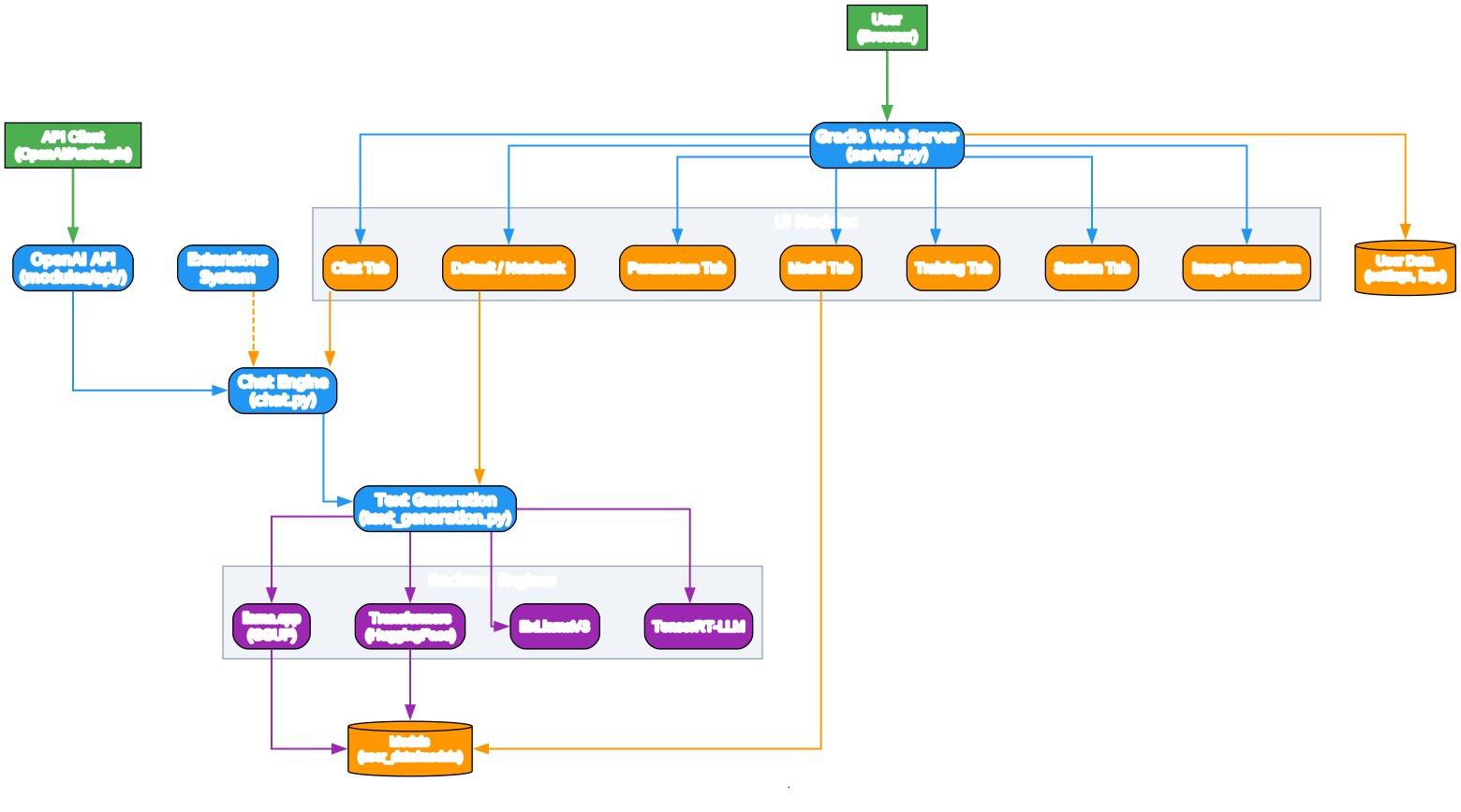
The architecture diagram above illustrates how TextGen orchestrates its components to deliver a seamless local AI experience. At the top, users interact through a browser connected to the Gradio web server (server.py), while API clients can connect via the OpenAI-compatible endpoints exposed under modules/api/.
UI Modules: The Gradio server hosts multiple specialized tabs – Chat, Default/Notebook, Parameters, Model, Training, Session, and Image Generation. Each tab delegates to dedicated UI modules (ui_chat.py, ui_notebook.py, etc.) that handle user interactions and translate them into backend operations.
Chat Engine and Text Generation: The core chat logic lives in chat.py, which manages conversation history, message branching, and prompt formatting. For actual token generation, text_generation.py interfaces with the backend engines. This separation allows the UI to remain agnostic of the underlying inference engine.
Backend Engines: TextGen supports multiple inference backends without requiring a restart when switching models. The supported backends include llama.cpp for GGUF models, HuggingFace Transformers for native PyTorch models, ExLlamaV3 for optimized EXL3 quantization, and TensorRT-LLM for NVIDIA GPU acceleration. Each backend loads models from the user_data/models directory.
Extensions System: The modular extensions architecture allows third-party plugins to hook into the generation pipeline. Extensions can modify prompts, intercept outputs, add TTS, voice input, translation, and more. This plugin model has fostered a rich ecosystem of community contributions.
Storage Layer: All persistent data – models, settings, chat histories, and logs – lives in the user_data/ directory. This makes TextGen fully portable: you can move the entire installation to another machine and retain all your data.

Feature Overview
TextGen organizes its extensive feature set into four logical domains, as shown in the features diagram.
Chat and Generation: Users can choose between instruct mode for instruction-following (similar to ChatGPT), chat and chat-instruct modes for character-based roleplay, and a notebook tab for free-form text generation outside of conversational turns. The vision (multimodal) feature allows attaching images to messages for visual understanding, while file attachments support PDF, DOCX, and TXT documents. All prompts are automatically formatted using Jinja2 templates, and users can edit messages, navigate between versions, and branch conversations at any point.
API and Tool Calling: TextGen exposes an OpenAI/Anthropic-compatible API with Chat, Completions, and Messages endpoints, making it a drop-in replacement for cloud APIs. The tool-calling feature lets models invoke custom Python functions during chat – including web search, page fetching, and math tools. Each tool is a single .py file, and MCP (Model Context Protocol) servers are also supported for advanced agentic workflows.
Training and Image Generation: Users can fine-tune LoRAs on multi-turn chat or raw text datasets, with support for resuming interrupted runs. The image generation tab supports diffusers models like Z-Image-Turbo, featuring 4-bit/8-bit quantization and a persistent gallery with metadata.
Privacy and Interface: TextGen is 100% offline with zero telemetry. The interface supports dark and light themes, syntax highlighting for code blocks, and LaTeX rendering for mathematical expressions. Built-in and community extensions add TTS, voice input, and translation capabilities.
Request Execution Workflow
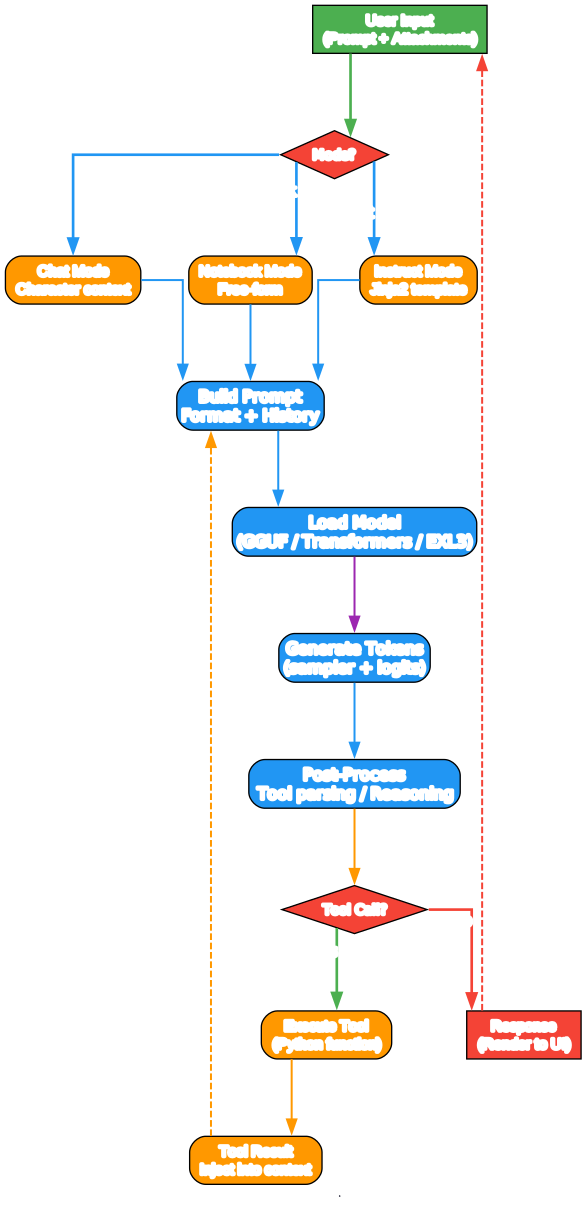
The workflow diagram shows how a single user request flows through TextGen from input to response.
Input and Mode Selection: When a user submits input (potentially with image or file attachments), the system first determines the active mode – Instruct, Chat, or Notebook. Each mode applies different prompt formatting: Instruct uses Jinja2 templates, Chat injects character context and conversation history, and Notebook passes the input directly.
Prompt Building and Model Loading: The chat engine assembles the final prompt by combining the formatted input with conversation history, system instructions, and any tool results from previous turns. The model loader then initializes the selected backend (GGUF via llama.cpp, Transformers, EXL3, or TensorRT-LLM) and loads weights from user_data/models.
Token Generation: The text generation engine runs the model’s forward pass, sampling tokens using configurable parameters (temperature, top-p, top-k, repetition penalty, etc.). Advanced features like speculative decoding and streaming LLM are applied at this stage to improve throughput and reduce latency.
Post-Processing and Tool Calling: After generation, the output passes through post-processing for tool parsing and reasoning extraction. If the model requests a tool call, the system executes the corresponding Python function, captures the result, and injects it back into the conversation context for a follow-up generation cycle. This loop continues until no more tool calls are requested, at which point the final response is rendered to the UI.

Ecosystem and Integrations
TextGen sits at the center of a rich ecosystem of models, backends, consumers, extensions, and deployment platforms.
Model Sources: Models are sourced primarily from the Hugging Face Hub, where users download GGUF quants or full model checkpoints. Once downloaded, models reside in the local user_data/models directory. TextGen auto-detects model formats and selects the appropriate loader.
Inference Backends: The four primary backends – llama.cpp, Transformers, ExLlamaV3, and TensorRT-LLM – cover the full spectrum of hardware and quantization needs. llama.cpp excels at CPU inference and GGUF models, Transformers provides broad compatibility, ExLlamaV3 offers optimized GPU inference for EXL3 quants, and TensorRT-LLM delivers maximum NVIDIA GPU performance.
API Consumers: Because TextGen exposes an OpenAI-compatible API, it integrates seamlessly with existing tools. The OpenAI Python SDK, LangChain, LangGraph, and custom HTTP clients can all connect to TextGen as a local drop-in replacement for cloud APIs.
Extensions and Tools: The extensions ecosystem includes TTS for speech synthesis, voice input for speech-to-text, translation extensions for multilingual workflows, and MCP servers for advanced context sharing between AI systems.
Deployment Platforms: TextGen runs on Windows (CUDA and CPU), Linux (CUDA, ROCm, and CPU), macOS (MPS and CPU), and Docker containers. Portable builds are available for all platforms with zero setup required.
Installation
TextGen offers multiple installation methods depending on your needs and hardware.
Portable Build (Zero Setup)
The fastest way to get started is downloading a portable build from the releases page. These builds include all dependencies and support CUDA, Vulkan, ROCm, and CPU-only inference.
- Download the appropriate build for your OS from the releases page.
- Extract the archive.
- Run the executable or startup script.
The UI will automatically open at http://127.0.0.1:7860.
Manual Installation with venv
For users who need additional backends (ExLlamaV3, Transformers), training, image generation, or extensions:
# Clone repository
git clone https://github.com/oobabooga/textgen
cd textgen

# Create virtual environment
python -m venv venv

# Activate virtual environment
# On Windows:
venv\Scripts\activate
# On macOS/Linux:
source venv/bin/activate

# Install dependencies (choose appropriate file under requirements/portable for your hardware)
pip install -r requirements/portable/requirements.txt --upgrade

# Launch server
python server.py --portable --api --auto-launch
One-Click Installer
For the full feature set including training and image generation:
# Clone the repository
git clone https://github.com/oobabooga/textgen
cd textgen

# Run the startup script for your OS
# Windows:
start_windows.bat
# Linux:
./start_linux.sh
# macOS:
./start_macos.sh
When prompted, select your GPU vendor. After installation, open http://127.0.0.1:7860 in your browser.
Docker Deployment
For containerized deployments:
# For NVIDIA GPU:
ln -s docker/{nvidia/Dockerfile,nvidia/docker-compose.yml,.dockerignore} .
cp docker/.env.example .env
mkdir -p user_data/logs user_data/cache
# Edit .env and set TORCH_CUDA_ARCH_LIST based on your GPU model
docker compose up --build
Usage
Downloading Models
- Download a GGUF model file from Hugging Face.
- Place it in the
user_data/modelsfolder.
The UI will detect it automatically. For multi-file models (Transformers, EXL3), place them in a subfolder inside user_data/models.
Enabling the API
Add the --api flag when starting the server:
python server.py --api
The API will be available at http://127.0.0.1:5000 with OpenAI-compatible endpoints:
POST /v1/chat/completionsPOST /v1/completionsPOST /v1/embeddings
Tool Calling
Tools are single Python files placed in the tools/ directory. Each tool defines a function that the model can call. MCP servers can also be configured for advanced integrations.
Training LoRAs
Use the Training tab to fine-tune LoRAs on your datasets. Supports multi-turn chat and raw text datasets, with the ability to resume interrupted runs.
Key Features at a Glance
| Feature | Description |
|---|---|
| Multiple Backends | llama.cpp, Transformers, ExLlamaV3, TensorRT-LLM |
| OpenAI API | Drop-in replacement for OpenAI/Anthropic APIs |
| Tool Calling | Custom Python tools + MCP server support |
| Vision | Multimodal image understanding |
| File Attachments | PDF, DOCX, TXT upload and analysis |
| LoRA Training | Fine-tune on chat or text datasets |
| Image Generation | Diffusers models with quantization |
| 100% Offline | Zero telemetry, fully private |
| Extensions | TTS, voice input, translation, and more |
| Cross-Platform | Windows, Linux, macOS, Docker |
Troubleshooting
Model fails to load: Ensure the model file is in the correct format for your selected backend. GGUF models require llama.cpp, while EXL3 models require ExLlamaV3.
Out of VRAM: Reduce gpu-layers to offload fewer layers to the GPU, or use a quantized model with lower bit depth.
API not responding: Verify the --api flag is set. Check that no other service is using port 5000.
Extensions not loading: Install extension requirements using the update wizard script with the “Install/update extensions requirements” option.
Conclusion
TextGen stands as the original and most feature-complete local LLM interface in the open-source ecosystem. With support for multiple inference backends, an OpenAI-compatible API, vision and file attachments, tool-calling, training, and image generation – all while remaining 100% offline – it offers a compelling alternative to cloud-based AI services. Its 46,000+ GitHub stars reflect the community’s trust in its capabilities and privacy-first philosophy.
Whether you are a researcher experimenting with models, a developer building AI-powered applications, or a privacy-conscious user who wants to keep data local, TextGen provides the tools and flexibility to run advanced AI entirely on your own hardware.
Links
- GitHub Repository
- Releases (Portable Builds)
- Wiki and Documentation
- Extensions Directory
- Hugging Face Models

Enjoyed this post? Never miss out on future posts by following us


