Why Server Security Matters
The moment a server becomes visible to the public internet, it transforms into a target. Bad actors continuously scan for vulnerable systems, and an unsecured Linux server is an open invitation for data theft, ransomware, botnet recruitment, and covert surveillance. The repository imthenachoman/How-To-Secure-A-Linux-Server has earned over 27,000 stars because it addresses this reality head-on with a practical, step-by-step hardening guide that anyone can follow.
Key Insight: Without good security, you may never know if your server has been compromised. A bad-actor may have gained unauthorized access and copied your data without changing anything, so you would never know. Or your server may have been part of a DDoS attack, and you would not know.
This guide covers everything from SSH hardening and firewall configuration to intrusion detection systems and kernel-level security – all organized in a logical order that builds layer upon layer of defense.
Security Architecture Overview
The guide organizes Linux server security into five distinct defensive layers, each building upon the previous one to create a comprehensive security posture.
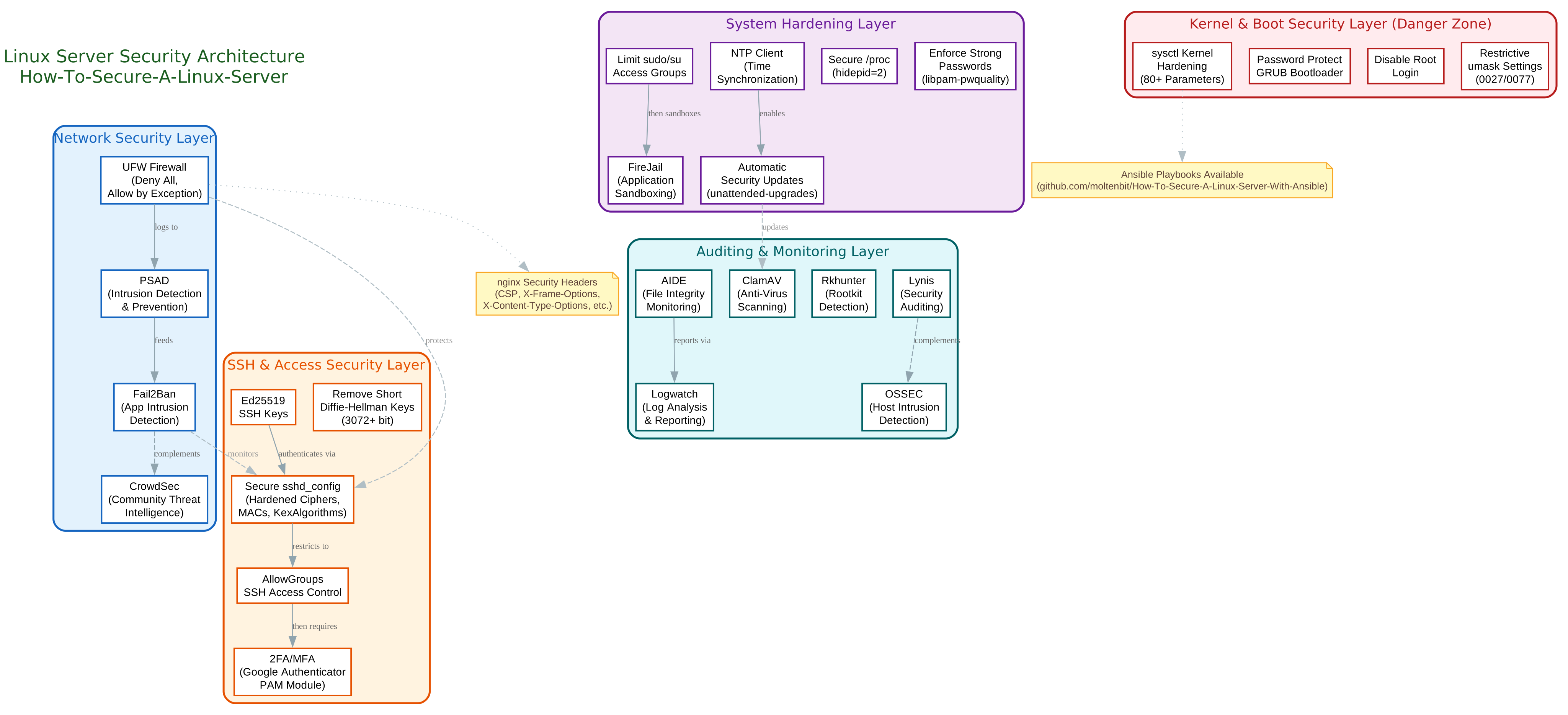
The architecture diagram above illustrates how the guide structures security into concentric layers. At the outermost edge, the Network Security Layer uses UFW, PSAD, Fail2Ban, and CrowdSec to filter and monitor all incoming and outgoing traffic. Moving inward, the SSH and Access Security Layer hardens the primary remote access point with Ed25519 keys, restricted configurations, and multi-factor authentication. The System Hardening Layer locks down user privileges, enforces strong passwords, and automates security updates. At the core, the Kernel and Boot Security Layer applies sysctl parameters and bootloader passwords. Finally, the Auditing and Monitoring Layer provides continuous visibility with tools like AIDE, ClamAV, Rkhunter, Logwatch, Lynis, and OSSEC.
The Hardening Process: Step by Step
The guide recommends following a specific order when hardening your server, as some sections require previous sections to be completed first. The workflow diagram below shows the seven phases of the hardening process.
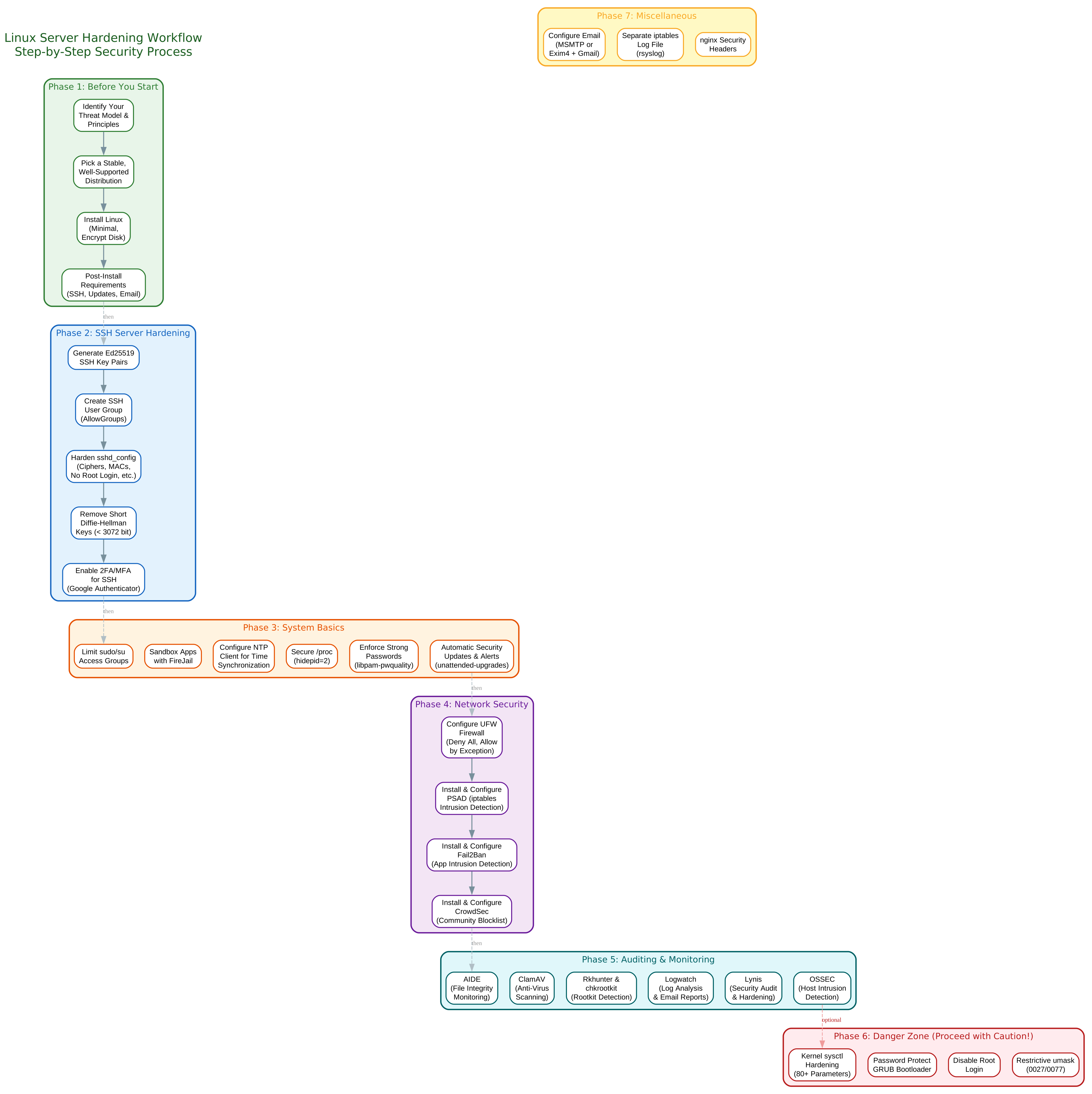
Each phase in the workflow builds on the previous one. You start by identifying your threat model and choosing a stable distribution, then progressively lock down SSH, system basics, network access, and auditing. The Danger Zone phase contains optional but risky hardening steps like kernel sysctl tuning and GRUB password protection.
Important: Before making any SSH configuration changes, keep a second terminal open to your server. If you lock yourself out of your first terminal session, you still have one session connected so you can fix it.
Phase 1: Before You Start
Before touching any configuration files, the guide emphasizes identifying your threat model – what are you protecting against, and how much convenience are you willing to sacrifice for security? Key questions include:
- Why do you want to secure your server?
- How much security vs. convenience do you need?
- Will you open ports on your router for remote access?
- Do you have a recovery plan if your security implementation locks you out?
For the Linux distribution, the guide recommends choosing one that is stable, stays up-to-date with security patches, you are familiar with, and is well-supported. Debian-based systems are used throughout the examples.
Phase 2: SSH Server Hardening
SSH is the primary door into your server, and securing it is the first critical step.
Ed25519 SSH Keys
Replace password authentication with Ed25519 key pairs, which offer better security than RSA or ECDSA keys:
# Generate Ed25519 key pair on the CLIENT machine
ssh-keygen -t ed25519

# Copy the public key to the server
ssh-copy-id user@server
Create SSH User Group
Restrict SSH access to specific users by creating a dedicated group:
sudo groupadd sshusers
sudo usermod -a -G sshusers user1
sudo usermod -a -G sshusers user2
Harden sshd_config
The guide provides a comprehensive sshd_config configuration based on Mozilla’s OpenSSH guidelines, including:
| Setting | Value | Purpose |
|---|---|---|
AllowGroups | sshusers | Only allow SSH from this group |
PasswordAuthentication | no | Disable password login |
PermitRootLogin | no | Disable root SSH login |
MaxAuthTries | 2 | Limit login attempts |
MaxSessions | 2 | Limit concurrent sessions |
ClientAliveInterval | 15 | Client keepalive interval |
X11Forwarding | no | Disable X11 forwarding |
AllowTcpForwarding | no | Disable port forwarding |
Remove Short Diffie-Hellman Keys
Remove all DH moduli shorter than 3072 bits:
sudo cp --archive /etc/ssh/moduli /etc/ssh/moduli-COPY-$(date +"%Y%m%d%H%M%S")
sudo awk '$5 >= 3071' /etc/ssh/moduli | sudo tee /etc/ssh/moduli.tmp
sudo mv /etc/ssh/moduli.tmp /etc/ssh/moduli
2FA/MFA for SSH
Add a second authentication factor using Google’s libpam-google-authenticator:
sudo apt install libpam-google-authenticator
google-authenticator  # Run as the user, NOT root
Then configure PAM and SSH to require both password and TOTP code.
Takeaway: SSH hardening is not optional – it is the foundation of your server’s security. Every additional layer of authentication (keys, groups, MFA) exponentially increases the cost for an attacker.
Phase 3: System Basics
Limit sudo and su Access
Create dedicated groups and restrict who can elevate privileges:
# Limit sudo access
sudo groupadd sudousers
sudo usermod -a -G sudousers user1
# Edit /etc/sudoers: %sudousers ALL=(ALL:ALL) ALL

# Limit su access
sudo groupadd suusers
sudo usermod -a -G suusers user1
sudo dpkg-statoverride --update --add root suusers 4750 /bin/su
Sandbox Applications with FireJail
Run browsers and email clients in a sandboxed environment:
sudo apt install firejail firejail-profiles
sudo ln -s /usr/bin/firejail /usr/local/bin/firefox
sudo ln -s /usr/bin/firejail /usr/local/bin/chromium
NTP Time Synchronization
Keep system time accurate for security protocols. On Debian 13+, use systemd-timesyncd; on older systems, use the ntp package:
# Debian 13+ (systemd-timesyncd)
sudo timedatectl set-ntp true
timedatectl status

# Debian 12 and earlier
sudo apt install ntp
sudo sed -i -r -e "s/^((server|pool).*)/# \1/" /etc/ntp.conf
echo -e "\npool pool.ntp.org iburst" | sudo tee -a /etc/ntp.conf
sudo service ntp restart
Secure /proc
Prevent users from seeing other users’ process information:
echo -e "\nproc /proc proc defaults,hidepid=2 0 0" | sudo tee -a /etc/fstab
sudo reboot now
Enforce Strong Passwords
Use libpam-pwquality to enforce minimum password requirements:
sudo apt install libpam-pwquality
# Edit /etc/pam.d/common-password:
# password requisite pam_pwquality.so retry=3 minlen=10 difok=3 ucredit=-1 lcredit=-1 dcredit=-1 ocredit=-1 maxrepeat=3 gecoschec
Automatic Security Updates
Configure unattended-upgrades for critical security patches:
sudo apt install unattended-upgrades apt-listchanges apticron
Create /etc/apt/apt.conf.d/51myunattended-upgrades with origins patterns for Debian stable and security updates, then run a dry-run:
sudo unattended-upgrade -d --dry-run
Phase 4: Network Security
UFW Firewall
Configure UFW with a deny-by-default policy, allowing only essential traffic:
sudo apt install ufw
sudo ufw default deny outgoing comment 'deny all outgoing traffic'
sudo ufw default deny incoming comment 'deny all incoming traffic'
sudo ufw limit in ssh comment 'allow SSH connections in'
sudo ufw allow out 53 comment 'allow DNS calls out'
sudo ufw allow out 123 comment 'allow NTP out'
sudo ufw allow out http comment 'allow HTTP traffic out'
sudo ufw allow out https comment 'allow HTTPS traffic out'
sudo ufw enable
PSAD – Intrusion Detection and Prevention
PSAD monitors iptables logs to detect and block port scans, DDoS attempts, and OS fingerprinting:
sudo apt install psad
# Configure /etc/psad/psad.conf with your email and hostname
# Add logging rules to /etc/ufw/before.rules and before6.rules
sudo ufw reload
sudo psad -R && sudo psad --sig-update && sudo psad -H
Fail2Ban – Application Intrusion Detection
Fail2Ban monitors application logs (like SSH) and automatically bans suspicious IPs:
sudo apt install fail2ban
# Create /etc/fail2ban/jail.local with default settings
# Create /etc/fail2ban/jail.d/ssh.local for SSH jail
sudo fail2ban-client start
sudo fail2ban-client reload
CrowdSec – Community Threat Intelligence
CrowdSec extends Fail2Ban by sharing threat intelligence across all users:
curl -s https://install.crowdsec.net | sudo sh
sudo apt install crowdsec
sudo apt install crowdsec-firewall-bouncer-iptables
sudo cscli metrics
Amazing: CrowdSec’s community blocklist means that when one server detects a malicious IP, that intelligence is shared across all CrowdSec users worldwide – creating a collective immune system for Linux servers.
Phase 5: Auditing and Monitoring
| Tool | Purpose | Key Command |
|---|---|---|
| AIDE | File integrity monitoring | sudo aideinit |
| ClamAV | Anti-virus scanning | sudo apt install clamav clamav-freshclam |
| Rkhunter | Rootkit detection | sudo rkhunter --check |
| chkrootkit | Rootkit detection (alternative) | sudo chkrootkit |
| Logwatch | Log analysis and email reports | sudo apt install logwatch |
| Lynis | Security auditing | sudo lynis audit system |
| OSSEC | Host intrusion detection | sudo ./install.sh |
ss | Port listening check | sudo ss -lntup |
Phase 6: The Danger Zone
These steps carry higher risk and should only be applied after careful testing:
Kernel sysctl Hardening
The guide provides 80+ sysctl parameters covering filesystem, kernel, network (IPv4 and IPv6), and virtual memory settings. Key examples include:
# Disable IP forwarding
net.ipv4.ip_forward = 0

# Enable SYN cookies for SYN flood protection
net.ipv4.tcp_syncookies = 1

# Disable ICMP redirects
net.ipv4.conf.all.accept_redirects = 0
net.ipv4.conf.all.send_redirects = 0

# Enable ASLR
kernel.randomize_va_space = 2

# Restrict kernel pointer access
kernel.kptr_restrict = 2
Password Protect GRUB
Prevent unauthorized boot parameter changes:
grub-mkpasswd-pbkdf2 -c 100000
# Create /etc/grub.d/01_password with the hash
sudo chmod a+x /etc/grub.d/01_password
# Add --unrestricted to default boot entry
sudo update-grub
Disable Root Login
sudo passwd -l root
Restrictive umask
Set default file permissions to be more restrictive:
# For non-root accounts: umask 0027
# For root account: umask 0077
Phase 7: Miscellaneous
Email Configuration
The guide covers two methods for sending system alerts:
- MSMTP – Simple sendmail alternative for Gmail
- Exim4 with implicit TLS – Full MTA configuration with Gmail on port 465
nginx Security Headers
A supplementary document provides nginx security header configurations:
server_tokens off;
add_header Content-Security-Policy "default-src 'self';" always;
add_header X-Frame-Options SAMEORIGIN always;
add_header X-Xss-Protection "1; mode=block" always;
add_header Referrer-Policy "strict-origin" always;
add_header X-Content-Type-Options nosniff always;
Separate iptables Log File
Route all iptables logs to a dedicated file for easier analysis:
# Create /etc/rsyslog.d/10-iptables.conf
:msg, contains, "[IPTABLES] " /var/log/iptables.log
& stop
Features Summary
| Feature | Category | Tool/Method |
|---|---|---|
| SSH Key Authentication | Access Control | Ed25519 keys |
| SSH Group Restriction | Access Control | AllowGroups |
| Multi-Factor Authentication | Access Control | Google Authenticator PAM |
| Firewall | Network Security | UFW |
| Network IDS/IPS | Network Security | PSAD |
| Application IDS/IPS | Network Security | Fail2Ban |
| Community Threat Intel | Network Security | CrowdSec |
| sudo/su Restriction | System Hardening | Group-based access |
| Application Sandboxing | System Hardening | FireJail |
| Time Synchronization | System Hardening | NTP/systemd-timesyncd |
| Process Hiding | System Hardening | hidepid=2 |
| Password Policy | System Hardening | libpam-pwquality |
| Auto Security Updates | System Hardening | unattended-upgrades |
| File Integrity Monitoring | Auditing | AIDE |
| Anti-Virus | Auditing | ClamAV |
| Rootkit Detection | Auditing | Rkhunter, chkrootkit |
| Log Analysis | Auditing | Logwatch |
| Security Auditing | Auditing | Lynis |
| Host IDS | Auditing | OSSEC |
| Kernel Hardening | Danger Zone | sysctl (80+ params) |
| Boot Protection | Danger Zone | GRUB password |
| Root Lock | Danger Zone | passwd -l |
| Permission Hardening | Danger Zone | umask 0027/0077 |
| Email Alerts | Miscellaneous | Exim4/MSMTP + Gmail |
| nginx Headers | Miscellaneous | Security headers config |
Ansible Automation
For those who prefer infrastructure-as-code, Ansible playbooks are available at How-To-Secure-A-Linux-Server-With-Ansible by moltenbit. This allows you to automate the entire hardening process:
git clone https://github.com/moltenbit/How-To-Secure-A-Linux-Server-With-Ansible
# Edit group_vars/variables.yml with your settings
ansible-playbook --inventory hosts.yml --ask-pass requirements-playbook.yml
ansible-playbook --inventory hosts.yml --ask-pass main-playbook.yml
Troubleshooting
SSH Lockout Recovery
If you lock yourself out after SSH configuration changes, use the second terminal session you kept open (as recommended) to revert changes. If you did not keep a second session, you will need physical console access or a cloud provider’s recovery mode.
UFW Blocking Legitimate Traffic
List and remove problematic rules:
sudo ufw status numbered
sudo ufw delete [rule-number]
Fail2Ban False Positives
Unban an IP that was incorrectly blocked:
fail2ban-client set sshd unbanip [IP]
CrowdSec Unban
Remove a CrowdSec decision:
cscli decisions delete --ip [IP]
sysctl Breaking the System
Test sysctl changes before making them permanent:
sudo sysctl -w key=value
# If it works, add to /etc/sysctl.conf
# If it breaks, reboot to revert
Checking Open Ports
Always verify what your server is listening on:
sudo ss -lntup
Getting Started
To begin securing your Linux server using this guide:
- Read the entire guide first before making any changes
- Keep a second SSH session open before modifying SSH configuration
- Follow the phases in order – each builds on the previous
- Back up every configuration file before editing (the guide provides backup commands)
- Test each change before moving to the next section
- Start with SSH hardening, then network security, then system basics
- Only attempt Danger Zone steps if you understand the risks
The guide is licensed under Creative Commons Attribution-ShareAlike 4.0 International and welcomes community contributions via GitHub issues.
Important: Do not blindly copy-and-paste commands without understanding what they do. Some commands need to be modified for your specific needs – usernames, IP addresses, and email addresses, for example. The guide provides “for the lazy” code snippets, but always verify before executing.

Enjoyed this post? Never miss out on future posts by following us


