Network traffic monitoring is essential for understanding what happens on your network – from identifying suspicious connections to tracking bandwidth usage across applications. Whether you are a system administrator watching for intrusions, a developer debugging API calls, or a privacy-conscious user checking which programs phone home, having a clear visual tool makes all the difference. Sniffnet is an open source, cross-platform network monitoring application written in Rust that brings a polished graphical interface to real-time packet analysis. With over 36,600 stars on GitHub, it has quickly become one of the most popular Rust desktop applications, combining raw performance with an intuitive design that makes network traffic monitoring accessible to everyone.
What is Sniffnet?
Sniffnet is a fully open source application (dual-licensed under MIT and Apache-2.0) that lets you comfortably monitor your Internet traffic. Built entirely in Rust, it leverages the pcap crate for packet capture and the iced GUI framework for its cross-platform interface. The result is a fast, memory-safe, and visually appealing tool that runs on Windows, macOS, and Linux.
At its core, Sniffnet captures packets from your chosen network adapter, parses the link, network, and transport layer headers using the etherparse crate, and enriches each connection with geolocation data (via MaxMind databases), ASN information, reverse DNS lookups, and service identification for over 6,000 upper-layer protocols and services. All of this is presented through a multi-page GUI with real-time charts, connection inspection, and customizable notifications.
Architecture Overview
The following diagram illustrates Sniffnet’s layered architecture, from the packet capture layer at the bottom through the data enrichment and core application layers to the GUI at the top:
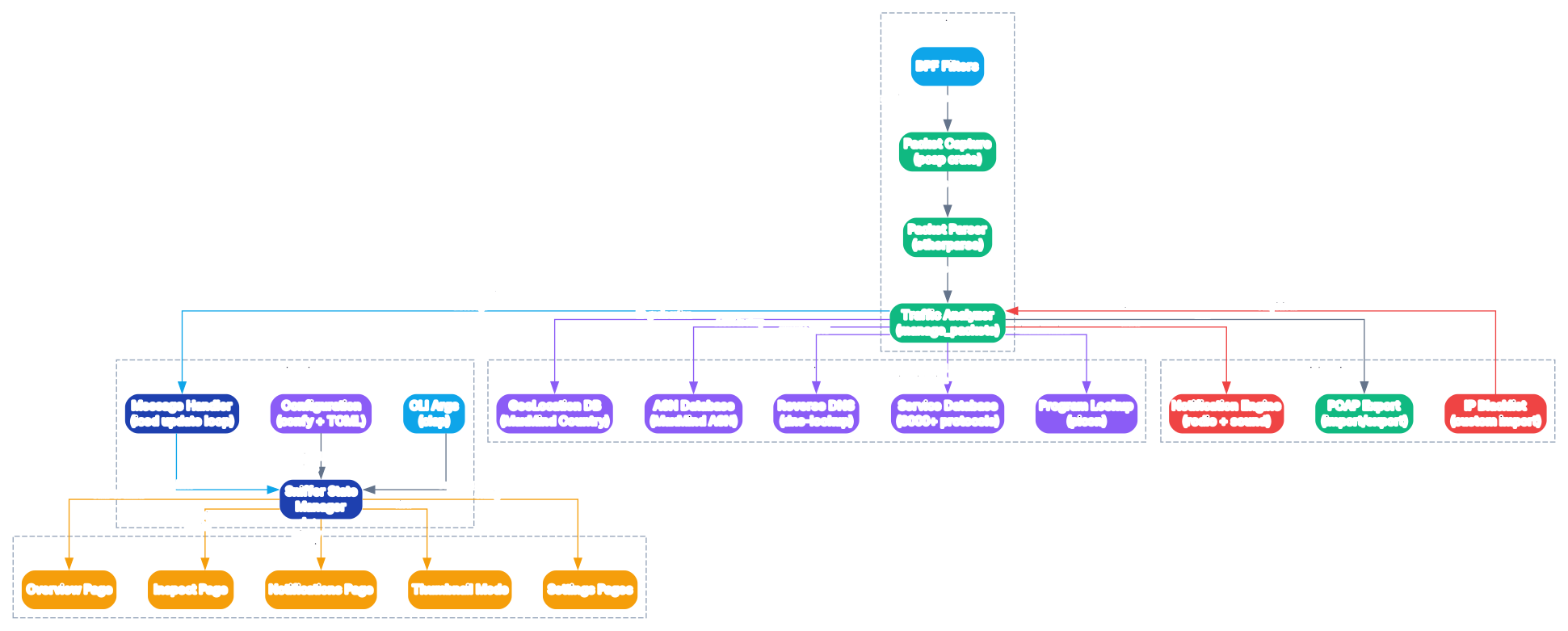
Sniffnet follows a clean layered architecture that separates concerns across four distinct tiers. At the bottom, the Networking Layer uses the pcap crate to capture raw packets from the network interface and the etherparse crate to parse link, network, and transport headers. BPF (Berkeley Packet Filter) expressions can be applied at capture time to filter traffic before it reaches the application. The parsed packets are then processed by the Traffic Analyzer (manage_packets module), which classifies connections, identifies services from the built-in database of 6,000+ protocols, and determines traffic direction (incoming vs. outgoing).
The Data and Intelligence Layer enriches each connection with geolocation data from MaxMind’s country and ASN databases, resolves domain names through reverse DNS lookups, and identifies which programs are generating traffic using the picon crate. The IP blacklist feature cross-references connections against user-imported blacklists to flag potentially dangerous hosts. All enriched data flows upward through the Core Application Layer, where the Sniffer state manager and Message handler (powered by iced’s update loop) maintain the application state and coordinate between the background packet processing threads and the foreground GUI.
At the top, the GUI Layer renders five distinct views: the Overview page showing aggregate statistics and real-time traffic charts, the Inspect page for drilling into individual connections, the Notifications page for reviewing triggered alerts, the Thumbnail mode for minimized monitoring, and Settings pages for configuring adapters, filters, styles, and notification preferences. This separation of concerns ensures that packet capture and analysis never block the UI thread, keeping the interface responsive even under heavy network load.
Network Traffic Processing Flow
The following diagram shows how a network packet travels through Sniffnet’s processing pipeline, from capture to display:
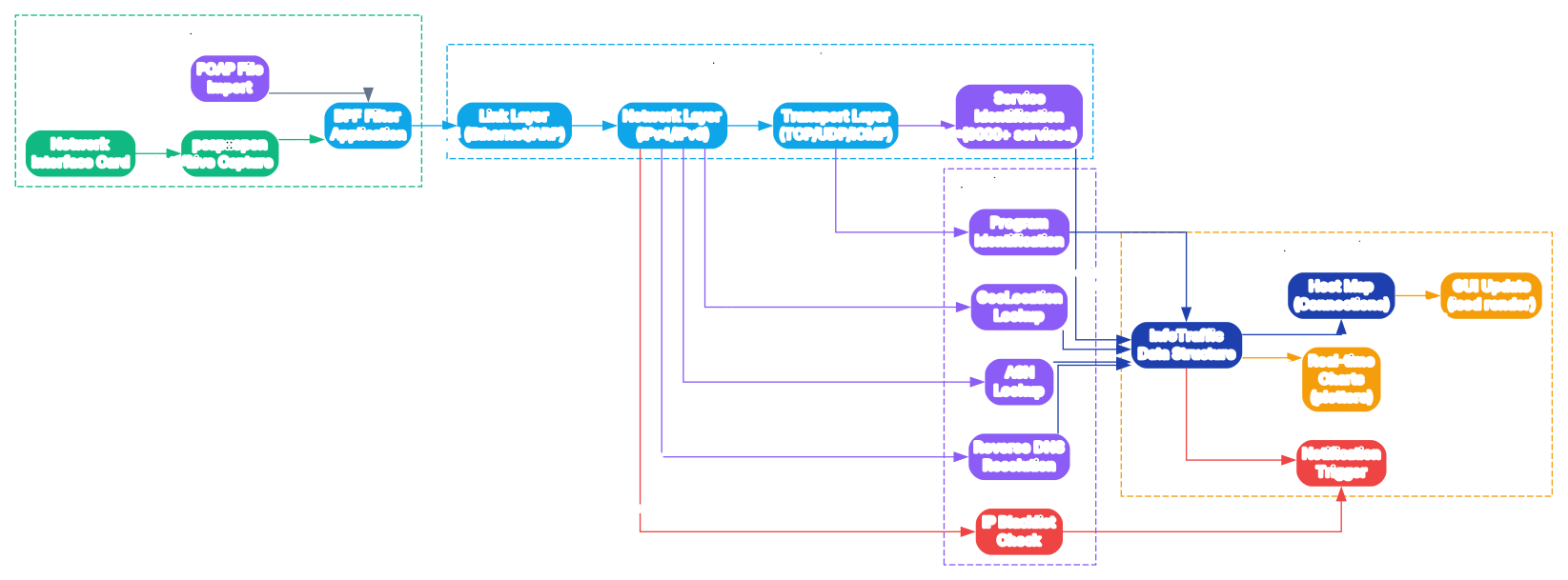
The processing pipeline operates in four stages. In the Capture stage, Sniffnet opens a live capture session on the selected network interface using the pcap crate, or alternatively imports packets from a PCAP file. Before packets enter the parsing stage, any user-configured BPF filter expressions are applied, discarding irrelevant traffic at the kernel level for maximum efficiency.
In the Parse and Classify stage, the etherparse crate’s LaxPacketHeaders parser processes each packet through the link layer (Ethernet frames, ARP), network layer (IPv4/IPv6 addresses), and transport layer (TCP ports, UDP ports, ICMP types). The service identification module then maps port numbers and protocol combinations against a comprehensive database of over 6,000 known services, protocols, trojans, and worms – compiled at build time using PHF (Perfect Hash Function) for O(1) lookups.
The Enrich and Analyze stage adds intelligence to each connection. IP addresses are looked up in MaxMind’s GeoLite2 Country and ASN databases to determine geographic location and the autonomous system responsible for the remote host. Reverse DNS resolution runs in a dedicated thread pool to avoid blocking the main processing pipeline. The picon crate identifies which local programs are generating traffic by correlating connection ports with running processes. The IP blacklist check flags connections matching user-imported lists of suspicious addresses.
Finally, in the Store and Display stage, all enriched data is aggregated into the InfoTraffic data structure and the Host map, which track per-connection and per-host statistics. These structures feed the iced GUI update loop, which renders real-time traffic charts using the plotters crate and triggers notifications when user-defined thresholds are met. The entire pipeline uses async_channel for thread-safe message passing between the background packet processing threads and the foreground GUI thread.
Key Features Breakdown

Sniffnet organizes its capabilities into five feature categories. Traffic Monitoring provides the core functionality: selecting a network adapter, viewing real-time statistics (total/packet counts, bandwidth utilization), live traffic intensity charts rendered with plotters, and a thumbnail mode that keeps monitoring visible even when the application is minimized.
Deep Analysis is where Sniffnet goes beyond simple packet counting. The connection inspector lets you search and examine every network connection in real time, with full details including source and destination IP addresses, ports, protocols, geographic location (country and city), ASN, domain name, and the program responsible for the traffic. The service identification system recognizes over 6,000 upper-layer services, from common protocols like HTTP and SSH to obscure trojans and worms.
Filtering and Security features include BPF filter expressions for granular packet filtering at capture time, custom IP blacklist import to highlight potentially dangerous connections, and automatic local network identification to distinguish between LAN and WAN traffic. These features make Sniffnet useful not just for monitoring but also for basic security auditing.
Output and Reporting covers PCAP import and export for comprehensive capture reports, a favorites system to bookmark frequently monitored hosts, services, and programs, and a notification engine that supports both sound alerts (using the rodio crate) and visual notifications when defined network events occur – such as a specific host connecting, a bandwidth threshold being exceeded, or a blacklisted IP appearing.
Customization rounds out the feature set with built-in theme styles (including a Dracula-inspired dark theme and a Deep Cosmos theme), support for custom themes via TOML configuration files, localization in over 22 languages, and CLI arguments for quick startup (e.g., --adapter to start sniffing immediately from a specific network adapter).
Installation
Sniffnet provides pre-built binaries for all major platforms. You can download the latest release directly from the GitHub releases page.
Windows
Download the MSI installer for your architecture:
# x64 (most common)
curl -L -o Sniffnet_Windows_x64.msi https://github.com/GyulyVGC/sniffnet/releases/latest/download/Sniffnet_Windows_x64.msi

# ARM64
curl -L -o Sniffnet_Windows_arm64.msi https://github.com/GyulyVGC/sniffnet/releases/latest/download/Sniffnet_Windows_arm64.msi
Then install the MSI package by double-clicking it or using:
msiexec /i Sniffnet_Windows_x64.msi
macOS
Download the DMG for your architecture:
# Intel Macs
curl -L -o Sniffnet_macOS_Intel.dmg https://github.com/GyulyVGC/sniffnet/releases/latest/download/Sniffnet_macOS_Intel.dmg

# Apple Silicon (M1/M2/M3/M4)
curl -L -o Sniffnet_macOS_AppleSilicon.dmg https://github.com/GyulyVGC/sniffnet/releases/latest/download/Sniffnet_macOS_AppleSilicon.dmg
Open the DMG and drag Sniffnet to your Applications folder.
Linux
Sniffnet offers multiple package formats:
# AppImage (amd64)
curl -L -o Sniffnet.AppImage https://github.com/GyulyVGC/sniffnet/releases/latest/download/Sniffnet_LinuxAppImage_amd64.AppImage
chmod +x Sniffnet.AppImage
./Sniffnet.AppImage

# DEB package (Debian/Ubuntu)
sudo dpkg -i Sniffnet_LinuxDEB_amd64.deb

# RPM package (Fedora/RHEL)
sudo rpm -i Sniffnet_LinuxRPM_x86_64.rpm
Building from Source
If you prefer to build from source, you need Rust and the required system dependencies:
# Install required dependencies (Ubuntu/Debian)
sudo apt install libpcap-dev libasound2-dev libfontconfig1-dev

# Clone and build
git clone https://github.com/GyulyVGC/sniffnet.git
cd sniffnet
cargo build --release

# The binary will be at target/release/sniffnet
sudo cp target/release/sniffnet /usr/local/bin/
On macOS, you need Xcode Command Line Tools and libpcap:
xcode-select --install
brew install libpcap
cargo build --release
On Windows, install Npcap with the “Install Npcap in WinPcap API-compatible Mode” option checked, then build with cargo build --release.
Required Dependencies
Sniffnet requires the following system libraries:
| Platform | Dependencies |
|---|---|
| Linux | libpcap, libasound2, libfontconfig1 |
| macOS | Xcode CLI, libpcap (via Homebrew) |
| Windows | Npcap (WinPcap API-compatible mode) |
Usage
Starting Sniffnet
Launch Sniffnet from your application menu or command line:
sniffnet
To start sniffing immediately from a specific adapter:
sniffnet --adapter "Wi-Fi"
Other useful CLI options:
# Print the path to the configuration file
sniffnet --config-path

# Restore default settings
sniffnet --restore-default

# On Windows, show logs from the most recent run
sniffnet --logs
Monitoring Your Network
-
Select a Network Adapter: On the Welcome page, choose which network interface to monitor. Sniffnet lists all available adapters with their addresses.
- Apply Filters (Optional): Configure BPF filter expressions to focus on specific traffic. For example, to capture only HTTP traffic:
tcp port 80Or to monitor traffic from a specific host:
host 192.168.1.100 -
Start Capture: Click the start button to begin monitoring. The Overview page displays aggregate statistics including total bytes, packets, and connections.
-
Inspect Connections: Switch to the Inspect page to search and examine individual connections. You can filter by host, service, program, or protocol, and see geographic location, ASN, and domain name for each connection.
-
Set Notifications: Configure notifications for specific events – when a certain bandwidth threshold is exceeded, when a blacklisted IP connects, or when a favorite host appears.
- Export Data: Use the PCAP export feature to save your capture for later analysis in tools like Wireshark, or import existing PCAP files to analyze past captures.
Configuration File
Sniffnet stores its configuration using the confy crate. To find your configuration file:
sniffnet --config-path
The configuration includes adapter selection, style preferences, notification settings, and window position. You can also create custom themes by writing TOML files that define color palettes.
Features Comparison
| Feature | Sniffnet | Wireshark | ntopng |
|---|---|---|---|
| Open Source | Yes (MIT/Apache-2.0) | Yes (GPL-2.0) | Yes (GPL-3.0) |
| Language | Rust | C | C/Lua |
| GUI | Native (iced) | Qt | Web-based |
| Real-time Charts | Yes | Limited | Yes |
| GeoLocation | Yes (MaxMind) | Plugin needed | Yes |
| Service Identification | 6,000+ protocols | Heuristic | Limited |
| Program Identification | Yes | No | Limited |
| Custom Notifications | Yes (sound + visual) | No | Alerts |
| IP Blacklist Import | Yes | Firewall rules | No |
| PCAP Import/Export | Yes | Yes | Yes |
| Custom Themes | Yes (TOML) | Limited | No |
| Thumbnail/Minimized Mode | Yes | No | No |
| Languages | 22+ | English | English |
| Resource Usage | Low | High | Medium |
| Learning Curve | Low | High | Medium |
Technical Deep Dive
Thread Architecture
Sniffnet uses a multi-threaded architecture to ensure the GUI remains responsive during heavy packet processing:
- Main Thread: Runs the iced event loop, rendering the GUI and processing user interactions
- Packet Capture Thread: Dedicated thread that calls
pcapto capture packets and streams them via a bounded channel - Packet Parser Thread: Processes raw packets through the
etherparseparser and enriches them with service identification - Reverse DNS Thread: Performs DNS lookups asynchronously without blocking the parser thread
- Notification Thread: Handles sound playback and visual alert triggering
Communication between threads uses async_channel for bounded message passing and tokio::sync::broadcast for freeze/unfreeze signals.
Packet Processing Pipeline
The parse_packets function in src/networking/parse_packets.rs is the heart of Sniffnet’s data processing. It enters a loop that:
- Receives packets from the capture thread via a synchronous channel
- Parses link, network, and transport headers using
etherparse::LaxPacketHeaders - Identifies the service/protocol based on port numbers and the PHF-compiled service database
- Performs reverse DNS lookups in a separate thread
- Looks up geolocation and ASN data from MaxMind MMDB files
- Checks connections against the IP blacklist
- Sends
BackendTrafficMessageto the GUI thread viaasync_channel::Sender
Service Identification
Sniffnet’s service database is compiled at build time using PHF (Perfect Hash Function) from the services.txt file. This allows O(1) lookups for over 6,000 well-known services, protocols, trojans, and worms. The build script (build.rs) uses phf_codegen to generate a static hash map, and the rustrict crate is used to censor inappropriate service names.
GUI Framework
The GUI is built with iced version 0.14, a Rust-native GUI framework that uses Elm-style architecture with a Message/update/view pattern. The Sniffer struct in src/gui/sniffer.rs serves as the main application state, implementing iced’s application trait. Key GUI features include:
- Plotters-iced integration: Real-time traffic charts rendered with
plotters-iced2 - Custom theming: Support for built-in themes and user-defined TOML theme files
- Responsive layout: Window size and position are persisted across sessions
- Thumbnail mode: A compact overlay view for monitoring while minimized
Troubleshooting
Missing Dependencies on Linux
If Sniffnet fails to start on Linux, ensure you have the required libraries:
# Debian/Ubuntu
sudo apt install libpcap0.8 libasound2 libfontconfig1

# Fedora/RHEL
sudo dnf install libpcap alsa-lib fontconfig

# Arch Linux
sudo pacman -S libpcap alsa-lib fontconfig
Permission Denied on Linux
Sniffnet needs elevated privileges to capture packets. On Linux, you can either run it with sudo or set the required capabilities:
# Option 1: Run with sudo
sudo sniffnet

# Option 2: Set capabilities on the binary (recommended)
sudo setcap cap_net_raw,cap_net_admin=eip /usr/bin/sniffnet
The RPM package automatically sets these capabilities during installation.
Npcap Issues on Windows
On Windows, Sniffnet requires Npcap installed with the “Install Npcap in WinPcap API-compatible Mode” option. If you experience issues:
- Reinstall Npcap and ensure the WinPcap compatibility option is checked
- Restart your computer after installation
- If Sniffnet still cannot find adapters, try running it as Administrator
Rendering Problems
If the GUI glitches, shows black icons, or has color gradient issues, you may be running on hardware with incompatible GPU drivers. Switch to the CPU-only software renderer:
# Linux/macOS
export ICED_BACKEND=tiny-skia

# Windows (PowerShell)
$env:ICED_BACKEND = "tiny-skia"
High CPU Usage
If Sniffnet consumes excessive CPU, try applying a BPF filter to reduce the number of packets being processed:
# Only capture TCP traffic
tcp

# Only capture traffic on specific ports
tcp port 80 or tcp port 443

# Exclude local traffic
not (src net 192.168.0.0/16 and dst net 192.168.0.0/16)
Configuration Reset
If Sniffnet behaves unexpectedly after changing settings, reset to defaults:
sniffnet --restore-default
Conclusion
Sniffnet stands out as a well-crafted, Rust-native network monitoring tool that combines raw packet analysis performance with an approachable graphical interface. Its layered architecture – from the low-level pcap capture through etherparse parsing, MaxMind geolocation enrichment, and the iced-based GUI – demonstrates how Rust’s safety guarantees and zero-cost abstractions can produce a desktop application that is both fast and user-friendly.
Whether you need to quickly check which programs are connecting to the Internet, investigate suspicious network activity, or simply monitor your bandwidth usage over time, Sniffnet provides the tools without the complexity of traditional packet analyzers. The combination of real-time charts, connection inspection, service identification for 6,000+ protocols, custom notifications, and PCAP import/export makes it a versatile addition to any network toolkit.
To get started, visit the Sniffnet GitHub repository to download the latest release, or check out the Sniffnet Wiki for detailed usage guides. The project is actively maintained and welcomes contributions from the community. Enjoyed this post? Never miss out on future posts by following us 


