Table of Contents
- Table of Contents
- What is Video Use?
- Why It Matters
- How It Works: Reading Video Through Text
- The Editing Pipeline
- Key Components
- Hard Rules: Production Correctness
- Getting Started
- Code Examples
- Animation System
- Color Grading
- Self-Evaluation Loop
- Conclusion
What is Video Use?
Video Use is an open-source project from the browser-use team that lets you edit videos by talking to a coding agent. Drop raw footage in a folder, chat with Claude Code (or Codex, Hermes, Openclaw), and get a polished final.mp4 back. No timeline editors, no drag-and-drop interfaces, no presets or menus. Just conversation.
The project has garnered 4.2K stars on GitHub and represents a paradigm shift: instead of learning video editing software, you describe what you want in plain English and the agent does the rest.
Set up https://github.com/browser-use/video-use for me.

Read install.md first to install this repo, wire up ffmpeg, register
the skill with whichever agent you're running under, and set up the
ElevenLabs API key -- ask me to paste it when you need it.
That single prompt is all it takes. The agent handles cloning, dependencies, skill registration, and prompts you once for your ElevenLabs API key.
Why It Matters
Traditional video editing requires specialized software (Premiere, DaVinci Resolve, Final Cut) and months of practice. Video Use flips the model: the LLM becomes your editor, and you become the creative director.
The key insight is that the LLM never watches the video. It reads it through structured text. This is the same breakthrough that browser-use brought to web automation – instead of screenshots, give the agent a structured DOM. For video, instead of 30,000 frames of pixel data, give it a 12KB transcript with word-level timestamps.
| Approach | Token Cost | Precision |
|---|---|---|
| Naive: dump all frames | ~45M tokens | Noisy, impractical |
| Video Use: text + on-demand PNGs | ~12KB text + handful of PNGs | Word-boundary precision |
This makes video editing feasible within the context window of modern LLMs, with cut precision down to individual word boundaries.
How It Works: Reading Video Through Text
Video Use gives the LLM two layers of understanding:
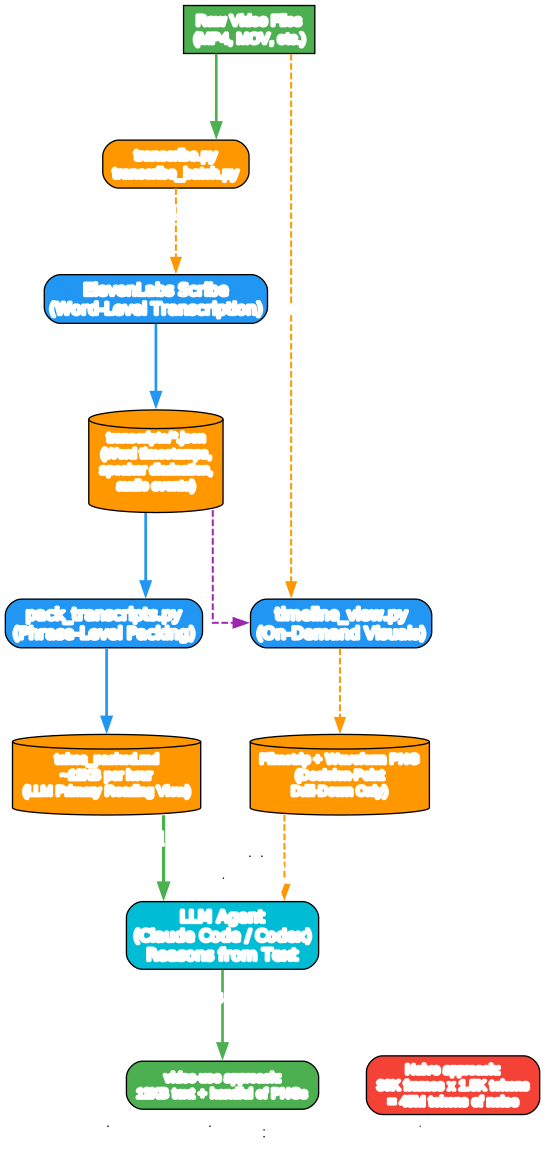
Layer 1 – Audio Transcript (always loaded). One ElevenLabs Scribe call per source gives word-level timestamps, speaker diarization, and audio events like (laughter), (applause), (sigh). All takes pack into a single ~12KB takes_packed.md file – the LLM’s primary reading view.
## C0103  (duration: 43.0s, 8 phrases)
  [002.52-005.36] S0 Ninety percent of what a web agent does is completely wasted.
  [006.08-006.74] S0 We fixed this.
Layer 2 – Visual Composite (on demand). The timeline_view helper produces a filmstrip + waveform + word labels PNG for any time range. Called only at decision points – ambiguous pauses, retake comparisons, cut-point sanity checks. Never in a scan loop.
The Editing Pipeline
The pipeline follows a strict sequence that mirrors how a professional editor works: inventory, propose, confirm, execute, verify, deliver.
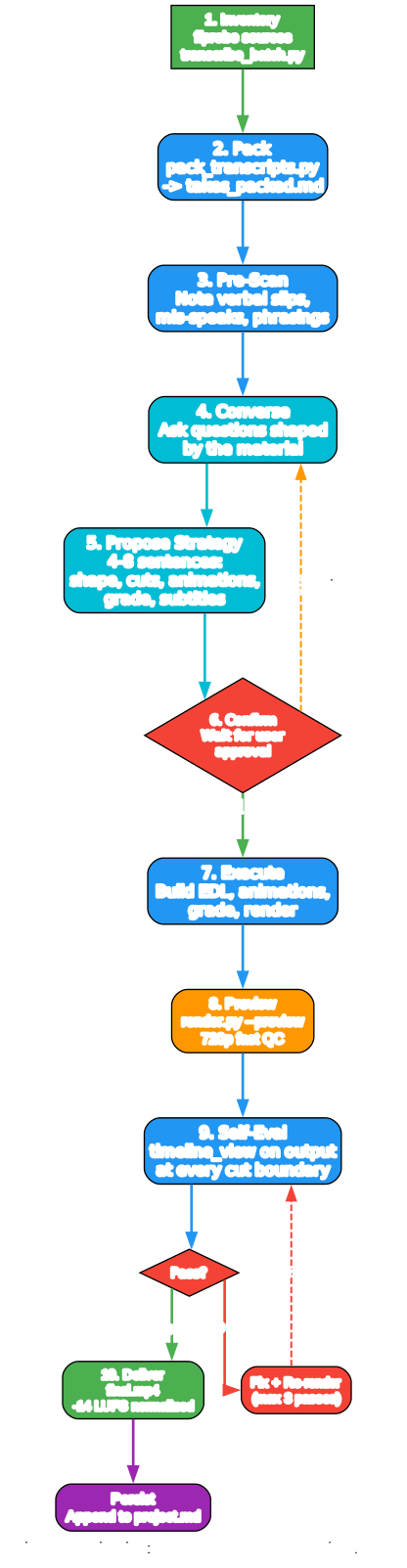
Transcribe --> Pack --> LLM Reasons --> EDL --> Render --> Self-Eval
                                                              |
                                                              +-- issue? fix + re-render (max 3)
Each step has a clear purpose:
- Inventory –
ffprobeevery source,transcribe_batch.pythe directory,pack_transcripts.pyto producetakes_packed.md - Pre-scan – One pass over the packed transcript to note verbal slips and phrasings to avoid
- Converse – Describe what you see, ask questions shaped by the material, collect creative direction
- Propose Strategy – 4-8 sentences covering shape, take choices, cut direction, animation plan, grade direction, subtitle style. Wait for confirmation.
- Execute – Produce
edl.json, build animations in parallel sub-agents, apply grade per-segment, compose viarender.py - Preview –
render.py --previewfor 720p fast QC - Self-Eval – Run
timeline_viewon the rendered output at every cut boundary. Check for visual jumps, audio pops, hidden subtitles, misaligned overlays - Iterate + Persist – Natural-language feedback, re-render, append to
project.md
Key Components
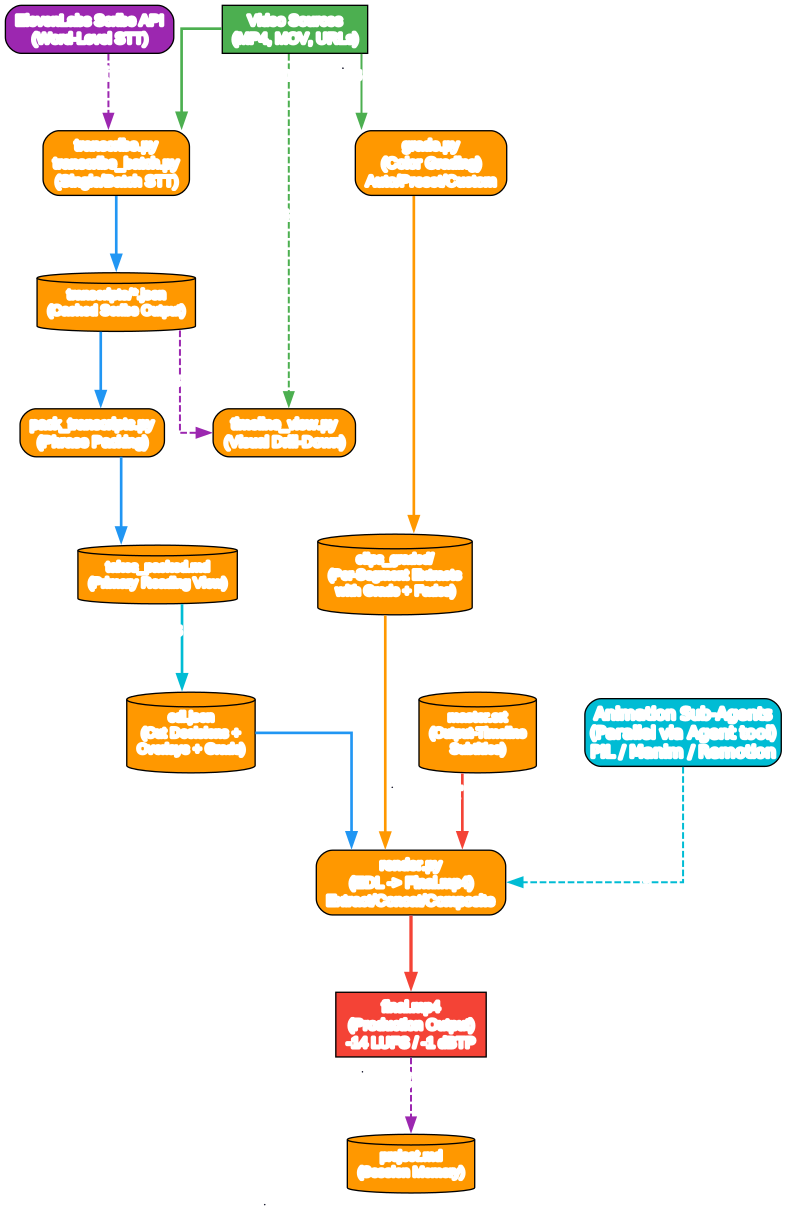
The project ships with six helper scripts, each with a single responsibility:
transcribe.py / transcribe_batch.py
Single-file and batch transcription using ElevenLabs Scribe. Produces word-level JSON with timestamps, speaker IDs, and audio events. Results are cached – never re-transcribe unless the source file changed.
# Single file
python helpers/transcribe.py video.mp4

# Batch (4 workers parallel)
python helpers/transcribe_batch.py /path/to/videos/

# With speaker count hint
python helpers/transcribe.py interview.mp4 --num-speakers 2
pack_transcripts.py
Converts raw Scribe JSON into the phrase-level markdown that the LLM reads. Groups words into phrases broken by silences >= 0.5s or speaker changes. Each phrase gets a [start-end] time range prefix.
python helpers/pack_transcripts.py --edit-dir /path/to/edit
timeline_view.py
The only visual tool. Generates a filmstrip + waveform + word labels PNG for any time range. Use it at decision points, not as a background scanner.
python helpers/timeline_view.py video.mp4 2.5 8.0
python helpers/timeline_view.py video.mp4 2.5 8.0 --n-frames 12
render.py
The render pipeline. Takes an EDL JSON file and produces the final video. Implements the correct order: per-segment extract with grade + 30ms audio fades, lossless concat, overlay compositing with PTS-shifted animations, and subtitles applied LAST.
# Final render
python helpers/render.py edl.json -o final.mp4

# Preview (720p, fast)
python helpers/render.py edl.json -o preview.mp4 --preview

# With inline subtitle generation
python helpers/render.py edl.json -o final.mp4 --build-subtitles
grade.py
Color grading via ffmpeg filter chains. Three modes: preset names (warm_cinematic, neutral_punch, none), auto-analysis (data-driven per-clip correction bounded to +/-8%), and raw ffmpeg filter strings.
# Auto-grade (default)
python helpers/grade.py input.mp4 -o graded.mp4

# Preset
python helpers/grade.py input.mp4 -o graded.mp4 --preset warm_cinematic

# Custom filter
python helpers/grade.py input.mp4 -o graded.mp4 --filter 'eq=contrast=1.1'
Hard Rules: Production Correctness
Video Use enforces 12 hard rules that are non-negotiable for production-quality output. These are not taste – they are correctness:
- Subtitles are applied LAST in the filter chain, after every overlay. Otherwise overlays hide captions.
- Per-segment extract then lossless concat, not single-pass filtergraph. Otherwise you double-encode every segment.
- 30ms audio fades at every segment boundary to prevent audible pops at cuts.
- Overlays use
setpts=PTS-STARTPTS+T/TBto shift frame 0 to the overlay window start. - Master SRT uses output-timeline offsets so captions align after segment concat.
- Never cut inside a word. Snap every cut edge to a word boundary from the transcript.
- Pad every cut edge 30-200ms to absorb Scribe timestamp drift.
- Word-level verbatim ASR only. Never SRT/phrase mode (loses sub-second gap data).
- Cache transcripts per source. Never re-transcribe unless the source changed.
- Parallel sub-agents for multiple animations. Never sequential.
- Strategy confirmation before execution. Never touch the cut without user approval.
- All session outputs in
<videos_dir>/edit/. Never write inside the skill directory.
Getting Started
Prerequisites
- Python 3.10+
- ffmpeg and ffprobe on PATH
- An ElevenLabs API key (for Scribe transcription)
- Optional: yt-dlp for downloading online sources
Installation
# Clone and symlink into your agent's skills directory
git clone https://github.com/browser-use/video-use ~/Developer/video-use
ln -sfn ~/Developer/video-use ~/.claude/skills/video-use

# Install deps
cd ~/Developer/video-use
uv sync                         # or: pip install -e .

# Install ffmpeg (macOS)
brew install ffmpeg

# Add your ElevenLabs API key
cp .env.example .env
# Edit .env: ELEVENLABS_API_KEY=your_key_here
First Edit Session
cd /path/to/your/videos
claude    # or codex, hermes, etc.
Then in the session:
> edit these into a launch video
The agent inventories your sources, proposes a strategy, waits for your OK, then produces edit/final.mp4 next to your sources.
Code Examples
The EDL Format
The Edit Decision List (EDL) is the central data structure that drives the render pipeline:
{
  "version": 1,
  "sources": {
    "C0103": "/abs/path/C0103.MP4",
    "C0108": "/abs/path/C0108.MP4"
  },
  "ranges": [
    {
      "source": "C0103",
      "start": 2.42,
      "end": 6.85,
      "beat": "HOOK",
      "quote": "...",
      "reason": "Cleanest delivery, stops before slip at 38.46."
    },
    {
      "source": "C0108",
      "start": 14.30,
      "end": 28.90,
      "beat": "SOLUTION",
      "quote": "...",
      "reason": "Only take without the false start."
    }
  ],
  "grade": "warm_cinematic",
  "overlays": [
    {
      "file": "edit/animations/slot_1/render.mp4",
      "start_in_output": 0.0,
      "duration": 5.0
    }
  ],
  "subtitles": "edit/master.srt",
  "total_duration_s": 87.4
}
The Packed Transcript
The takes_packed.md file is the LLM’s primary reading view. Here is what it looks like:
# Packed transcripts

Phrase-level, grouped on silences >= 0.5s or speaker change.
Use [start-end] ranges to address cuts in the EDL.

## C0103  (duration: 43.0s, 8 phrases)
  [002.52-005.36] S0 Ninety percent of what a web agent does is completely wasted.
  [006.08-006.74] S0 We fixed this.
  [007.20-012.45] S0 The browser-use approach gives structured data instead of pixels.
  [013.10-018.90] S0 And now we are applying the same principle to video.
  [019.50-024.80] S0 (laughter) You can edit an entire launch video by conversation.
  [025.40-030.15] S0 No timeline, no menus, no learning curve.
  [030.80-036.50] S0 Just describe what you want and the agent executes.
  [037.00-042.30] S0 It reads the video through text, not through frames.
Render Pipeline Internals
The render pipeline in render.py follows a strict order to maintain production correctness:
# Step 1: Per-segment extract with grade + 30ms audio fades
extract_segment(source, start, duration, grade_filter, out_path)

# Step 2: Lossless concat via concat demuxer
concat_segments(segment_paths, base_path, edit_dir)

# Step 3: Composite overlays (PTS-shifted) + subtitles LAST
build_final_composite(base_path, overlays, subs_path, out_path, edit_dir)

# Step 4: Loudness normalization to -14 LUFS (social-ready)
apply_loudnorm_two_pass(composite_path, final_path)
Animation System
Video Use supports three animation tools, each suited to different content types:
| Tool | Best For | Approach |
|---|---|---|
| PIL + PNG sequence | Simple overlay cards, counters, typewriter text, bar reveals | Fast iteration, any aesthetic |
| Manim | Formal diagrams, state machines, equation derivations, graph morphs | Mathematical precision |
| Remotion | Typography-heavy, brand-aligned, web-adjacent layouts | React/CSS-based |
Animations are spawned as parallel sub-agents via the Agent tool. Each sub-agent gets a self-contained brief with exact specs: resolution, fps, codec, duration, style palette, font path, frame-by-frame timeline, and an anti-list of things not to do.
Key timing rules:
- Sync-to-narration explanations: 5-7s for simple cards, 8-14s for complex diagrams
- Beat-synced accents: 0.5-2s for visual accents in fast montages
- Hold the final frame for at least 1s before the cut
- Never use linear easing – always cubic (
ease_out_cubicfor reveals,ease_in_out_cubicfor continuous draws)
def ease_out_cubic(t):
    return 1 - (1 - t) ** 3

def ease_in_out_cubic(t):
    if t < 0.5:
        return 4 * t ** 3
    return 1 - (-2 * t + 2) ** 3 / 2
Color Grading
The grading system has three modes:
Auto mode (default) analyzes each segment mathematically using ffmpeg’s signalstats filter. It measures mean brightness, RMS contrast, and saturation, then emits a bounded correction capped at +/-8% on any axis. The goal is “make it look clean without looking graded.”
Preset mode offers named grades:
warm_cinematic– retro/technical, subtle teal/orange split, desaturatedneutral_punch– minimal corrective: contrast bump + gentle S-curvenone– straight copy, no grade
Custom mode accepts any raw ffmpeg filter string via grade.py --filter '<raw>'.
Grades are applied per-segment during extraction, not post-concat. This avoids double-encoding and ensures each segment gets the right treatment.
Self-Evaluation Loop
Before showing you the preview, Video Use runs a self-evaluation pass on the rendered output. It calls timeline_view at every cut boundary (plus/minus 1.5 seconds) and checks for:
- Visual discontinuity or flash at the cut
- Waveform spikes indicating audio pops that slipped past the 30ms fade
- Subtitles hidden behind overlays (Hard Rule 1 violation)
- Overlays showing wrong frames (Hard Rule 4 violation)
It also samples the first 2 seconds, last 2 seconds, and 2-3 mid-points to verify grade consistency, subtitle readability, and overall coherence.
If anything fails: fix, re-render, re-evaluate. The loop caps at 3 passes. If issues remain after 3, they are flagged to the user rather than looping forever.
Conclusion
Video Use represents a fundamental shift in how we think about video editing. Instead of learning complex software interfaces, you describe what you want in natural language and the agent handles the technical execution. The project’s design principles – text-first reasoning, audio-primary cutting, strategy confirmation, and self-evaluation – ensure production-quality output without requiring years of editing experience.
The 12 hard rules guarantee correctness (no audio pops, no misaligned subtitles, no double-encoding), while the artistic freedom principle means the agent can invent techniques not described in the documentation – split-screen, picture-in-picture, speed ramps, match cuts, whatever the material calls for.
With 4.2K stars and growing, Video Use is proving that the future of creative tools is conversational. The same insight that powered browser-use – give the agent structured data instead of raw pixels – now applies to video. And the results speak for themselves: 12KB of text gives you word-boundary precision that 45M tokens of frame data never could.
Check out Video Use on GitHub to start editing videos with your coding agent today. Enjoyed this post? Never miss out on future posts by following us