Web Design Skill: AI Agent That Transforms Functional Web Pages Into Stunning Designs
Modern LLMs can already produce functional web pages from simple prompts, but their output tends to converge on the same aesthetic: Inter font, blue primary buttons, purple-pink gradients, large-radius cards, and emoji as icons. Technically correct, visually generic. The web-design-engineer skill from ConardLi’s Agent Skills collection injects genuine design taste into AI coding agents, transforming “functional” output into “stunning” results through anti-cliche rules, oklch color theory, curated font pairings, and a disciplined six-step workflow.
Understanding the Agent Integration Architecture
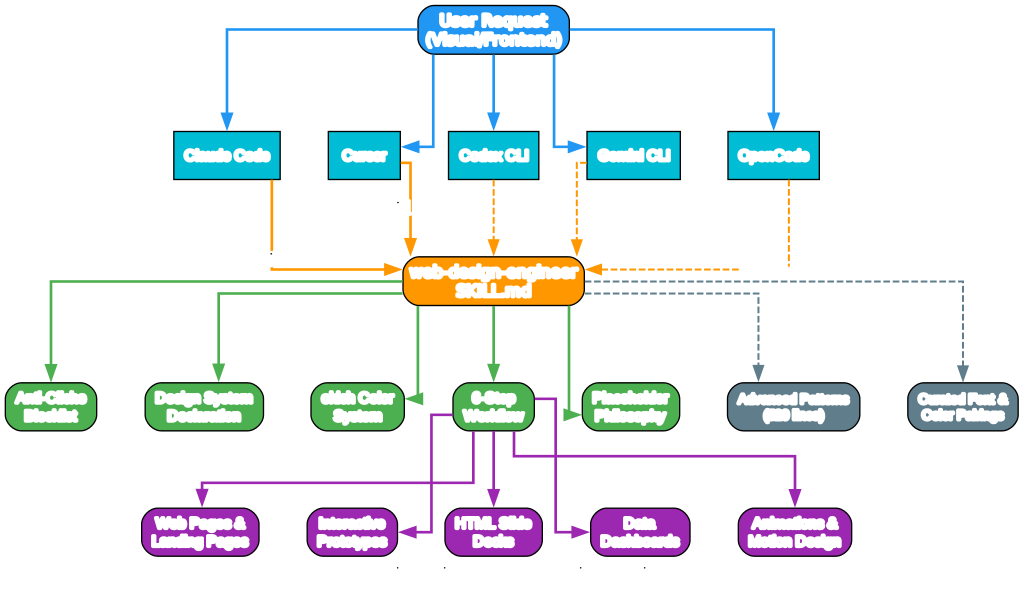
The architecture diagram above illustrates how the web-design-engineer skill integrates with multiple AI coding agent platforms. At the top, user requests involving visual or front-end deliverables enter the system. These requests are routed to any supported agent – Claude Code, Cursor, Codex CLI, Gemini CLI, or OpenCode – each of which can discover and load the skill from its platform-specific directory.
The skill core, defined in a single SKILL.md file, contains five major components that work together:
Anti-Cliche Blocklist – An explicit list of overused AI design patterns that the skill actively avoids, including purple-pink-blue gradients, left-border accent cards, Inter/Roboto/Arial fonts, and emoji-as-icon substitutes.
Design System Declaration – Forces the AI to articulate color, typography, spacing, and motion choices in Markdown before writing any code, ensuring intentional design decisions rather than accidental defaults.
oklch Color System – Uses perceptually uniform color derivation instead of random hex guessing, so colors at the same lightness value actually look the same brightness to the human eye.
Six-Step Workflow – A structured process from requirements through context gathering, design system declaration, v0 draft, full build, and verification that prevents the AI from jumping straight to code.
Placeholder Philosophy – When icons, images, or data are missing, honest [icon] markers replace poorly drawn SVG fakes, signaling that real assets are needed.
The skill also references an advanced patterns library (520 lines of code templates) and curated font/color pairings (6 validated visual system starting points). The output spans web pages, interactive prototypes, HTML slide decks, data dashboards, and motion design.
Understanding the Transformation Pipeline
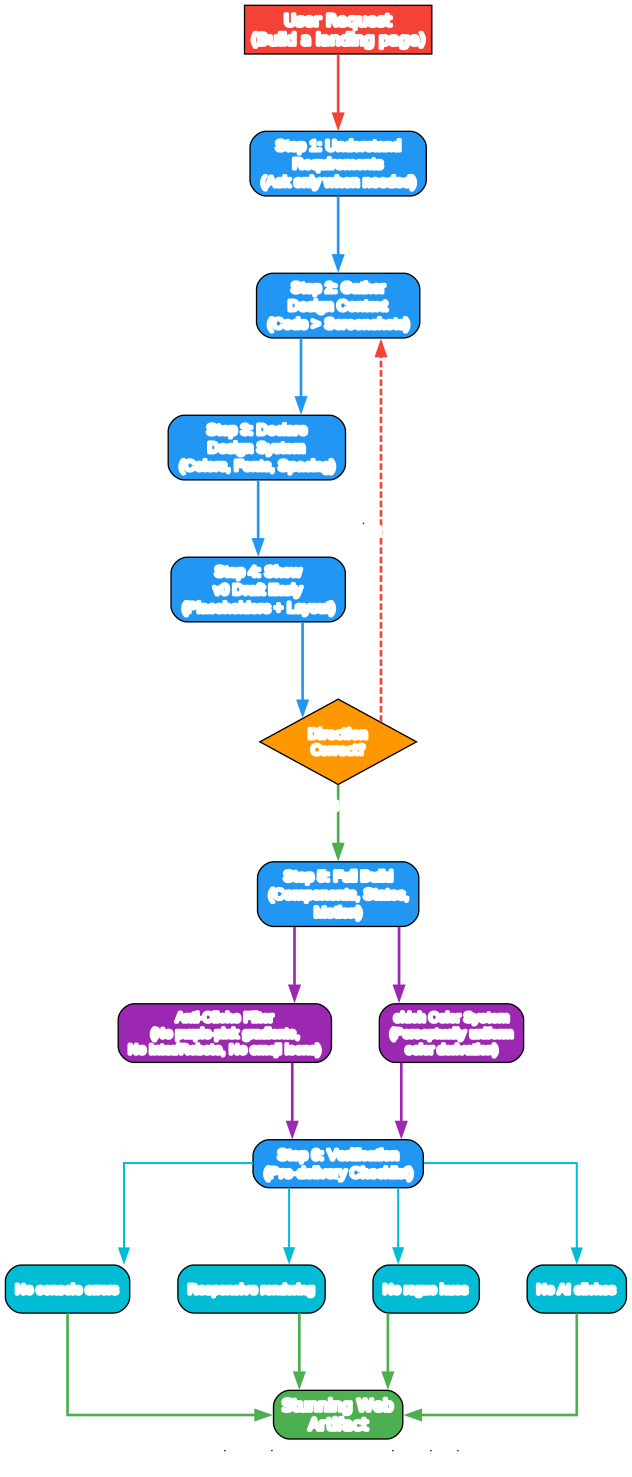
The transformation pipeline diagram shows the six-step workflow that the web-design-engineer skill enforces on AI coding agents. This is not a suggestion – it is a mandatory process that the skill injects into every visual task.
Step 1: Understand Requirements – The skill instructs the AI to ask questions only when information is genuinely insufficient. If a user provides a complete PRD, the AI starts building immediately. If the request is vague (“make a deck”), the AI asks about audience, duration, and tone. This prevents both the “ask too many questions” and “assume too much” failure modes.
Step 2: Gather Design Context – The skill prioritizes existing context in a strict order: user-provided resources first, then existing product pages, then industry best practices, and only as a last resort starting from scratch. When both code and screenshots are available, the skill explicitly instructs the AI to invest effort in reading source code rather than guessing from screenshots.
Step 3: Declare Design System – Before writing any code, the AI must articulate its design decisions in Markdown: color palette, typography, spacing system, border-radius strategy, shadow hierarchy, and motion style. This forces intentional choices and makes the design system auditable.
Step 4: Show v0 Draft Early – Rather than holding back for a big reveal, the skill requires an early v0 draft with placeholders, key layout, and declared design tokens. This lets the user course-correct before significant effort is wasted on the wrong direction.
Step 5: Full Build – After v0 approval, the AI writes full components, adds states, and implements motion. If important decision points arise during the build, the AI pauses and confirms rather than silently pushing through.
Step 6: Verification – A pre-delivery checklist ensures no console errors, correct responsive rendering, complete interactive states, no rogue hues outside the declared design system, no AI cliches, and no fabricated data.
The anti-cliche filter and oklch color system are applied during the build phase, ensuring that every color choice is perceptually uniform and every design pattern avoids the common AI aesthetic traps.
The Problem: AI-Generated Web Pages Look Generic
When you ask an AI coding agent to build a web page, the result is usually functional but visually predictable. The same purple-pink-blue gradients appear across every project. Inter becomes the default font. Emoji stand in for proper iconography. Cards get colored left-border accents. The output is technically correct but aesthetically indistinguishable from every other AI-generated page.
This happens because LLMs optimize for correctness and completeness, not for design taste. They reach for the most common patterns in their training data, which produces a convergent aesthetic that looks “obviously AI.”
The Solution: Design Taste as a Skill
The web-design-engineer skill addresses this by injecting structured design principles directly into the AI’s decision-making process. Rather than hoping the AI will make good design choices, the skill explicitly defines what to avoid, what to prefer, and how to approach each visual task.
Anti-Cliche Rules
The skill maintains an explicit blocklist of overused AI design patterns:
| Pattern | Why It’s a Cliche | What to Do Instead |
|---|---|---|
| Purple-pink-blue gradients | Default AI aesthetic | Use oklch-derived palettes with intentional hue choices |
| Inter / Roboto / Arial fonts | Overused to the point of being invisible | Use curated font pairings from the skill’s 6 presets |
| Emoji as icon substitutes | Signals “I don’t have an icon library” | Use placeholder markers like [icon] or geometric shapes |
| Left-border accent cards | Generic dashboard aesthetic | Use depth, shadow hierarchy, and typographic contrast |
| Fabricated stats and logo walls | Fake credibility | Use honest placeholders or ask for real data |
| Large-radius card combos | Cookie-cutter SaaS look | Vary border-radius strategically |
oklch Color System
The skill uses the oklch() color space for all color derivation. Unlike HSL, where yellow at 50% lightness looks much brighter than blue at 50%, oklch ensures that colors at the same lightness value actually appear equally bright to the human eye. This produces harmonious palettes that feel intentional rather than random.
/* Instead of random hex values */
:root {
  --primary: #7c3aed;     /* random purple */
  --secondary: #f59e0b;   /* random amber */
}

/* Use oklch for perceptually uniform colors */
:root {
  --primary: oklch(0.55 0.2 270);   /* intentional violet */
  --secondary: oklch(0.7 0.15 80);  /* warm amber at same perceived brightness */
  --neutral-1: oklch(0.95 0 0);     /* near-white neutral */
  --neutral-2: oklch(0.3 0 0);      /* near-black neutral */
}
Curated Font and Color Pairings
The skill provides six pre-validated visual system starting points, each designed for a specific use case:
| Style | Primary Color | Fonts | Best For |
|---|---|---|---|
| Modern Tech | Blue-violet | Space Grotesk + Inter | SaaS, developer tools |
| Elegant Editorial | Warm brown | Newsreader + Outfit | Content sites, blogs |
| Premium Brand | Near-black | Sora + Plus Jakarta Sans | Luxury, finance |
| Lively Consumer | Coral | Plus Jakarta Sans + Outfit | E-commerce, social apps |
| Minimal Professional | Teal-blue | Outfit + Space Grotesk | Dashboards, B2B |
| Artisan Warmth | Caramel | Caveat + Newsreader | Food, education |
Understanding the Design System and Principles
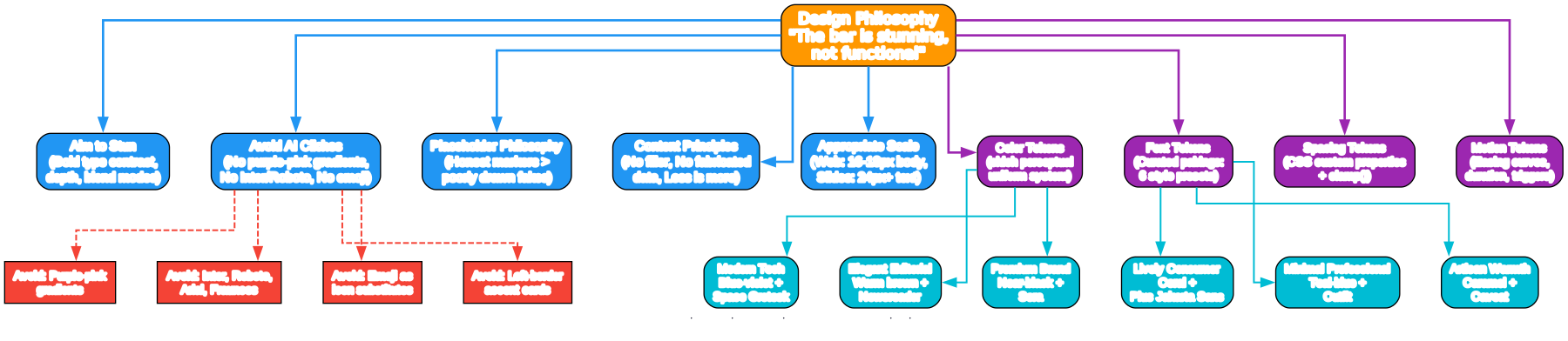
The design system diagram above shows the complete architecture of design principles, tokens, and curated pairings that the web-design-engineer skill enforces. At the center is the core philosophy: “The bar is stunning, not functional.”
Design Principles branch out from the core philosophy into five key areas:
Aim to Stun – The skill encourages bold type-size contrast (4-6x ratio between h1 and body text), color fills with textures and blend modes for depth, unconventional layouts with novel interaction metaphors, and CSS animations for polished micro-interactions. The philosophy is that CSS, HTML, JS, and SVG are far more capable than most people realize, and the skill pushes the AI to use them to astonish the user.
Avoid AI Cliches – The anti-cliche blocklist (shown in red) explicitly bans purple-pink gradients, Inter/Roboto/Arial/Fraunces fonts, emoji as icon substitutes, and left-border accent cards. These patterns are so common in AI output that they immediately signal “machine-generated” to any design-literate viewer.
Placeholder Philosophy – When icons, images, or data are missing, the skill instructs the AI to use honest placeholders (square + label, initial-letter circles, aspect-ratio image cards) rather than fabricating content. A placeholder signals “real material needed here,” while a fake signals “I cut corners.”
Content Principles – No filler content, no fabricated data, no unilateral section additions. If a page looks empty, it is a layout problem, not a content problem. The solution is better composition, whitespace, and type-scale rhythm, not stuffing in more content.
Appropriate Scale – Different output types have different minimum text sizes: 24px+ for presentations, 44px touch targets for mobile, 16-18px for web body text.
Design Tokens branch into four categories: Color Tokens (oklch perceptual uniform system), Font Tokens (6 curated style presets), Spacing Tokens (CSS custom properties with clamp() for fluid sizing), and Motion Tokens (easing curves, duration, and triggers).
Curated Pairings connect the color and font tokens to six validated visual system starting points, each designed for a specific use case from modern tech to artisan warmth.
Installation and Setup
Option A: Claude Code Plugin Marketplace
The fastest installation path if you use Claude Code:
/plugin marketplace add ConardLi/web-design-skill
/plugin install web-design-skills@agent-skills
Option B: Manual Copy
Copy the skill folder into your project’s skills directory:
# For Claude Code
cp -r skills/web-design-engineer your-project/.claude/skills/

# For Cursor or other agents
cp -r skills/web-design-engineer your-project/.agents/skills/
Option C: Git Submodule
Track upstream updates inside a larger project:
git submodule add https://github.com/ConardLi/web-design-skill.git vendor/agent-skills
ln -s ../../vendor/agent-skills/skills/web-design-engineer .claude/skills/web-design-engineer
Compatibility
| Agent / Runtime | Skill Location | Status |
|---|---|---|
| Claude Code | .claude/skills/<name>/ or plugin marketplace | Tested |
| Claude.ai (web) | Settings > Capabilities > Skills | Tested |
| Cursor | .agents/skills/<name>/ | Tested |
| Codex CLI | .codex/skills/<name>/ | Tested |
| Gemini CLI | Extension manifest | Tested |
| OpenCode | .opencode/skills/<name>/ | Tested |
The Six-Step Workflow in Practice
The skill enforces a structured six-step workflow that prevents the AI from jumping straight to code:
Step 1: Understand Requirements
The skill instructs the AI to ask questions only when information is genuinely insufficient. A table of scenarios guides the decision:
| Scenario | Action |
|---|---|
| “Make a deck” (no PRD, no audience) | Ask extensively about audience, duration, tone |
| “Use this PRD to make a 10-min deck for Eng All Hands” | Start building – enough info provided |
| “Turn this screenshot into an interactive prototype” | Only ask if interactions are unclear |
| “Make 6 slides about the history of butter” | Ask about tone and audience – too vague |
| “Recreate the composer UI from this codebase” | Read the code directly – no questions needed |
Step 2: Gather Design Context
Priority order for context gathering:
- User-provided resources (screenshots, Figma, codebase, UI Kit) – read thoroughly
- Existing product pages – proactively ask to review them
- Industry best practices – ask which brands to reference
- Starting from scratch – explicitly warn the user that no reference affects quality
Step 3: Declare Design System
Before writing any code, the AI must articulate its design decisions in Markdown:
Design Decisions:
- Color palette: oklch(0.55 0.2 270) primary, oklch(0.7 0.15 80) secondary
- Typography: Space Grotesk (headings), Plus Jakarta Sans (body)
- Spacing system: 8px base unit, multiples of 4
- Border-radius strategy: 12px cards, 8px buttons, 4px inputs
- Shadow hierarchy: elevation-1 (subtle), elevation-3 (cards), elevation-5 (modals)
- Motion style: ease-out 200ms for hover, ease-in-out 300ms for transitions
Step 4: Show v0 Draft Early
The v0 draft includes core structure, color/typography tokens, and key module placeholders with explicit markers like [image] and [icon]. It does NOT include content details, complete component library, all states, or motion. The goal is early course correction, not perfection.
Step 5: Full Build
After v0 approval, the AI writes full components, adds states, and implements motion. If important decision points arise, the AI pauses and confirms rather than silently pushing through.
Step 6: Verification
A pre-delivery checklist ensures quality:
- Browser console shows no errors, no warnings
- Renders correctly on target devices/viewports
- Interactive components include hover/focus/active/disabled/loading states
- No text overflow or truncation;
text-wrap: prettyapplied - All colors come from the declared design system – no rogue hues
- No use of
scrollIntoView - In React projects, no
const styles = {...}; cross-file components exported viaObject.assign(window, {...}) - No AI cliches (purple-pink gradients, emoji abuse, left-border accent cards, Inter/Roboto)
- No filler content, no fabricated data
- Semantic naming, clean structure, easy to modify later
- Visual quality at Dribbble/Behance showcase level
Technical Specifications
HTML File Structure
The skill enforces a clean HTML structure:
<!DOCTYPE html>
<html lang="en">
<head>
    <meta charset="UTF-8">
    <meta name="viewport" content="width=device-width, initial-scale=1.0">
    <title>Descriptive Title</title>
    <style>/* CSS */</style>
</head>
<body>
    <!-- Content -->
    <script>/* JS */</script>
</body>
</html>
CSS Best Practices
The skill promotes modern CSS techniques:
/* Use oklch for perceptually uniform colors */
:root {
  --primary: oklch(0.55 0.2 270);
  --surface: oklch(0.98 0 0);
}

/* Use clamp() for fluid typography */
h1 {
  font-size: clamp(2rem, 5vw, 4rem);
}

/* Use @container queries for component-level responsiveness */
@container (min-width: 400px) {
  .card { grid-template-columns: 1fr 1fr; }
}

/* Use text-wrap: pretty for better line breaking */
p { text-wrap: pretty; }
React + Babel (Inline JSX)
For React prototypes, the skill specifies pinned-version CDN scripts and enforces three hard rules:
- Never use
const styles = { ... }– Multiple component files withstylesas a global object silently overwrite each other. Always namespace with the component name. - Separate
<script type="text/babel">blocks do not share scope – Export components viaObject.assign(window, {...}). - Do not use
scrollIntoView– It disrupts outer-frame scrolling in iframe-embedded preview environments.
Advanced Patterns Library
The skill includes a 520-line advanced patterns library covering:
- Responsive Slide Engine – Fixed 1920x1080 canvas with auto-fit scaling, keyboard navigation, and localStorage position persistence
- Device Simulation Frames – iPhone and browser window frames for realistic prototypes
- Tweaks Panel – Floating parameter adjustment panel for live design exploration
- Animation Timeline Engine – Custom
useTime+Easing+interpolatefor timeline-driven video/demo scenes - Design Canvas – Multi-option comparison layout for visual A/B testing
- Dark Mode Toggle – Complete dark mode implementation with
prefers-color-schemesupport - Data Visualization Templates – Chart.js and D3.js integration patterns
Demo Comparisons
The repository includes side-by-side demos showing pages generated with and without the skill:
Demo 1: Space Exploration Museum
| Aspect | Without Skill | With Skill |
|---|---|---|
| Color system | Hardcoded hex values (#7cf0ff, #b388ff) | oklch-based token system with CSS custom properties |
| Typography | Orbitron + Noto Serif SC | Instrument Serif + Space Grotesk + JetBrains Mono |
| Layout | Standard landing-page structure | Editorial magazine-style layout with grid compositions |
| Details | Heavy glow effects, neon gradients | Restrained palette, typographic hierarchy, decorative data elements |
| Overall feel | Enthusiastic junior designer | Experienced design director |
Demo 2: Photographer Portfolio
| Aspect | With Skill |
|---|---|
| Character | Creates fictional Nordic photographer “Mira Host” with complete visual identity |
| Color | Paper-warm light (#f2efe8) + ink-dark (#161513) – extremely restrained two-tone palette |
| Typography | Instrument Serif (display) + Space Grotesk (UI) with extensive italic usage |
| Layout | Magazine-editorial structure with numbered sections, asymmetric grids, side rails |
| Motion | Slow Ken Burns on hero image (24s cycle), film-grain texture overlay |
| Navigation | mix-blend-mode: difference masthead – seamless across light/dark sections |
Output Types
The skill supports multiple output types, each with specific guidelines:
| Output Type | Key Requirements |
|---|---|
| Web pages and landing pages | Design system declaration, responsive breakpoints, no filler content |
| Interactive prototypes | Device frames, 3+ variants via Tweaks panel, complete state coverage |
| HTML slide decks | Fixed 1920x1080 canvas, keyboard navigation, localStorage persistence |
| Data visualizations | Chart.js or D3.js, responsive containers, dark/light mode toggle |
| Animations and motion | CSS transitions first, then React state, then custom timeline engine |
| Design systems | Token exploration, component variants, Tweaks panel for live adjustment |
Repository Structure
web-design-skill/
  skills/
    web-design-engineer/
      SKILL.md                    # Main skill file (~400 lines)
      README.md                   # English documentation
      README.zh-CN.md             # Chinese documentation
      references/
        advanced-patterns.md      # Code template library (~520 lines)
    rag-skill/                    # Knowledge base retriever skill
    gpt-image-2/                  # Image generation skill
  demo/
    web-design-demo/
      demo2/                      # Side-by-side comparison viewer
  .claude-plugin/
    marketplace.json              # Claude Code plugin manifest
Key Takeaways
The web-design-engineer skill demonstrates that AI coding agents can produce professional-grade visual output when given structured design constraints. The key innovations are:
- Anti-cliche enforcement – Explicitly banning the most common AI design patterns forces the agent to explore better alternatives
- Design system declaration before code – Making the AI articulate its design choices in natural language prevents accidental defaults
- oklch color theory – Perceptually uniform color derivation produces harmonious palettes that look intentional
- Curated starting points – Six validated font/color pairings give the AI high-quality defaults instead of generic ones
- Placeholder philosophy – Honest markers for missing assets are more professional than poorly drawn fakes
- Structured workflow – The six-step process prevents the AI from jumping to code before understanding the design context
Links
- GitHub Repository: https://github.com/ConardLi/web-design-skill
- Agent Skills Spec: https://agentskills.io
- Anthropic Skills Reference: https://github.com/anthropics/skills

Enjoyed this post? Never miss out on future posts by following us


