What is scrcpy?
scrcpy (pronounced “screen copy”) is a free and open-source tool that lets you display and control Android devices from your desktop computer. Developed by Genymobile and maintained by Romain Vimont, scrcpy provides a lightweight, high-performance screen mirroring solution that requires no root access and no app installed on the Android device. With over 141,000 stars on GitHub and growing at nearly 800 stars per day, scrcpy has become the de facto standard for Android device mirroring and remote control.
The tool works over both USB and wireless (TCP/IP) connections via ADB, delivering video at 30-120fps with latency as low as 35-70ms. Whether you are a developer debugging apps, a content creator recording device screens, or a power user managing multiple Android devices, scrcpy provides the performance and flexibility you need – all without requiring any account, displaying any ads, or needing an internet connection.
Key Insight: scrcpy achieves its remarkable performance through a client-server architecture where a small Java server is pushed to the Android device via ADB, captures the screen using Android’s built-in APIs, and streams H.264/H.265/AV1 video back to a native C client on the desktop that renders via SDL3 and FFmpeg. Nothing is left installed on the device after the session ends.
Architecture Overview
scrcpy employs a clever client-server architecture that separates the Android-side capture and encoding from the desktop-side decoding and rendering. Understanding this architecture is essential for troubleshooting and optimizing your setup.
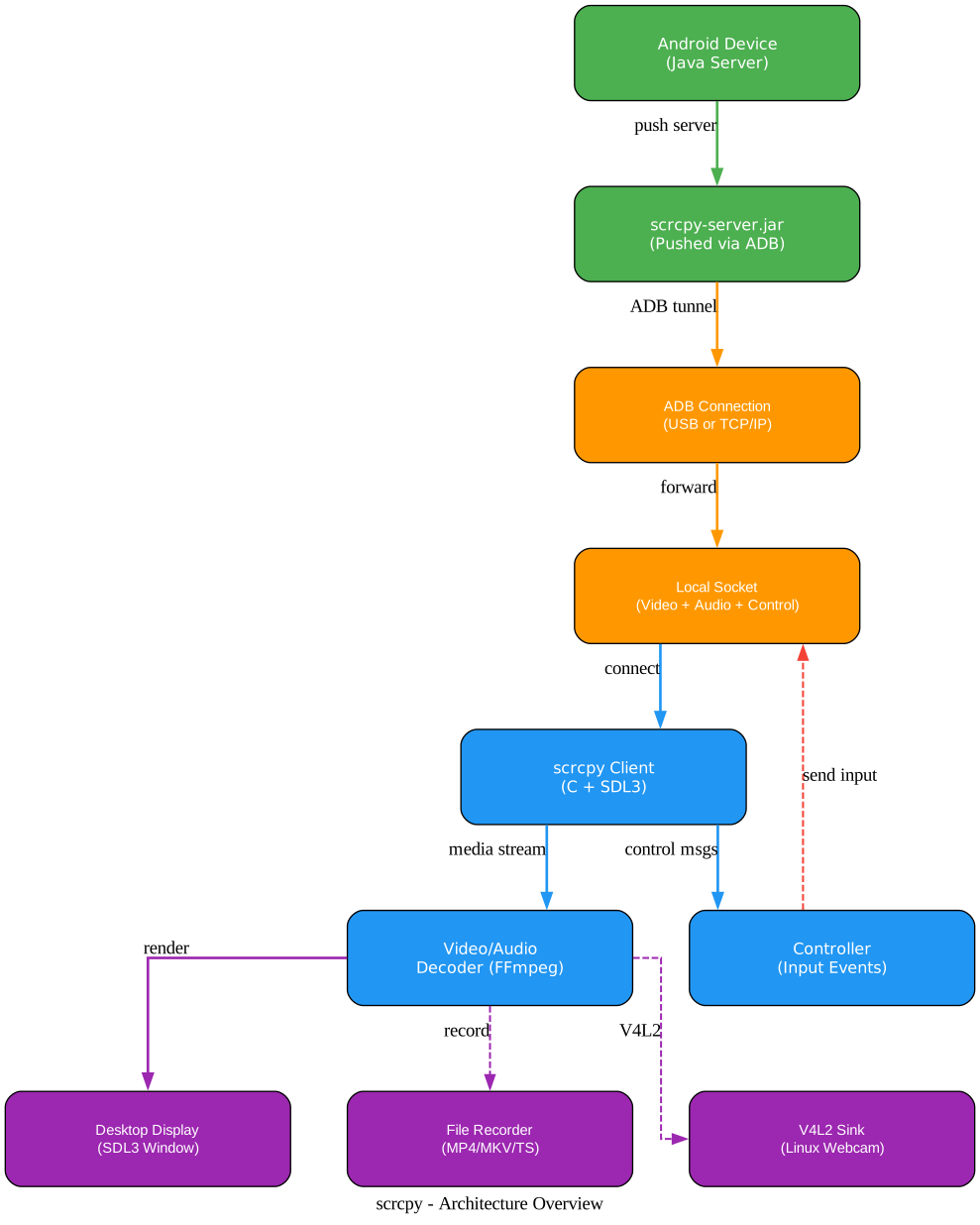
The architecture diagram above illustrates the complete data flow from Android device to desktop display. The process begins when the scrcpy client launches on the desktop. It uses ADB to push the scrcpy-server.jar file to the Android device at /data/local/tmp/, then starts the server process. The server captures the device screen and audio using Android’s MediaCodec and AudioRecord APIs, encodes them, and streams them over a local socket that is forwarded through the ADB tunnel back to the desktop client.
The desktop client, written in C with SDL3 for the display window and FFmpeg for media decoding, receives the video and audio streams, decodes them in real-time, and renders the output. Simultaneously, a controller component handles input events from the keyboard, mouse, and gamepad, sending them back through the same ADB connection to the server, which injects them into the Android device. This bidirectional communication channel enables full remote control of the device.
The architecture supports multiple output paths: the decoded video can be displayed in an SDL3 window, recorded to an MP4/MKV/TS file, or (on Linux) forwarded to a V4L2 device to appear as a webcam. Audio can be played through the desktop speakers or recorded alongside the video.
Key Features and Components
scrcpy v4.0 packs an impressive set of features into a lightweight package. Here is a comprehensive breakdown of what the tool offers:

The features diagram above shows the six major capability areas of scrcpy, each with specific sub-features. Video mirroring supports H.264, H.265, and AV1 codecs at 30-120fps with configurable quality up to 1920x1080 and beyond. Audio forwarding works on Android 11+ for output audio and supports microphone input as well. Device control offers keyboard and mouse simulation through both SDK and HID modes, plus gamepad support and a dedicated OTG mode. Camera capture (Android 12+) can mirror front or back cameras and expose them as V4L2 webcams on Linux. Recording supports MP4, MKV, and TS formats with timestamp-based capture. Connectivity covers both USB (ADB) and TCP/IP (wireless) connections.
| Feature | Details | Requirement |
|---|---|---|
| Video Mirroring | H.264/H.265/AV1, 30-120fps, configurable resolution | Android 5.0+ (API 21) |
| Audio Forwarding | Output audio, microphone, various sources | Android 11+ (API 30) |
| Keyboard Control | SDK mode, HID physical keyboard simulation | Android 5.0+ |
| Mouse Control | SDK mode, HID physical mouse simulation | Android 5.0+ |
| Gamepad Support | HID gamepad simulation | Android 5.0+ |
| Camera Mirroring | Front/back camera capture | Android 12+ (API 31) |
| Recording | MP4, MKV, TS formats with timestamps | Android 5.0+ |
| V4L2 Sink | Expose as webcam device | Linux only |
| Virtual Display | Create separate Android display | Android 10+ (API 29) |
| OTG Mode | Control without mirroring (no USB debugging) | USB HID support |
| Wireless | TCP/IP connection over Wi-Fi | ADB over network |
| Copy-Paste | Bidirectional clipboard sync | Android 5.0+ |
Amazing: scrcpy requires no app installed on the Android device. The server JAR is pushed via ADB, runs temporarily, and is cleaned up when the session ends. This means zero footprint on your device – a significant advantage over tools that require a companion app.
Connection and Streaming Workflow
Understanding how scrcpy establishes a connection helps when troubleshooting issues. The workflow diagram below shows the complete connection process from launch to streaming:
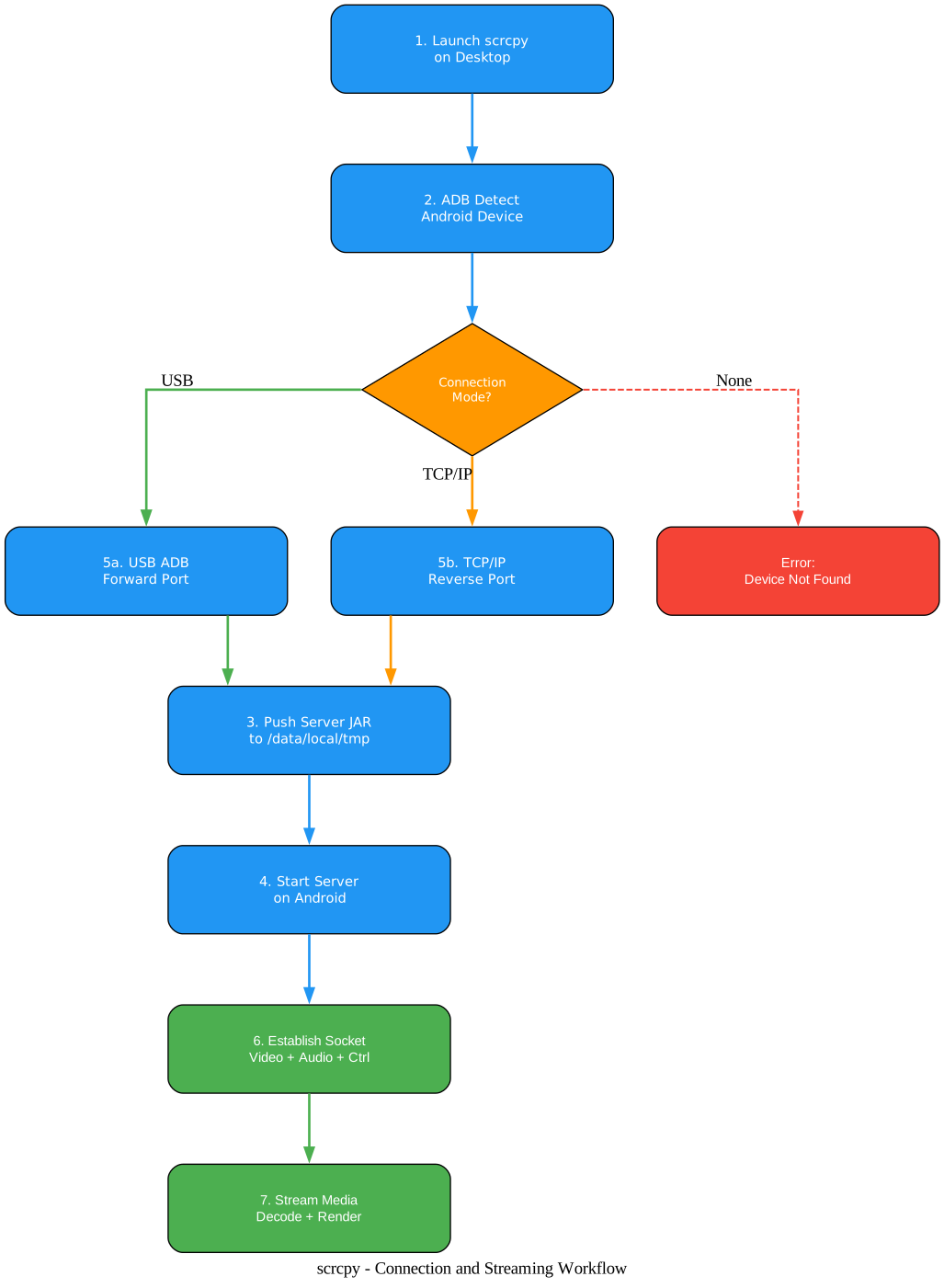
The workflow begins when you launch scrcpy on your desktop. The client first uses ADB to detect connected Android devices. If multiple devices are found, you must specify which one to use with the -s, -d, or -e flags. Once a device is selected, scrcpy pushes the scrcpy-server.jar to the device at /data/local/tmp/ and starts the server process.
The connection mode determines how data flows between the device and desktop. For USB connections, scrcpy uses ADB port forwarding (adb forward) to create a local socket tunnel. For TCP/IP (wireless) connections, it uses ADB reverse port forwarding (adb reverse). Both methods establish a socket that carries three streams: video, audio, and control messages.
Once the socket is established, the server begins capturing and encoding the screen, while the client starts its demuxer, decoder, and renderer components. The entire startup process takes approximately one second from launch to first frame display.
Data Flow Between Components
The data flow diagram reveals how video, audio, and control streams move through the system:
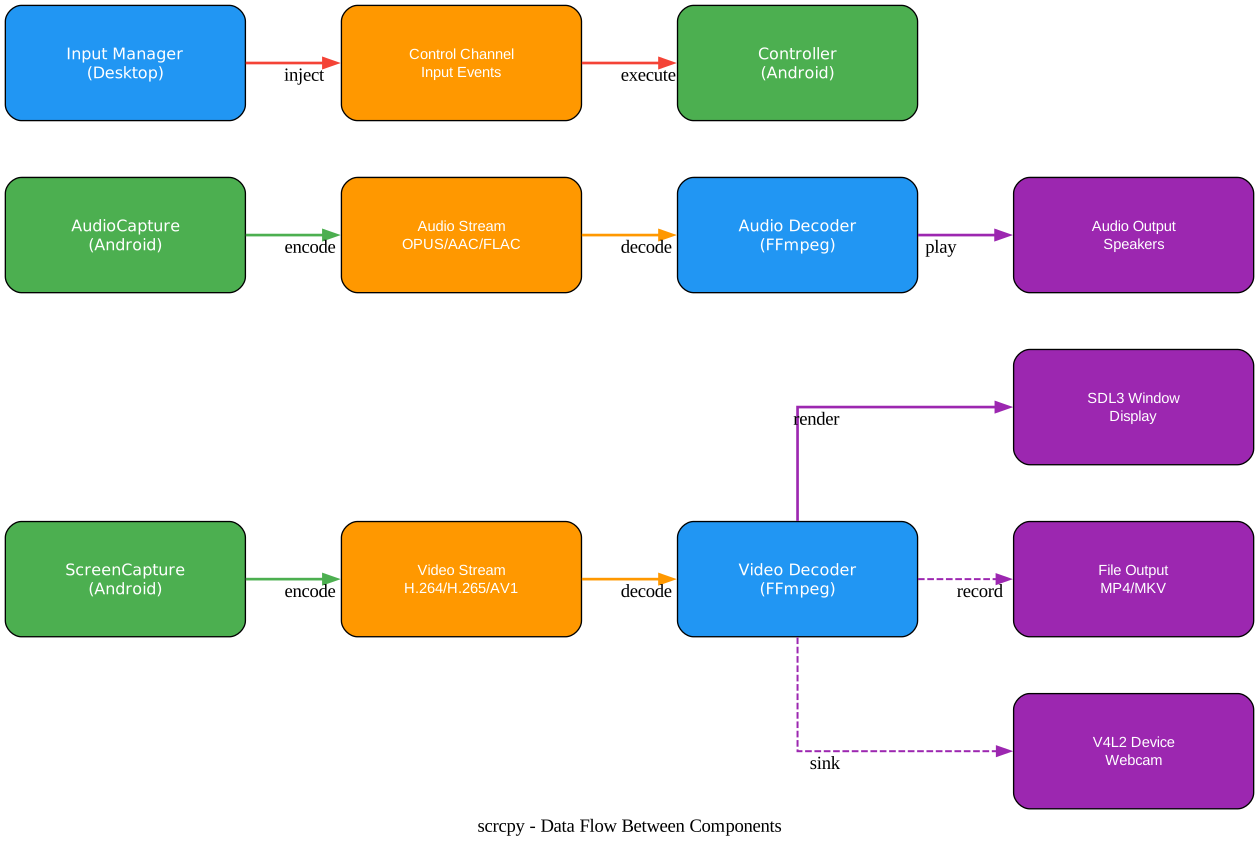
On the Android side, ScreenCapture and AudioCapture use Android’s MediaCodec API to encode video and audio streams. The video stream supports H.264, H.265, and AV1 codecs, while audio supports OPUS, AAC, FLAC, and raw formats. These encoded streams are multiplexed and sent over the local socket to the desktop client.
On the desktop side, the Video Decoder and Audio Decoder (both powered by FFmpeg) demux and decode the incoming streams. The decoded video can be rendered in the SDL3 display window, recorded to a file (MP4/MKV/TS), or forwarded to a V4L2 device on Linux. The decoded audio plays through the desktop speakers.
The control channel operates in the reverse direction: the desktop Input Manager captures keyboard, mouse, and gamepad events, serializes them into control messages, and sends them through the control channel to the Android Controller, which injects them as input events on the device. This enables full remote control with near-native responsiveness.
Installation
Linux
On most Linux distributions, scrcpy is available through the package manager:
# Ubuntu/Debian
sudo apt install scrcpy

# Fedora
sudo dnf install scrcpy

# Arch Linux
sudo pacman -S scrcpy
For the server component, you may also need:
# Ubuntu/Debian - if the server is not included
sudo apt install scrcpy-server
Windows
Download the latest release from the GitHub releases page. The Windows archive contains both scrcpy.exe and adb.exe. Extract the archive and run scrcpy.exe from the command line.
:: Run scrcpy from the extracted directory
scrcpy
macOS
Install via Homebrew:
brew install scrcpy
From Source
Building from source requires the Meson build system, Ninja, SDL3, and FFmpeg development libraries:
# Clone the repository
git clone https://github.com/Genymobile/scrcpy.git
cd scrcpy

# Install dependencies (Ubuntu/Debian)
sudo apt install meson ninja-build libsdl3-dev libavcodec-dev libavformat-dev libavutil-dev

# Build
meson setup build --buildtype=release
ninja -C build

# Install
sudo ninja -C build install
Important: Always download scrcpy from the official GitHub repository at https://github.com/Genymobile/scrcpy. The project warns that unofficial websites may distribute modified or malicious versions, even if they contain “scrcpy” in their name.
Usage Examples
Basic Screen Mirroring
The simplest usage requires no arguments – just connect your Android device via USB, enable USB debugging, and run:
scrcpy
High Quality Mirroring
For the best visual quality with H.265 encoding, limited to 1920 pixels and 60fps:
scrcpy --video-codec=h265 --max-size=1920 --max-fps=60
# Short version:
scrcpy --video-codec=h265 -m1920 --max-fps=60
Wireless Mirroring
Connect over Wi-Fi without a USB cable (the device must be on the same network):
# Automatic: connect USB first, then run
scrcpy --tcpip

# Or specify the device IP directly
scrcpy --tcpip=192.168.1.100:5555
Recording
Record the device screen to an MP4 file:
scrcpy --record=file.mp4
Camera Mirroring
Mirror the device camera (Android 12+):
scrcpy --video-source=camera --camera-facing=front
Virtual Display
Create a separate virtual display on the device:
scrcpy --new-display=1920x1080 --start-app=org.videolan.vlc
OTG Mode (Control Without Mirroring)
Control the device using keyboard and mouse without displaying the screen – USB debugging is not required:
scrcpy --otg
Configuration Options
scrcpy provides extensive configuration options organized by category. Here are the most commonly used ones:
Video Options
| Option | Short | Description |
|---|---|---|
--video-codec | Video codec: h264 (default), h265, av1 | |
--max-size | -m | Maximum dimension (both width and height) |
--max-fps | Maximum frame rate | |
--video-bit-rate | -b | Video bitrate (default 8Mbps) |
--crop | Crop the device screen | |
--no-video | Disable video forwarding |
Audio Options
| Option | Short | Description |
|---|---|---|
--no-audio | Disable audio forwarding | |
--audio-codec | Audio codec: opus, aac, flac, raw | |
--audio-bit-rate | Audio bitrate | |
--audio-source | Source: output, mic, playback |
Control Options
| Option | Short | Description |
|---|---|---|
--keyboard | -K | Keyboard mode: sdk (default), uhid |
--mouse | -M | Mouse mode: sdk (default), uhid |
--gamepad | -G | Gamepad mode: sdk, uhid |
--no-clipboard-autosync | Disable clipboard sync | |
--otg | OTG mode (no mirroring) |
Connection Options
| Option | Short | Description |
|---|---|---|
--serial | -s | Device serial number |
--select-usb | -d | Select USB device |
--select-tcpip | -e | Select TCP/IP device |
--tcpip | Enable wireless connection | |
--force-adb-forward | Force ADB forward (not reverse) |
Troubleshooting
“adb” Not Found
scrcpy relies on ADB to communicate with the device. If you see this error, make sure adb is in your PATH:
# Check if adb is available
adb version

# On Windows, the release archive includes adb.exe
# On Linux/macOS, install platform-tools:
sudo apt install adb  # Ubuntu/Debian
brew install android-platform-tools  # macOS
Device Not Detected
If adb devices does not show your device:
- Enable USB debugging in Developer Options on the Android device
- Authorize the computer when the USB debugging authorization popup appears
- Try a different USB cable or port
- On Windows, install the appropriate USB drivers for your device manufacturer
Device Unauthorized
ERROR: Device is unauthorized
A popup should appear on the device asking you to authorize USB debugging. If it does not appear, revoke USB debugging authorizations in Developer Options and reconnect.
Multiple Devices Connected
When multiple devices are connected, specify which one to use:
scrcpy -s 0123456789abcdef  # By serial
scrcpy -d                     # USB device
scrcpy -e                     # TCP/IP device
Performance Issues
If mirroring is laggy or choppy:
# Reduce resolution for better performance
scrcpy -m1024

# Limit frame rate
scrcpy --max-fps=30

# Disable audio to save bandwidth
scrcpy --no-audio

# Use H.265 for better quality at lower bitrates
scrcpy --video-codec=h265
Xiaomi Device INJECT_EVENTS Permission
On some Xiaomi devices, you may see an error about INJECT_EVENTS permission. Enable “USB debugging (Security Settings)” in Developer Options (a separate option from regular USB debugging) and reboot the device.
Takeaway: scrcpy’s performance can be tuned significantly through its command-line options. Reducing the maximum size with
-m1024is often the single most effective change for improving responsiveness on slower connections or older devices.
How scrcpy Compares to Alternatives
| Feature | scrcpy | Vysor | Samsung SideSync | TeamViewer |
|---|---|---|---|---|
| Price | Free (Apache 2.0) | Freemium | Free (Samsung only) | Commercial |
| Root Required | No | No | No | No |
| App on Device | No | Yes | Yes | Yes |
| Latency | 35-70ms | Higher | Higher | Higher |
| Video Codecs | H.264/H.265/AV1 | H.264 | Proprietary | Proprietary |
| Audio Forwarding | Yes (Android 11+) | No | Limited | Yes |
| Recording | Built-in | Premium | No | Yes |
| Camera Mirroring | Yes | No | No | No |
| Open Source | Yes | No | No | No |
| Platforms | Linux/Win/macOS | Win/Mac | Win/Mac | All |
The Technology Behind scrcpy
scrcpy is built on a dual-language architecture. The desktop client is written in C (approximately 70 source files in app/src/), using SDL3 for window management and FFmpeg (libavcodec/libavformat) for media decoding. The Android server is written in Java, leveraging Android’s MediaCodec API for hardware-accelerated video encoding and AudioRecord/MediaCodec for audio capture.
The build system uses Meson for the C client and Gradle for the Java server. The client is organized into clear modules: scrcpy.c orchestrates the main event loop, server.c manages the ADB connection and server lifecycle, cli.c handles the extensive command-line parsing (over 3,500 lines), decoder.c and demuxer.c handle media stream processing, and controller.c manages the bidirectional control channel.
The server-side Java code is organized into packages: video/ for screen and camera capture, audio/ for audio capture and encoding, control/ for input event handling, device/ for device management, and wrappers/ for Android system service access. This clean separation of concerns makes the codebase approachable for contributors.
Important: scrcpy v4.0 uses SDL3 (not SDL2), which is a significant upgrade from earlier versions. If you are building from source, make sure you have SDL3 development libraries installed, not SDL2.
Advanced Tips
Keyboard Shortcuts
scrcpy supports numerous keyboard shortcuts for common actions:
Alt+f– Toggle fullscreenAlt+Left– Back buttonAlt+Home– Home buttonAlt+s– Recent apps (Overview)Alt+n– Expand notification panelAlt+Shift+n– Collapse notification panelCtrl+c/Ctrl+v– Copy/paste between device and computerCtrl+o– Turn device screen off (mirroring continues)Ctrl+r– Rotate device screen
Recording with Timestamps
Record with timestamps for precise synchronization:
scrcpy --record=file.mp4 --record-format=mp4
Webcam Mode (Linux)
Expose the Android camera as a V4L2 webcam device:
scrcpy --video-source=camera --camera-size=1920x1080 --v4l2-sink=/dev/video2 --no-playback
Multiple Devices
Mirror multiple devices simultaneously by running separate instances:
# Terminal 1
scrcpy -s device1_serial

# Terminal 2
scrcpy -s device2_serial
Conclusion
scrcpy stands out as the most capable open-source Android screen mirroring and control tool available today. Its client-server architecture delivers exceptional performance with latency as low as 35ms, while requiring no permanent installation on the device. The extensive feature set – from basic mirroring to camera capture, virtual displays, recording, and V4L2 webcam support – makes it indispensable for developers, QA engineers, content creators, and anyone who needs to interact with Android devices from their desktop.
With active development, a clean C/Java codebase, and a vibrant community, scrcpy continues to push the boundaries of what is possible with Android device management. Whether you are debugging an app, recording a demo, or simply controlling your phone from your computer, scrcpy delivers a professional-grade experience that proprietary tools struggle to match.
Resources
- GitHub Repository: https://github.com/Genymobile/scrcpy
- Official Documentation: https://github.com/Genymobile/scrcpy/tree/master/doc
- FAQ: https://github.com/Genymobile/scrcpy/blob/master/FAQ.md
- Connection Guide: https://github.com/Genymobile/scrcpy/blob/master/doc/connection.md
- Build Instructions: https://github.com/Genymobile/scrcpy/blob/master/doc/build.md

Enjoyed this post? Never miss out on future posts by following us


