Learn Docker in a Single Post: Complete Tutorial From Containers and Dockerfiles to Compose
Docker solved the “it works on my machine” problem. It packages your app, its dependencies, and its runtime into a single portable unit — a container — that runs identically on your laptop, CI server, and production. This single post teaches the whole platform in five stages, with runnable snippets and five diagrams.
Learning Roadmap
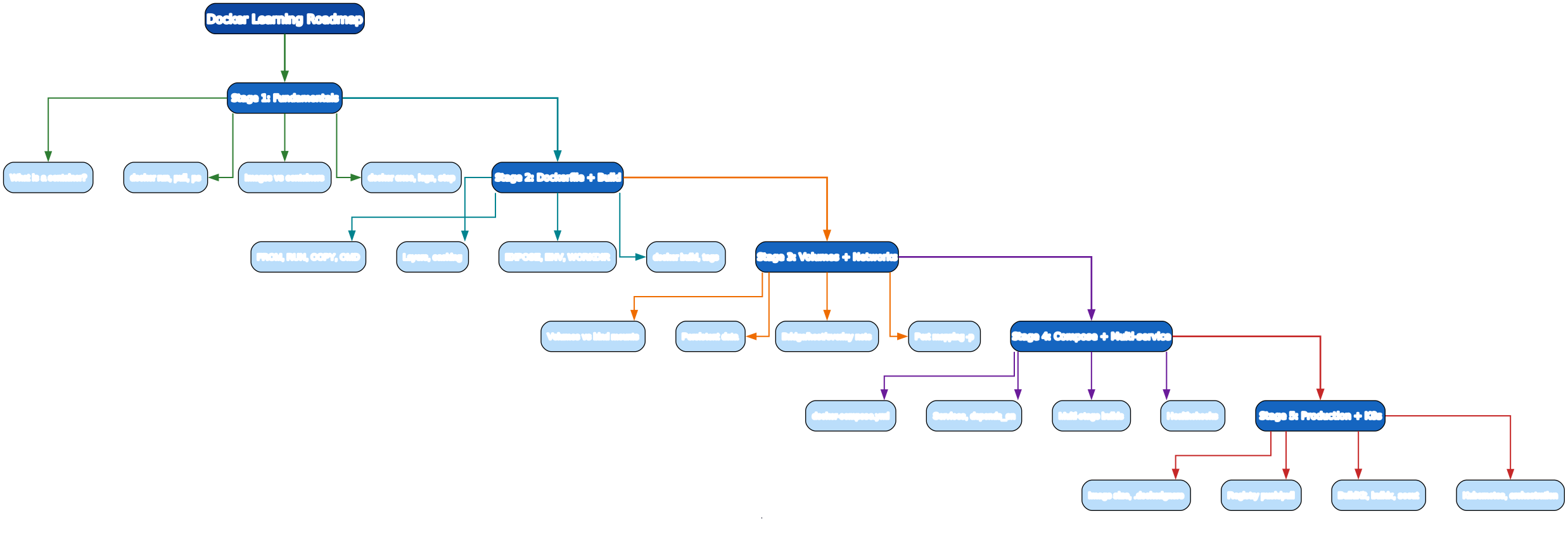
The roadmap moves from running existing images (Stage 1), to building your own (Stage 2), to persisting data and wiring services together (Stage 3), to orchestrating multiple services with Compose (Stage 4), to production and Kubernetes (Stage 5).
Stage 1 — Fundamentals: Images, Containers, the CLI
What is a container?
A container is a running process isolated by Linux kernel features (namespaces for isolation, cgroups for resource limits) that shares the host kernel but has its own filesystem, network, and process space. An image is the read-only template a container runs from — a layered filesystem snapshot plus metadata (the default command, exposed ports, environment).
- Image = blueprint (read-only, layered). Like a class.
- Container = running instance (image + a read-write layer on top). Like an object.
Core CLI
# pull an image from a registry
docker pull python:3.12-slim

# run a container (one-off)
docker run --rm -it python:3.12-slim python --version
#   --rm    auto-remove on exit
#   -it     interactive + tty
#   python --version   command to run inside the container

# run a long-lived server with a port mapping
docker run -d --name web -p 8080:80 nginx:alpine
#   -d              detached (background)
#   --name web      give it a name
#   -p 8080:80      host:container port mapping

# see running containers
docker ps                 # running
docker ps -a              # all (incl. stopped)

# interact with a running container
docker exec -it web sh          # open a shell inside
docker logs -f web              # tail logs (follow)
docker stop web && docker rm web   # stop then remove
docker images             # list local images
docker rmi nginx:alpine   # remove an image
The lifecycle

A Dockerfile is built into an image, an image is run into a container, a container is stopped and removed, and finally the image itself can be removed.
Pitfall: Stopped containers are not automatically deleted — they accumulate and waste disk. Use
--rmfor one-offs, and periodicallydocker container prune.
Stage 2 — Dockerfile + Build
A Dockerfile is a recipe: a sequence of instructions, each producing a layer. Layers are cached, so rebuilds are fast when only the later layers change.
A minimal Dockerfile
# Dockerfile
FROM python:3.12-slim

WORKDIR /app

# install dependencies first (cache-friendly)
COPY requirements.txt .
RUN pip install --no-cache-dir -r requirements.txt

# copy app code (changes more often)
COPY . .

EXPOSE 8000
CMD ["uvicorn", "main:app", "--host", "0.0.0.0", "--port", "8000"]
Build and tag
docker build -t myapi:1.0 .            # build, tag as myapi:1.0
docker run --rm -p 8000:8000 myapi:1.0 # run it
Key instructions

| Instruction | Purpose |
|---|---|
FROM image:tag | Base image; must be first. Pick slim/alpine variants for smaller images. |
RUN cmd | Run a shell command at build time (e.g. apt-get install). Creates a layer. |
COPY src dst | Copy files from the build context into the image. Prefer over ADD. |
ADD src dst | Like COPY but also handles URLs and auto-extracts local tar archives. |
WORKDIR /path | Set the working directory for subsequent RUN/CMD/COPY. |
ENV KEY=val | Set a persistent env var in the image. |
EXPOSE 80 | Document a port (does NOT publish it — -p does at run time). |
CMD ["exec","arg"] | Default command; overridable by docker run <cmd>. One per image. |
ENTRYPOINT ["exec"] | Fixed executable; CMD becomes its args. Hard to override. |
USER name | Run as a non-root user (security). |
CMD vs ENTRYPOINT
# CMD: default, fully overridable
CMD ["python", "main.py"]
# docker run myimage            -> python main.py
# docker run myimage bash       -> bash  (overrides CMD)

# ENTRYPOINT + CMD: fixed exe, default args
ENTRYPOINT ["python"]
CMD ["main.py"]
# docker run myimage            -> python main.py
# docker run myimage server.py  -> python server.py  (only args change)
Layer caching — the key to fast builds
Docker caches each layer. A layer is rebuilt only if its instruction or any prior layer changed. Order matters: copy rarely-changing files (dependencies) before frequently-changing ones (source code).
# GOOD: requirements.txt rarely changes -> pip install is cached
COPY requirements.txt .
RUN pip install -r requirements.txt
COPY . .                    # source changes don't invalidate the pip layer

# BAD: any code change invalidates the pip install layer
COPY . .
RUN pip install -r requirements.txt
Pitfall:
COPY . .copies everything in the build directory. Add a.dockerignore(next stage) to excludenode_modules,.git,__pycache__, build artifacts — they bloat the build context and slow builds.
Stage 3 — Volumes + Networks
Containers are ephemeral — when a container is removed, its read-write layer is gone. For data that must survive, use volumes or bind mounts.
Volumes vs bind mounts
# named volume: managed by Docker, best for databases
docker run -d -v pgdata:/var/lib/postgresql/data postgres:16

# bind mount: host directory mapped in, best for live code reloading
docker run -d -v "$(pwd)/src:/app/src" -p 8000:8000 myapi:dev

# read-only bind mount
docker run -v "$(pwd)/config:/etc/app:ro" myapi
| Type | Syntax | When to use |
|---|---|---|
| Named volume | -v myvol:/path | Persistent app data (DBs, uploads); Docker-managed, portable |
| Bind mount | -v /host/path:/in/container | Live dev reloading; host-config files |
| tmpfs | --tmpfs /path | In-memory ephemeral data (secrets, caches) |
Networks
# create a custom bridge network so containers can talk by name
docker network create appnet

docker run -d --name db --network appnet -e POSTGRES_PASSWORD=secret postgres:16
docker run -d --name api --network appnet -p 8000:8000 myapi:1.0
# inside api, `db` resolves to the postgres container:
#   DATABASE_URL=postgres://user:secret@db:5432/mydb
| Driver | Use |
|---|---|
bridge (default) | Isolated container networking on one host; name resolution within a user-defined bridge |
host | Container uses host network directly (no port mapping; less isolation) |
overlay | Multi-host networking (Docker Swarm) |
none | No networking |
Pitfall: The default bridge network does not support DNS name resolution between containers. Create a user-defined bridge (
docker network create) soapican reachdbby name.
Port mapping
docker run -p 8080:80 nginx        # host:container
docker run -p 127.0.0.1:5432:5432 pg   # bind to localhost only
docker run -P nginx                # -P publishes all EXPOSE ports to random host ports
Stage 4 — Compose + Multi-Service
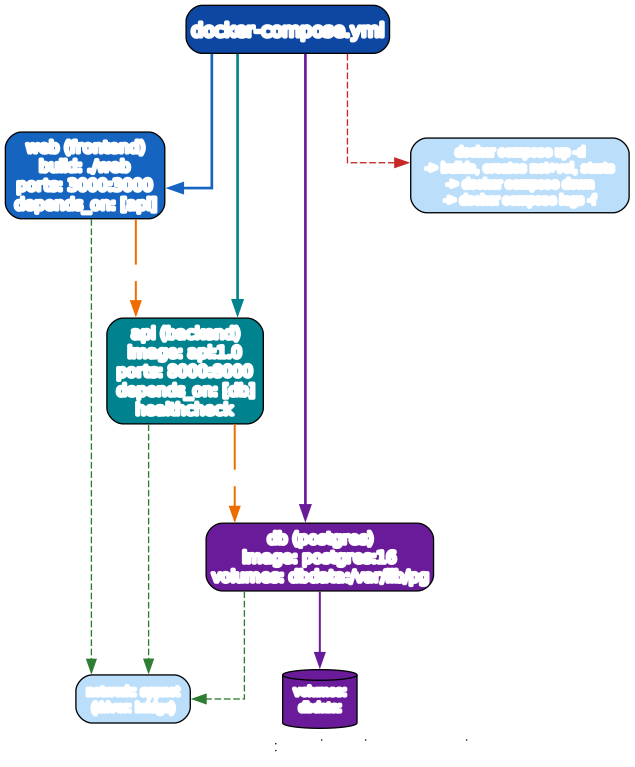
For anything beyond a single container, docker compose defines the whole stack in one docker-compose.yml:
# docker-compose.yml
services:
  web:
    build: ./web
    ports:
      - "3000:3000"
    depends_on:
      api:
        condition: service_healthy
    environment:
      API_URL: http://api:8000

  api:
    image: myapi:1.0
    ports:
      - "8000:8000"
    depends_on:
      db:
        condition: service_healthy
    environment:
      DATABASE_URL: postgres://app:secret@db:5432/app
    healthcheck:
      test: ["CMD", "curl", "-f", "http://localhost:8000/health"]
      interval: 10s
      timeout: 3s
      retries: 3

  db:
    image: postgres:16
    environment:
      POSTGRES_USER: app
      POSTGRES_PASSWORD: secret
      POSTGRES_DB: app
    volumes:
      - dbdata:/var/lib/postgresql/data
    healthcheck:
      test: ["CMD-SHELL", "pg_isready -U app"]
      interval: 5s
      retries: 5

volumes:
  dbdata:
docker compose up -d        # build/pull, create net+vol, start all
docker compose logs -f api  # follow one service's logs
docker compose ps           # status of all services
docker compose down         # stop and remove containers (volumes persist)
docker compose down -v      # also remove named volumes
docker compose build        # rebuild images
Pitfall:
depends_ononly waits for the container to start, not for the service to be ready. Usecondition: service_healthywith ahealthchecksoapidoesn’t connect todbbefore Postgres accepts connections.
Multi-stage builds
Multi-stage builds compile in one image and copy only the artifacts to a tiny final image — slashing image size and attack surface:
# Dockerfile (multi-stage)
FROM golang:1.22 AS build
WORKDIR /src
COPY go.mod go.sum ./
RUN go mod download
COPY . .
RUN CGO_ENABLED=0 go build -o /app -ldflags="-s -w" ./cmd/server

FROM alpine:3.19
RUN apk add --no-cache ca-certificates
COPY --from=build /app /usr/local/bin/app
USER nobody
ENTRYPOINT ["app"]
This produces a ~20 MB final image instead of a ~1 GB one that includes the Go toolchain.
.dockerignore
# .dockerignore
.git
node_modules
__pycache__
*.pyc
.env
.venv
dist
build
Excludes these from the build context, speeding builds and keeping secrets out of images.
Stage 5 — Production + Kubernetes
Smaller, safer images
- Prefer
slimoralpinebase images. - Use multi-stage builds to shed compilers and toolchains.
- Combine
RUNcommands with&&to reduce layers. - Run as a non-root user (
USER nobodyor a created user). - Pin base image versions (
python:3.12.4-slim, notpython:latest).
The toolchain
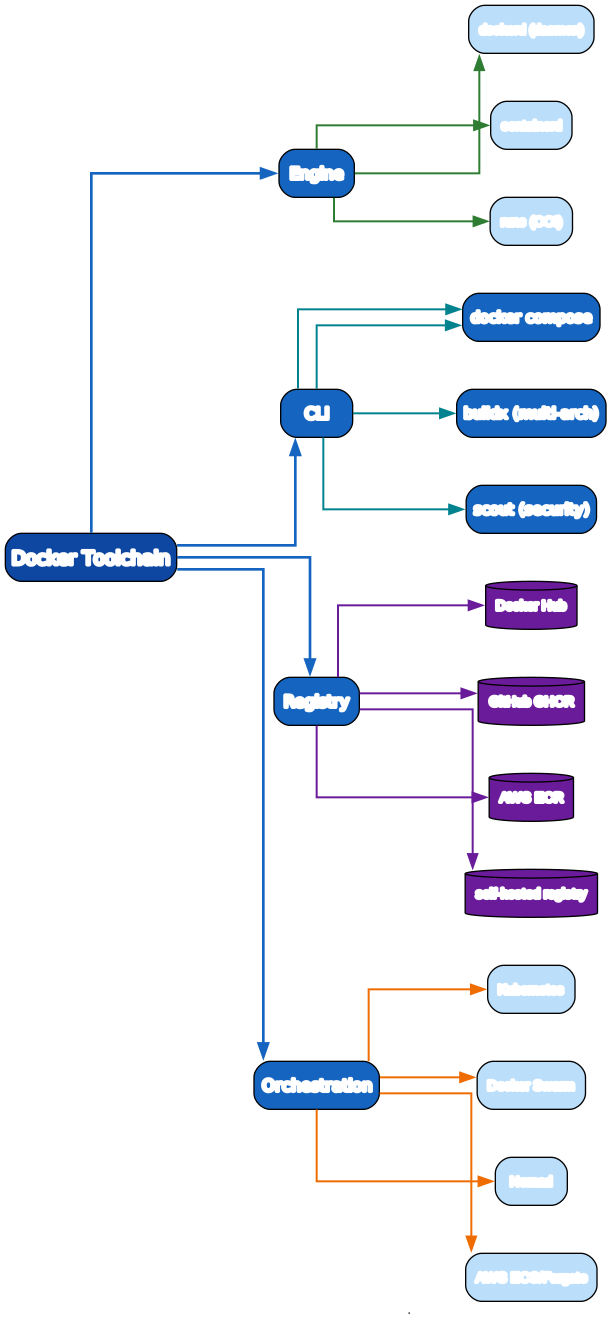
| Component | Role |
|---|---|
dockerd | The daemon (server) |
containerd / runc | The runtime that actually starts containers (OCI compliant) |
docker CLI | Client that talks to the daemon |
docker compose | Multi-service orchestration on one host |
buildx | Multi-architecture builds (amd64, arm64) |
docker scout | Image vulnerability scanning |
| Registry | Where images are pushed/pulled (Docker Hub, GHCR, ECR) |
Push to a registry
# tag for a registry (github container registry example)
docker tag myapi:1.0 ghcr.io/myuser/myapi:1.0
docker tag myapi:1.0 ghcr.io/myuser/myapi:latest
echo "$GHCR_TOKEN" | docker login ghcr.io -u myuser --password-stdin
docker push ghcr.io/myuser/myapi:1.0
docker push ghcr.io/myuser/myapi:latest
Pitfall: Avoid
:latestin production — it’s non-reproducible. Pin a version or git SHA tag so deploys are deterministic and rollbacks are real.
From Compose to Kubernetes
Compose is great for development and small single-host deployments. When you need multi-host, self-healing, autoscaling, rolling updates, or secret management, you graduate to Kubernetes:
- A Compose service ≈ a Kubernetes Deployment (+ Service for networking)
- A Compose volume ≈ a Kubernetes PersistentVolumeClaim
- A Compose healthcheck ≈ a Kubernetes livenessProbe/readinessProbe
docker compose up≈kubectl apply -fon a set of manifests
Tools like kompose convert docker-compose.yml to Kubernetes manifests to ease the transition. Concepts you learned in Docker (images, layers, healthchecks, env vars, volumes) transfer directly — Kubernetes orchestrates the same containers.
Quick-Start Checklist
- Install Docker — Docker Desktop (macOS/Windows) or
docker.iopackage (Linux). Verify withdocker run --rm hello-world. - Run an image —
docker run --rm -p 8080:80 nginx:alpine, visithttp://localhost:8080. - Write a Dockerfile for one of your projects,
docker build -t myapp:1.0 .. - Add a
.dockerignore— exclude.git, build dirs, secrets. - Persist data with a named volume (
-v data:/path). - Connect two containers on a user-defined network (
docker network create). - Write a
docker-compose.ymlfor a multi-service app,docker compose up -d. - Add a healthcheck so
depends_on: condition: service_healthyworks. - Convert to a multi-stage build and watch the image shrink.
- Push to a registry (GHCR is free for public/private), then pull and run elsewhere.
Common Pitfalls
- Running as root — containers running as root can escape more easily. Add
USER nobody. :latestin production — non-reproducible; pin explicit versions.- No
.dockerignore— bloated build context, secrets in images, slow builds. - Wrong layer order — copying source before dependencies invalidates the dependency cache on every code change.
- Default bridge network — no DNS between containers; create a user-defined bridge.
depends_onwithout healthcheck — service B connects before service A is ready.- Using bind mounts for persistent data — bind mounts are host-dependent and not portable; use named volumes for DBs.
- Large images — full Debian images with toolchains included; use multi-stage + slim/alpine.
- Forgetting
--rmon one-offs — stopped containers pile up;docker container pruneto clean.
Further Reading
- Docker Docs — the official reference
- Dockerfile best practices — official patterns
- Compose file reference — every key explained
- Play with Docker — free in-browser Docker lab
- Hadolint — a Dockerfile linter (like shellcheck for Dockerfiles)
Related guides
Docker sits at the center of the modern deployment stack — these adjacent PyShine tutorials complete the picture:
- Learn Bash in One Post: Complete Tutorial — Docker CLI,
docker compose, and CI scripts are all Bash; master the shell that wraps the engine. - Learn SQL in One Post: Complete Tutorial — containerize Postgres/MySQL, then query them.
- Learn Python in One Post: Complete Tutorial — the canonical
python:3.12-slimbase image and Dockerized FastAPI apps. - Learn Go in One Post: Complete Tutorial — Go’s static binaries pair perfectly with multi-stage builds (the example above).
- Learn Rust in One Post: Complete Tutorial — same multi-stage pattern, tiny final images.
Docker’s core ideas are small — images, layers, containers, volumes, networks — but they compound. Spend a day per stage and you’ll go from “I can run Enjoyed this post? Never miss out on future posts by following us docker run” to “I can build a slim production image, wire up a multi-service stack with Compose, and push it to a registry.” From there, Kubernetes is the natural next step, and the container mental model you built here transfers directly. Run every snippet above against a real Docker install; reading about containers is no substitute for building one.