Introduction
Desktop applications built with Electron have become notorious for their sheer size and resource consumption. A typical Electron-based wrapper around a web application ships a full Chromium rendering engine and a Node.js runtime, resulting in installers that easily exceed 100 MB and memory footprints that run into hundreds of megabytes for even the simplest utility. Developers who want to give a web service a native desktop presence are forced to choose between this heavyweight approach and telling users to simply open a browser tab. Neither option feels ideal for a modern, polished experience.
Pake offers a compelling alternative. It is a Rust and Tauri powered command-line tool that turns any URL into a native desktop application with a single command. The project has accumulated over 56,000 GitHub stars and is licensed under GPL-3.0 with an Output Exception, which means you can commercially distribute the apps you package without open-sourcing your own code. The key differentiators are striking: Pake produces installers that are roughly 20 times smaller than equivalent Electron apps, typically under 10 MB, and it supports cross-platform builds across macOS, Windows, and Linux, including ARM64 Linux targets.
The creator of Pake is Tw93, a prolific open-source developer known for a range of developer tools and productivity projects. Pake is actively maintained and currently sits at version 3.13.0, with regular updates that add new platform targets, plugin support, and quality-of-life improvements. The project has attracted a large community of contributors and users who appreciate the combination of simplicity, performance, and flexibility.
In this article, we will explore Pake in depth. We will start with its three-layer architecture, then cover installation prerequisites and commands, walk through real usage examples with the full CLI options table, examine its key features through a comparison with Electron and native browsers, detail the cross-platform build target matrix, trace the step-by-step CLI packaging workflow, and finish with a troubleshooting guide and curated links. By the end, you will have a thorough understanding of how Pake works and how to use it to package your own web applications into lightweight native desktop apps.
How It Works
Pake is built on a clean three-layer architecture that separates the developer-facing CLI from the Rust-based build system and the final native application output. Understanding these layers is essential for appreciating how Pake achieves its dramatic size reduction while maintaining full web compatibility.
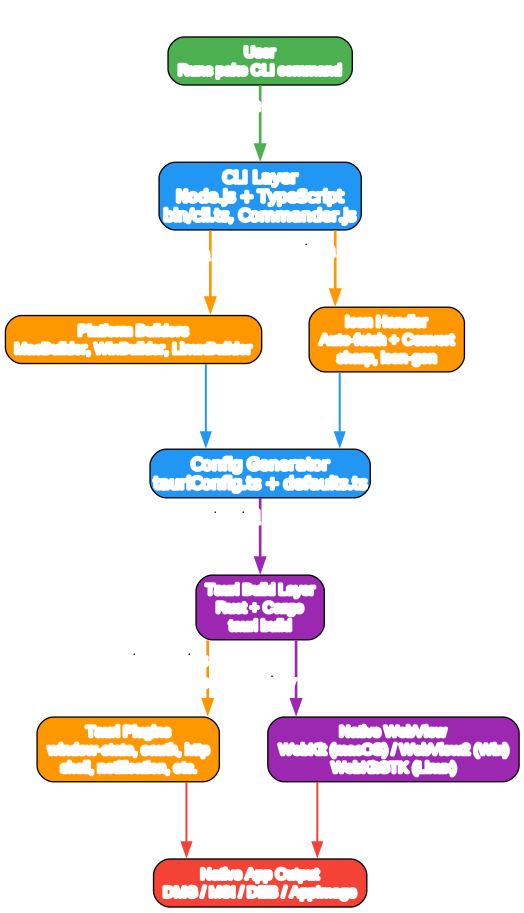
The first layer is the CLI Layer, implemented in Node.js and TypeScript. When a developer runs the pake command, the entry point in bin/cli.ts (compiled to dist/cli.js) takes over. This layer uses Commander.js for argument parsing, the prompts library for interactive input when required, and ora for terminal spinners that give visual feedback during long-running operations. The CLI is organized into several subdirectories under bin/: builders/ contains platform-specific builder classes (MacBuilder, WinBuilder, LinuxBuilder), helpers/ handles configuration merging and Rust installation, options/ manages icon handling and logging setup, and utils/ provides platform detection, URL validation, and target resolution utilities. This layer is responsible for parsing the user-supplied URL, application name, icon, and all customization options.
The second layer is the Tauri Build Layer, written in Rust. Once the CLI has parsed all options and generated a tauri.conf.json configuration file, it invokes tauri build under the hood. The Rust backend lives in src-tauri/ and uses Tauri version 2.10.2. It integrates a rich set of Tauri plugins: window-state for persistent window geometry, oauth for authentication flows, http for network requests, global-shortcut for keyboard shortcuts, shell and opener for launching external applications, single-instance to prevent duplicate app launches, and notification for system notifications. On macOS, the backend also uses objc2 and objc2-app-kit for deep native integration with AppKit frameworks.
The third layer is the Native App Output. Tauri compiles a native binary that embeds a platform-specific WebView rather than bundling a full browser engine. On macOS, it uses the system WebKit; on Windows, it uses WebView2 (the Edge-based renderer); on Linux, it uses WebKitGTK. The web content loads directly from the user-specified URL at runtime. The output formats vary by platform: DMG and .app bundles on macOS, MSI and EXE installers on Windows, and DEB, RPM, AppImage, and Arch zst packages on Linux.
The data flow is straightforward: the user runs pake <url> --name <name>, the CLI parses all options, fetches and converts the website icon if one was not explicitly provided, generates the Tauri configuration, invokes tauri build, the Rust compiler builds a native binary with the embedded WebView, and a platform-specific installer is produced in the current working directory.
A critical part of Pake’s size advantage comes from its Cargo release profile settings. The Cargo.toml specifies opt-level = "z" for size-optimized compilation, lto = "thin" for link-time optimization that strips dead code across compilation units, strip = true to remove debug symbols from the final binary, codegen-units = 1 to maximize optimization opportunities, and panic = "abort" to eliminate the unwinding machinery. Together, these settings produce binaries that are dramatically smaller than Electron’s bundled Chromium and Node.js runtime, which is why Pake installers typically land under 10 MB.
Installation
Before installing Pake, ensure your system meets the prerequisites. Pake requires Node.js version 18.0.0 or higher, with version 22.0 or later recommended for best performance and compatibility. You can download Node.js from the official website. Pake also requires Rust version 1.85.0 or higher; if Rust is not already installed, Pake will prompt to install it automatically, but you can also install it manually from the Rust installation page. On macOS and Linux, the system needs curl, wget, file, and tar available on the PATH for dependency management during the build process.
The installation itself is a single command. Pake is distributed as an npm package named pake-cli, and the binary it installs is called pake. You can install it globally using your preferred package manager:
# Recommended: install globally via pnpm
pnpm install -g pake-cli

# Alternative: install via npm
npm install -g pake-cli

# Run without global installation
npx pake-cli [url] [options]
Note the distinction: the npm package name is pake-cli, but the command you run after installation is simply pake. This is defined in the package.json under the bin field as "pake": "dist/cli.js".
If you encounter permission errors during a global npm install, you can fix the npm prefix to a user-writable directory:
# Fix npm permissions
npm config set prefix ~/.npm-global
echo 'export PATH=~/.npm-global/bin:$PATH' >> ~/.bashrc
source ~/.bashrc
Alternatively, you can skip the global install entirely and use npx pake-cli for one-off packaging runs. This downloads the package on demand without modifying your global environment.
Usage
Once installed, using Pake is as simple as providing a URL and a name. The most basic invocation auto-fetches the website’s favicon and converts it to the appropriate platform icon format:
# Basic - auto-fetches website icon
pake https://github.com --name "GitHub"
For more control, you can specify a custom icon, window dimensions, and visual options:
# Advanced with custom options
pake https://weekly.tw93.fun --name "Weekly" --icon https://cdn.tw93.fun/pake/weekly.icns --width 1200 --height 800 --hide-title-bar
A complete example with several options enabled:
pake https://github.com --name "GitHub Desktop" --width 1400 --height 900 --show-system-tray --debug
The following table lists all major CLI options available in Pake:
| Option | Description | Example |
|---|---|---|
--name | Application name (required) | --name "GitHub" |
--icon | Custom icon (auto-fetches if omitted) | --icon ./my-icon.png |
--width | Window width (default: 1200) | --width 1400 |
--height | Window height (default: 780) | --height 900 |
--hide-title-bar | Immersive header (macOS only) | --hide-title-bar |
--fullscreen | Launch in fullscreen | --fullscreen |
--maximize | Launch maximized | --maximize |
--show-system-tray | Show in system tray | --show-system-tray |
--dark-mode | Force dark mode | --dark-mode |
--incognito | Private browsing mode | --incognito |
--inject | Inject CSS/JS files | --inject ./style.css,./script.js |
--multi-arch | Universal macOS binary (Intel + Apple Silicon) | --multi-arch |
--targets | Build target format | --targets appimage |
--proxy-url | Proxy for network requests | --proxy-url http://127.0.0.1:7890 |
--debug | Enable dev tools | --debug |
--use-local-file | Package local HTML files | --use-local-file |
--install | Install to /Applications (macOS) | --install |
--multi-instance | Allow multiple app instances | --multi-instance |
--multi-window | Allow multiple windows per instance | --multi-window |
--wasm | Enable WebAssembly support | --wasm |
--enable-drag-drop | Enable native drag and drop | --enable-drag-drop |
For environments where you cannot install Node.js and Rust locally, Pake also provides an official Docker image. This is particularly useful for CI/CD pipelines or for building Linux packages from a macOS or Windows host:
docker run --rm --privileged \
    --device /dev/fuse \
    --security-opt apparmor=unconfined \
    -v ./packages:/output \
    ghcr.io/tw93/pake \
    https://example.com --name myapp --icon ./icon.png --targets appimage
The Docker image bundles all necessary build tools, so you only need Docker installed on your host machine. The output packages are written to the mounted ./packages directory.
Key Features
Pake’s feature set goes well beyond simple URL-to-app packaging. The following diagram compares Pake against Electron and a native browser across five key dimensions: binary size, memory usage, system integration, cross-platform support, and one-command packaging.
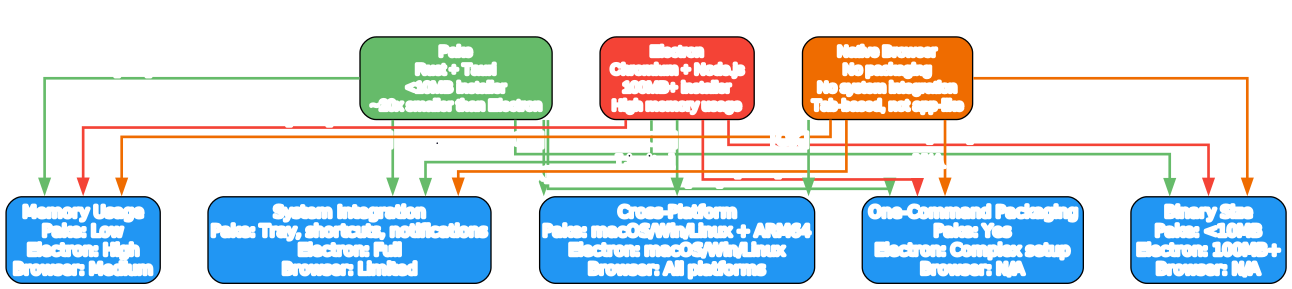
The comparison is stark. On binary size, Pake produces installers under 10 MB thanks to its Rust and Tauri foundation, while Electron apps routinely exceed 100 MB because they bundle a full Chromium engine and Node.js runtime. A native browser has no installer size to speak of, but it also provides no packaging at all. On memory usage, Pake’s use of the system WebView rather than a bundled renderer means it consumes far less RAM than Electron, which runs a complete browser process. Browsers fall in the middle since they are already loaded for other tasks.
System integration is where Pake shines relative to a plain browser. Pake apps can display a system tray icon, register global keyboard shortcuts, send native notifications, and appear in the application switcher as a first-class citizen. Electron offers full system integration as well, but at the cost of its massive footprint. A native browser offers only limited integration since web content lives inside a tab rather than a dedicated window. On cross-platform support, Pake covers macOS, Windows, and Linux including ARM64 Linux targets, which enables deployment on devices like the Raspberry Pi. Electron covers the three major desktop platforms but lacks ARM64 Linux support. Browsers run on all platforms but, again, provide no packaging.
The final dimension, one-command packaging, is Pake’s signature feature. A single pake <url> --name <name> invocation produces a ready-to-distribute installer. Electron requires a complex setup with electron-builder configuration, main process code, and build scripts. A browser offers no packaging at all.
The full feature table below summarizes everything Pake brings to the table:
| Feature | Description |
|---|---|
| Rust + Tauri Powered | Native performance, ~20x smaller than Electron, <10MB installers |
| Cross-Platform | macOS, Windows, Linux (including ARM64 Linux) |
| One-Command Packaging | CLI turns any URL into a desktop app |
| Auto Icon Fetching | Automatically retrieves and converts website icons to platform format |
| Extensive Customization | Window size, title bar, tray, dark mode, zoom, user-agent, proxy |
| Style Injection | Inject custom CSS/JS for ad removal or UI tweaks |
| Navigation Control | Internal URL regex, safe domains, force internal navigation |
| Multi-Arch Support | Universal macOS binaries, ARM64 Linux packages |
| GitHub Actions Integration | Online building without local environment (action.yml) |
| Docker Support | Containerized builds via ghcr.io/tw93/pake |
| Privacy Features | Incognito mode, certificate error handling |
| Advanced Windowing | Multi-instance, multi-window, always-on-top, activation shortcuts |
| WebAssembly Support | Enable WASM for Flutter Web and similar apps |
| Drag and Drop | Native drag-drop functionality |
| In-Page Find | Built-in find UI (Cmd/Ctrl+F) |
A few standout features deserve deeper explanation. Style Injection lets you pass custom CSS and JavaScript files via --inject ./tools/style.css,./tools/hotkey.js. This is invaluable for removing advertisements, adjusting layouts, or adding custom keyboard shortcuts to web apps that you do not control. The injected files are bundled into the app at build time and applied to every page load.
Navigation Control uses --internal-url-regex and --safe-domain options to manage how links within the app are handled. This is particularly useful for single sign-on (SSO) flows where authentication redirects to external domains. You can define which URLs should open inside the app window and which should be delegated to the system browser, preventing the app from navigating away from the intended content.
Multi-arch builds on macOS use the --multi-arch flag to produce a universal binary that runs natively on both Intel (x86_64) and Apple Silicon (ARM64) Macs. This eliminates the need to ship separate installers or rely on Rosetta translation, giving users the best performance on their specific hardware.
GitHub Actions Integration allows you to build Pake apps entirely in the cloud without a local Rust or Node.js environment. The repository includes an action.yml and documentation in docs/github-actions-usage.md that shows how to trigger a build from a workflow file, making it easy to automate app packaging as part of a release pipeline.
Cross-Platform Build Targets
One of Pake’s most powerful aspects is its comprehensive cross-platform build target matrix. The diagram below shows every supported target, organized into three platform clusters.

On macOS, Pake supports three architecture variants. The intel target produces a binary for x86_64 Macs, the apple target produces a binary for Apple Silicon (ARM64) Macs, and the universal target (used with --multi-arch) produces a single universal binary that runs natively on both architectures. For output formats, macOS supports dmg (the default, producing a disk image installer) and app (producing a raw .app bundle). You select these with the --targets option, for example --targets app or --targets dmg.
On Windows, Pake supports x64 (auto-detected on 64-bit Intel/AMD systems) and arm64 for Windows on ARM devices. The output formats are MSI and EXE installers, which are generated automatically by the Tauri bundler based on the build environment.
On Linux, Pake offers the richest set of targets. For x64 systems, it supports deb (Debian/Ubuntu), rpm (Fedora/RHEL), appimage (portable single-file app), and zst (Arch Linux pacman package). For ARM64 systems, it supports deb-arm64, appimage-arm64, rpm-arm64, and zst-arm64. This ARM64 Linux support is particularly notable because it enables Pake to package apps for devices like the Raspberry Pi, Linux phones running postmarketOS or Ubuntu Touch, and ARM-based cloud instances.
Cross-compilation between architectures requires the appropriate Rust target to be installed. Intel Mac users who want to build for Apple Silicon need to run rustup target add aarch64-apple-darwin, while M1 users who want to build for Intel need rustup target add x86_64-apple-darwin. Pake uses rustup-managed toolchains for multi-arch builds, so it is important to install Rust via rustup rather than a system package manager like Homebrew if you plan to use the --multi-arch feature.
On RPM-based Linux distributions, the Tauri bundler may sometimes abort due to missing packaging tools. In such cases, the --no-bundle flag tells Pake to skip the packaging step and output the raw executable instead, which you can then run directly or package manually.
CLI Packaging Workflow
To understand exactly what happens when you run a pake command, the following diagram traces the step-by-step packaging workflow from URL input to final installer output.
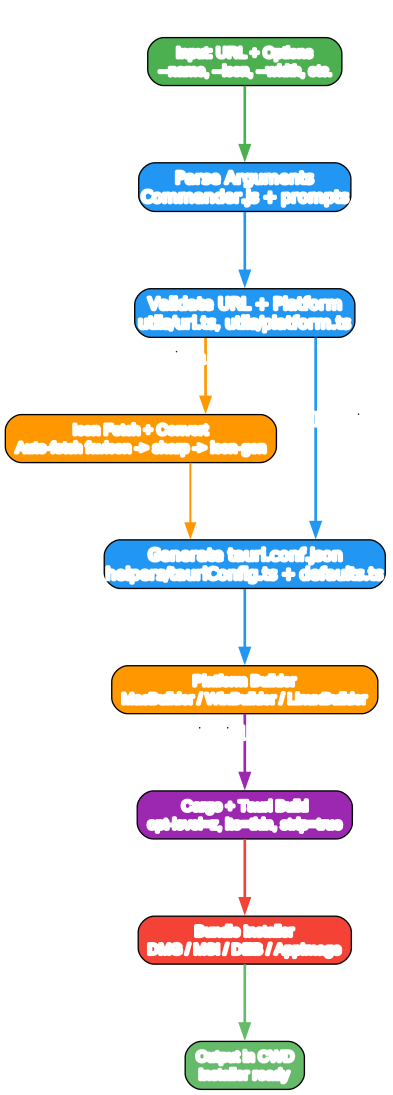
The workflow begins with Input Parsing. The entry point bin/cli.ts uses Commander.js to parse the command-line arguments, extracting the target URL and all options such as --name, --icon, --width, and --height. If required arguments are missing, the prompts library interactively asks the user for them. The bin/options/ directory handles icon option processing and logger setup, while bin/utils/ validates the URL format, detects the current platform, and resolves the build target.
Next is Validation. The utils/url.ts module checks that the provided URL is well-formed and reachable, and utils/platform.ts determines whether the build is targeting macOS, Windows, or Linux. This step also decides whether icon fetching is needed: if the user provided an --icon flag, the flow skips the fetch step and proceeds directly to configuration generation.
The Icon Fetch and Convert step activates when no --icon is supplied. The bin/options/icon.ts module automatically fetches the website’s favicon, then uses the sharp image processing library and icon-gen to convert it into the platform-appropriate format: .icns for macOS, .ico for Windows, and .png for Linux. This auto-fetching is one of Pake’s most convenient features, as it eliminates the need to manually source and convert icons.
Config Generation is handled by bin/helpers/tauriConfig.ts, which merges the user-supplied options with sensible defaults from bin/defaults.ts into a complete tauri.conf.json file. The platform-specific builders (MacBuilder, WinBuilder, LinuxBuilder) then customize this configuration with platform-specific settings such as bundle identifiers, icon paths, and window properties.
The Cargo and Tauri Build step is where the heavy lifting happens. The CLI invokes tauri build, which triggers the Cargo compilation of the Rust backend in src-tauri/. The release profile in Cargo.toml applies aggressive size optimizations: opt-level = "z" for size-optimized code generation, lto = "thin" for cross-module dead code elimination, strip = true for removing debug symbols, codegen-units = 1 for maximum optimization, and panic = "abort" to remove the unwinding machinery. The Tauri plugins are compiled into the binary at this stage.
Finally, the Bundle Installer step packages the compiled binary into a platform-specific installer format (DMG, MSI, DEB, AppImage, etc.) and places it in the current working directory. The first build is typically slow because Cargo must compile all Rust dependencies from scratch, but subsequent builds benefit from Cargo’s incremental compilation cache and complete much faster.
Troubleshooting
1. Rust not installed or installation fails: Pake automatically prompts to install Rust if it is not found on your system. If the automatic installation fails or times out, install Rust manually from https://rust-lang.org/tools/install. Verify the installation by running rustc --version, which should report version 1.85.0 or higher.
2. Node.js version too old: Pake requires Node.js version 18.0.0 or higher, with version 22.0 or later recommended. Check your version with node --version. If you are running an older version, download the latest LTS release from https://nodejs.org/ and install it before retrying.
3. Permission denied on global install: If npm install -g pake-cli fails with a permission error, either use npx pake-cli for one-off runs, or fix the npm global prefix to a user-writable directory:
npm config set prefix ~/.npm-global
echo 'export PATH=~/.npm-global/bin:$PATH' >> ~/.bashrc
source ~/.bashrc
4. Icon fetching fails: If Pake cannot automatically fetch or convert the website icon, provide a custom icon with the --icon <path> option. This accepts both local file paths and remote URLs. Good icon sources include icon-icons.com and macosicons.com. Supported formats are .icns for macOS, .ico for Windows, and .png for Linux.
5. macOS multi-arch build fails: Multi-arch builds require rustup-managed Rust toolchains, not a Homebrew-installed Rust. If you installed Rust via Homebrew, uninstall it and install via rustup instead. Intel users need to add the Apple Silicon target with rustup target add aarch64-apple-darwin, and M1 users need to add the Intel target with rustup target add x86_64-apple-darwin.
6. Linux RPM-based distro build aborts: On RPM-based distributions (Fedora, RHEL, CentOS), the Tauri bundler may abort if the required packaging tools are not installed. Use the --no-bundle flag to skip packaging and output the raw executable, which you can then run directly or package with your distribution’s tools.
7. Google sign-in rejected inside app: Some authentication providers, notably Google, block sign-in attempts from embedded WebViews for security reasons. This is a limitation of the webview approach, not a Pake bug. You can try --multi-window or --new-window options, but note that Google may still reject the login. In such cases, sign in via a regular browser and use cookies or alternative authentication methods if available.
8. First build is slow: The first time you package an app, Cargo must compile all Rust dependencies from source, which can take several minutes depending on your machine. This is normal. Subsequent builds are significantly faster because Cargo caches compiled dependencies and only recompiles what has changed.
Conclusion
Pake bridges the gap between web applications and native desktop experiences using the power of Rust and Tauri. By leveraging the system WebView instead of bundling a full browser engine, it eliminates the Electron bloat problem while still providing rich customization, system integration, and cross-platform support. The result is installers under 10 MB that run with a fraction of Electron’s memory footprint.
For developers and power users, Pake means you can take any web service – ChatGPT, GitHub, Notion, a custom internal tool – and package it into a lightweight native desktop app in seconds with a single command. The auto icon fetching, extensive CLI options, style injection, and multi-arch build support make it suitable for both quick personal wrappers and polished distributable applications.
With over 56,000 GitHub stars, active development, and a GPL-3.0 license with an Output Exception that permits commercial distribution of packaged apps, Pake has established itself as a go-to tool in the Rust and Tauri ecosystem. Whether you are a developer looking to ship a desktop version of your web app or a power user who wants a dedicated window for your favorite web service, Pake provides a fast, lightweight, and remarkably capable solution.
Links
- Pake GitHub Repository
- Tauri Framework
- Rust Programming Language
- Rust Installation
- Node.js
- Tauri GitHub
Related Posts
- Chatwoot: Open-Source Omni-Channel Customer Support Platform
- Apple Container: Lightweight VM-Based Containerization for macOS

Enjoyed this post? Never miss out on future posts by following us


