DesktopCommanderMCP: Terminal and Filesystem Control for Claude
Most AI coding assistants live in a sandbox. They can read a file you paste in, suggest a change, and wait for you to apply it. They cannot run your tests, search your codebase, edit a spreadsheet, or tail a log. DesktopCommanderMCP changes that. It is an MCP (Model Context Protocol) server that hands Claude, Cursor, VS Code Copilot, Windsurf, and even ChatGPT and Claude on the web direct, governed access to your terminal, filesystem, and editing surface.
With over 7,600 stars on GitHub and an MIT license, DesktopCommanderMCP has become one of the most popular ways to turn an AI assistant into a genuine system operator. Let us look at how it works, what tools it exposes, and why the design choices matter.
Architecture Overview
DesktopCommanderMCP sits between your AI client and your operating system. The client speaks the Model Context Protocol; the server translates those requests into real terminal commands, file reads and writes, and block-level edits on your host.
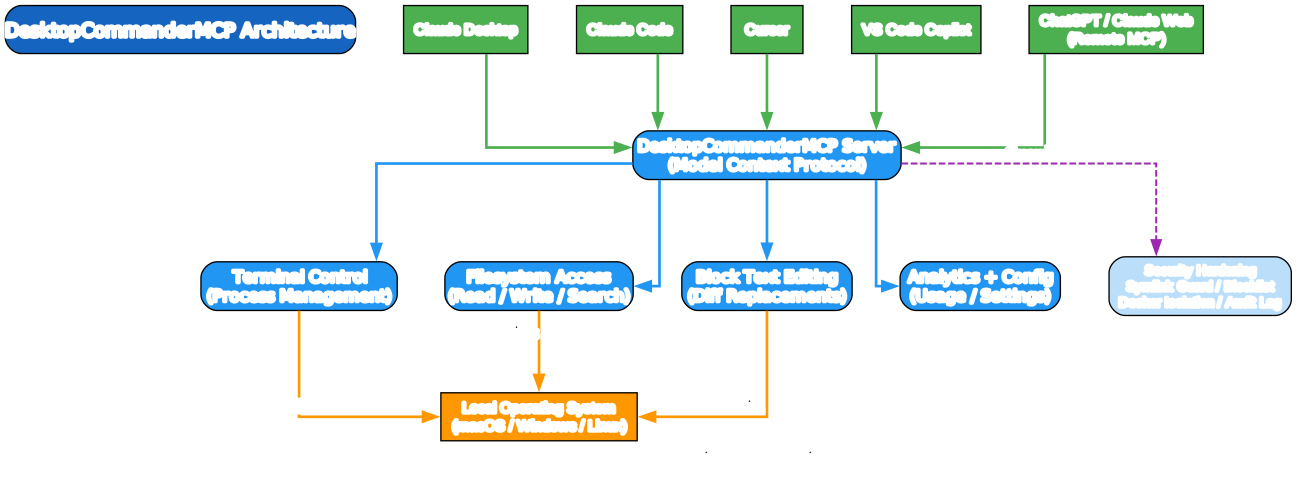
The architecture has four moving parts:
- AI clients: Claude Desktop, Claude Code, Cursor, VS Code Copilot, Windsurf, Cline, Roo Code, JetBrains AI Assistant, and via Remote MCP even ChatGPT and Claude on the web
- DesktopCommanderMCP server: the MCP server that receives tool calls and dispatches them to capability layers
- Capability layers: terminal control, filesystem access, block text editing, and analytics/config
- Host operating system: macOS, Windows, or Linux, where the work actually happens
Crucially, the server is not a thin passthrough. It wraps every operation in a security layer — symlink traversal prevention, a command blocklist, optional Docker isolation, and an audit log that rotates at 10MB. The AI never gets raw shell access; it gets a controlled, observable tool surface.
Key Features
DesktopCommanderMCP stands out because it treats system control as a serious engineering problem rather than a demo. Four pillars define the experience.

Terminal Control
The terminal tools go well beyond “run a command and return.” start_process launches programs with readiness detection, so the AI knows when a server is actually listening rather than guessing from a timer. interact_with_process sends input to a running session and reads back its response, which means the AI can drive an interactive REPL, a prompt, or a long-lived dev server. read_process_output paginates output to prevent context overflow — a practical detail that matters when a build spews thousands of lines.
Because processes are tracked as sessions, the AI can list active sessions, force-terminate one, or kill by PID. This is real process management, not a one-shot exec.
Smart File Operations
File reading and writing handle formats that most filesystem MCP servers ignore. read_file reads local files, URLs, Excel, and PDFs with pagination. write_file supports writing Excel via a JSON 2D array format. write_pdf creates or modifies PDFs from markdown with HTML, CSS, and SVG support. There is even negative-offset reading — Unix tail semantics — so the AI can read just the end of a large log file without loading it all.
start_search performs streaming search by filename or content, including inside Excel files, with paginated results via get_more_search_results. For large codebases this is the difference between a useful search and one that blows the context window.
Surgical Edits
edit_block does targeted text replacement rather than whole-file rewrites. For text files it swaps a specific block; for Excel it supports range-based cell updates. A fuzzy-match fallback means an edit still lands even when the surrounding text has drifted slightly — a common reality in actively edited files. This is the same philosophy as diff-based patching: change the minimum, preserve the rest.
Security Hardened
This is the pillar that separates a toy from a tool you would actually install. DesktopCommanderMCP includes:
- Symlink traversal prevention so a crafted path cannot escape the intended directory
- A command blocklist to forbid dangerous operations
- Docker isolation for the macOS/Linux install path, so the server runs contained
- Audit logging with 10MB rotation, giving you a replayable record of everything the AI did
Together these mean you can hand an AI real system access and still have a defensible boundary.
The MCP Tool Surface
DesktopCommanderMCP exposes a focused set of tools grouped into four categories. Each tool is a discrete capability the AI can call through MCP.

The full tool surface:
- Configuration:
get_config,set_config_value - Terminal:
start_process,interact_with_process,read_process_output,force_terminate,list_sessions,list_processes,kill_process - Filesystem:
read_file,read_multiple_files,write_file,write_pdf,create_directory,list_directory,move_file,start_search,get_more_search_results,stop_search,list_searches,get_file_info - Text Editing:
edit_block - Analytics:
get_usage_stats,get_recent_tool_calls,give_feedback_to_desktop_commander
The get_recent_tool_calls and get_usage_stats tools are worth noting — they let the AI (and you) inspect what has been happening, which closes the loop on observability.
Install and Workflow
Getting started is a single command, and the server works with both local MCP clients (Claude Desktop) and remote ones (ChatGPT and Claude on the web).
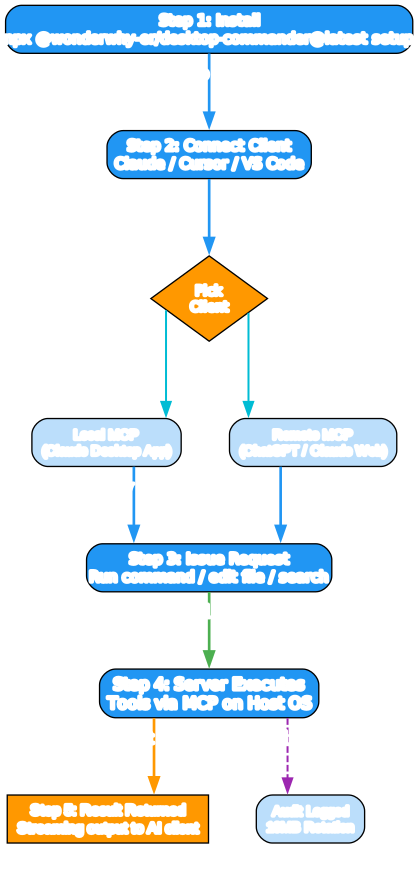
Installation
The primary install path is a one-liner via npx:
npx @wonderwhy-er/desktop-commander@latest setup
For macOS and Linux there is also a Docker variant, which is the recommended path if you want the server fully containerized:
bash <(curl -fsSL https://raw.githubusercontent.com/wonderwhy-er/DesktopCommanderMCP/refs/heads/main/install-docker.sh)
The Docker image is published as mcp/desktop-commander:latest.
Connect a Client
Once the server is running, point an MCP-compatible client at it. Local clients like Claude Desktop connect directly; remote clients like ChatGPT and Claude on the web reach it through Remote MCP. The server uses host client subscriptions rather than API token costs, so you are not paying per tool call.
Issue a Request
From your client, ask the AI to do real work: run a test suite and read the failures, search the codebase for a symbol, edit a config block, or generate a PDF from markdown. The AI picks the right tool from the surface above, the server executes it on your host, and the streaming output comes back to the AI to reason about.
Comparison With Alternatives
How does DesktopCommanderMCP compare to other ways of giving an AI system access?
| Feature | DesktopCommanderMCP | MCP Filesystem Server | Raw Shell Tool | Cloud Code Interpreter |
|---|---|---|---|---|
| Terminal Sessions | Yes (interactive) | No | One-shot | No |
| Excel / PDF / DOCX | Yes | No | Manual | Partial |
| Diff-Based Edits | Yes (edit_block) | No | No | No |
| Streaming Search | Yes | Limited | Manual | No |
| Security Hardening | Yes (blocklist, audit, Docker) | Partial | None | Sandboxed |
| Remote MCP | Yes | No | N/A | N/A |
| License | MIT | MIT | N/A | Proprietary |
The standard MCP Filesystem Server gives a client read access to files but stops there. A raw shell tool can run commands but offers no session management, no edit semantics, and no guardrails. A cloud code interpreter is sandboxed but cannot touch your local machine at all. DesktopCommanderMCP occupies the middle ground: real system access, structured tools, and a security layer that makes that access defensible.
The Open Source Advantage
DesktopCommanderMCP is MIT licensed and built in TypeScript with a JavaScript core. The distribution is via npm as @wonderwhy-er/desktop-commander, which means updates are a @latest bump away and the code is open for inspection. Given that this server runs commands on your machine, being able to read the source and audit the security claims yourself is not a nice-to-have — it is the whole point.
The project supports an unusually broad client list: Claude Desktop, Claude Code, Cursor, Windsurf, VS Code / GitHub Copilot, Cline, Roo Code, Trae, Kiro, Codex (OpenAI), JetBrains AI Assistant, Gemini CLI, Augment Code, Qwen Code, and ChatGPT/Claude Web via Remote MCP. That breadth means you can standardize on one server across many tools.
What Is Coming Next
The project is actively maintained. Based on the current trajectory and the Remote MCP addition, the interesting directions are tighter remote-client support, more structured file formats, and richer analytics on tool usage. The audit log and get_recent_tool_calls tool already hint at a future where you can replay and understand exactly what an AI did on your system.
Conclusion
DesktopCommanderMCP is the missing layer between an AI assistant and your actual machine. By exposing terminal control, smart file operations, surgical edits, and analytics through the Model Context Protocol — and wrapping it all in symlink guards, a command blocklist, Docker isolation, and an audit log — it makes “let the AI run my system” a reasonable thing to do.
If you use Claude, Cursor, or Copilot for real work and have been frustrated by the sandbox wall, DesktopCommanderMCP is worth setting up today. It is open source under MIT, it installs in one command, and it works with the client you are already using.
Links:
- GitHub: https://github.com/wonderwhy-er/DesktopCommanderMCP
- Install:
npx @wonderwhy-er/desktop-commander@latest setup - npm package:
@wonderwhy-er/desktop-commander - Docker image:
mcp/desktop-commander:latest - License: MIT

Enjoyed this post? Never miss out on future posts by following us


