Open Notebook: The Open Source NotebookLM Alternative with Multi-Model AI and Podcast Generation
Open Notebook is an open source NotebookLM alternative that puts you in control of your research data, your AI models, and your costs. With over 30,000 stars on GitHub, this privacy-focused research assistant supports 18+ AI providers including OpenAI, Anthropic, Google, and local models via Ollama, features dual search modes (BM25 text search and vector semantic search), generates multi-speaker podcasts with custom voice profiles, and exposes a full REST API for programmatic integrations. Unlike Google NotebookLM, which locks your data into Google’s cloud and limits you to Google’s AI models, Open Notebook runs on your infrastructure and lets you choose how your research is processed, stored, and shared.
Key Insight: Open Notebook gives you complete data sovereignty with 18+ AI provider options including local models via Ollama – meaning your sensitive research never has to leave your infrastructure, and you can optimize costs by choosing cheaper providers or running entirely offline.
Open Notebook vs Google NotebookLM
Google NotebookLM popularized the concept of an AI-powered research notebook, but it comes with significant limitations: your data lives on Google’s servers, you can only use Google’s AI models, and there is no API for automation. Open Notebook addresses every one of these constraints.
| Feature | Open Notebook | Google NotebookLM | Advantage |
|---|---|---|---|
| Privacy and Control | Self-hosted, your data | Google cloud only | Complete data sovereignty |
| AI Provider Choice | 18+ providers (OpenAI, Anthropic, Ollama, LM Studio, etc.) | Google models only | Flexibility and cost optimization |
| Podcast Speakers | 1-4 speakers with custom profiles | 2 speakers only | Extreme flexibility |
| Content Transformations | Custom and built-in | Limited options | Unlimited processing power |
| API Access | Full REST API | No API | Complete automation |
| Deployment | Docker, cloud, or local | Google hosted only | Deploy anywhere |
| Citations | Basic references (improving) | Comprehensive with sources | Research integrity |
| Customization | Open source, fully customizable | Closed system | Unlimited extensibility |
| Cost | Pay only for AI usage | Free tier + Monthly subscription | Transparent and controllable |
The comparison makes it clear: Open Notebook is built for users who need control over their data, flexibility in AI model selection, and the ability to extend and integrate their research tools. Whether you are a researcher handling sensitive data, a developer building AI-powered workflows, or a team that needs to standardize on specific AI providers, Open Notebook gives you the freedom that proprietary alternatives cannot.
Takeaway: The most compelling advantage of Open Notebook over NotebookLM is not any single feature – it is the combination of privacy, flexibility, and cost control. You can run it locally with Ollama for zero API costs, switch between 18+ AI providers based on task, and generate podcasts with up to 4 custom speakers instead of being locked into Google’s 2-speaker format.
Architecture and How It Works
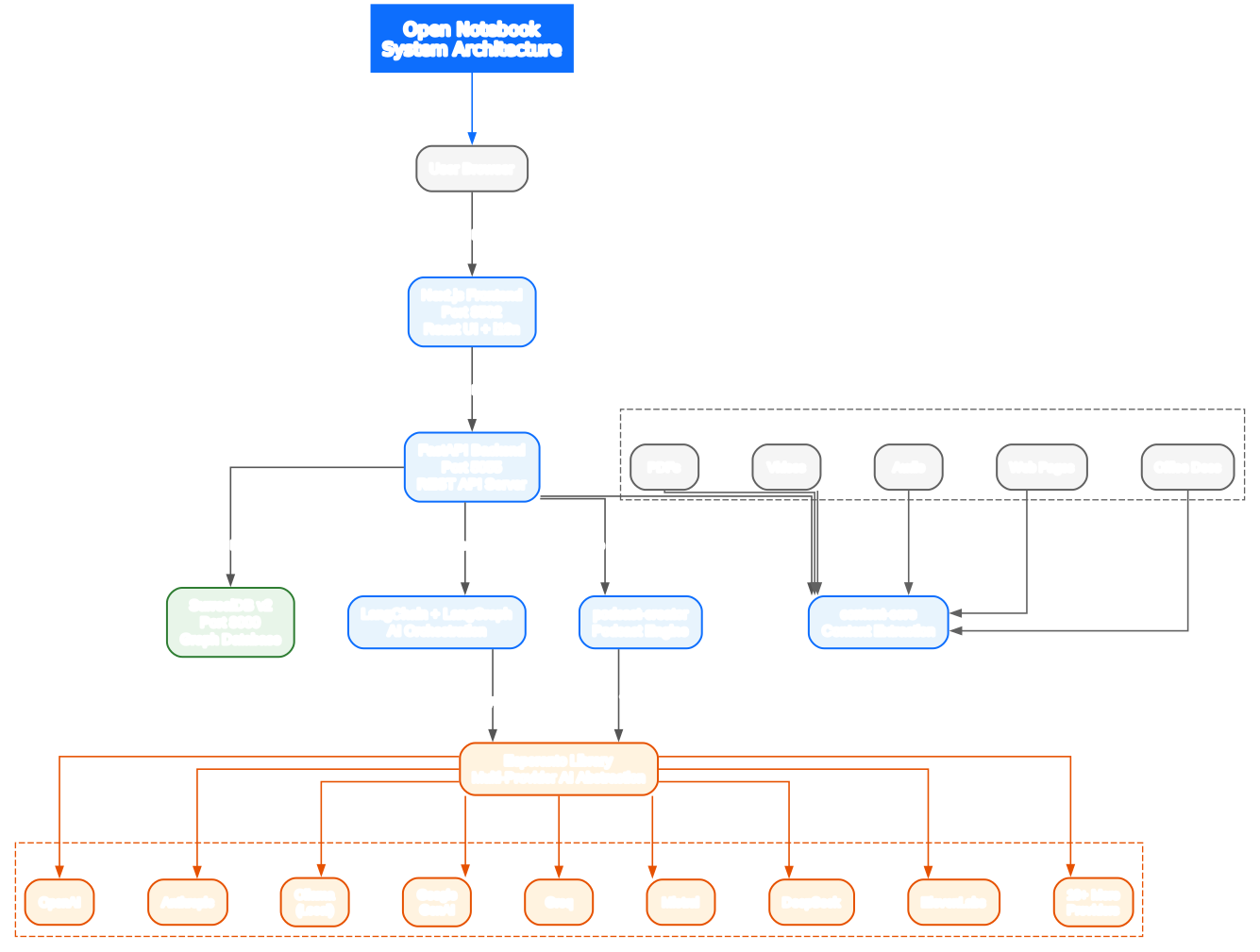
Open Notebook is a full-stack application with two main components: a Python/FastAPI backend and a Next.js/React frontend, connected through a SurrealDB graph database.
Understanding the Architecture
The architecture diagram above illustrates how data flows through the Open Notebook system, from user interaction to AI processing and back. Let us break down each component:
User Browser and Frontend
The user accesses Open Notebook through a modern Next.js/React web interface running on port 8502. This frontend provides the complete user experience: creating notebooks, adding sources, configuring AI models, chatting with your research, generating podcasts, and managing all aspects of your research workflow. The frontend supports 6 languages including English, Portuguese, Chinese (Simplified and Traditional), Japanese, Russian, and Bengali, making it accessible to a global audience.
FastAPI Backend (Port 5055)
All business logic flows through the FastAPI REST API server. This Python backend handles notebook management, source ingestion, AI model orchestration, search operations, podcast generation, and user authentication. The API follows RESTful conventions with full CRUD operations for notebooks, sources, notes, chat sessions, transformations, and credentials. An interactive Swagger UI is available at /docs for live API testing and exploration.
SurrealDB (Port 8000)
Open Notebook uses SurrealDB v2 as its graph database, which provides several advantages over traditional document databases. SurrealDB supports GraphQL queries, enables complex relationship modeling between notebooks, sources, and notes, and handles vector similarity search natively for RAG operations. The database stores all your research data, embeddings, chat history, and podcast configurations locally on your infrastructure.
Esperanto Library
The Esperanto library is the multi-provider AI abstraction layer that makes Open Notebook’s flexibility possible. It provides a unified interface for 18+ AI providers across four operation types: large language models (LLM), text embeddings, speech-to-text (STT), and text-to-speech (TTS). This means you can switch from OpenAI GPT-4 to Anthropic Claude to a local Ollama model with just a configuration change – no code modifications required. The provider support matrix includes OpenAI, Anthropic, Google GenAI, Vertex AI, Ollama, Groq, Mistral, DeepSeek, xAI, OpenRouter, ElevenLabs, Deepgram, Voyage, DashScope, MiniMax, Azure OpenAI, Perplexity, and any OpenAI-compatible endpoint.
Content Processing (content-core)
When you add a source to a notebook, the content-core library handles extraction and processing. It supports PDFs, videos, audio files, web pages, Office documents, and plain text. The extraction pipeline converts each format into text, then chunks it into approximately 400-token segments (configurable via OPEN_NOTEBOOK_CHUNK_SIZE), creates vector embeddings for semantic search, and stores everything in SurrealDB for retrieval.
Podcast Engine (podcast-creator)
The podcast generation system is one of Open Notebook’s standout features. It supports 1-4 custom speakers with rich profiles including expertise, personality, and accent configuration. The system generates episode outlines, creates dialogue based on your research content, and converts it to audio using your configured TTS providers. Podcast generation runs asynchronously so it does not block your work.
LangChain and LangGraph
AI orchestration is handled through LangChain and LangGraph, which manage the complex workflows involved in chat conversations, RAG-powered search, content transformations, and podcast generation. LangGraph provides graph-based workflow management that ensures each AI operation follows the correct sequence of steps.
Amazing: Open Notebook’s Esperanto library provides a unified abstraction over 18+ AI providers, handling LLM, embedding, speech-to-text, and text-to-speech operations through a single interface. This means you can switch from OpenAI to Anthropic to a local Ollama model with just a configuration change – no code modifications required.
Core Features Deep Dive

Understanding the Features
The features diagram above organizes Open Notebook’s capabilities into six major categories. Here is a detailed look at each:
Content Management
Open Notebook organizes your research into notebooks, each acting as a scoped container for related sources and notes. You can add content from virtually any format: PDFs, YouTube videos, audio recordings, web pages, Office documents, and plain text. When a source is added, the system automatically extracts text, chunks it into searchable segments, creates vector embeddings, and stores everything in SurrealDB. This processing pipeline means your content is immediately available for search, chat, and transformation operations.
AI Interaction
Three distinct interaction modes give you flexibility in how you work with AI:
-
Chat sends the full content of your selected sources to the LLM, providing maximum context for conversational exploration. You manually select which sources to include and set context levels (full content, summary only, or excluded). This mode is ideal for close reading, detailed analysis, and back-and-forth conversations about specific documents.
-
Ask uses Retrieval-Augmented Generation (RAG) to automatically search across all your sources and retrieve only the most relevant chunks. You ask a single question and get a comprehensive answer with citations. This mode is ideal when you have many sources and need the AI to find relevant information automatically.
-
Transformations apply template-based extraction rules to your sources. You define what you want extracted (summaries, key points, action items, custom templates) and the system processes your content accordingly. Transformations are reusable across sources, making them powerful for systematic analysis.
Intelligent Search
Open Notebook provides two complementary search strategies. BM25 text search (the same algorithm Google uses) finds exact phrases and keywords, perfect for locating specific names, numbers, or quotes. Vector semantic search finds conceptually related content even when worded differently, ideal for exploring ideas and discovering connections. Both search modes return results with source citations, so you can always verify where information came from.
AI Providers
The 18+ provider support means you are never locked into a single AI vendor. You can use OpenAI for chat, Anthropic for analysis, a local Ollama model for privacy-sensitive work, and ElevenLabs for podcast voices – all within the same notebook. The provider matrix covers LLM, embedding, STT, and TTS operations, with each provider supporting different combinations. For complete privacy, Ollama lets you run models locally with zero data leaving your infrastructure.
Podcast Generation
The podcast system transforms your research into audio dialogue. You create speaker profiles with expertise, personality, and accent, define episode profiles with topic, tone, and length, and the system generates a structured outline, writes dialogue, and converts it to audio using your chosen TTS providers. Multiple TTS options (OpenAI, Google, ElevenLabs, local) let you balance quality, cost, and privacy.
Platform
Open Notebook is designed for deployment flexibility. Docker Compose gets you running in 2 minutes, the full REST API enables programmatic access, MCP integration connects with Claude Desktop and VS Code, and the UI supports 6 languages. Optional password protection secures public deployments.
Podcast Generation System
One of Open Notebook’s most distinctive features is its professional podcast generation system. Unlike Google NotebookLM, which limits you to 2 speakers in a fixed conversational format, Open Notebook gives you full creative control over your audio content.
The podcast generation process follows six stages:
-
Content Selection – Choose which sources and notes from your notebook to include in the podcast. You control the depth and focus of the content.
-
Episode Profile – Define the podcast’s topic, target length, tone (academic, casual, debate), format (monologue, interview, panel), and intended audience.
-
Speaker Configuration – Create 1-4 speaker personas, each with defined expertise, personality traits, and accent preferences. Each speaker can use a different TTS provider.
-
Outline Generation – The AI generates a structured episode outline based on your content and profile settings, organizing the discussion into sections with time allocations.
-
Dialogue Generation – The system writes natural dialogue for each speaker based on the outline, incorporating their defined expertise and personality.
-
Text-to-Speech – Dialogue is converted to audio using your configured TTS providers. Multiple providers can be used in the same episode (for example, OpenAI for one speaker and ElevenLabs for another).
The entire process runs asynchronously, so you can continue working while your podcast generates. If generation fails (wrong model configuration, expired API key, provider outage), the episode is marked with a clear error message and a retry button.
Cost varies by TTS provider. A 30-minute podcast costs approximately $0.45 with OpenAI, $0.12 with Google, $3.00 with ElevenLabs, or nothing with local TTS (though local TTS is slower and lower quality).
Installation and Deployment
Getting Open Notebook running takes just 2 minutes with Docker Compose.
Prerequisites
- Docker Desktop installed
- That is it – API keys are configured later in the UI
Quick Start
Step 1: Download the docker-compose.yml file:
curl -o docker-compose.yml https://raw.githubusercontent.com/lfnovo/open-notebook/main/docker-compose.yml
Step 2: Set your encryption key by editing docker-compose.yml and changing:
- OPEN_NOTEBOOK_ENCRYPTION_KEY=change-me-to-a-secret-string
to any secret value (for example, my-super-secret-key-123). This key encrypts your API credentials in the database.
Step 3: Start the services:
docker compose up -d
Wait 15-20 seconds, then open http://localhost:8502 in your browser.
Step 4: Configure your AI provider:
- Go to Models and choose your provider (OpenAI, Anthropic, Google, Ollama, etc.)
- Click + Add Configuration
- Paste your API key and click Add Configuration
- Click Test to verify the connection
- Click Sync Models and select which models to include
- Under Default Model Assignments, click Auto-Assign Defaults or manually specify which models to use for each task
Alternative Deployment Options
With Ollama (Free Local AI): Use the Ollama Docker Compose example to run models locally without any API costs. This is ideal for privacy-sensitive research or when you want zero recurring expenses.
From Source (Developers): Clone the repository and follow the installation guide for development setup.
Docker Hub: Pre-built images are available at lfnovo/open_notebook on Docker Hub with 500K+ pulls.
Environment Variables
| Variable | Default | Description |
|---|---|---|
OPEN_NOTEBOOK_ENCRYPTION_KEY | Required | Encrypts API keys in database |
SURREAL_URL | ws://surrealdb:8000/rpc | SurrealDB connection URL |
SURREAL_USER | root | SurrealDB username |
SURREAL_PASSWORD | root | SurrealDB password |
SURREAL_NAMESPACE | open_notebook | SurrealDB namespace |
SURREAL_DATABASE | open_notebook | SurrealDB database name |
CORS_ORIGINS | * | Allowed CORS origins |
OPEN_NOTEBOOK_CHUNK_SIZE | 400 | Token-based chunk size for embedding |
OPEN_NOTEBOOK_EMBEDDING_BATCH_SIZE | 50 | Embedding batch size |
User Workflow
Understanding the Workflow
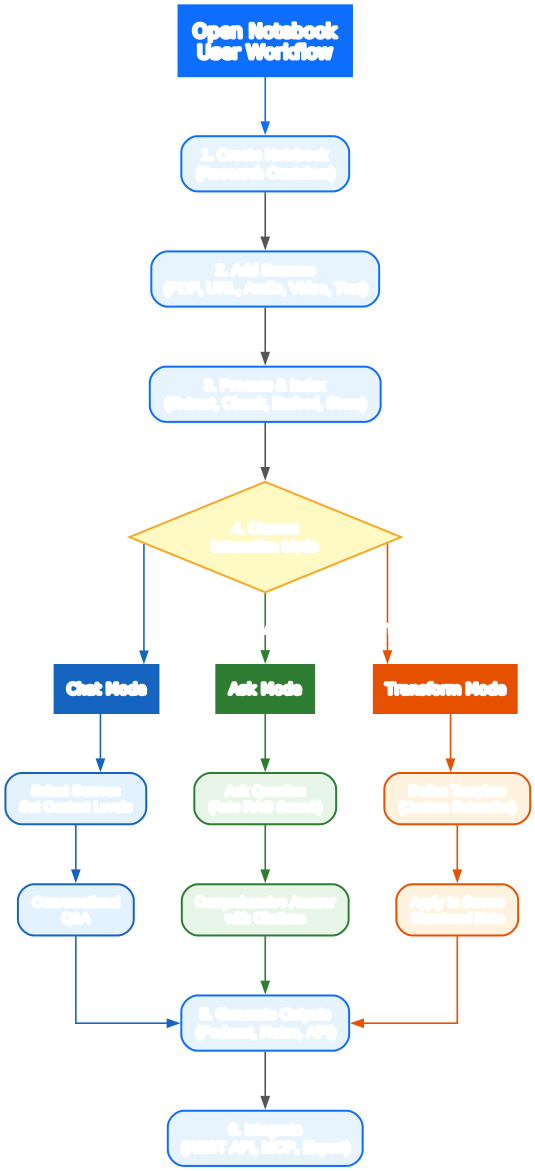
The workflow diagram above shows the complete user journey through Open Notebook, from creating a notebook to generating outputs. Let us walk through each step:
Step 1: Create a Notebook
A notebook is your research container. Think of it as a project folder that holds all related sources, notes, and AI interactions. You might create separate notebooks for different research topics, courses, or work projects. Each notebook maintains its own set of sources, chat sessions, and podcast configurations.
Step 2: Add Sources
Sources are the raw materials for your research. You can add PDFs, paste URLs, upload audio or video files, or type text directly. When you add a source, Open Notebook automatically extracts the text content, making it available for search, chat, and transformation operations. The system supports a wide range of formats including academic papers, YouTube videos, podcasts, web articles, and Office documents.
Step 3: Process and Index
Behind the scenes, the system processes each source through a multi-stage pipeline. Text is extracted from the source format, then chunked into approximately 400-token segments for optimal search and AI context. Each chunk receives a vector embedding that captures its semantic meaning, enabling both keyword-based and concept-based search. All data is stored in SurrealDB, ready for retrieval.
Step 4: Choose Your Interaction Mode
This is where Open Notebook’s flexibility shines. Three modes serve different research needs:
-
Chat Mode is for focused, conversational exploration. You select specific sources, set context levels (full content, summary only, or excluded), and engage in back-and-forth dialogue with the AI. This is ideal for deep analysis of specific documents.
-
Ask Mode uses RAG to automatically search across all your sources. You ask a single question and the system finds the most relevant chunks, synthesizes a comprehensive answer, and provides citations. This is ideal for broad questions across many sources.
-
Transform Mode applies template-based extraction rules. You define what you want extracted (summaries, key arguments, action items, or custom templates) and the system processes your sources accordingly. Transformations are reusable, making them powerful for systematic analysis across multiple sources.
Step 5: Generate Outputs
All three modes produce outputs that become part of your notebook. Chat conversations are saved as notes. Ask responses include citations linking back to source material. Transformations create structured notes from your templates. You can also generate podcasts from any combination of sources and notes.
Step 6: Integrate
Open Notebook’s REST API (running on port 5055) provides full programmatic access to all functionality. You can create notebooks, add sources, trigger searches, manage chat sessions, and generate podcasts through API calls. MCP integration connects Open Notebook with Claude Desktop, VS Code, and other MCP-compatible clients, enabling AI assistants to work directly with your research data.
Important: Open Notebook’s dual search approach gives you the best of both worlds: BM25 text search for finding exact phrases and keywords, and vector semantic search for finding conceptually related content even when worded differently. Combined with three context levels, you have precise control over what the AI sees and how much it costs.
REST API and Integrations
Open Notebook exposes a comprehensive REST API on port 5055 with interactive Swagger documentation available at /docs. The API covers all core operations:
Notebooks – Create, read, update, and delete research containers. Each notebook holds sources, notes, and configuration.
Sources – Add content (PDFs, URLs, text), retrieve source details, retry failed processing, and download original files.
Notes – Create user notes or AI-generated notes, update content, and organize within notebooks.
Chat – Manage chat sessions, send messages with full context control, and build conversation context.
Search – Perform BM25 text search or vector semantic search across all content in a notebook.
Ask – Submit questions for RAG-powered comprehensive answers with automatic source retrieval and citations.
Transformations – Define custom extraction templates and apply them to sources for structured note generation.
Models and Credentials – Configure AI providers, test connections, discover available models, and set default model assignments for LLM, embedding, STT, and TTS operations.
Podcasts – Create speaker profiles, define episode profiles, generate podcasts, and track async generation status.
Authentication uses a simple password for development, with OAuth/JWT recommended for production deployments. All long-running operations (source processing, podcast generation) run asynchronously with status tracking via the /commands/{id} endpoint.
The MCP (Model Context Protocol) integration enables Open Notebook to work with Claude Desktop, VS Code, and other MCP clients, allowing AI assistants to access your research data directly.
Security
Open Notebook takes security seriously. Version 1.8.4 addressed three critical vulnerabilities: a Remote Code Execution (RCE) via Jinja2 Server-Side Template Injection (CVSS 9.2 Critical), an arbitrary file write via path traversal (CVSS 7.0 High), and an arbitrary file read via Local File Inclusion (CVSS 8.2 High). Version 1.8.3 fixed a SurrealDB injection vulnerability via unsanitized query parameters (CVSS 8.7 High). These fixes demonstrate the project’s commitment to security and its responsiveness to vulnerability reports.
Conclusion
Open Notebook delivers a compelling alternative to Google NotebookLM for anyone who values privacy, flexibility, and control over their research tools. With 30,000+ GitHub stars, active development (755+ commits, v1.9.0), and an MIT license, it is a mature open source project that continues to evolve.
The key advantages are clear: complete data sovereignty through self-hosting, 18+ AI provider options including free local models via Ollama, multi-speaker podcast generation with custom profiles, dual search modes (BM25 and vector), three AI interaction modes (Chat, Ask, Transform), and a full REST API for custom integrations. The project’s security track record shows it takes vulnerabilities seriously and responds quickly.
Whether you are a researcher handling sensitive data, a developer building AI-powered workflows, a student organizing course materials, or a content creator producing podcasts from research, Open Notebook provides the tools and flexibility that proprietary alternatives cannot match.
Links:
- GitHub Repository – Source code, issues, and contributions
- Official Website – Project overview and features
- Discord Community – Get help and share ideas
- Docker Hub – Pre-built Docker images
- Documentation – Installation guides, user guides, and API reference

Enjoyed this post? Never miss out on future posts by following us


