Introduction — The Desktop AI Agent Problem
AI agents are powerful, but managing them via the command line is painful. Installing the agent runtime, configuring LLM providers, managing memory, switching profiles, scheduling tasks, and wiring up messaging gateways — all of it is typically terminal-based. You end up with a dozen shell tabs, a .env file you edit by hand, and no visual way to search past conversations or inspect what your agent is actually doing.
Hermes Desktop asks a simple question: what if a self-improving AI agent had a polished desktop companion? Instead of juggling CLI flags and YAML files, you get a guided installer, a visual provider setup wizard, a streaming chat UI, session search, profile switching, and one-click gateway configuration — all in one Electron app.
The community has responded enthusiastically. The project has racked up 12,162 stars on GitHub, with +7,386 stars in the last month alone — a clear signal that developers want a GUI-first experience for self-improving AI agents. In this post, we’ll dive deep into what Hermes Desktop is, how it’s architected, and why it might be the desktop AI companion you’ve been waiting for.
Section 1 — What is Hermes Desktop?
Hermes Desktop is a native desktop application built with Electron, React, and TypeScript for installing, configuring, and chatting with Hermes Agent — a self-improving AI assistant with tool use, multi-platform messaging, and a closed learning loop. Instead of managing the Hermes CLI by hand, the desktop app provides a full GUI for guided installation, provider setup, chat, session management, profiles, memory, skills, tools, scheduling, messaging gateways, and more.
The app uses the official Hermes install script (with a --skip-setup flag so the GUI can handle provider configuration), stores all Hermes data in the ~/.hermes directory, and gives you 12 dedicated screens for every aspect of agent management. It is MIT licensed, currently at version 0.6.2, and under active development.
Key insight: Hermes Desktop is a companion, not a replacement. The underlying Hermes Agent (built by NousResearch) does the actual reasoning, tool execution, and learning. The desktop app wraps that CLI agent into a polished experience — guided install, visual config, streaming chat, session search, and one-click provider setup. No more terminal juggling.
Section 2 — Architecture
Hermes Desktop follows the standard Electron three-process architecture: a main process, a renderer process, and a preload bridge that securely connects them.
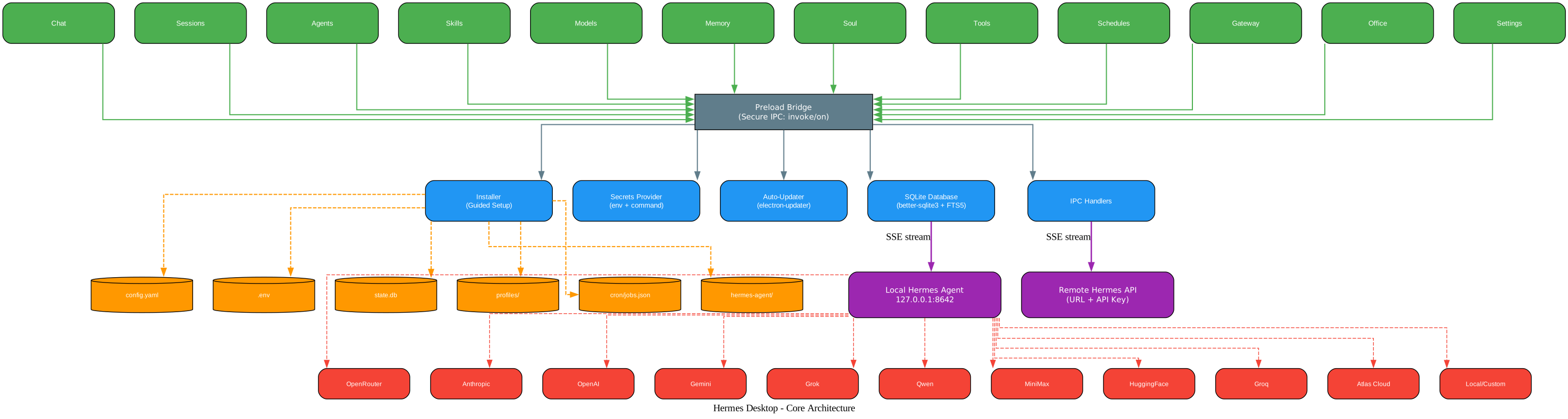
The diagram above shows the full architecture from top to bottom. At the top, the Renderer Process (React 19 UI) contains 12 screen components — Chat, Sessions, Agents, Skills, Models, Memory, Soul, Tools, Schedules, Gateway, Office, and Settings. Each screen communicates with the Preload Bridge, a secure IPC layer that exposes only invoke/on methods to the renderer, preventing direct access to Node.js APIs.
Below the preload bridge sits the Main Process (Electron 39), which contains the Installer (guided setup with dependency resolution), the Secrets Provider (env + command providers), the Auto-Updater (electron-updater), a SQLite Database (better-sqlite3 with FTS5 full-text search), and IPC Handlers that route requests between the renderer and the underlying Hermes Agent.
The main process connects to two external backends. In local mode, it talks to a locally-running Hermes Agent at 127.0.0.1:8642 via SSE streaming. In remote mode, it connects to a remote Hermes API server using a URL and API key. Both paths use the same SSE streaming protocol, so the renderer doesn’t care which backend is active.
All data is stored in the ~/.hermes/ directory: config.yaml for provider configuration, .env for API keys, state.db for session history, profiles/ for isolated profile directories, cron/jobs.json for scheduled tasks, and hermes-agent/ for the installed agent runtime itself. The Hermes Agent, in turn, connects to 11+ LLM providers — OpenRouter, Anthropic, OpenAI, Gemini, Grok, Qwen, MiniMax, HuggingFace, Groq, Atlas Cloud, and any local/custom OpenAI-compatible endpoint.
Section 3 — Multi-Provider LLM Support
One of Hermes Desktop’s standout features is its breadth of LLM provider support. Out of the box, you can connect to 11+ cloud providers:
| Provider | Notes |
|---|---|
| OpenRouter | 200+ models via single API (recommended) |
| Anthropic | Direct Claude access |
| OpenAI | Direct GPT access |
| Google (Gemini) | Google AI Studio |
| xAI (Grok) | Grok models |
| Nous Portal | Free tier available |
| Qwen | QwenAI models |
| MiniMax | Global and China endpoints |
| Hugging Face | 20+ open models via HF Inference |
| Groq | Fast inference (voice/STT) |
| Atlas Cloud | OpenAI-compatible gateway (DeepSeek, Qwen, GLM, Kimi, MiniMax) |
| Local/Custom | Any OpenAI-compatible endpoint |
For local-first users, built-in presets are included for LM Studio, Atomic Chat, Ollama, vLLM, and llama.cpp. Local model providers don’t require an API key, but the compatible server must already be running. The first-time setup wizard walks you through provider selection and API key entry, and saved models are managed via CRUD operations per provider.
# Example: local Ollama provider in ~/.hermes/config.yaml
providers:
  ollama:
    base_url: "http://localhost:11434/v1"
    api_key: "ollama"  # placeholder, not required
    models:
      - name: "llama3.2"
        context_length: 128000
Section 4 — The Chat Experience
The chat screen is where you’ll spend most of your time, and it’s built for real-time interaction. Responses stream via Server-Sent Events (SSE), so you see tokens appear as the agent generates them. Tool progress indicators show what the agent is doing — when it searches the web, runs a shell command, or generates an image, you see each step rendered live in the chat.
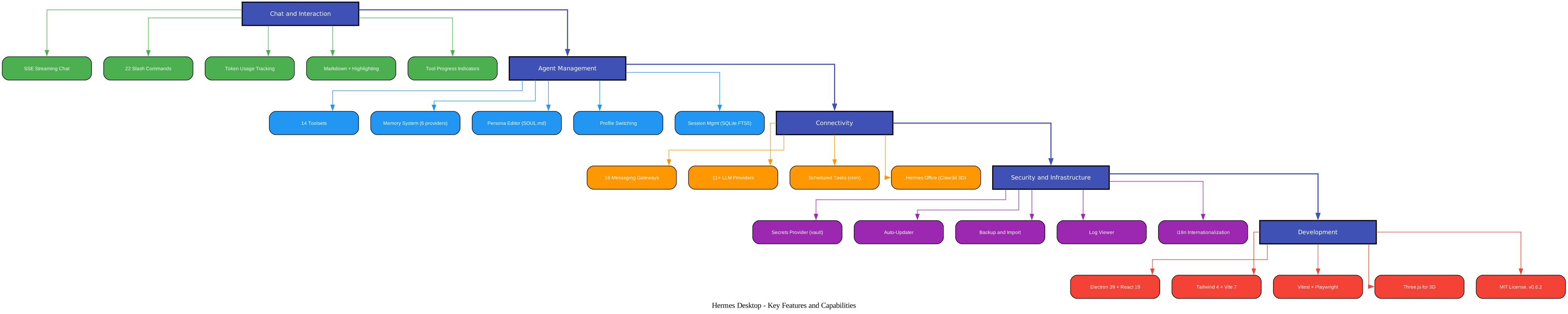
The features diagram above organizes Hermes Desktop’s capabilities into five categories. Chat and Interaction (green) covers SSE streaming, 22 slash commands, token usage tracking, markdown rendering with syntax highlighting, and tool progress indicators. Agent Management (blue) includes 14 toolsets, a memory system with 6 discoverable providers, a persona editor for SOUL.md, profile switching, and session management with SQLite FTS5. Connectivity (orange) spans 16 messaging gateways, 11+ LLM providers, scheduled tasks with 15 delivery targets, and the Hermes Office 3D interface. Security and Infrastructure (purple) covers the secrets provider system, auto-updater, backup/import, log viewer, and i18n. Development (red) lists the modern tech stack — Electron 39, React 19, TypeScript 5.9, Tailwind 4, Vite 7, Vitest, Playwright, and Three.js.
The 22 slash commands give you direct control over the agent without leaving the chat:
/new       Start a new conversation
/clear     Clear the current chat
/fast      Toggle fast mode
/web       Enable web search
/image     Generate an image
/browse    Open browser automation
/code      Execute code
/shell     Run a shell command
/usage     Show token usage and cost
/tools     List enabled toolsets
/skills    Browse installed skills
/model     Switch model
/memory    View/edit memory
/persona   Edit SOUL.md
/status    Show agent status
Token usage tracking is built into the chat footer — you see live prompt/completion counts and cost estimates as the conversation progresses. Session management uses SQLite FTS5 for full-text search across all past conversations, with date-grouped history and the ability to resume any session.
Section 5 — 14 Toolsets and Agent Capabilities
The Hermes Agent can use 14 built-in toolsets, each of which can be enabled or disabled individually from the Tools screen:
- Web search — query the web for real-time information
- Browser automation — control a headless browser via Playwright
- Terminal/shell execution — run shell commands
- File operations — read, write, and manage files
- Code execution — run code in a sandbox
- Vision/image analysis — analyze images
- Image generation — generate images via FAL.ai
- Text-to-speech (TTS) — convert text to audio
- Skills management — install and manage agent skills
- Memory system — store and retrieve persistent memories
- Session search — search across past conversations
- Clarify — ask the user for clarification when uncertain
- Delegation (MoA) — Mixture of Agents for complex tasks
- Task planning — break down complex requests into steps
Tool integrations extend these capabilities with third-party services: Exa Search, Parallel API, Tavily, Firecrawl, FAL.ai (image generation), Honcho (memory), Browserbase (browser cloud), Weights & Biases (experiment tracking), and Tinker.
Section 6 — Memory, Persona, and Profiles
A self-improving AI agent needs persistent memory, and Hermes Desktop delivers. The Memory screen lets you view and edit memory entries, track user profile memory with capacity monitoring, and configure discoverable memory providers. Six memory providers are supported out of the box: Honcho, Hindsight, Mem0, RetainDB, Supermemory, and ByteRover.
The Persona Editor (the Soul screen) lets you edit and reset the agent’s SOUL.md personality file. This gives you full control over the agent’s behavior, tone, and instructions. Each profile has its own isolated persona, so you can maintain different agent personalities for different use cases — a coding assistant, a research agent, a creative writing companion.
Profile switching lets you create, delete, and switch between separate Hermes environments. Each profile has isolated configuration, stored in ~/.hermes/profiles/ as named directories. This is useful if you want separate agents with different providers, memory, personas, and tool configurations.
Section 7 — 16 Messaging Gateways
Hermes Desktop integrates with 16 messaging platforms, turning your AI agent into a multi-platform assistant:
| Gateway | Type |
|---|---|
| Telegram | Bot API |
| Discord | Bot API |
| Slack | Bot API |
| Bridge | |
| Signal | Bridge |
| Matrix/Element | Client |
| Mattermost | Webhook |
| IMAP/SMTP | |
| SMS | Twilio/Vonage |
| iMessage | BlueBubbles |
| DingTalk | Webhook |
| Feishu/Lark | Bot API |
| WeCom | Bot API |
| iLink Bot | |
| Webhooks | Custom HTTP |
| Home Assistant | Integration |
Key insight: 16 messaging gateways and 14 toolsets mean your agent isn’t just a chatbot — it’s a multi-platform automation hub. The same agent that answers your questions in the desktop UI can also respond on Telegram, post to Slack, send SMS via Twilio, and trigger Home Assistant automations. That’s a level of integration most AI desktop apps don’t even attempt.
The Gateway screen lets you configure and control each platform integration. A built-in log viewer in Settings shows gateway and agent logs, so you can debug message delivery and agent responses across all platforms.
Section 8 — Scheduled Tasks and Hermes Office
The Schedules screen provides a cron job builder with intervals for minutes, hourly, daily, weekly, and custom cron expressions. Scheduled task results can be delivered to 15 different targets — meaning your agent can run a task on a schedule and deliver the output to Telegram, Email, a webhook, or any other configured gateway. Jobs are stored in ~/.hermes/cron/jobs.json.
Hermes Office (Claw3d) is a visual 3D interface built with Three.js (@react-three/fiber and @react-three/drei). It provides an interactive 3D visualization of agent state and activities, with dev server and adapter management. It’s an experimental but ambitious feature — imagine seeing your agent’s memory, tool calls, and message flows rendered in a 3D space.
Section 9 — Secrets Provider System
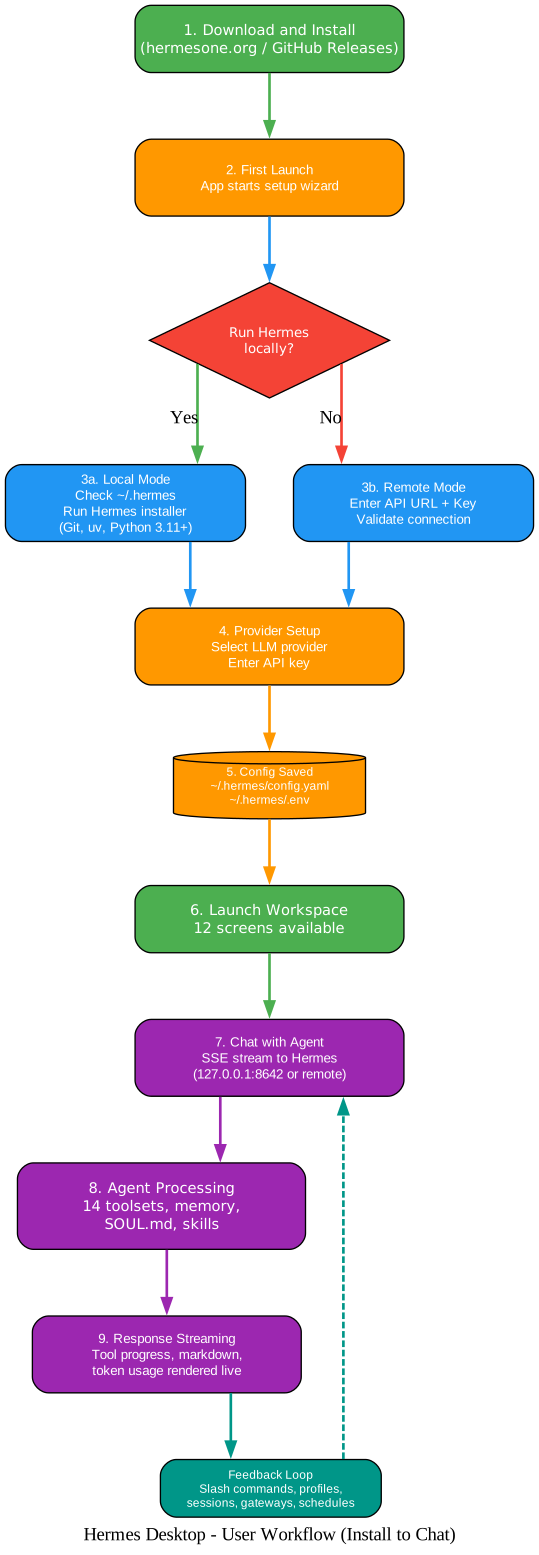
The workflow diagram above shows the complete user journey from install to chat. After downloading from hermesone.org or GitHub Releases (Step 1), the app launches a setup wizard (Step 2) that asks whether you want to run Hermes locally or connect to a remote server. A decision diamond branches the flow: local mode (Step 3a) checks ~/.hermes for an existing install and runs the official Hermes installer with dependency resolution (Git, uv, Python 3.11+), while remote mode (Step 3b) prompts for an API URL and key and validates the connection. Both paths converge at provider setup (Step 4), where you select an LLM provider and enter an API key. Configuration is saved to ~/.hermes/config.yaml and ~/.hermes/.env (Step 5), the workspace launches with all 12 screens (Step 6), and you start chatting (Step 7). The agent processes your request using 14 toolsets, memory, SOUL.md, and skills (Step 8), and the response streams back with tool progress, markdown, and token usage rendered live (Step 9). A feedback loop lets you use slash commands, switch profiles, manage sessions, configure gateways, and schedule tasks — all from the GUI.
One of the most thoughtful features in Hermes Desktop is the secrets provider system. By default, API keys live in ~/.hermes/.env (the env provider) — this is byte-for-byte the historical behavior, and nothing changes for existing users. But if you’d rather not keep keys in a plaintext .env file, the opt-in command provider resolves keys by running a helper command you configure:
# ~/.hermes/config.yaml
# Per-key helper (the requested key name arrives as $HERMES_SECRET_KEY)
secrets:
  provider: command
  command: secret-tool lookup hermes "$HERMES_SECRET_KEY"
The command provider is vault-agnostic — it runs whatever helper you configure and reads its stdout. Supported vaults include KeePassXC, GnuPG, pass, secret-tool (libsecret/Gnome Keyring), Bitwarden CLI, 1Password CLI, and plain env files with user-managed permissions. The resolution order is: process.env → .env → provider → unset.
Amazing: The secrets provider achieves vault integration without TPM, FIDO2, smart cards, or platform keychains. Any helper that prints a value on stdout works. Hermes imposes a 3-second timeout and 1 MiB output cap so a misbehaving helper can’t wedge the app, resolved values are never logged or written to disk, and the key name is passed as data (never interpolated into the shell string). It’s a pragmatic, security-conscious design. Note: the command provider is POSIX-only (Linux/macOS); Windows stays on the env provider.
Section 10 — Tech Stack and Development
Hermes Desktop is built on a modern, fast-moving stack:
- Electron 39 — cross-platform desktop shell
- React 19 — UI framework
- TypeScript 5.9 — type safety across main and renderer processes
- Tailwind CSS 4 — utility-first styling
- Vite 7 + electron-vite — fast dev server and build tooling
- better-sqlite3 — local session storage with FTS5 full-text search
- i18next — internationalization framework (English locale, ready for community translations)
- Vitest — test runner (SSE parser, IPC handlers, preload API, installer utilities, constants validation)
- Playwright — live visual regression testing
- Three.js — 3D interface for Hermes Office
Development commands:
npm install          # Install dependencies
npm run dev          # Start the app in development
npm run lint         # Run ESLint
npm run typecheck    # TypeScript type checking (node + web)
npm run test         # Run Vitest
npm run test:watch   # Watch mode tests
npm run build        # Build the desktop app
npm run build:win    # Windows packaging
npm run build:mac    # macOS packaging
npm run build:linux  # Linux AppImage
npm run build:rpm    # Fedora/RHEL .rpm
Section 11 — Getting Started
Getting started with Hermes Desktop is straightforward:
- Download from hermesone.org or GitHub Releases
- Windows: Run the installer. Note: the installer is not code-signed, so Windows SmartScreen will warn on first launch — click “More info” → “Run anyway”
- Fedora: Install the RPM with
sudo dnf install ./hermes-desktop-<version>.rpm(append--nogpgcheckif your system enforces signature checking) - First launch: Choose local or remote mode
- Local mode: The app checks
~/.hermesfor an existing install; if not found, it runs the official Hermes installer with dependency resolution (Git, uv, Python 3.11+) - Remote mode: Enter the remote API URL and API key; the app validates the connection
- Select provider: Choose an LLM provider (OpenRouter, Anthropic, OpenAI, Gemini, Local, etc.) and enter your API key
- Start chatting: The workspace launches with all 12 screens
Important: This project is in active development (v0.6.2, 960+ commits). Features may change, and some things might break. The Windows installer is not code-signed (SmartScreen warning expected), and WSL users may encounter a sudo password prompt stall during install — grant passwordless sudo temporarily, then revert. File bugs and feature requests via GitHub Issues.
Hermes files are managed in:
~/.hermes/                    # Root data directory
~/.hermes/.env                # API keys (env provider)
~/.hermes/config.yaml         # Provider and agent configuration
~/.hermes/hermes-agent/       # Installed agent runtime
~/.hermes/profiles/           # Named profile directories
~/.hermes/state.db            # Session history (SQLite + FTS5)
~/.hermes/cron/jobs.json      # Scheduled tasks
Section 12 — Comparison with Alternatives
How does Hermes Desktop compare to other AI tools?
| Feature | Hermes Desktop | Raw Hermes CLI | ChatGPT Desktop | LM Studio | Jan/GPT4All |
|---|---|---|---|---|---|
| GUI | Full 12-screen GUI | Terminal only | Yes | Yes | Yes |
| Self-improving agent | Yes (Hermes Agent) | Yes | No | No | No |
| Local LLM support | Ollama, LM Studio, vLLM, llama.cpp | Yes | No | Yes (core feature) | Yes |
| Tool use (14 toolsets) | Yes | Yes | Limited | No | No |
| Messaging gateways | 16 platforms | 16 platforms | No | No | No |
| Scheduled tasks | Cron builder + 15 targets | Yes | No | No | No |
| Memory system | 6 providers | Yes | No | No | No |
| Secrets/vault integration | Yes (command provider) | Yes | No | No | No |
| Open source | MIT | Yes | No | Yes | Yes |
| 3D interface | Hermes Office (Three.js) | No | No | No | No |
vs. raw Hermes CLI: Hermes Desktop gives you a GUI instead of a terminal, guided installation instead of manual setup, visual configuration instead of YAML editing, and session search instead of grepping log files. The underlying agent is the same — the desktop app just makes it usable.
vs. ChatGPT Desktop: Hermes Desktop supports local LLMs (Ollama, LM Studio, vLLM, llama.cpp), is a self-improving agent with 14 toolsets, integrates with 16 messaging platforms, and is fully open source. ChatGPT Desktop is a polished client for one provider; Hermes Desktop is a multi-provider agent workstation.
vs. LM Studio: LM Studio is excellent for running local model inference. Hermes Desktop is a full agent — it uses models (local or cloud) to reason, use tools, manage memory, and interact across messaging platforms. They’re complementary, not competitive.
vs. Jan/GPT4All: Both are open-source desktop AI apps, but Hermes Desktop brings the Hermes Agent ecosystem — multi-platform messaging, scheduled tasks, 14 toolsets, a 3D interface, and a vault-agnostic secrets system. It’s a more ambitious, agent-first approach.
Conclusion — Why Hermes Desktop Matters
Hermes Desktop is the first polished desktop companion for a self-improving AI agent. It wraps the Hermes Agent CLI into a guided, visual experience — 11+ LLM providers, 16 messaging gateways, 14 toolsets, 22 slash commands, a memory system with 6 providers, scheduled tasks with 15 delivery targets, a 3D interface, and a vault-agnostic secrets system that works with KeePassXC, GnuPG, pass, Bitwarden, and 1Password — all without requiring a TPM.
The local-first architecture means your data stays in ~/.hermes unless you choose a cloud provider. The active development (12K+ stars, MIT licensed, v0.6.2) means the project is moving fast and the community is engaged. If you’ve been looking for a desktop AI agent that’s more than a chat window — one that can search the web, run code, manage memory, post to Telegram, and run on a schedule — Hermes Desktop is worth a serious look.
Get started: Download from hermesone.org or GitHub, follow the setup wizard, pick a provider, and start chatting. The whole process takes about five minutes. Enjoyed this post? Never miss out on future posts by following us 


