1. Introduction
Office documents are the lingua franca of business. Word reports, Excel spreadsheets, and PowerPoint decks carry the bulk of the world’s professional communication — quarterly reviews, financial models, investor pitches, project plans, and research papers all live inside .docx, .xlsx, and .pptx files. Yet for all the progress that AI coding agents have made in writing code, browsing the web, and reasoning over text, the ability to reliably create, read, and modify Office documents has remained a stubborn gap. AI agents can generate a Python script in seconds, but ask one to produce a polished ten-slide PowerPoint deck with charts, animations, and consistent branding, and the experience quickly degrades into fragile Python libraries, missing fonts, and layout guesswork.
OfficeCLI is the project that closes that gap. Billed as “the world’s first and the best Office suite designed for AI agents,” OfficeCLI gives any AI agent — Claude Code, Codex, Cursor, GitHub Copilot, Windsurf, or a plain LLM with shell access — full control over Word, Excel, and PowerPoint files through a single command-line binary. It is open-source under the Apache 2.0 license, ships as one self-contained executable with the .NET runtime embedded, and requires no Microsoft Office installation, no Python dependencies, and no COM interop. With over 11,700 stars and a daily growth rate exceeding 1,700 stars per day at the time of writing, OfficeCLI has clearly struck a nerve: developers and AI practitioners have been waiting for a tool that treats Office documents as first-class citizens in the agentic workflow.
The core insight behind OfficeCLI is that AI agents do not need a graphical Office application — they need a deterministic, scriptable, inspectable interface to document structure. OfficeCLI provides exactly that: path-based element addressing (/slide[1]/shape[2]), structured JSON output on every command, a built-in HTML/PNG rendering engine so agents can see what they produce, and a three-layer architecture that lets an agent start with high-level reads and escalate to raw XML only when necessary. The result is a tool where creating a slide that once took fifty lines of python-pptx now takes a single command — and the agent can verify the result visually before delivering it.
2. The Office Automation Problem
To appreciate why OfficeCLI is necessary, it helps to understand why Office automation has been painful for so long. The traditional approaches each carry serious drawbacks when the “user” is an AI agent rather than a human clicking through a GUI.
Microsoft Office via COM interop is the most faithful approach — you automate the actual Word, Excel, or PowerPoint application through its COM API. The problem is that this requires a licensed Office installation on a Windows machine, is slow (launching the application per operation), is fragile (dialog boxes and modal prompts can hang automation), and is completely impossible in headless server, CI/CD, or Docker environments. An AI agent running in a cloud container cannot pop open a desktop PowerPoint instance.
LibreOffice headless avoids the licensing cost but still requires installing a large office suite, uses the UNO API which is cumbersome, and its rendering fidelity — especially for PowerPoint animations, 3D models, and complex Excel charts — does not match Microsoft Office. Round-tripping a .pptx through LibreOffice often silently breaks layout.
Python libraries like python-docx, openpyxl, and python-pptx are lightweight and headless-friendly, but they are three separate libraries with inconsistent APIs, limited feature coverage (no animations, no pivot tables, no rendering), and they require Python plus pip dependencies. More fundamentally, they were designed for human developers writing imperative code — not for AI agents that need structured feedback, self-correction, and visual verification. An agent using python-pptx can write a slide’s XML but cannot see whether the title overflows the text box or two shapes overlap. It is flying blind.
The net effect is that AI agents asked to produce Office documents have historically either (a) generated raw OOXML XML by hand — error-prone and verbose, (b) written Python scripts using the above libraries — limited and blind, or (c) avoided the task entirely. OfficeCLI was built specifically to solve this, treating the AI agent as the primary user and designing every command, output format, and error message around how an agent actually works.
3. How OfficeCLI Works
OfficeCLI’s design philosophy can be summarized in one sentence: give AI agents a deterministic, inspectable, self-correcting interface to Office documents, with zero installation friction. Every aspect of the tool flows from this principle.
The tool ships as a single self-contained binary. The .NET runtime is embedded inside the executable, so there is nothing to install beyond the binary itself — no Python, no Java, no Office, no runtime manager. It runs on macOS (Apple Silicon and Intel), Linux (x64 and ARM64), and Windows (x64 and ARM64). Installation is a one-line curl on Unix or irm | iex on Windows, and it is also available via Homebrew (brew install officecli) and npm (npm install -g @officecli/officecli). Once installed, running officecli install copies the binary to your PATH and automatically detects any AI coding agents present — Claude Code, Cursor, Windsurf, GitHub Copilot, VS Code — installing its skill file into each one’s configuration directory so the agent immediately knows how to use it.
The interaction model is CLI-based and JSON-native. Every command accepts a --json flag and returns structured output with consistent schemas. A get command returns {"tag": "shape", "path": "/slide[1]/shape[1]", "attributes": {...}}. A mutation returns {"success": true, "path": "/slide[1]/shape[1]"}. An error returns {"success": false, "error": {"error": "...", "code": "not_found", "suggestion": "Valid Slide index range: 1-8"}}. This means an AI agent never has to parse free-text stdout or guess whether an operation succeeded — it reads a JSON object and acts accordingly. The error codes (not_found, invalid_value, unsupported_property, invalid_path, etc.) come with suggestions and valid ranges, enabling a self-healing loop where the agent inspects the error, corrects its command, and retries without human intervention.
Crucially, OfficeCLI includes a built-in HTML rendering engine — its keystone feature. The engine renders .docx, .xlsx, and .pptx to standalone HTML (with all assets inlined) or to per-page PNG screenshots via a headless browser. This closes what the project calls the render → look → fix loop: an agent creates a slide, renders it to a screenshot, examines the image to check whether the title overflows or shapes overlap, and fixes the issue — all without a human in the loop and without Office installed. Because the rendering engine is inside the binary, this loop works in CI pipelines, Docker containers, and headless servers with no display.
4. Architecture Overview
OfficeCLI’s architecture is deliberately layered to let agents start simple and go deep only when needed. At the top is the AI Agent Layer — any tool that can execute shell commands or speak the Model Context Protocol (MCP). The agent sends a command (either as a CLI invocation or an MCP JSON-RPC call) to the OfficeCLI binary. The binary parses the command, loads the target document into an in-memory DOM tree using its built-in OOXML parser, performs the requested operation, and returns structured JSON output. A built-in document engine handles rendering, formula evaluation, and pivot table generation — all without any external Office application.
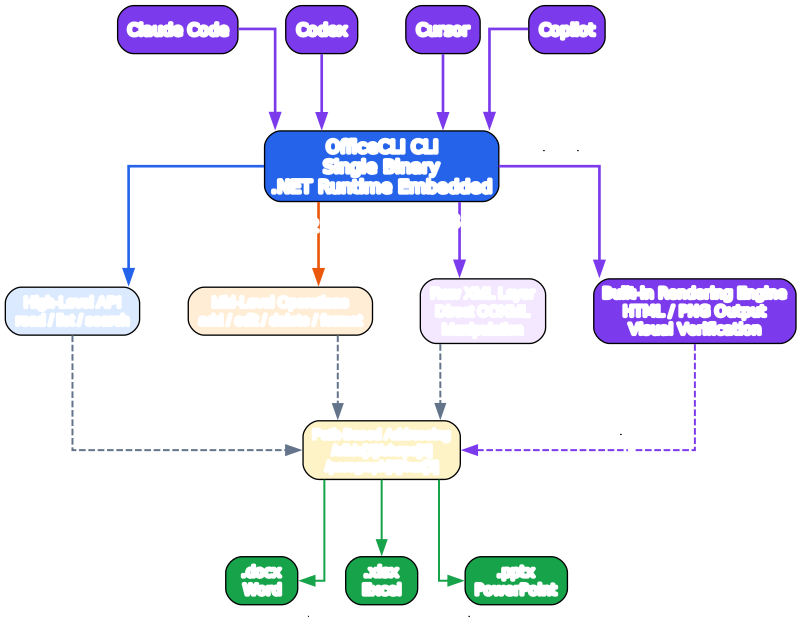
The binary itself contains four major subsystems exposed to the agent: the CLI interface (commands like add, set, get, view, query, remove, move, swap), the MCP server (exposing all operations as JSON-RPC tools so agents like Claude Code can call them without shell access), resident mode (keeping a document in memory across multiple commands via named pipes for near-zero latency), and batch/merge (applying multiple operations in one pass or filling template placeholders with JSON data). Beneath these sits the document engine, which handles OOXML parsing and serialization, the from-scratch HTML/PNG renderer, the 350+ function Excel formula evaluator, native pivot table generation, and Mermaid diagram conversion.
The three-layer access model — L1 Read, L2 DOM, L3 Raw XML — is central to the architecture. L1 provides semantic, read-only views of content (view outline, view text, view annotated, view html, view screenshot, view issues). L2 provides structured element operations using path-based addressing (get, query, set, add, remove, move, swap). L3 provides direct XPath access to the raw OOXML XML (raw, raw-set, add-part, validate) as a universal fallback for anything L2 does not cover. Agents are encouraged to start at L1, escalate to L2 for edits, and fall back to L3 only when the higher layers do not expose the needed property. This progressive complexity minimizes token usage — an agent reading a document outline consumes far fewer tokens than one parsing raw XML.
5. AI Agent Workflow
The workflow by which an AI agent interacts with Office documents through OfficeCLI follows a consistent seven-step pattern that enables autonomous, self-correcting document generation.
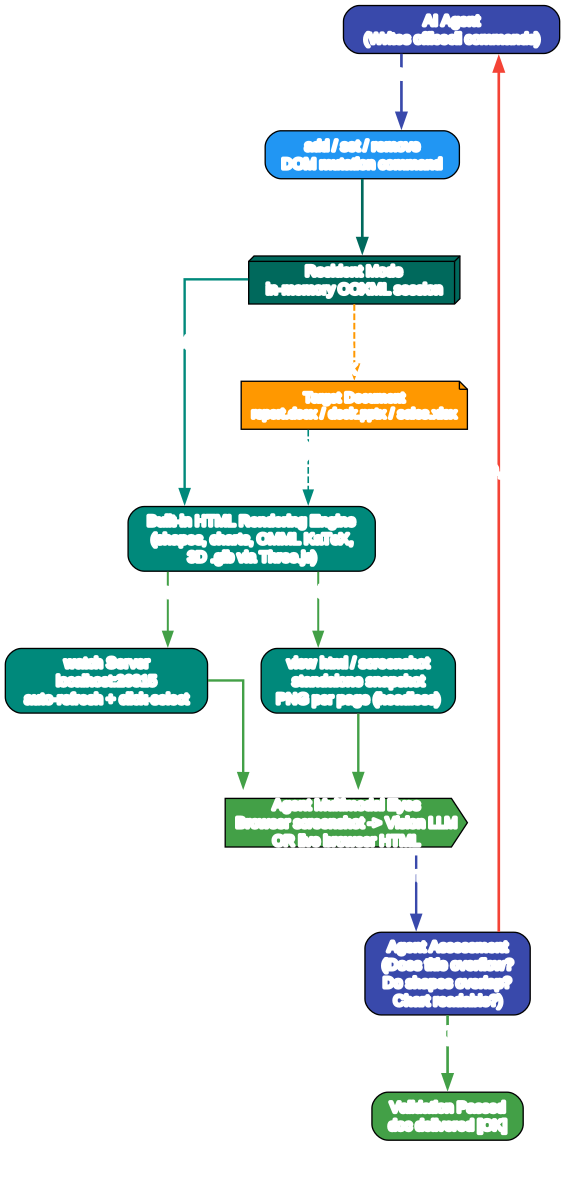
The cycle begins with an agent request — a natural-language task from the user such as “create a Q4 report deck with five slides.” The agent translates this into a CLI command (e.g., officecli create deck.pptx followed by a series of add commands). OfficeCLI parses the target document into a DOM tree and performs the requested operation — reading, editing, or automating at the appropriate layer. The agent then renders and verifies the result using view html, view screenshot, or validate — examining the output to check for layout issues, overflow, or schema violations. OfficeCLI returns structured JSON describing the result, and the agent acts on this feedback: if everything looks good, it delivers; if there are issues, it reads the error code and suggestion, corrects its command, and retries. This feedback loop — the self-healing workflow — is what allows agents to produce high-quality documents without human intervention.
The workflow operates differently per document type. For Word, the agent manipulates paragraphs, runs, tables, styles, headers, footers, images, equations, and diagrams. For Excel, it sets cell values and formulas (auto-evaluated by the built-in engine), creates pivot tables, charts, conditional formatting, and slicers. For PowerPoint, it adds slides, shapes, text, animations, transitions, 3D models, and connectors. In all three cases, the same command grammar (add, set, get, view) and the same JSON output format apply, so an agent that learns the Word workflow immediately knows how to drive Excel and PowerPoint too.
6. Key Features
OfficeCLI’s feature set is broad — it aims for full parity with what a human power user can do in Microsoft Office, while exposing everything through a consistent CLI and JSON interface.
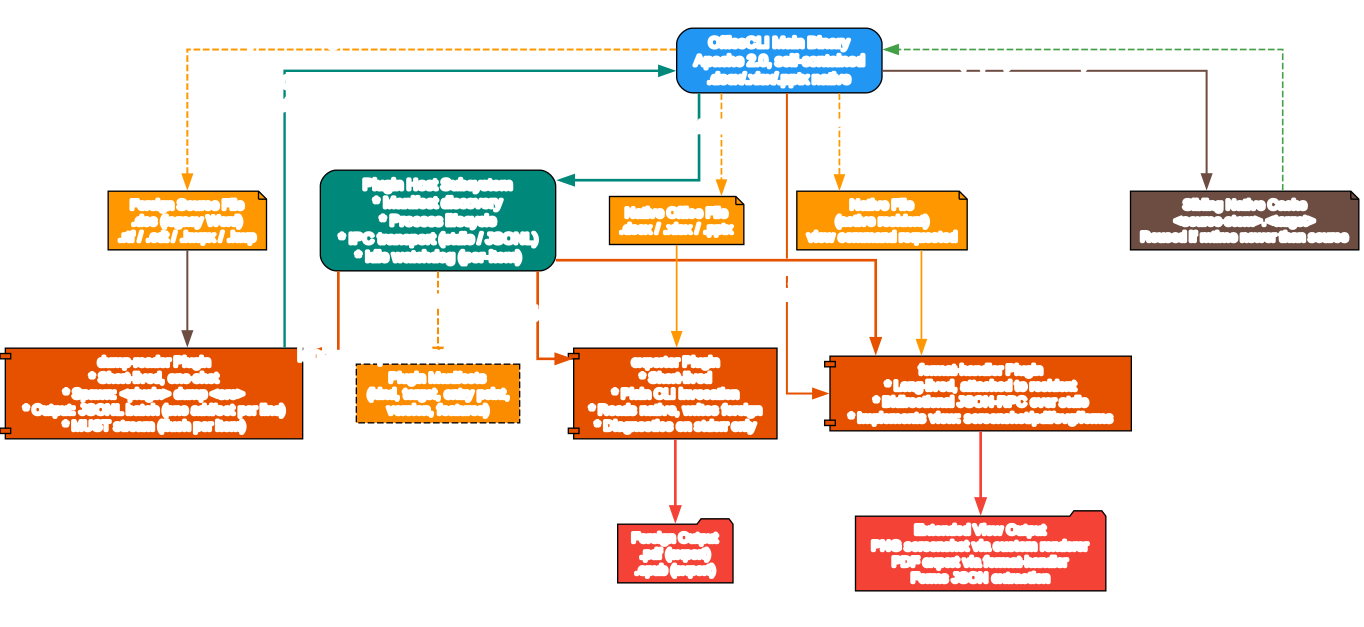
Word automation covers paragraphs (with frame properties, tab stops, character-based indents), runs (underline colors, positioned half-points), tables (virtual column operations — add, remove, move, copy-from — and horizontal merges), styles, textboxes and shapes (rotation, text direction, gradients, shadows, opacity), headers and footers, images (PNG/JPG/GIF/SVG), equations via LaTeX input, Mermaid diagrams converted to native editable shapes or full-fidelity PNGs, comments, footnotes, watermarks, bookmarks, tables of contents, charts, hyperlinks, and sections. Notably, Word support includes full internationalization and right-to-left text: per-script font slots, per-script BCP-47 language tags, complex-script bold/italic/size, direction=rtl cascading through every level from document defaults down to individual runs, and locale-aware page numbering for Hindi, Arabic, Thai, and CJK scripts.
Excel automation covers cells (with phonetic guide / furigana support on add, Excel-UI shift semantics on remove and add), a formula engine with 350+ built-in functions evaluated automatically on write — including spilling dynamic arrays (FILTER, SORT, UNIQUE, SEQUENCE, LET, LAMBDA, MAP), VLOOKUP/XLOOKUP/INDEX/MATCH, financial and bond math (XIRR, PRICE, YIELD, DURATION, COUPNUM), and statistical distributions and regression (NORM.DIST, T.TEST, LINEST). It also supports sheets (visible/hidden/very-hidden, print margins, RTL sheet views), boolean and/or selectors (row[Salary>5000 and Region=EMEA]), tables, multi-key sorting, conditional formatting, charts (including box-whisker and pareto with auto-sort and cumulative percentage), native OOXML pivot tables with multi-field rows/columns/filters, date grouping, calculated fields, top-N filters, slicers, named ranges, data validation, images, sparklines, and comments.
PowerPoint automation covers slides (header/footer/date/slide-number toggles, hidden slides), shapes (pattern fill, blur effects, hyperlink tooltips, highlight colors, typed slide master/layout operations), images (PNG/JPG/GIF/SVG with fill modes stretch/contain/cover/tile, brightness/contrast/glow/shadow, rotation), tables (built-in style catalogue, virtual column operations), charts (pieOfPie, barOfPie, per-attribute axis setters, series management), animations (15 emphasis and 16 exit template-backed presets, multi-effect chains, motion paths, chart animations), transitions (morph plus 12 PowerPoint 2013+ presets), 3D .glb models, slide zoom, equations via LaTeX, Mermaid diagrams, themes, connectors with full path-based from/to endpoints, and video/audio media.
Beyond per-format features, OfficeCLI provides several cross-cutting capabilities that are particularly valuable for AI agents: a template merge system that replaces `` placeholders with JSON data across paragraphs, table cells, shapes, headers, footers, and chart titles; a round-trip dump that serializes any document or subtree into replayable batch JSON so agents can learn from human-authored samples; resident mode for multi-step workflows with near-zero latency via named pipes; and batch mode for applying multiple operations in a single pass.
7. Document Processing Pipeline
The document processing pipeline describes how a file flows through OfficeCLI from input to delivered output. Understanding this pipeline is key to building reliable agent workflows.
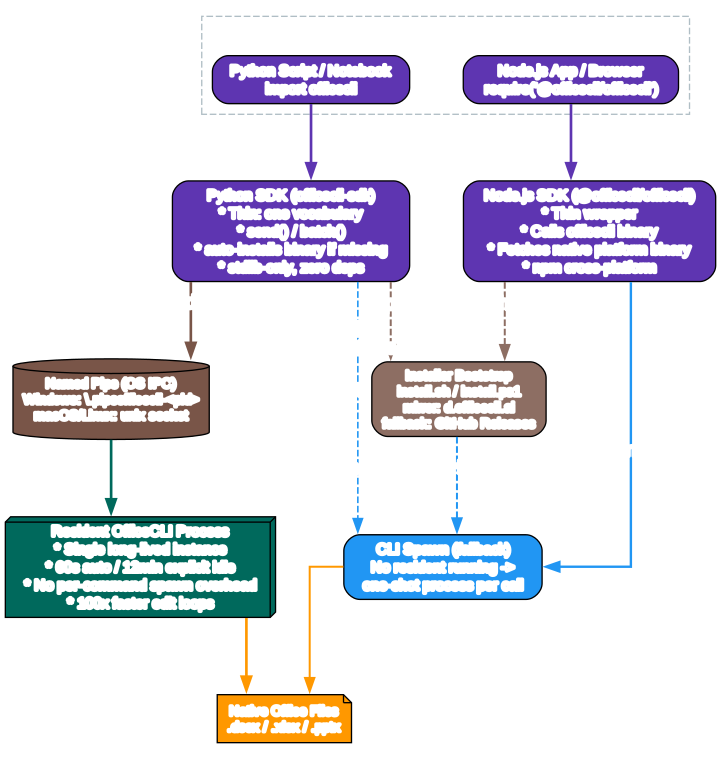
The pipeline begins with an input file — a .docx, .xlsx, .pptx, or a template plus JSON data. OfficeCLI parses the file’s OOXML package into an in-memory DOM tree, assigning every element a stable path (e.g., /body/p[1], /Sheet1/A1, /slide[1]/shape[2]). The AI agent analysis phase follows: the agent uses L1 read commands (view outline, view text, view annotated, get, query) to understand the document’s structure and content. If the task is read-only, the agent extracts structured JSON output and returns it to the user. If the task requires modification, the agent proceeds to the modify phase using L2 DOM operations (add, set, remove, move, swap) or L3 raw XML operations (raw-set, add-part), with batch mode available for multi-operation efficiency and merge for template filling.
After modification, the pipeline enters a validate decision gate. The agent runs validate against the OpenXML schema and view issues to enumerate document problems — text overflow, missing alt text, formula errors, structural inconsistencies. If validation passes, the document is flushed to disk (save or close) and delivered as the final .docx/.xlsx/.pptx artifact, optionally accompanied by HTML previews or PNG screenshots. If validation fails, the pipeline loops back to AI agent analysis: the agent reads the structured error (with its error code and suggestion), inspects the relevant elements, corrects its command, and retries. This self-healing loop — validate, read error, self-correct, retry — is what enables fully autonomous document generation without human debugging.
A critical enabler of this pipeline is the render → look → fix sub-loop made possible by the built-in rendering engine. After modifying a document, the agent renders it to HTML or PNG and examines the visual output. If the title overflows its text box, if two shapes overlap, or if a chart’s axis labels are unreadable, the agent sees this in the rendered image and fixes it — just as a human would by glancing at the screen. Because the renderer is inside the binary, this visual feedback loop works in CI, Docker, and headless server environments where no display is available.
8. Word Document Automation
Word document automation with OfficeCLI gives AI agents the ability to create, read, and modify .docx files with a level of control that matches or exceeds what a human can do in Microsoft Word — all through CLI commands with JSON output.
Creating a Word document from scratch is straightforward. The agent runs officecli create report.docx to produce a blank document, then adds content with add commands targeting the document body:
officecli create report.docx
officecli add report.docx /body --type paragraph --prop text="Executive Summary" --prop style=Heading1
officecli add report.docx /body --type paragraph --prop text="Revenue increased by 25% year-over-year, driven by expansion into three new markets."
officecli add report.docx /body --type paragraph --prop text="Key Findings" --prop style=Heading2
Reading an existing document uses the L1 view commands and L2 get/query commands. officecli view report.docx outline produces a hierarchical text outline of headings and paragraphs. officecli view report.docx annotated adds structural annotations showing element paths. officecli get report.docx /body --depth 2 --json returns the body’s children as structured JSON. The query command supports CSS-like selectors with boolean operators — officecli query report.docx "paragraph[style=Heading1]" --json finds all Heading 1 paragraphs, and officecli query report.docx "run:contains(TODO)" finds every run containing the text “TODO.”
Modifying documents uses set to change element properties. An agent can change a paragraph’s style, a run’s font and color, a table cell’s text, or a section’s page margins — all with the same set command targeting a path:
officecli set report.docx /body/p[1]/r[1] --prop bold=true
officecli set report.docx /body/p[2]/r[1] --prop color=FF0000 --prop font=Arial
officecli set report.docx /body/p[1] --prop style=Heading1 --prop alignment=center
Advanced Word features include tables with virtual column operations (add a column, remove a column, move a column, copyfrom another table’s column), equations entered as LaTeX and rendered as native OMML, Mermaid diagrams converted to either native editable Word shapes or full-fidelity PNG images, headers and footers with distinct first-page and even-page variants, tables of contents that auto-generate from heading styles, watermarks, bookmarks, hyperlinks, and footnotes. The full i18n and RTL support means an agent can create documents in Arabic, Hebrew, Hindi, Thai, Chinese, Japanese, or Korean with correct script-specific fonts, bidirectional text flow, and locale-appropriate page numbering — officecli create report.docx --locale ar-SA auto-enables RTL mode.
9. Excel Spreadsheet Automation
Excel automation is where OfficeCLI’s built-in computation engine shines. Unlike static document formats, Excel spreadsheets contain formulas that must be evaluated to produce values — and OfficeCLI evaluates 350+ functions automatically on write, so an agent setting =SUM(A1:A10) can immediately get the cell and read the computed result without any round-trip through Microsoft Excel.
Creating a spreadsheet and populating it with data and formulas:
officecli create budget.xlsx
officecli set budget.xlsx /Sheet1/A1 --prop value="Category" --prop bold=true
officecli set budget.xlsx /Sheet1/B1 --prop value="Amount" --prop bold=true
officecli set budget.xlsx /Sheet1/A2 --prop value="Salaries"
officecli set budget.xlsx /Sheet1/B2 --prop value=250000
officecli set budget.xlsx /Sheet1/A3 --prop value="Marketing"
officecli set budget.xlsx /Sheet1/B3 --prop value=75000
officecli set budget.xlsx /Sheet1/A5 --prop value="Total"
officecli set budget.xlsx /Sheet1/B5 --prop value="=SUM(B2:B3)"
officecli get budget.xlsx /Sheet1/B5 --json
The get on cell B5 returns the computed total (325000) immediately — the formula engine evaluated it on write. This is transformative for AI agents, which can now build financial models, data analyses, and dashboards with live formula evaluation entirely headless.
Pivot tables — one of Excel’s most powerful but complex features — are created with a single command:
officecli add sales.xlsx '/Sheet1' --type pivottable \
  --prop source='Data!A1:E10000' --prop rows='Region,Category' \
  --prop cols=Quarter --prop values='Revenue:sum,Units:avg' \
  --prop showDataAs=percentOfTotal
This command writes both the pivot cache and the pivot definition to the OOXML package, so when a human later opens the file in Excel, the aggregation is already populated — no refresh needed. The pivot engine supports multi-field rows, columns, and filters; ten aggregation functions; showDataAs modes (percent of total, percent of row, percent of column, difference from, running total); date grouping; calculated fields; top-N filters; and compact, outline, and tabular layouts.
Charts, conditional formatting, slicers, named ranges, data validation, sparklines, and CSV import round out the Excel feature set. The query command supports row-by-column-name selectors — officecli query sales.xlsx "row[Revenue>5000 and Region=EMEA]" — which lets an agent filter rows using column names and boolean and/or conditions, a far more natural interface than raw cell-range addressing.
10. PowerPoint Presentation Automation
PowerPoint is where OfficeCLI’s visual feedback loop delivers the most value, because slide layout is inherently spatial — text overflow, shape overlap, and color contrast are problems that are easy to see visually but hard to detect from XML alone.
Creating a presentation and adding slides with content:
officecli create deck.pptx
officecli add deck.pptx / --type slide --prop title="Q4 Report" --prop background=1A1A2E
officecli add deck.pptx '/slide[1]' --type shape \
  --prop text="Revenue grew 25%" --prop x=2cm --prop y=5cm \
  --prop font=Arial --prop size=24 --prop color=FFFFFF
officecli add deck.pptx / --type slide --prop title="Details"
officecli add deck.pptx '/slide[2]' --type shape \
  --prop text="Growth driven by new markets" --prop x=2cm --prop y=5cm
The agent can then verify the result visually:
officecli view deck.pptx outline
officecli view deck.pptx screenshot -o /tmp/deck.png
officecli validate deck.pptx
officecli view deck.pptx issues --json
The watch command starts a local HTTP server (at http://localhost:26315) with an auto-refreshing preview — every add, set, or remove command instantly updates the browser, giving the agent (or a human developer) a live feedback loop during slide construction. Excel watch mode additionally supports inline cell editing and drag-to-reposition charts.
Advanced PowerPoint features include 15 emphasis and 16 exit animation presets (with multi-effect chains, motion paths, repeat/restart/autoReverse, and chart build animations), morph and 12 PowerPoint 2013+ transition presets, 3D .glb models with combined rotation, slide zoom, equations via LaTeX, Mermaid flowchart and sequence diagrams converted to native editable shapes, themes and slide masters with typed add/set/remove operations, connectors with full path-based from/to endpoints, and video/audio media with loop and auto-start controls. The shape system supports pattern fills, blur effects, hyperlink tooltips with slide-jump links, and highlight colors on text runs.
11. Installation and Setup
OfficeCLI is designed for zero-friction installation. The binary is self-contained — the .NET runtime is embedded — so there are no prerequisites beyond downloading the executable for your platform.
One-line install on macOS or Linux:
curl -fsSL https://raw.githubusercontent.com/iOfficeAI/OfficeCLI/main/install.sh | bash
One-line install on Windows (PowerShell):
irm https://raw.githubusercontent.com/iOfficeAI/OfficeCLI/main/install.ps1 | iex
Via package managers:
# Homebrew (macOS / Linux)
brew install officecli

# npm (all platforms — fetches the native binary for your platform)
npm install -g @officecli/officecli
Manual download from GitHub Releases provides binaries for six platform targets: macOS Apple Silicon, macOS Intel, Linux x64, Linux ARM64, Windows x64, and Windows ARM64. After downloading, run officecli install to copy the binary to your PATH and auto-install the skill file into every detected AI coding agent.
For AI agents, the simplest onboarding is to paste a single URL into the agent’s chat:
curl -fsSL https://officecli.ai/SKILL.md
The agent reads the skill file, which teaches it how to install the binary and use all commands. From that point, the agent can create, read, and modify any Office document on the user’s behalf.
MCP server registration connects OfficeCLI to agents that support the Model Context Protocol:
officecli mcp claude       # Claude Code
officecli mcp cursor       # Cursor
officecli mcp vscode       # VS Code / Copilot
officecli mcp lmstudio     # LM Studio
officecli mcp list         # Check registration status
This exposes all document operations as JSON-RPC tools, so the agent can manipulate documents without shell access. Configuration lives under ~/.officecli/config.json, and automatic background update checks can be disabled with officecli config autoUpdate false.
12. Usage Examples
The following examples demonstrate common automation tasks for each document type, illustrating the breadth of what an AI agent can accomplish with concise commands.
Word — generate a report from a template:
# Create a template with placeholders, then merge with data
officecli merge invoice-template.docx out-001.docx '{"client":"Acme Corp","total":"$5,200","date":"2026-07-08"}'
officecli merge invoice-template.docx out-002.docx '{"client":"Globex Inc","total":"$8,100","date":"2026-07-08"}'
Word — bulk find and replace across headings:
officecli query report.docx "paragraph[style=Heading1]" --json
officecli set report.docx /body/p[1]/r[1] --prop text="Updated Title"
officecli set report.docx /body/p[5]/r[1] --prop text="Revised Summary"
Excel — import CSV and build a dashboard:
officecli add budget.xlsx / --type sheet --prop name="Q1 Data" --prop csv=sales.csv
officecli add budget.xlsx '/Q1 Data' --type chart --prop type=bar \
  --prop source='Q1 Data!A1:B20' --prop title="Q1 Sales by Region"
officecli add budget.xlsx '/Q1 Data' --type conditionalformatting \
  --prop range='B2:B20' --prop rule='greaterThan:10000' --prop fill=00FF00
Excel — create a pivot table from raw data:
officecli add sales.xlsx '/Sheet1' --type pivottable \
  --prop source='Data!A1:E10000' --prop rows='Region,Category' \
  --prop cols=Quarter --prop values='Revenue:sum,Units:avg'
PowerPoint — build a deck with live preview:
officecli create deck.pptx
officecli watch deck.pptx    # opens http://localhost:26315

# In another terminal — browser updates instantly
officecli add deck.pptx / --type slide --prop title="Roadmap" --prop background=0F172A
officecli add deck.pptx '/slide[1]' --type shape \
  --prop text="Q3: Launch v2.0" --prop x=2cm --prop y=4cm --prop size=28 --prop color=FFFFFF
officecli add deck.pptx '/slide[1]' --type shape \
  --prop text="Q4: International expansion" --prop x=2cm --prop y=7cm --prop size=28 --prop color=FFFFFF
Cross-format — round-trip dump and replay:
# Learn from an existing document
officecli dump existing.docx -o blueprint.json
officecli dump existing.docx /body/tbl[1] -o table.json

# Replay into a new document
officecli batch new.docx --input blueprint.json
From Python or Node.js using the thin SDKs (no per-call process spawn):
# Python — pip install officecli-sdk
from officecli import Doc
with Doc("deck.pptx") as d:
    d.add("/", type="slide", title="Q4 Report")
    print(d.get("/slide[1]"))
// Node.js — npm install @officecli/sdk
import { Doc } from "@officecli/sdk";
await using d = await Doc.open("deck.pptx");
await d.add("/", { type: "slide", title: "Q4 Report" });
console.log(await d.get("/slide[1]"));
13. AI Agent Integration
OfficeCLI is designed to integrate with the full spectrum of AI coding agents, and it does so through two complementary mechanisms: automatic skill-file installation and a built-in MCP server.
Automatic detection and skill installation. When a user runs officecli install, the binary checks known configuration directories for AI tools — Claude Code (~/.claude/), Cursor, Windsurf, GitHub Copilot, VS Code — and installs its skill file (SKILL.md) into each one it finds. The skill file teaches the agent about OfficeCLI’s command grammar, the three-layer architecture, the path-based addressing system, the JSON output format, and the self-healing error model. From that point, the agent can immediately create, read, and modify Office documents without any additional configuration. For agents not covered by auto-detection, the skill file can be installed manually (e.g., curl -fsSL https://officecli.ai/SKILL.md -o ~/.claude/skills/officecli.md) or included directly in the agent’s system prompt.
MCP server. For agents that support the Model Context Protocol — Claude Code chief among them — OfficeCLI’s built-in MCP server exposes all document operations as JSON-RPC tools. Registration is a single command (officecli mcp claude), and from then on the agent can call create, view, get, query, set, add, remove, move, swap, validate, batch, merge, dump, and raw operations as structured tool invocations — no shell access needed. The MCP tool accepts a single command string parameter that is passed through to the CLI verbatim, keeping the integration simple and uniform.
Why agents thrive on OfficeCLI. Several design decisions make OfficeCLI particularly well-suited for AI agents as opposed to human developers. First, deterministic JSON output — every command supports --json with consistent schemas, eliminating the need for regex parsing or stdout scraping. Second, path-based addressing — every element has a stable path (/slide[1]/shape[2]), so agents navigate documents without understanding XML namespaces. Third, progressive complexity (L1 → L2 → L3) — agents start with read-only views, escalate to DOM operations, and fall back to raw XML only when needed, minimizing token usage. Fourth, self-healing errors — structured error codes with suggestions and valid ranges let agents self-correct without human intervention. Fifth, the built-in rendering engine — view html, view screenshot, and watch emit HTML and PNG natively, so agents can see their output and fix layout issues even in headless environments. Sixth, built-in help — when unsure about property names, the agent runs officecli pptx set shape instead of guessing, drilling into the exact schema it needs.
14. Performance and Advantages
OfficeCLI’s performance characteristics and architectural advantages over traditional Office automation approaches are significant, especially in the context of AI agent workflows and CI/CD pipelines.
Single binary vs. Office installation. Microsoft Office is a multi-gigabyte installation that requires a paid license, runs only on Windows (for the desktop automation path), and cannot be installed in a Docker container or CI runner without significant effort. OfficeCLI is a single self-contained binary with the .NET runtime embedded — no installation beyond downloading the executable, no license fee, and it runs on macOS, Linux, and Windows, in containers and on servers with no display. This makes it immediately usable in the headless, ephemeral environments where AI agents and CI pipelines operate.
Speed and reliability. COM interop automation launches the Office application for each session — a slow, resource-heavy operation that can hang on modal dialogs. OfficeCLI’s resident mode keeps a document in memory across multiple commands via named pipes, achieving near-zero latency per operation after the initial load. The auto-start resident (60-second idle timeout) means even one-off commands benefit from in-memory access without explicit open/close. Batch mode applies multiple operations in a single pass, and the adaptive flush model (2–10 seconds after idle, scaled to the document’s measured save cost) ensures data is persisted without unnecessary disk writes.
Rendering fidelity. The built-in HTML rendering engine reproduces documents with high fidelity — covering shapes, charts (trendlines, error bars, waterfall, candlestick, sparklines), equations (OMML → LaTeX via KaTeX), 3D .glb models via Three.js, morph transitions, slide zoom, and shape effects. Per-page PNG screenshots are produced by piping the rendered HTML through a headless browser. This is what gives AI agents “eyes” — the ability to visually verify output rather than guessing from the DOM.
Comparison summary. Against Microsoft Office, LibreOffice, and Python libraries, OfficeCLI is the only option that combines: open-source and free (Apache 2.0), AI-native CLI with JSON output, zero-install single binary, callable from any language (not just Python), path-based element access, raw XML fallback, built-in agent-friendly rendering, headless HTML/PNG output, cross-format template merge, round-trip dump to batch JSON, live auto-refreshing preview, and full headless/CI support — all in one tool covering Word, Excel, and PowerPoint.
Token efficiency. The three-layer architecture directly impacts token consumption. An agent reading a document outline via view outline consumes a fraction of the tokens it would spend parsing raw OOXML XML. The --json flag produces compact, structured output. The built-in help system (officecli pptx set shape) lets an agent query exactly the schema it needs rather than loading a full reference into context. And the self-healing error model means agents spend fewer tokens on retry loops because errors come with actionable suggestions.
15. Conclusion
OfficeCLI represents a fundamental shift in how AI agents interact with Office documents. By treating the AI agent as the primary user — not an afterthought to a human-facing GUI — it eliminates the friction that has made Word, Excel, and PowerPoint automation a persistent pain point in agentic workflows. The single-binary, no-Office-installation design means it works everywhere agents work: local machines, cloud containers, CI pipelines, and headless servers. The deterministic JSON output, path-based addressing, and self-healing error model give agents the structured feedback they need to operate autonomously. And the built-in rendering engine — the keystone feature — closes the render → look → fix loop that turns blind document generation into visually verified, high-quality output.
The project’s rapid growth — over 11,700 stars with more than 1,700 added per day — reflects a clear market signal: developers and AI practitioners have been waiting for exactly this. As AI coding agents become more capable and more widely deployed, the ability to produce professional Office documents autonomously moves from a nice-to-have to a core capability. Reports, financial models, presentations, and proposals are the deliverables that businesses actually consume, and OfficeCLI gives agents the tools to produce them reliably.
Looking forward, the trajectory of AI-driven document automation points toward increasingly autonomous workflows: an agent receives a natural-language request, researches the topic, generates a document, verifies it visually, fixes issues, and delivers a polished .docx, .xlsx, or .pptx — all without human intervention. OfficeCLI is the infrastructure that makes this possible today, and its active development, broad feature coverage, and agent-centric design position it as the standard interface between AI agents and the Office document ecosystem. For any team building agentic workflows that touch Word, Excel, or PowerPoint, OfficeCLI is not just a useful tool — it is the foundation layer for AI-driven document automation.
OfficeCLI — GitHub Website Discord Apache 2.0 License

Enjoyed this post? Never miss out on future posts by following us


