OfficeCLI - The Office Suite Built for AI Agents
Every AI agent that tries to create a Word document, an Excel spreadsheet, or a PowerPoint presentation today runs into the same wall. Either it shells out to 50 lines of Python using python-docx, openpyxl, and python-pptx (three separate libraries with three separate vocabularies), or it tries to drive a COM-automated copy of Microsoft Office on Windows, or – more often – it simply generates broken, malformed output and calls it done. The agent cannot see the rendered document, so it has no way of knowing when a title overflows its text box, two shapes overlap, a chart comes out unreadable, or a formula returns the wrong value. The result: agents can output the raw bytes for a .pptx, but they cannot reliably produce a good presentation.
OfficeCLI, the Apache 2.0 open-source project by iOfficeAI that has been trending at 1,224 stars per day and 14,814 stars total on GitHub, fixes this problem at the root. It is a single self-contained 50 MB .NET binary that ships its own OOXML read/write layer, its own high-fidelity HTML rendering engine, its own 350+ function formula and pivot-table engine, and its own embedded schemas for every element it supports. The .NET runtime is embedded – there is nothing to install, no dependencies to manage, no Office license, no GUI, and no running service. Drop it on any machine (macOS arm64/x64, Linux x64/arm64, Windows x64/arm64) and it works.
The headline feature that makes OfficeCLI genuinely different from every other document library is its built-in rendering engine. Instead of forcing an agent to fly blind by guessing whether a shape landed correctly, OfficeCLI renders any .docx, .xlsx, or .pptx to a high-fidelity HTML snapshot, a per-page PNG screenshot, or an auto-refreshing live preview server. A multimodal agent can inspect the rendered output, detect overflow or overlap or misaligned charts, and issue a corrective edit in a closed loop. The README calls this the render -> look -> fix loop, and it is what turns OfficeCLI from yet another document library into a document tool that agents can actually use without constant human babysitting.
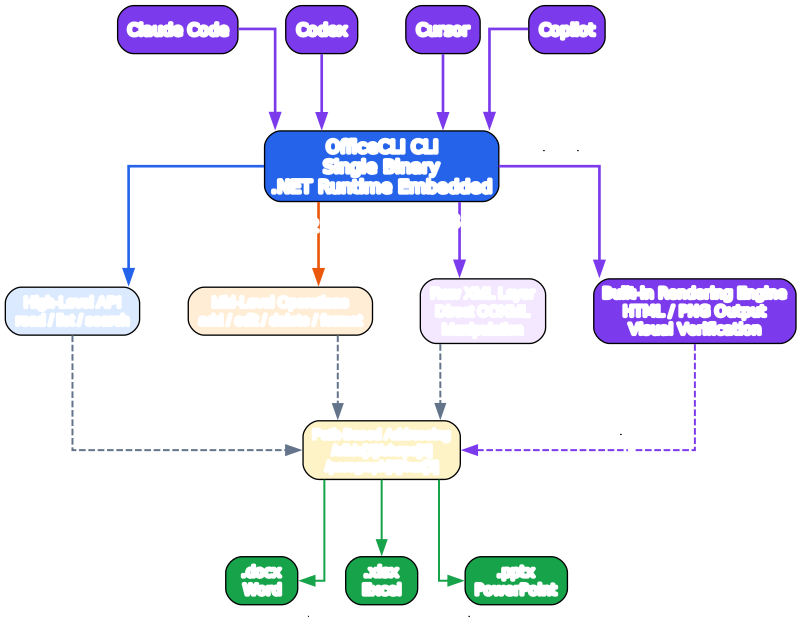
Architecture Overview
The diagram above breaks OfficeCLI into four concentric layers. Outermost is the Users and Agents layer: AI coding agents like Claude Code, Cursor, Windsurf, GitHub Copilot, or Gemini CLI sit on the left, humans running the CLI or the companion AionUi GUI sit on the right, and every agent entry point is bootstrapped through a single SKILL.md that agents fetch with one curl command. The SKILL file teaches the agent how to install the binary, when to use resident mode, how to fall back from L1 read operations through L2 DOM edits to L3 raw XML operations, and – critically – it tells agents to ALWAYS run officecli help <format> <element> instead of guessing property names. That single rule eliminates guess-fail-retry loops that are the bane of every agent using a document library.
Inside that is the Interfaces layer. The plain CLI (officecli create, officecli add, officecli get, officecli set, officecli remove, officecli view, officecli query, officecli watch) is the canonical entry point. Next to it are the Python SDK (pip install officecli-sdk, zero third-party dependencies, stdlib only), the Node.js SDK (npm install -g @officecli/officecli), and an optional MCP server that exposes every capability through a single command string parameter. All four surfaces resolve to the same internal dispatcher. There is no second vocabulary in the SDKs – a Python doc.send({"command": "set", ...}) uses the exact same dict shape as an officecli set CLI item in batch mode, so new OfficeCLI features work the day they ship without SDK updates.
The Core Engine layer (everything built into the binary, no external libraries) contains the real engineering. From left to right: the Command Dispatcher that routes L1/L2/L3 operations; a Resident Mode process that holds files in memory over a named pipe (avoiding per-command process-spawn overhead and file-lock fights); the High-Fidelity HTML Rendering Engine that handles shapes, charts with trendlines and error bars, equations rendered with KaTeX, 3D .glb models rendered with Three.js, and morph transitions; a Formula and Pivot Engine that implements 350+ built-in Excel functions plus pivot tables with copy-on-write caches and cross-pivot sharing; the OOXML Read/Write Layer that reads and writes the actual .docx/.xlsx/.pptx package; embedded JSON schemas for every element (single source of truth for both runtime help and CI contract tests); and finally a Plugin Host for sidecar-process extensions. The Plugins layer (dump-readers for foreign formats like .doc/.hwp/.odt, exporters for .pdf/.epub, and format-handlers for extended view modes) attaches through that host, and the Output & Files layer collects the resulting documents plus the HTML and PNG previews.
Agent Render-Look-Fix Loop
The single most important feature of OfficeCLI is the rendering engine because it closes the feedback loop for AI agents. Without visualization, an agent generating slides is flying blind – it can read the DOM and set X and Y coordinates, but it cannot tell if the title overflows the text box, if two shapes overlap, or if a bar chart’s data labels collide with the axis. Every shape edit degenerates into guesswork followed by “does this look OK?” to the user.
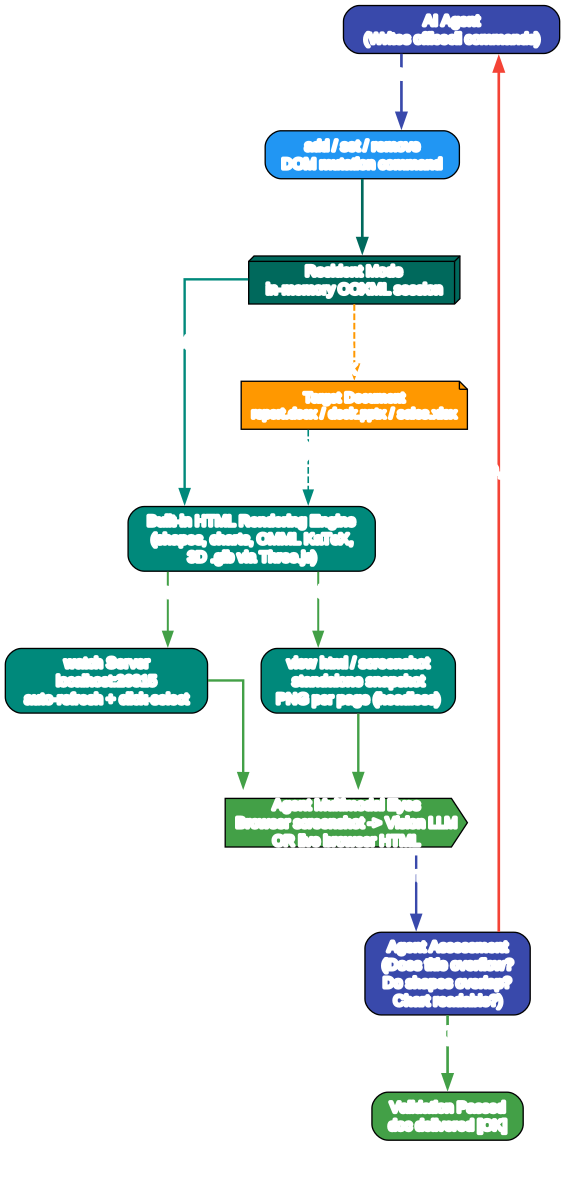
The diagram above traces the full cycle. The agent issues an add/set/remove mutation, which lands in the in-memory Resident Mode session. The resident hands a DOM snapshot to the built-in HTML Rendering Engine. Depending on the workflow, rendering either flows through a watch server running on localhost:26315 with auto-refresh and click-to-select support, or through a one-shot view html or view screenshot command. Either way, the output reaches an Agent Multimodal Eyes node: either a vision LLM looking at a PNG per-page screenshot, or a live browser DOM being inspected programmatically.
The agent then assesses the rendered document. If issues are detected (title overflow, shape overlap, wrong color, missing chart legend, unreadable pivot layout), the correction cycles back to the agent which issues a new mutation and the loop repeats. Only when no issues remain is the resident flushed to disk via close or save, producing the final target document. The loop is cheap because Resident Mode keeps everything in memory and the rendering pipeline is inside the binary. Running this cycle on a server with no display, in CI, inside Docker, or headlessly is explicitly supported.
A complementary feature called Marks lets the agent propose edits in the browser without touching the file. The agent calls officecli mark <path> with a find=, color=, and note= describing what is wrong, and the human reviews the highlighted issues in the watch browser before an explicit apply pipeline writes accepted changes to the file. For permanent annotations, Word’s native comment format is available through the regular element tree.
Three-Level Command Strategy
The SKILL file enforces a strict L1-to-L3 strategy with every operation. Agents are taught to prefer the highest layer that can express the change:
- L1 (Read and Inspect):
create,view(outline, stats, issues, text, annotated, html, screenshot, svg, pdf, forms),get,query,validate. These are the non-mutating entry points.gettakes any XML path and returns a grep-friendly text format or structured JSON with--json.querysupports CSS-like attribute selectors with booleanand/orcombinations.validateruns the file against the full Office Open XML schema. - L2 (DOM Operations):
set(modify element properties, with optional--findfor text formatting or replacement),add(new elements, with--after/--before/--index/--fromfor positional inserts or cloning),move,swap,remove,batch(atomic multiple operations),merge(template placeholder fill),dump(round-trip serialization to replayable JSON). Every supported element – from Word paragraphs with revision tracked changes, to Excel pivot tables with date grouping and slicers, to PowerPoint connectors anchored by stable@name=shape paths, to 3D.glbmodels with combined rotation – is addressable through L2. - L3 (Raw XML):
raw,raw-set,add-partwith full XPath-based setattr/append/replace. No xmlns declarations are needed – prefixes are auto-registered. L3 is explicitly last-resort; it exists because every real-world document pipeline eventually hits a corner case that no DOM API can cleanly express, and dropping straight to XML keeps the agent unblocked instead of failing.
One command, batch, deserves a separate callout. In OfficeCLI 1.0.137 and later, batch is atomic by default: every item in the batch still runs and reports success or failure, so the agent sees exactly which N succeeded and M failed, but if any single item fails, the ENTIRE batch rolls back and the file on disk remains byte-identical to what it was before. This eliminates a class of “batch applied the first 12 edits, died on the 13th, document is now in an inconsistent half-applied state” failures that are the bane of every scripted document pipeline. The old apply-what-succeeds behavior is still available as --best-effort for lossy dump -> batch replays where partial application is acceptable. Combine --best-effort with --stop-on-error if you want “stop at first failure but keep what already ran.”
The Built-in Formula and Pivot Engine
Agents creating financial models, dashboards, or sales forecasts in Excel traditionally have a problem. They can write formulas into cells, but they cannot see the evaluated value without opening the file in a real Excel install or reimplementing spreadsheet math in Python. OfficeCLI ships a built-in formula and pivot engine that evaluates 350+ Excel functions automatically on write. Write =SUM(A1:A2) into a cell and immediately read it back with officecli get – the evaluated value is already there. No round-trip through Office, no re-processing step, no waiting for a user to open the workbook in Excel to see if numbers add up correctly.
Coverage is deep. Financial and bond math: XIRR, PRICE, YIELD, DURATION, COUPNUM. Statistical distributions, tests, and regression: NORM.DIST, T.TEST, LINEST. Spilling dynamic arrays with auto _xlfn. prefixing: FILTER, SORT, UNIQUE, SEQUENCE, LET, LAMBDA, MAP. Lookup and reference: VLOOKUP, XLOOKUP, INDEX, MATCH, OFFSET, INDIRECT. Defined-name formula bodies are inlined at parse time so get returns the actual formula text, not a reference. On row or column insert, all formula references and defined-name formulas rewrite their references automatically.
Pivot tables are written with a single add command. Given a source range, rows, cols, filters, and values fields, plus aggregation (sum, count, average, max, min, product, stdDev, stdDevp, var, varp, countNums), showDataAs modes (percent_of_total / row / column / running_total), layout (compact / outline / tabular), and optional date grouping, OfficeCLI writes both the pivot cache and the pivot definition to the OOXML file. When Excel opens the file, the aggregations are already populated – there is no “enable content then wait for Excel to recalculate” step. Pivot caches use copy-on-write internally and can be shared across multiple pivots. Top-N and labelFilter filters can be set at add time.
SDK Resident Named-Pipe Pipeline
The Python and Node.js SDKs are deliberately thin. The resident process already has every command implemented, so the SDKs do one thing: they forward commands over a named pipe (Windows) or Unix socket (macOS / Linux) to an already-running resident instance of the OfficeCLI binary. A loop of 1,000 edits that would take 1,000 process spawns through the regular CLI takes one pipe connection through the SDK, making loops roughly hundreds of times faster.
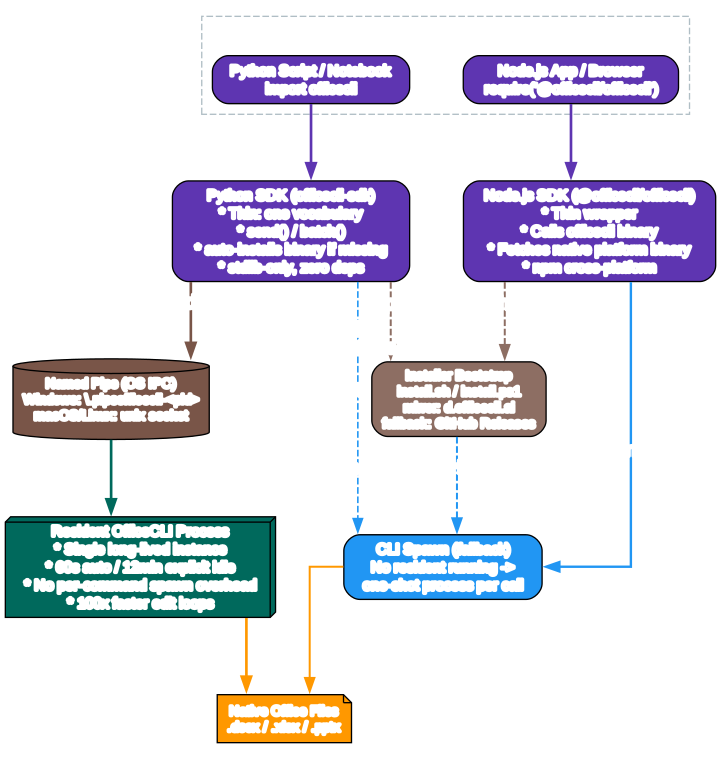
The diagram traces two SDK flows side by side. The Python SDK on the left wraps officecli-sdk on PyPI, a zero-dependency standard-library-only package. The import officecli module exposes create() / open() context managers whose doc.send(item) and doc.batch([items]) accept the same batch-item dicts as the CLI batch mode – no second vocabulary, no per-element named methods, and no new features waiting for an SDK update. If the officecli binary is missing from the user’s PATH or default install location on first use, the SDK explicitly provisions it by running the official installer (install.sh / install.ps1 fetched from the d.officecli.ai mirror with GitHub Releases as a fallback). The auto-install prints a one-line notice before it runs so provisioning is never silent; pass auto_install=False to require a pre-installed CLI.
The Node.js SDK on the right is even thinner: @officecli/officecli on npm (also @aionui/officecli) wraps the native platform binary and fetches it at postinstall time from the same official mirror with SHA-256 checksum verification. The SDK resolves to the Node SDK, the Python SDK resolves to the pipe, and both land in the same Resident OfficeCLI process in the middle. The Named Pipe node in the middle (Windows uses \\.\pipe\officecli-<pid>, macOS and Linux use a Unix socket) bridges the SDK to the resident, and the resident writes native Office files out to disk. If no resident is running, both SDKs fall back to a one-shot CLI spawn per command, correct but slower. Auto-installed binaries land on PATH through the installer bootstrap.
Resident timeout defaults are tuned for the common cases: 60 seconds idle for auto-started residents (so a stray process that dies does not hold a file lock forever), 12 minutes idle for explicitly opened residents (for longer interactive sessions). Flush only at the non-officecli boundary – officecli’s own reads always see the latest edits regardless of whether a flush has happened, so you never need to save mid-workflow. Run save (keeps resident alive) or close (flushes and releases) only before handing the file to a non-officecli program: python-docx, openpyxl, Word itself, a renderer, or delivery/upload.
Plugin System - Sidecar Process Architecture
OfficeCLI’s main binary ships universal support for the three big Office formats. Everything else – legacy formats, regional formats, heavy export targets, proprietary implementations – lives out of tree in plugins. Plugins are independent sidecar processes discovered and invoked by the main binary through a strict v1 protocol.
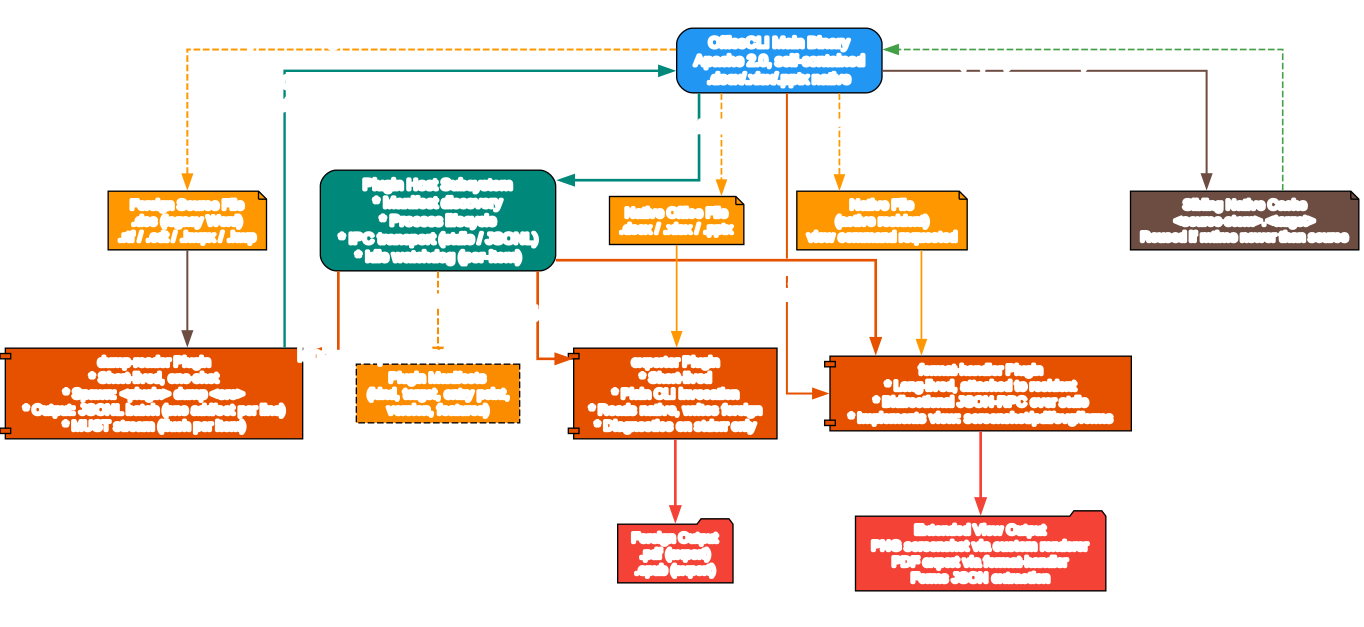
The Plugin Host (inside the main binary) owns manifest discovery, process lifecycle, IPC transport (stdio plus JSONL or JSON-RPC depending on the plugin kind), and a per-item activity watchdog for large source files. Manifests declare the plugin kind, the format they target, entry points, versions, and feature flags. There are three plugin kinds in v1:
1. dump-reader (short-lived, one shot). Used for foreign-format migration. When a user opens a .doc file (legacy Word binary format), .hwp / .hwpx (Korean document formats), .odt (OpenDocument Text), or any other legacy format, main checks for a sibling native cache file (e.g. <source-stem>.docx) next to the source. If it exists and its mtime is newer than the source, the sibling is opened directly and the plugin is skipped entirely. If not, main spawns the dump-reader plugin with <plugin> dump <source>. The plugin reads the source and streams JSONL (one add/set batch item per line, flushed individually – streaming is mandatory so the watchdog has per-item heartbeat and memory usage stays bounded) to stdout, then exits 0. Main creates a blank native skeleton, replays the batch line by line, and writes the result to the sibling path. Subsequent opens reuse the cached sibling. Source-side changes invalidate the cache automatically via mtime.
2. exporter (short-lived, CLI invocation). Used for rendering native .docx/.xlsx/.pptx files into foreign output formats. The canonical example is .pdf export: writing a PDF renderer into the main binary would require pulling in large PDF libraries with size, license, and platform-specific constraints. Instead, the exporter plugin reads the native file read-only, writes the foreign target file, and emits diagnostics only on stderr – no command vocabulary, no bidirectional IPC. .epub export works the same way.
3. format-handler (long-lived, JSON-RPC over stdio). Attached to an already-running resident for the full session. FH plugins implement extended view modes. The SKILL file’s view mode list includes entries like screenshot, svg, pdf, and forms that are delegated to format-handlers. A format-handler plugin speaks bidirectional JSON-RPC with the Plugin Host, reads the resident-held native file, and returns PNG screenshots via a custom renderer, PDF export data, or JSON-extracted form field values.
The three plugin kinds deliberately cover every plausible format extension vector without bloating the Apache 2.0 licensed main binary.
Stable ID Addressing
Multi-step document edits have a classic problem: positional indices shift after every insert or delete. If an agent issues set /slide[1]/shape[2] ..., then inserts a new shape at position 1, every subsequent path that uses the original indices becomes wrong. OfficeCLI addresses this with Stable IDs. Any element that has a stable OOXML identifier returns a @attr=value path from get --json, and the agent can use that path for all subsequent operations:
/slide[1]/shape[@id=550950021]for a PowerPoint shape (use@name=Fooinstead if the agent prefers the PowerPoint-visible name, with morph!!prefix awareness)/slide[1]/table[@id=1388430425]/tr[1]/tc[2]for a PowerPoint table cell/body/p[@paraId=1A2B3C4D]for a Word paragraph/comments/comment[@commentId=1]for a Word comment
Elements without stable IDs – slide, run, table row/column, Excel row/column – gracefully fall back to positional indices. This lets agents mix stable addressing where available with positional where it is the natural fit, and for watch-browser selections the returned paths always use the stable form, so click-to-select in the browser survives file edits without breaking.
Installation
OfficeCLI ships as a single self-contained binary for every major platform. The .NET runtime is embedded, so there is nothing else to install:
One-line shell (macOS / Linux):
curl -fsSL https://raw.githubusercontent.com/iOfficeAI/OfficeCLI/main/install.sh | bash
One-line PowerShell (Windows):
irm https://raw.githubusercontent.com/iOfficeAI/OfficeCLI/main/install.ps1 | iex
Or through one of the package managers:
brew install officecli        # Homebrew, macOS / Linux
scoop install officecli       # Scoop, Windows
npm install -g @officecli/officecli  # npm (all platforms, fetches native binary)
pip install officecli-sdk     # PyPI (Python SDK only; provisions CLI on first use)
Or download manually from the GitHub releases page. Verify with officecli --version. If you run a bare officecli without installing it first, the binary itself notices the missing install and runs the install step explicitly with a one-line confirmation prompt.
Updates are checked automatically in the background. Disable them with officecli config autoUpdate false or skip them per-invocation with the OFFICECLI_SKIP_UPDATE=1 environment variable. All configuration lives under ~/.officecli/config.json.
For Humans vs For AI Agents
OfficeCLI deliberately supports two user groups with two distinct onboarding paths:
For AI agents: a single line of text pasted into any chat, curl -fsSL https://officecli.ai/SKILL.md, returns the full multi-hundred-line SKILL file that teaches the agent every rule, command, pitfall, and specialized sub-skill. The agent reads the SKILL, installs the binary (if missing), and can immediately create, read, analyze, and modify Office documents on behalf of the user with zero extra configuration. The SKILL covers command syntax, resident-mode performance rules, 48 specialized sub-skills split across Word, PowerPoint, and Excel, and a common-pitfalls table that explicitly warns agents about quoting [N] paths in bash, mixing up PPT shape indices (shape[1] is the title placeholder, not content), guessing property names instead of running help, and using --name "foo" instead of the correct --prop name="foo".
For humans, two entry points exist. Option A is the GUI: install the companion AionUi desktop app, which wraps OfficeCLI with a natural-language interface so non-engineers can describe documents in plain English and have them generated automatically. Option B is the CLI: download the binary, run officecli install once to copy it onto PATH and drop the skill file into every detected AI coding agent directory (Claude Code, Cursor, Windsurf, GitHub Copilot), then use officecli create, officecli add, and officecli watch to edit documents with a live browser preview.
Quick Start Examples
Create a blank presentation, add a styled slide with a text box, and inspect it:
officecli create deck.pptx
officecli add deck.pptx / --type slide --prop title="Q4 Report" --prop background=1A1A2E
officecli add deck.pptx '/slide[1]' --type shape \
  --prop text="Revenue grew 25%" --prop x=2cm --prop y=5cm \
  --prop font=Arial --prop size=24 --prop color=FFFFFF
officecli view deck.pptx outline
# Slide 1: Q4 Report
# Shape 1 [TextBox]: Revenue grew 25%
officecli get deck.pptx '/slide[1]/shape[1]' --json
# {"tag":"shape","path":"/slide[1]/shape[1]",
#  "attributes":{"name":"TextBox 1","text":"Revenue grew 25%","x":"720000","y":"1800000"}}
Live preview with instant browser update on every mutation:
officecli watch deck.pptx
# http://localhost:26315
Then in a separate terminal, every add, set, or remove refreshes the browser instantly. Excel watch additionally supports inline cell edit by double-clicking and drag-to-reposition for charts.
Word document example with a styled paragraph:
officecli create report.docx
officecli add report.docx /body --type paragraph \
  --prop text="Executive Summary" --prop style=Heading1
officecli add report.docx /body --type paragraph \
  --prop text="Revenue increased by 25% year-over-year."
Excel spreadsheet with formula and bold header:
officecli create data.xlsx
officecli set data.xlsx /Sheet1/A1 --prop value="Name" --prop bold=true
officecli set data.xlsx /Sheet1/A2 --prop value="Alice"
officecli set data.xlsx /Sheet1/B1 --prop value="Score" --prop bold=true
officecli set data.xlsx /Sheet1/B2 --prop value=95
officecli set data.xlsx /Sheet1/B3 --prop formula="=AVERAGE(B2:B10)"
Template merge for deterministic production runs: design the layout once at high cost (agent time / tokens), then fill it N times at zero incremental cost with JSON data:
officecli merge invoice-template.docx out-001.docx \
  --data '{"client":"Acme","total":"$5,200"}'
officecli merge q4-template.pptx q4-acme.pptx --data data.json
merge works across paragraphs, table cells, shapes, headers, footers, and chart titles. It avoids the classic failure mode where an agent regenerates each report from scratch and produces N inconsistent layouts across a production run of 500 invoices.
Embedded Schemas and Contract Tests
One engineering discipline that separates OfficeCLI from typical single-developer open-source projects is its schema system. Under schemas/help/ lives a per-element JSON capability schema for every element in Word, Excel, and PowerPoint, described in a JSON Schema (draft 2020-12) document at schemas/help/_schema.json. These schemas are single-source-of-truth consumed in three independent places at once:
- Runtime help output:
officecli help <format> <element> --jsonreturns the matching schema, so agents always see exactly what properties, aliases, examples, and readback values are supported. The schemas are embedded into the binary at build time, so runtime help has zero filesystem or network dependencies. - CI contract tests: Every schema claim for
add,set,get, andreadbackis verified against the real handler implementation in CI. Properties markedenforcement: strictbreak CI on drift, whilereport-level properties only log warnings. This means the help text agents read at runtime can never drift from the actual code – if a PR adds a property without updating the schema, contract tests fail. - Release-time wiki generation (future): wiki markdown is auto-generated and diffed from schemas before publishing, so hand-written wiki docs stay in sync with the binary.
The editing rule is enforced by CI: Any PR that changes Add, Set, or Get behavior for an element must update the matching schema file in the same PR.
Specialized Skills
Not every document is a generic document. Fundraising pitch decks follow different rules than sales decks. Academic papers need IEEE citations and cross-references. Financial models require scenario modeling. Dashboards need KPI layouts with sparklines. OfficeCLI bundles a load_skill sub-system that extends the agent vocabulary per document type. Load rules: pick the most specific match in the list below. One skill per artifact, never stack. Loaded rules persist across turns. Two distinct artifacts require two separate loads.
Word skills: word (default for reports, letters, memos, proposals, generic documents) and academic-paper (APA / Chicago / IEEE / MLA citation styles, equations, SEQ + PAGEREF cross-refs, multi-column journal layouts, bibliographies – not for business reports).
PowerPoint skills: pptx (generic board reviews, sales decks, all-hands, product launches), pitch-deck (fundraising only: seed, Series A-C, SAFE, convertible note, strategic raise), morph-ppt (cinematic Morph-animated presentations), morph-ppt-3d (3D Morph with .glb models, camera moves, depth effects).
Excel skills: excel (generic workbooks, formulas, pivots, trackers), financial-model (scenarios, projections, three-statement models), data-dashboard (tabular data to KPI/analytics/executive dashboards with charts and sparklines).
i18n and RTL First-Class Support
Document globalization is rarely done well in open-source libraries. OfficeCLI treats i18n and RTL (right-to-left) as first-class capabilities, not bolt-on afterthoughts. Word’s document-wide defaults include per-script font slots (font.latin / font.ea / font.cs), per-script BCP-47 language tags (lang.latin / lang.ea / lang.cs), complex-script bold, italic, and font sizing (bold.cs / italic.cs / size.cs), direction=rtl that cascades through paragraph, run, section, table, style, header, footer, and docDefaults, rtlGutter plus pgBorders shorthand, and locale-aware page numbering for Hindi, Arabic, Thai, and CJK scripts. officecli create report.docx --locale ar-SA auto-enables RTL globally.
Excel supports rightToLeft sheet views with cascade-aware sheet rename that correctly rewrites references even if you rename a sheet referenced by formulas elsewhere. Word, Excel, and PowerPoint comments and notes all support RTL. PPT has per-shape direction=rtl cascading. Word form fields, content controls (SDTs), fields, footnotes, endnotes, watermarks, bookmarks, TOCs, charts, and hyperlinks all carry locale and direction metadata correctly through round-trips.
Common Pitfalls (For Humans Writing Scripts)
These come directly from the SKILL file’s own common-pitfalls table and are worth repeating for anyone writing batch scripts or pipelines:
- All attributes go through
--prop, not a separate--nameflag. Write--prop name="foo", never--name "foo". - In zsh and bash, unquoted
[N]paths trigger shell glob expansion. Always quote:'/slide[1]'or"/slide[1]". - In PowerPoint,
shape[1]is almost always the slide’s title placeholder (from the slide layout). Actual body content starts atshape[2]and beyond. - When unsure about property names or value formats, ALWAYS run
officecli help <format> <element>instead of guessing. One help query beats guess-fail-retry loops. - Do not modify a document that is already open in PowerPoint or WPS or Word – file locks cause confusing errors.
- In shell strings,
--prop text="line1\nline2"requires escaping the backslash: use\\nfor literal newline. Same for dollar signs:'--prop text=$15M'strips$15in bash. Use single quotes or heredoc batch. - After modifications, verify with
validateand/orview issues.validateruns the OOXML schema,view issuesfinds formatting, content, and structural problems (split into--type format|content|structure).
Links
- GitHub Repository: https://github.com/iOfficeAI/OfficeCLI
- Official Website: https://officecli.ai
- Agent Skill File: https://officecli.ai/SKILL.md
- Python SDK on PyPI: https://pypi.org/project/officecli-sdk/
- npm Package: https://www.npmjs.com/package/@aionui/officecli (published as
@aionui/officecli; the repo’spackage.jsonalso declares@officecli/officeclias the intended name, so check both for the latest release) - Discord Community: https://discord.gg/2QAwJn7Egx
- GUI Companion (AionUi): https://github.com/iOfficeAI/AionUi

Enjoyed this post? Never miss out on future posts by following us


