How to Translate a PDF Without Losing the Formatting
Everyone knows the failure mode. You upload a clean, professional PDF to an online translator, and what comes back is a wall of text: the two-column layout collapsed into one, the table now a pile of disconnected numbers, the chart captions floating in the wrong place, and the footer welded to the middle of page three. The translation itself might be fine. The document is wrecked. The good news is that this is a solved problem, and you do not have to pay much, or anything, to solve it. This guide walks through why PDFs fight back when you translate them, which tools actually preserve the layout, and the habits that keep a translated document looking like the original.
Why PDFs Lose Their Formatting
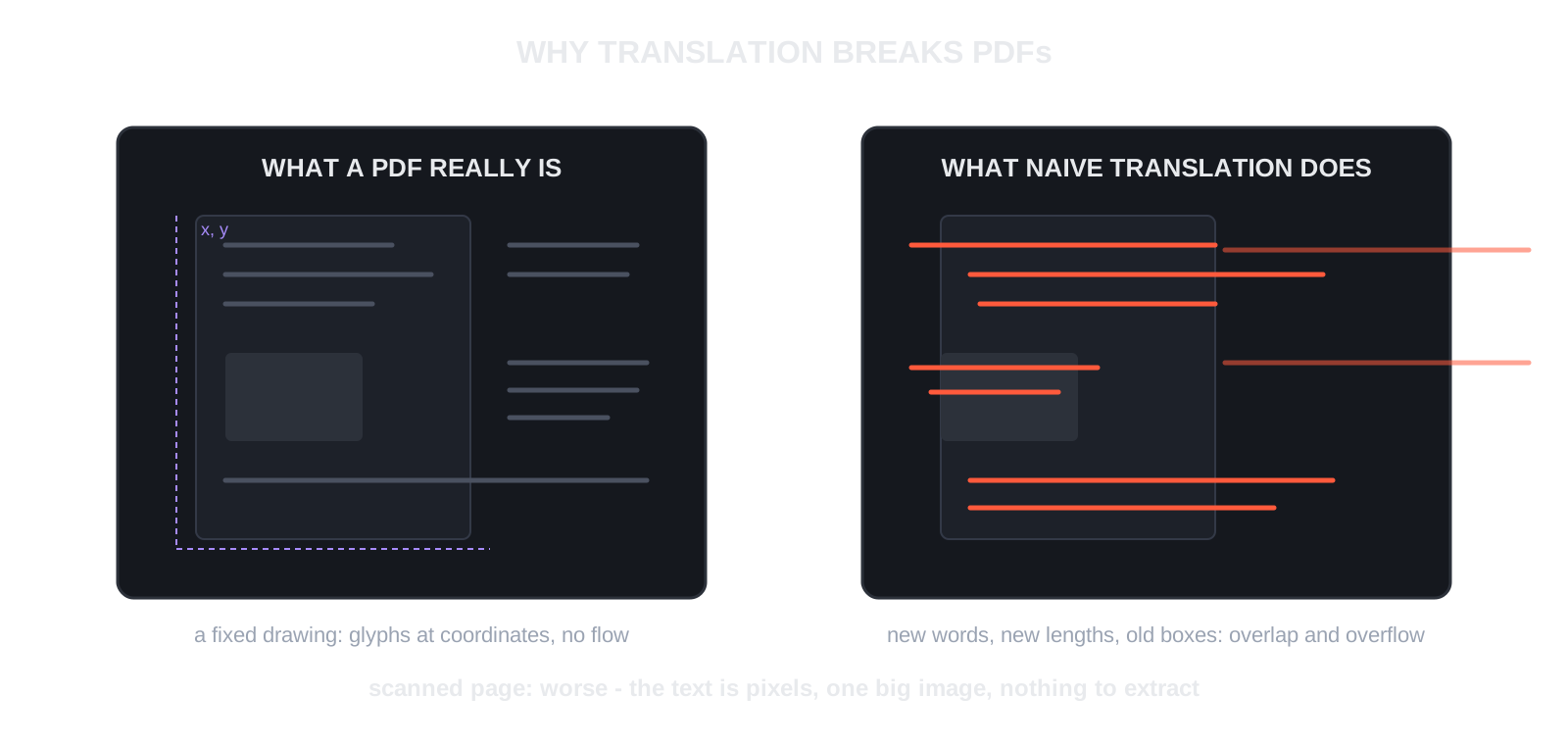
The root cause is what a PDF actually is. A PDF is not a document with flowing text; it is a fixed drawing. Text is stored as positioned glyphs, essentially drawing instructions that say “put this character here, in this font, at this size”. There are no paragraphs or columns as structural objects, only ink at coordinates. A research paper on this exact problem, PDFMathTranslate on arXiv, puts it plainly: earlier translation efforts largely overlooked the information in layouts, yet the arrangement of paragraphs, equations, tables, and figures carries meaning of its own.
Translation breaks that drawing in two ways. First, translated text is a different length than the original: German runs longer than English, Chinese runs shorter, and every swapped string now overflows or underfills the box that was drawn for it. Second, many tools do not even try to respect the geometry; they extract the text in reading order, translate it, and hand you back a flat document. Scanned PDFs are the worst case, because the “text” is just pixels in an image with nothing to extract at all. Google’s own documentation notes that text found in images and scanned PDF pages appears in the output but is not translated.
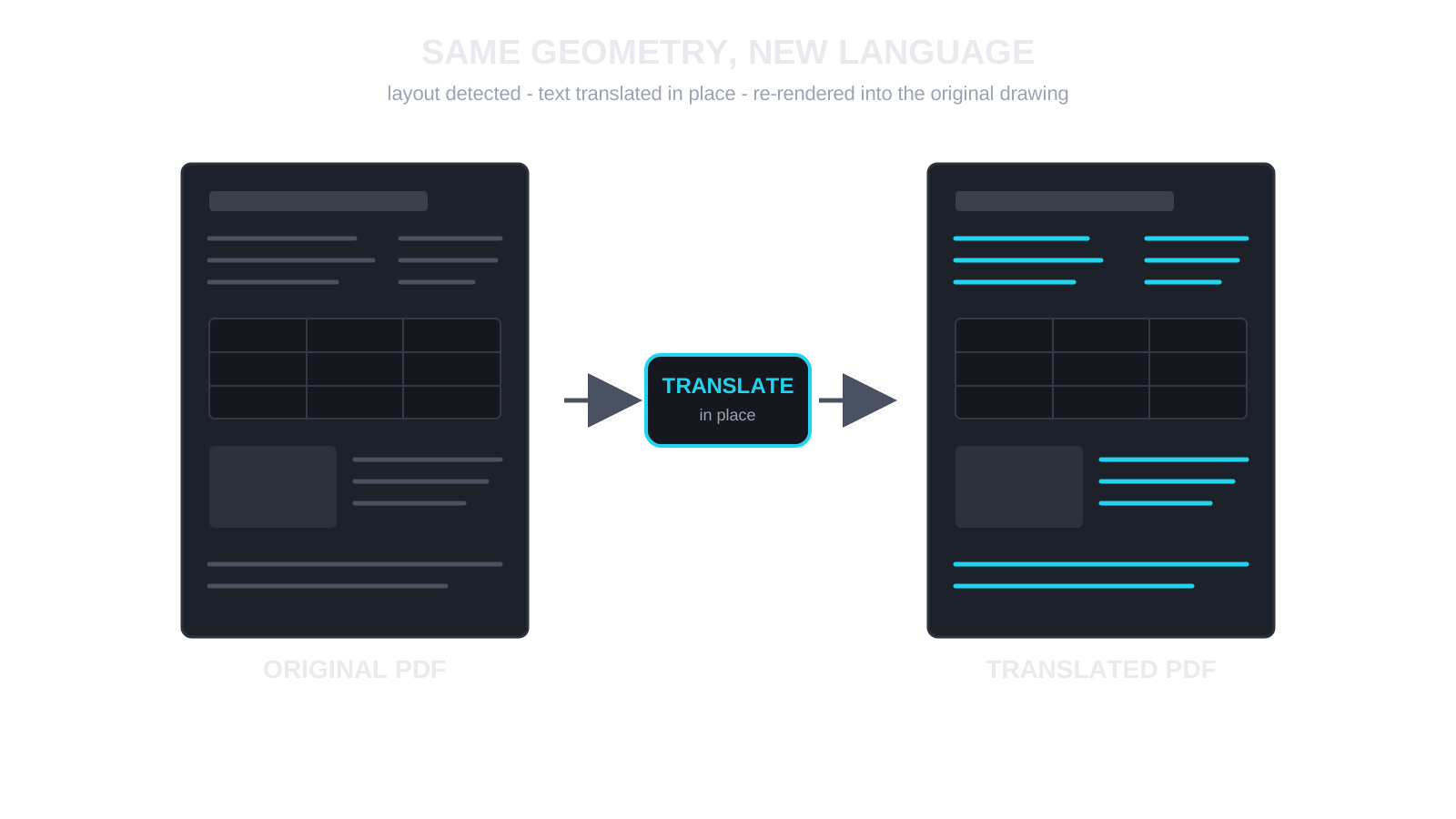
So the tools that preserve formatting all solve the same three subproblems: detect the layout, translate the text in place, and re-render it into the original geometry. The differences are in how well they do it, what they cost, and how much setup they need.
Pick Your Tool
| Tool | Keeps layout | Free tier | Main limits | Best for |
|---|---|---|---|---|
| PDFMathTranslate (pdf2zh) | Yes, including formulas | Fully free, runs locally | PDF only; needs setup | Papers, manuals, exact geometry |
| DeepL | Yes | Free with account | Pro needed for bulk and DOCX output | Best prose quality |
| Google Translate | Mostly, for native PDFs | Free | 10 MB, 300 pages; skips scanned text | Quick one-off jobs |
| Adobe Acrobat / Express | Yes | With Adobe account | Skips scanned, secured, or large PDFs | Already-in-Adobe workflows |
| Word roundtrip | Reflowed | With Word | Complex layouts get rebuilt | Editable output after translation |
Method 1: PDFMathTranslate, the Open-Source Layout Keeper
If the formatting genuinely matters, this is the tool to beat. PDFMathTranslate, known as pdf2zh, is an open-source project (AGPL-3.0) built specifically to translate PDFs while preserving layout, formulas, charts, table of contents, and annotations. Its second-generation version, PDFMathTranslate-next, runs on the BabelDOC backend, and the project documents an efficient pipeline: parse the layout with a detection model, translate the text blocks, and re-render everything into the original geometry. It supports many translation services, including Google, DeepL, OpenAI models, and fully local models through Ollama.
To use it on Windows, grab the exe from the release page and run:
pdf2zh document.pdf
That single command produces two files: document-mono.pdf, fully translated with the layout intact, and document-dual.pdf, a bilingual side-by-side version that is perfect for checking the translation against the original. Prefer a browser interface instead of the command line? Run pdf2zh -i and open the local web UI on port 7860. The common options are what you would expect: --lang-in en --lang-out zh-CN to set the language pair, --pages 1-5 to translate part of a document, and service flags such as --openai or --deepl to choose the engine. If you want a fully local pipeline with nothing sent to any cloud service, point it at Ollama and keep the entire job on your machine.
No installation at all? Two hosted options exist: the free pdf2zh.com service for files under 5 MB, and Immersive Translate’s BabelDOC, which offers a free monthly page quota per its documentation. For anything confidential, prefer running the tool locally.
Method 2: DeepL, the Quality Option
DeepL’s file translator is the smoothest hosted experience. Create a free account, open the Translate files tab, drag in your PDF, pick the target language, and start. DeepL states that it preserves formatting and design across PDFs, and in practice tables, columns, and images come through recognizably. The free tier handles single files; DeepL Pro adds bulk uploads, translating into multiple languages at once, glossaries for consistent terminology, formal or informal tone, and the option to download the result as a DOCX instead of a PDF. For Pro users, uploaded files are deleted after translation.
One caveat comes from DeepL itself, and it is worth internalizing: PDF translation relies on OCR-style extraction and can hit a higher error rate than other formats. If your PDF was born as a .docx or .pptx, DeepL recommends translating that source document instead. Custom fonts and very large images can also degrade the result.
Method 3: Google Translate, the Quick Fix
For a fast, free, no-account job, Google Translate still works. Per Google’s documentation: open the Documents tab, choose your languages or let it detect the source, browse your computer for the file, click Translate, then Download translation. The limits are explicit: up to 10 MB, in .docx, .pdf, .pptx, or .xlsx, with PDFs capped at 300 pages, and the feature is not available on mobile or small screens. Layout survives reasonably well for digitally created PDFs, but remember the scanning caveat: any text that only exists inside an image will pass through untranslated.
Method 4: Adobe Acrobat and Express
If you already live in Adobe’s world, Acrobat can translate through Adobe Express: open your PDF, select Convert, then Translate this PDF. The document opens in Adobe Express, where you pick target languages, choose to translate all pages, one page, or specific text, optionally set a formal or informal tone, and hit Translate. The result is saved to your Adobe account, previewable, and downloadable as a PDF. The catch is on Adobe’s own help page: translation may be skipped for scanned, secured, large, or complex PDFs, or documents using unsupported fonts.
Method 5: The Word Roundtrip
When the goal is an editable translated document rather than a pixel-faithful one, the oldest trick still works. Open the PDF in Microsoft Word, which converts it into an editable DOCX; use Review, then Translate, then Translate Document to produce a translated copy; then export that DOCX back to PDF. You gain full editability and lose some fidelity, because Word rebuilds the layout during conversion. Simple documents roundtrip beautifully; heavily designed ones will not.
Scanned PDFs: OCR First
Every method above assumes the PDF contains real text. If yours is a scan, no translator can help until something reads the pixels. Run the document through an OCR tool first, then translate the text layer. We covered exactly this workflow in our Paperless-ngx guide, which turns paper piles into a searchable archive, and Docling parses scanned and complex documents into structured data. If you want to understand what is actually inside a stubborn PDF, pdf-inspector makes the internals readable in seconds.
Seven Habits That Keep Formatting Alive
First, translate the source document whenever you have it; a DOCX translates more cleanly than any PDF derived from it, which is DeepL’s own recommendation. Second, test whether your PDF has a text layer by trying to select a sentence; if you cannot select it, OCR first. Third, mind the fonts: tools skip or substitute text set in unusual or unsupported fonts, and Adobe explicitly lists unsupported fonts as a skip condition. Fourth, expect length changes: languages expand and contract against each other, so tools that re-render into the layout, like pdf2zh, handle the mismatch better than tools that simply overlay new text. Fifth, use a bilingual output, such as pdf2zh’s dual file, to check the translation against the original without switching windows. Sixth, treat confidentiality as a feature: browser translators upload your file to someone else’s servers, DeepL Pro deletes files after translation, and a locally run pdf2zh with a local model never lets the document leave the building. Seventh, keep the original untouched and treat every translation as a disposable copy, because you will redo it with a better engine within the year.
Which One Should You Use
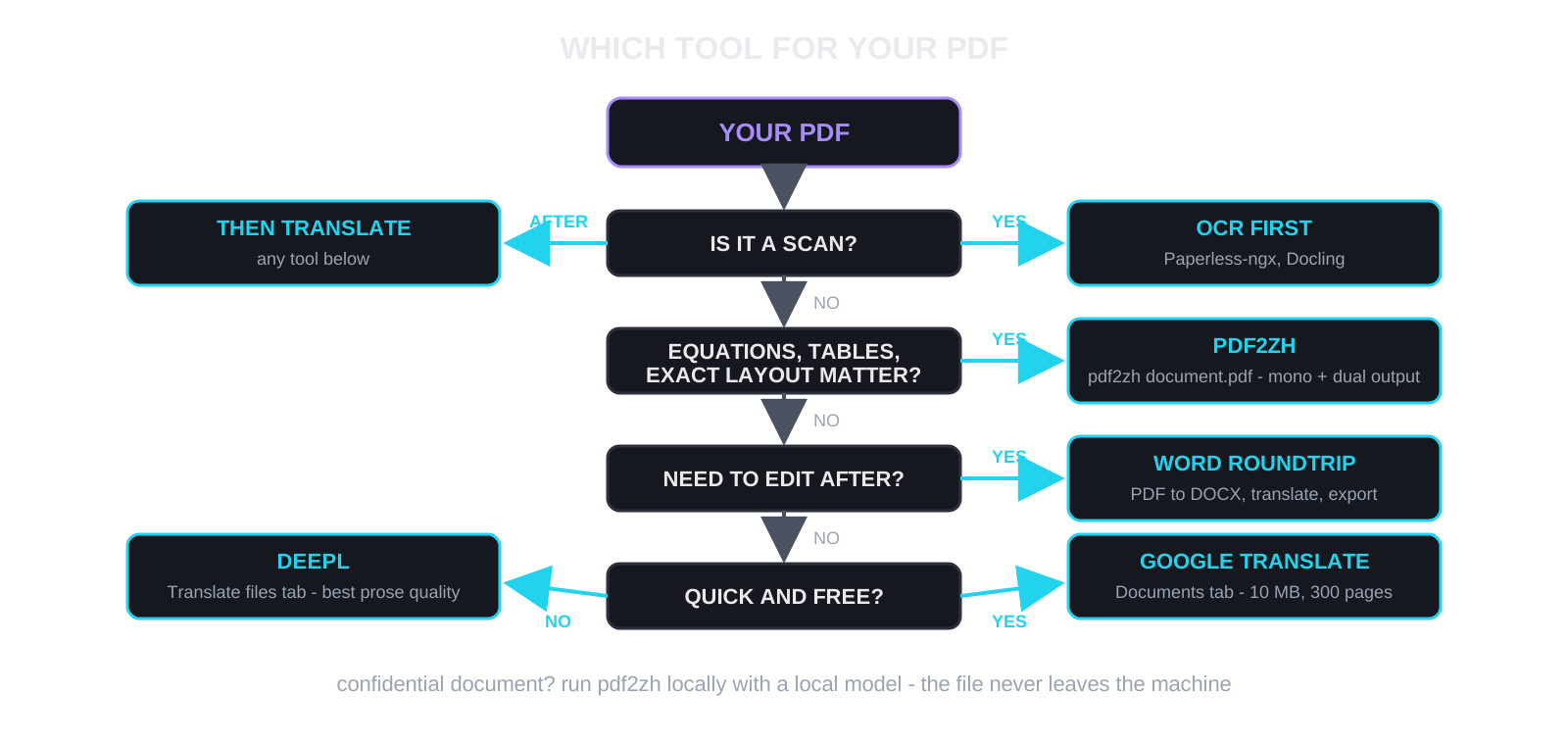
A scientific paper full of equations goes to pdf2zh, full stop. A business document where the wording matters more than the pixel positions goes to DeepL. A one-off menu or announcement goes to Google Translate. A document already sitting in your Adobe workflow goes through Acrobat’s Translate this PDF. A contract you need to edit and re-sign goes through the Word roundtrip. A scanned anything goes through OCR first, every time.
Conclusion
The formatting survives translation only when a tool respects the PDF for what it is: a fixed drawing that needs layout detection, in-place translation, and careful re-rendering. That is a harder engineering problem than translating text, and it is exactly why the naive upload-and-pray converters shred your documents. Pick a tool that solves the actual problem, pdf2zh when the geometry is sacred and you want open source, DeepL when the prose is sacred, Google when speed is the only requirement, and your formatting will arrive at the other language in one piece. Enjoyed this post? Never miss out on future posts by following us 


