Here is a small everyday tragedy: you take a photo on your phone and want it on your laptop. Between you and that goal sits a wall of bad options - a USB cable you cannot find, a cloud service that uploads your photo to another continent and back, a messaging app that compresses it, or an email that rejects the attachment. If both devices are made by Apple, AirDrop solves it. If they are not, or worse, if one is an iPhone and the other is a Windows PC, you are back to the cable.
LocalSend ends this. It is a free, open-source app - around 91,000 GitHub stars and Apache-2.0 licensed - that shares files and messages between any nearby devices over your local network. No internet connection, no accounts, no external servers, no file size limits, no compression. It runs on Android 5.0+, iOS 12.0+, Windows 10+, macOS 11+, Linux, and even Amazon’s Fire OS, from a single Flutter codebase. Your phone discovers your PC, you tap send, the file arrives encrypted. Done.
What makes LocalSend worth a deep dive is not just that it works, but how it works: a fully specified REST protocol, encrypted with certificates each device generates on the fly, discovered over multicast UDP - all on a network that never touches the internet. Let’s look under the hood.
Understanding the Architecture
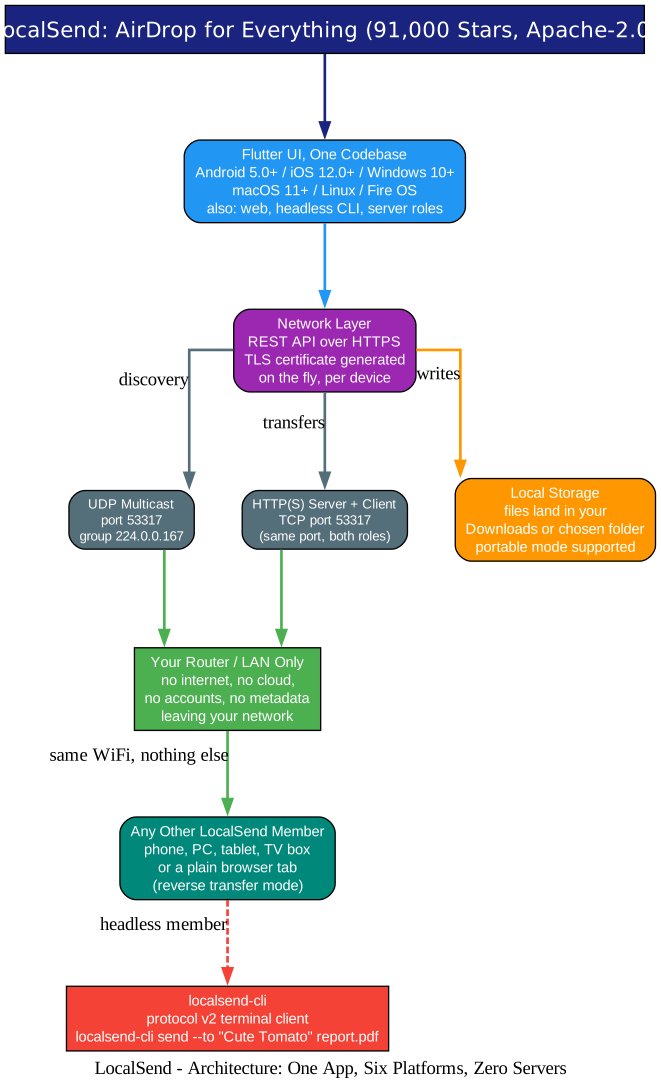
The diagram above shows the whole system in one picture. Three design decisions explain almost everything about LocalSend.
1. One Flutter codebase, six platforms. The app is built with Flutter, so the same UI and logic compile to Android, iOS, Windows, macOS, Linux, and Fire OS. That is why LocalSend feels identical everywhere - the share sheet, the device list, the progress rings are the same on your phone and your PC. The build pins an exact Flutter version using fvm (a .fvmrc file), which keeps contributors from chasing framework drift, and the project also requires Rust for parts of the toolchain.
2. Every device is both a client and a server. This is the cleverest part of the design. Each LocalSend instance runs a small HTTP(S) server on TCP port 53317 and joins a UDP multicast group on the same port. When you send a file, your app is the HTTP client and the recipient’s app is the HTTP server. The protocol only needs one party to host a server, which means transfers can always be initiated in whichever direction works best for the network you are on.
3. The LAN is the whole world. Everything - discovery, negotiation, transfer - happens over your local network. No relay servers, no cloud storage, no sign-in. Unplug your router from the internet entirely and LocalSend keeps working. This is a privacy model, not a limitation: your files physically cannot be intercepted by a service you never sent them to.
There is also a headless CLI for terminals (localsend-cli send --to "Cute Tomato" report.pdf), and a reverse-transfer mode where the recipient needs nothing but a browser - both covered below.
Discovery: How Your Phone Finds Your PC
Before any file moves, devices must find each other. LocalSend’s discovery is a nice exercise in designing for unreliable networks.
Understanding the Discovery Protocol
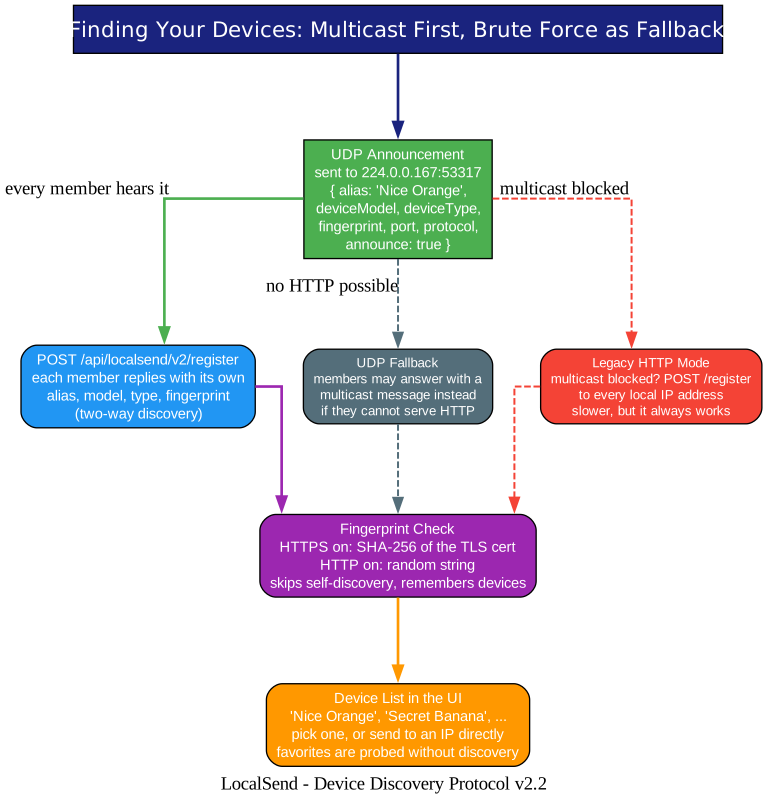
The multicast announcement. When the app starts, it broadcasts a JSON announcement to UDP group 224.0.0.167 on port 53317. The message carries a generated alias (“Nice Orange”, “Secret Banana” - the friendly device names are half the charm), the device model and type, the port, the protocol (http or https), and a fingerprint.
The two-way reply. Every LocalSend member that hears the announcement replies with its own identity - preferably via an HTTP POST to /api/localsend/v2/register on the announcing device, or via a UDP message as fallback if the member cannot serve HTTP. This makes discovery two-way in a single exchange: you learn who is out there, and they learn you exist.
The fingerprint. Each device carries a fingerprint used to skip self-discovery and to remember devices across sessions. With encryption on, the fingerprint is the SHA-256 hash of the device’s TLS certificate - which doubles as a verifiable identity. No central authority issues it; your device minted its own certificate on first run.
When multicast is blocked. Some networks, VPNs, or AP-isolation settings swallow multicast. The protocol has a legacy fallback: fire the same /register request at every IP address on the local subnet. It is slower and noisier, but it always works, and it is exactly the kind of unglamorous engineering that makes an app feel reliable in hotel rooms and office networks.
The Transfer: Metadata First, Bytes Later
The transfer protocol reads like a polite conversation, and it is specified to the HTTP status code in the protocol repository (currently v2.2).
Understanding the Transfer Flow
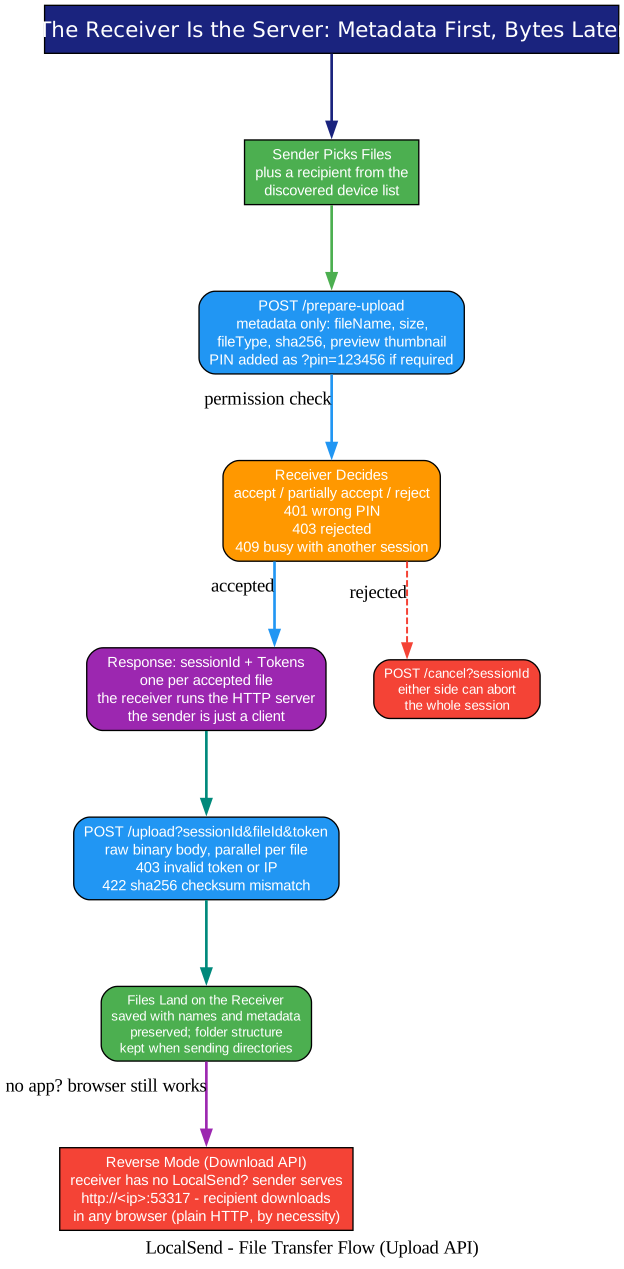
Step one: ask, do not push. The sender POSTs only file metadata to the receiver’s /api/localsend/v2/prepare-upload - file name, size, MIME type, an optional SHA-256 checksum, and even a preview thumbnail. The receiver’s user can then accept everything, cherry-pick a few files, reject with 403, or demand a PIN (a wrong one returns 401). Nothing has been transferred yet. This one decision - metadata before bytes - is what makes receiving files on your phone feel safe rather than terrifying.
Step two: parallel uploads with per-file tokens. On acceptance, the receiver returns a session ID and a one-time token per accepted file. The sender then POSTs the raw binary to /api/localsend/v2/upload?sessionId=...&fileId=...&token=..., and these calls run in parallel across files. The token binds the upload to the session, and a wrong token or a foreign IP gets 403. If a checksum was promised and the received bytes do not match, the receiver answers 422 - silent corruption is not on the menu.
Step three: cancel any time. Either side can abort the whole session with a single /cancel call.
The reverse mode: a browser is enough. When the receiving device has no LocalSend at all, the sender flips roles: its own server offers the files at http://<ip>:53317, and the recipient opens the URL in any browser and downloads. One honest detail from the spec: this fallback uses plain HTTP because browsers refuse self-signed certificates. It is a sensible trade for a LAN, and the spec says so out loud rather than pretending otherwise.
Security: Your Network, Your Keys, Your Rules
Understanding the Security Model
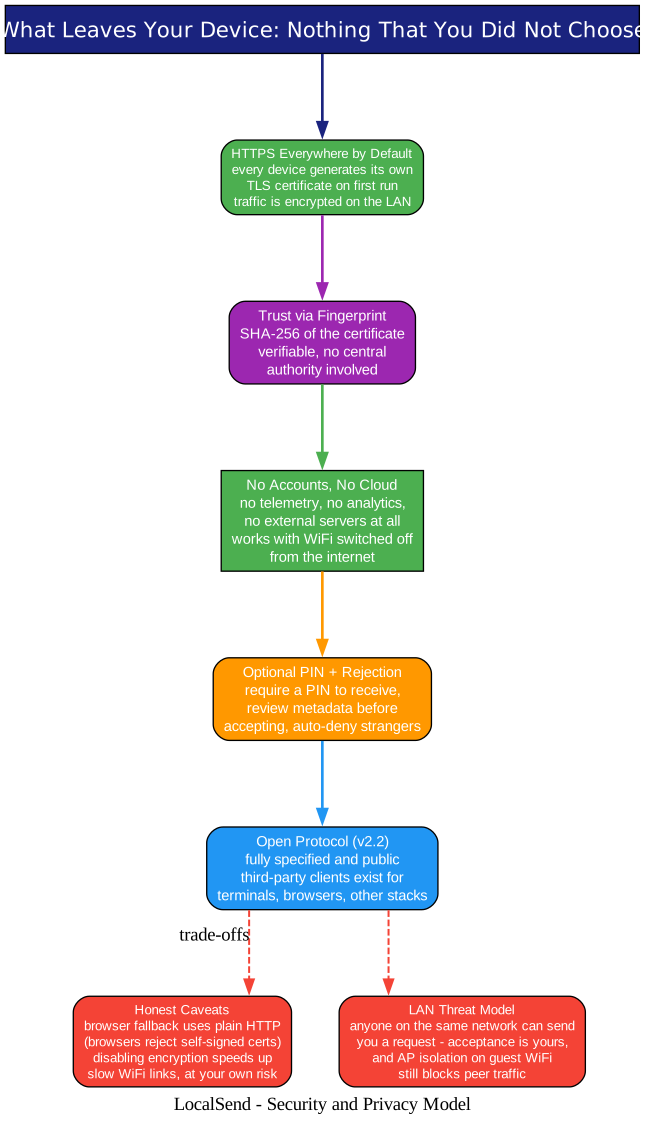
Encryption without a certificate authority. LocalSend’s HTTPS uses a TLS certificate that each device generates on the fly at first launch. There is no CA, no domain, no renewal - the certificate is self-signed and self-minted, and its SHA-256 fingerprint acts as the device identity. For two devices on your own network, this gives you encrypted transport without begging any third party for permission.
Consent is the firewall. Requests from strangers are visible and rejectable: the PIN option, the per-file acceptance, the 403 rejection path. The threat model is honest in the spec - anyone on the same network can send you a request, and your acceptance is the gate.
What to know before you rely on it. Three caveats worth stating plainly. First, the browser fallback mode is unencrypted HTTP, by necessity. Second, you can disable encryption entirely in settings - the troubleshooting guide actually recommends it (plus 5 GHz WiFi) if transfers feel slow, which is fine on your own LAN and your own risk. Third, this all assumes a network you control: on guest WiFi, AP isolation may block peer-to-peer traffic entirely, and a corporate VPN may swallow local connections.
Getting It
The recommended install channels are app stores and package managers, because the app does not self-update:
| Platform | Where |
|---|---|
| Windows | Winget, Scoop, Chocolatey, EXE installer, portable ZIP |
| macOS | App Store, Homebrew cask, DMG |
| Linux | Flathub, Snap, Nixpkgs, AUR, DEB, AppImage |
| Android | Play Store, F-Droid, APK |
| iOS | App Store |
| Fire OS | Amazon Appstore |
After installing on two devices, make sure both are on the same network and that your firewall allows incoming TCP and UDP on port 53317 (sudo ufw allow 53317 on Linux). If devices do not see each other: disable AP isolation on the router, set the Windows network profile to “private”, check the Local Network permission on macOS/iOS, and remember that some VPNs block LAN traffic by default. The full troubleshooting matrix lives in the README.
Nice extras: create an empty settings.json next to the executable for portable mode, and pass --hidden to start minimized to the tray. Windows binaries are code-signed, and the project publishes its signing policy.
Why This Matters
AirDrop is excellent and locked to Apple hardware. Cloud transfer works everywhere and ships your files through someone else’s computer. LocalSend sits in the gap between them: it works everywhere, trusts nothing outside your network, and - because the protocol is fully specified - it is an open standard rather than a private product. Third-party clients can (and do) implement the same protocol, from terminal tools to other stacks.
The project is also a quiet masterclass in shipping real cross-platform software: one Flutter codebase, a pinned toolchain via fvm, community translations managed on Weblate, a Discord community, and a troubleshooting table that reads like it was written by people who actually sit behind firewalls. If you want to study how a small team makes six platforms feel like one product, clone the repository.
For the rest of us, it is simpler than that: install it on your phone and your computer, and the next photo, PDF, or 8 GB video moves between them in seconds - over the air you already own, for free.
Related Posts
- OpenDisplay: Your iPhone Is a Free Second Monitor for Your Mac
- Vaultwarden: Self-Hosted Bitwarden Password Manager in Rust
- Project NOMAD: Offline-First Knowledge Server

Enjoyed this post? Never miss out on future posts by following us


