Microsoft PowerToys: The Ultimate Windows Power User Suite
Microsoft PowerToys is a free, open-source collection of over 30 utilities that transform Windows from a standard operating system into a power user’s dream. Developed by Microsoft and maintained by an active community, PowerToys fills the gaps in Windows with tools for window management, quick launching, text extraction, keyboard remapping, and much more. Whether you are a developer, designer, or everyday Windows user, PowerToys delivers the customization and efficiency that power users demand.

Understanding the PowerToys Architecture
The architecture diagram above illustrates how PowerToys organizes its 30+ utilities into five major categories, all unified under a single runtime that manages settings, system tray integration, and background processes.
Core Runtime
At the center sits the PowerToys Runtime, which handles the Settings application, system tray icon, and background runner. This runtime manages which utilities are enabled, handles updates, and coordinates inter-utility communication. When you open PowerToys Settings, you are interacting with this central hub that orchestrates all the individual tools.
Window Management
The Window Management category includes FancyZones for custom window layouts, Always On Top for pinning windows, Crop And Lock for snapshot windows, Grab And Move for easy window dragging, and Workspaces for saving and restoring complete desktop layouts. These tools address the most common frustration for multi-monitor and multi-window users.
Productivity Launchers
PowerToys Run (Alt+Space) and the new Command Palette provide instant access to applications, files, and commands. Advanced Paste brings AI-powered clipboard transformation, while Peek offers quick file previews without opening applications.
System Utilities
Awake prevents Windows from sleeping, Environment Variables provides a visual editor, Hosts File Editor simplifies network configuration, Registry Preview lets you inspect .reg files before merging, and File Locksmith identifies processes locking files.
Input and Display
Keyboard Manager enables key and shortcut remapping, Color Picker captures any on-screen color, Screen Ruler measures pixel distances, Text Extractor performs OCR capture, and Shortcut Guide displays Windows shortcut overlays.
File Tools
PowerRename enables batch file renaming with regex support, Image Resizer handles batch image resizing, File Explorer Add-ons provide SVG and Markdown previews, and New+ creates files from templates.
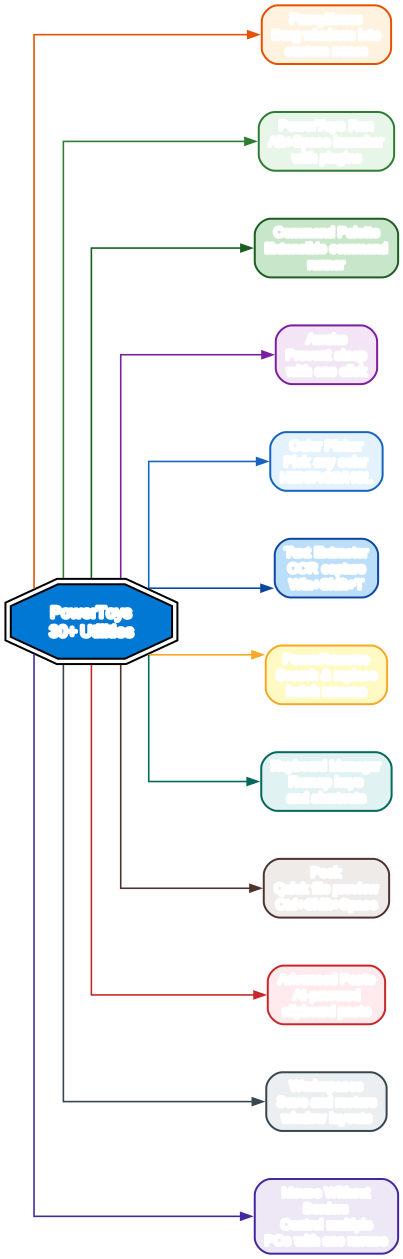
Key Features Deep Dive
The features diagram above shows the twelve most impactful PowerToys utilities radiating from the central hub. Each utility addresses a specific productivity pain point that Windows users encounter daily.
FancyZones is arguably the most popular PowerToys utility. It allows you to define custom zone layouts on your desktop and snap windows into those zones by dragging. Unlike Windows Snap, which only supports halves or quarters, FancyZones supports any configuration you can imagine – from a three-column layout for coding to a priority-based layout with a large main zone and smaller side zones.
PowerToys Run replaces the Start Menu search with a lightning-fast launcher activated by Alt+Space. It supports plugins for searching files, running system commands, calculating expressions, searching the web, and much more. The extensibility model means community plugins can add support for virtually any workflow.
Command Palette is the newest addition, providing an extensible command runner that goes beyond simple launching. It supports chained commands, contextual actions, and a rich extension API that allows developers to create custom command sets.
Text Extractor (Win+Shift+T) is an OCR tool that captures text from any area of the screen. Whether you need to copy text from an image, a video, or an application that does not allow text selection, Text Extractor instantly converts pixels to clipboard text.
Advanced Paste leverages AI to transform clipboard content. Paste text as a different language, convert formats, summarize content, or apply custom transformations – all from a simple keyboard shortcut.
Mouse Without Borders lets you control up to four PCs with a single mouse and keyboard, seamlessly moving between machines as if they were multiple monitors. This is invaluable for developers and designers who work across multiple systems.
Installation
PowerToys can be installed through several methods:
Microsoft Store (Recommended)
The easiest way to install PowerToys is through the Microsoft Store. Search for “PowerToys” and click Install. This method provides automatic updates.
WinGet
winget install Microsoft.PowerToys -s winget
For machine-wide installation:
winget install --scope machine Microsoft.PowerToys -s winget
GitHub Releases
Download the latest installer from the PowerToys GitHub releases page. Choose the appropriate architecture (x64 for most systems) and install scope (per-user recommended).
Chocolatey
choco install powertoys
Scoop
scoop install powertoys
Usage
After installation, PowerToys runs in the system tray. Click the icon to open Settings, where you can enable, disable, and configure each utility individually.
FancyZones Setup
- Open PowerToys Settings and enable FancyZones
- Click “Launch layout editor” to design your zone layout
- Choose a template or create a custom layout
- Hold Shift while dragging a window to snap it into a zone
PowerToys Run
- Enable PowerToys Run in Settings
- Press Alt+Space to open the launcher
- Type to search for apps, files, or run commands
- Install plugins for additional functionality
Text Extractor
- Enable Text Extractor in Settings
- Press Win+Shift+T to activate
- Click and drag to select the area with text
- The captured text is copied to your clipboard
Keyboard Manager
- Enable Keyboard Manager in Settings
- Click “Remap a key” to change key assignments
- Click “Remap a shortcut” to change keyboard shortcuts
- Changes take effect immediately
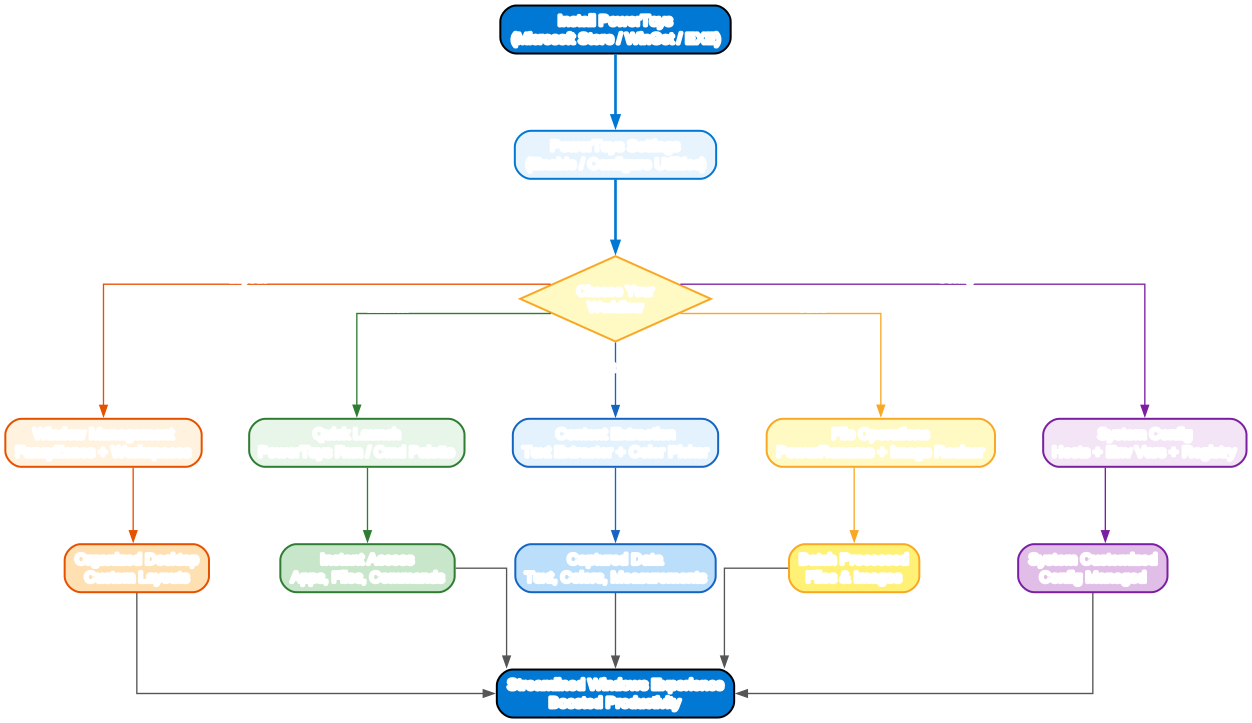
Understanding the PowerToys Workflow
The workflow diagram above illustrates the typical user journey from installation through choosing a workflow to achieving a streamlined Windows experience.
Getting Started
The journey begins with installing PowerToys through any of the available methods. After installation, the Settings application serves as the central configuration hub where you enable and customize each utility to match your workflow.
Choosing Your Workflow
PowerToys supports five primary workflow categories:
- Layout – Window management with FancyZones and Workspaces for users who juggle multiple applications across monitors
- Launch – Quick access with PowerToys Run and Command Palette for users who prefer keyboard-driven workflows
- Extract – Content capture with Text Extractor and Color Picker for designers and researchers
- Files – Batch operations with PowerRename and Image Resizer for users who manage large file collections
- Config – System management with Hosts Editor, Environment Variables, and Registry Preview for IT professionals and developers
Each workflow path leads to a specific productivity outcome, and all paths converge on the ultimate goal: a streamlined, efficient Windows experience tailored to your needs.
Features
| Utility | Description | Shortcut |
|---|---|---|
| FancyZones | Custom window layouts and snapping | Shift+Drag |
| PowerToys Run | Quick launcher for apps and commands | Alt+Space |
| Command Palette | Extensible command runner | Win+Alt+Space |
| Always On Top | Pin any window to the top | Win+Ctrl+T |
| Text Extractor | OCR text capture from screen | Win+Shift+T |
| Color Picker | Pick colors from any application | Win+Shift+C |
| Keyboard Manager | Remap keys and shortcuts | Settings |
| PowerRename | Batch file renaming with regex | Context menu |
| Image Resizer | Batch image resizing | Context menu |
| Screen Ruler | Measure pixels on screen | Win+Shift+M |
| Awake | Prevent Windows from sleeping | System tray |
| File Locksmith | Find which process locks a file | Context menu |
| Peek | Quick file preview | Ctrl+Shift+Space |
| Advanced Paste | AI-powered clipboard transformation | Ctrl+Win+V |
| Workspaces | Save and restore window layouts | Settings |
| Mouse Without Borders | Control multiple PCs with one mouse | Settings |
| Environment Variables | Visual environment variable editor | Settings |
| Hosts File Editor | Visual hosts file editor | Settings |
| Registry Preview | Preview .reg files before merging | Context menu |
| Shortcut Guide | Display Windows shortcuts overlay | Win key hold |
| Crop And Lock | Snapshot a window region | Win+Ctrl+Shift+T |
| New+ | Create files from templates | Context menu |
| Grab And Move | Easy window dragging | Settings |
| File Explorer Add-ons | SVG, Markdown, and icon previews | File Explorer |
| ZoomIt | Screen zoom and annotation | Ctrl+Scroll |
| Light Switch | Quick theme switching | Settings |
| PowerDisplay | Display management | Settings |
Troubleshooting
PowerToys not starting after installation
- Check if PowerToys is running in the system tray
- Restart PowerToys from the Start Menu
- Run as Administrator if permissions are restricted
- Check Windows version – PowerToys requires Windows 10 version 2004 or later
FancyZones not snapping windows
- Ensure FancyZones is enabled in Settings
- Hold Shift while dragging windows to snap
- Check that the zone editor has an active layout
- Restart PowerToys if zones do not appear
PowerToys Run not appearing
- Verify the shortcut (Alt+Space) is not conflicting with other apps
- Try re-enabling PowerToys Run in Settings
- Check if another launcher (like Wox or Listary) is using the same shortcut
Text Extractor not capturing text
- Ensure the OCR language pack is installed
- Go to Settings > Time & Language > Language and install the needed language
- Restart PowerToys after installing language packs
Keyboard Manager remaps not working
- Some applications with admin privileges may ignore remaps
- Try running PowerToys as Administrator
- Check for conflicts with other keyboard utilities
Conclusion
Microsoft PowerToys is an essential toolkit for anyone who wants to get more from their Windows experience. With over 30 utilities covering window management, quick launching, text extraction, keyboard customization, and file operations, PowerToys transforms Windows into a highly customizable and efficient environment. The open-source nature of the project means it continues to evolve with community contributions, and the modular design lets you enable only the tools you need.
The combination of FancyZones for window management, PowerToys Run for quick launching, and Text Extractor for OCR alone makes PowerToys a must-have installation on any Windows machine. Add in the new Command Palette, Advanced Paste with AI capabilities, and the growing ecosystem of community extensions, and PowerToys becomes the single most impactful productivity upgrade available for Windows users.
Links
- GitHub Repository: https://github.com/microsoft/PowerToys
- Official Documentation: https://learn.microsoft.com/en-us/windows/powertoys/
- Microsoft Store: https://apps.microsoft.com/detail/9N9561MR3F8S

Enjoyed this post? Never miss out on future posts by following us


